
Android
Note: The steps may vary depending on the Android device and operating system version.
- Tap on Settings
 icon.
icon. - Tap on Network & internet.
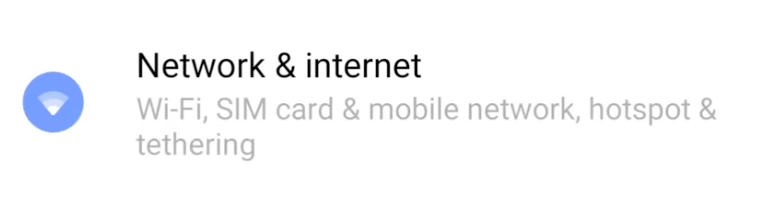
- Tap on Wi-Fi.
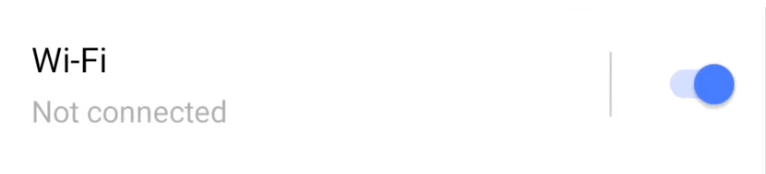
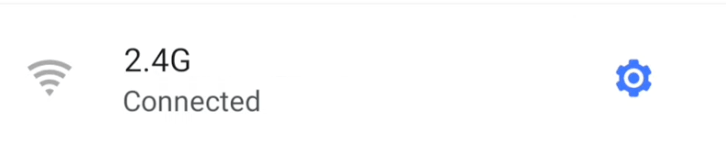
- Tap your Wi-Fi name and enter the Wi-Fi password.
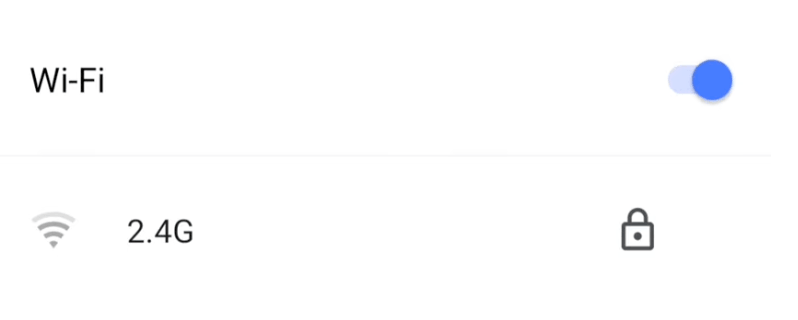
- Tap on the gear icon.
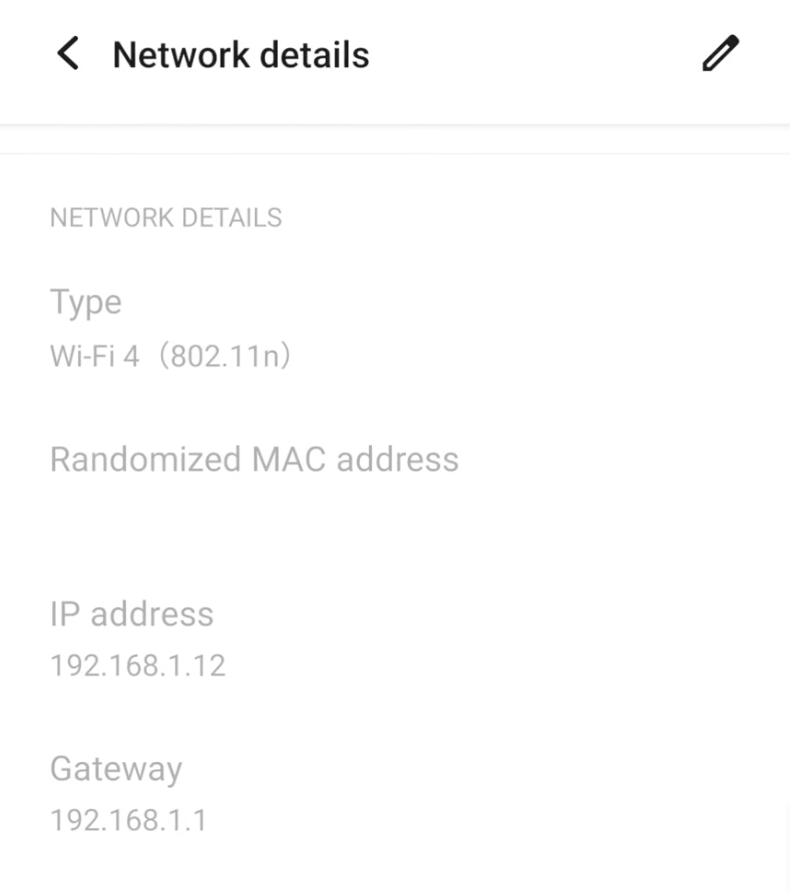
- Scroll down to find your Gateway IP address.
iOS
- Tap Settings
 .
. - Tap Wi-Fi.
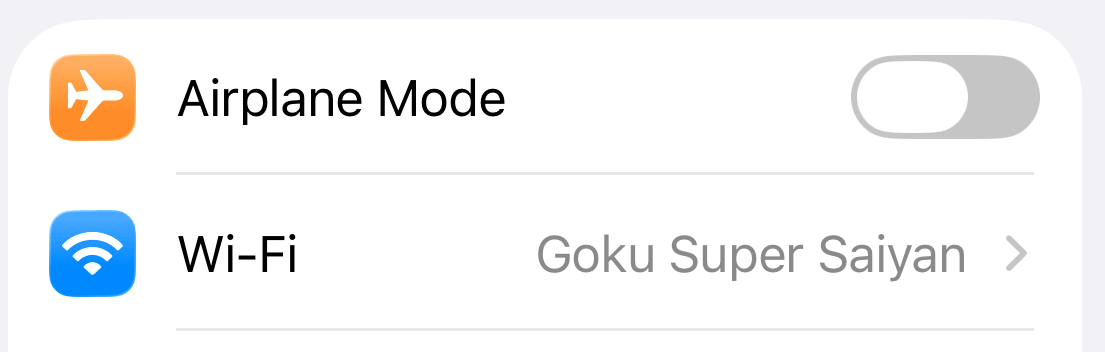
- Tap on the
 icon.
icon.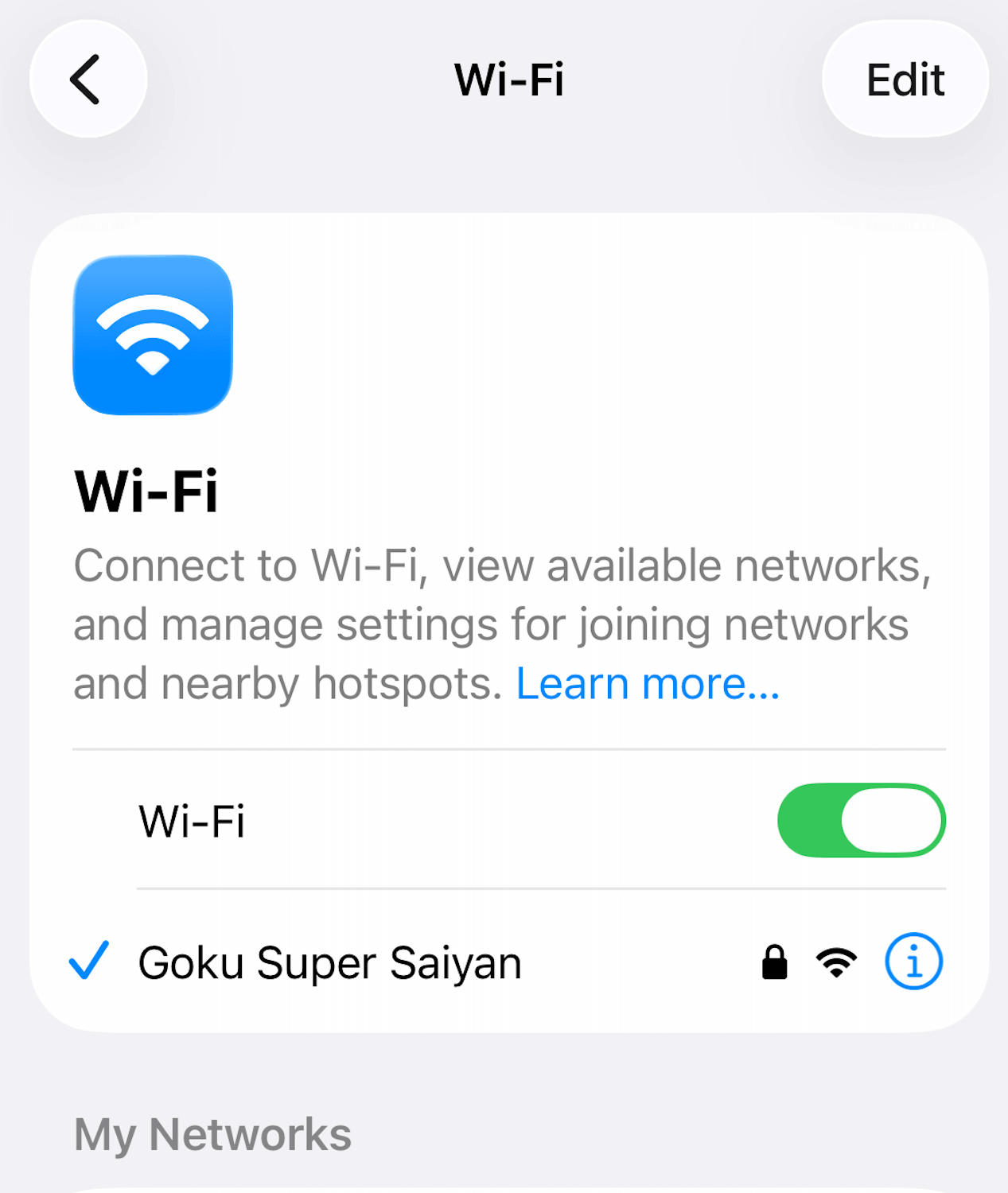
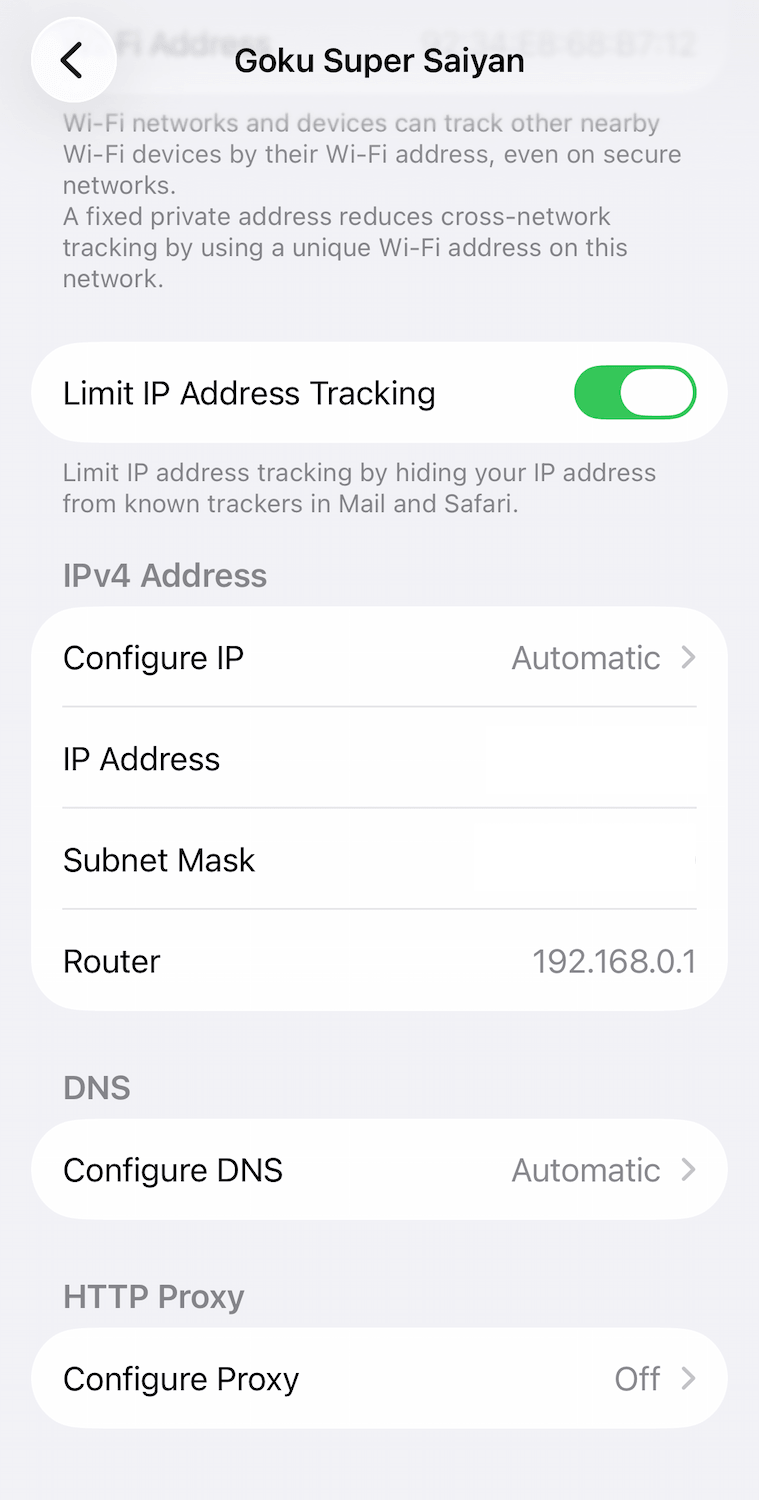
- Scroll down and the Router IP address will be displayed.
Windows
Note: Steps may vary depending on the version of your Windows operating system.
You can find your router IP address through Settings and Command Prompt. Find both the steps below:
Via Settings
- Select Start
 .
. - Select Settings
 .
. - From the sidebar menu, select Network & internet.

- Scroll down and select Advanced network settings.
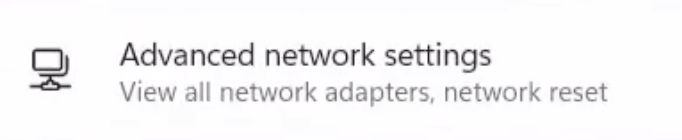
- Under More settings, select Hardware and connection properties.
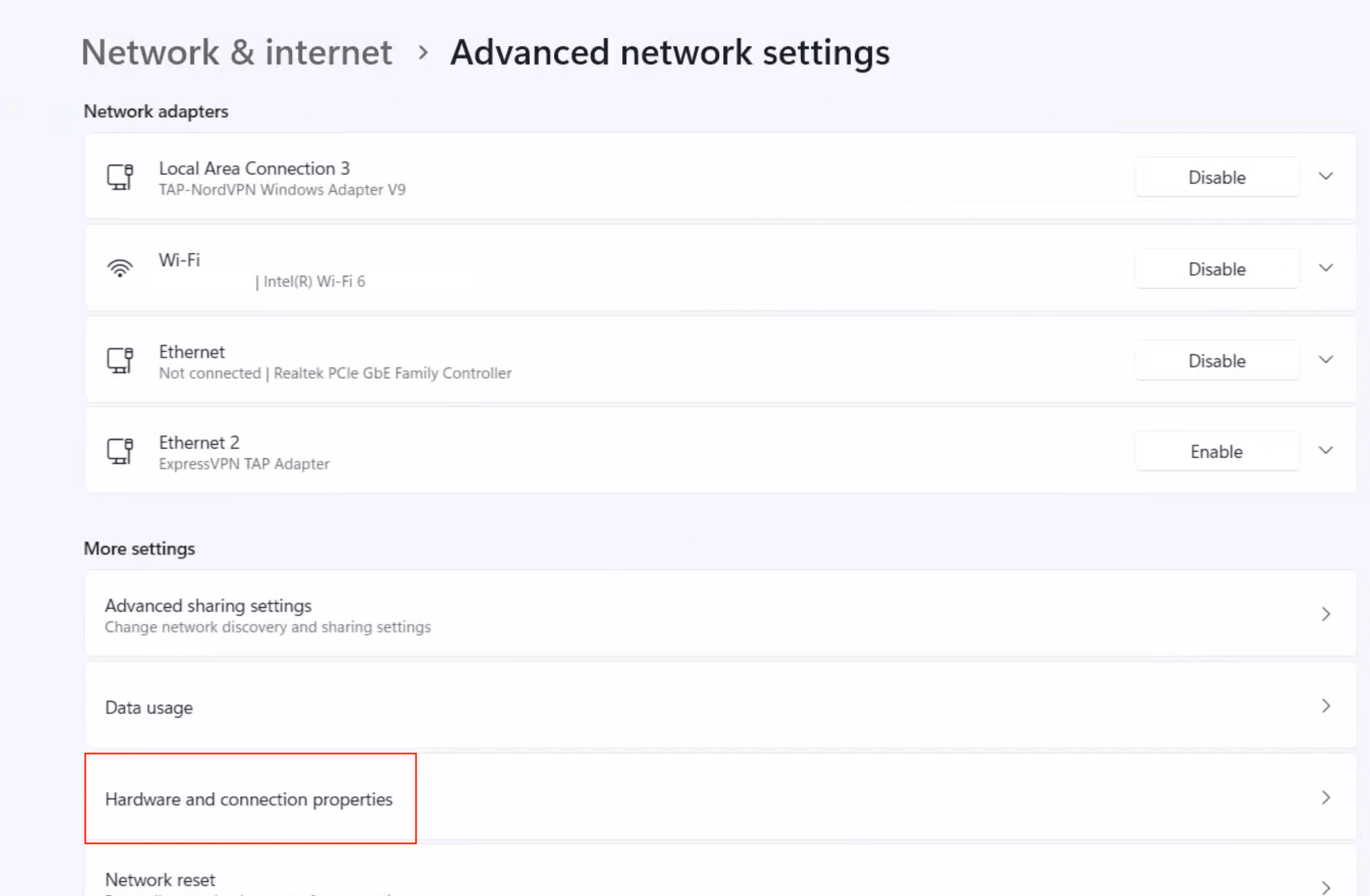
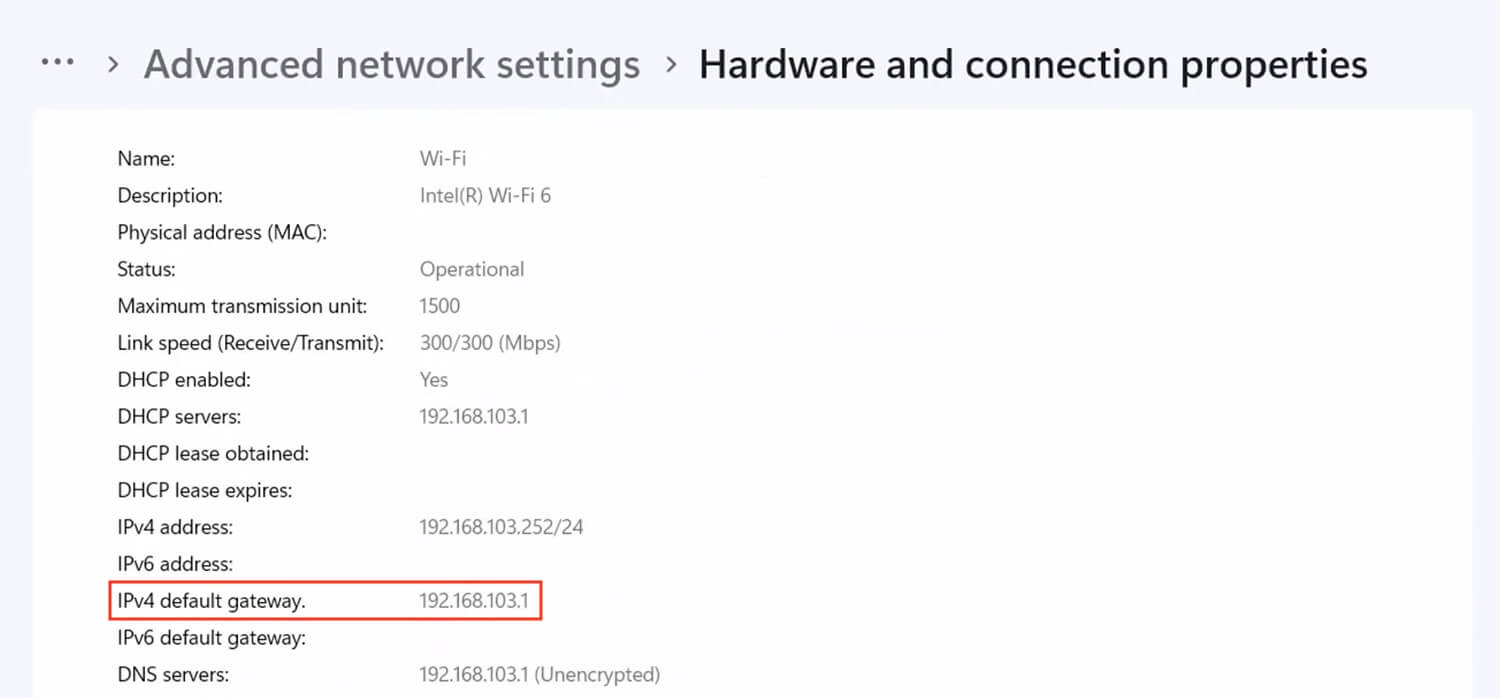
- Look for your router IP address listed next to IPv4 default gateway.
Via Command Prompt
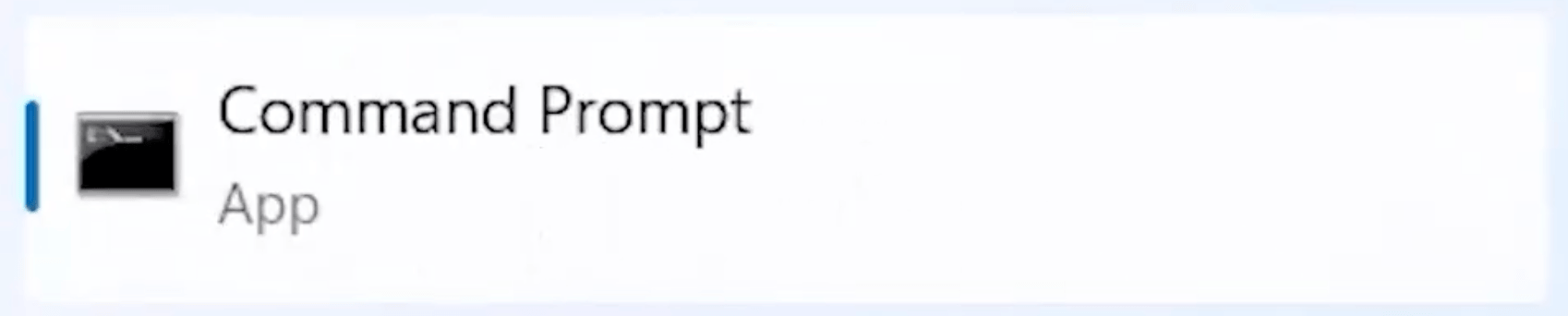
- Select the Search box located on the taskbar.

- Type “cmd” or “Command Prompt“.
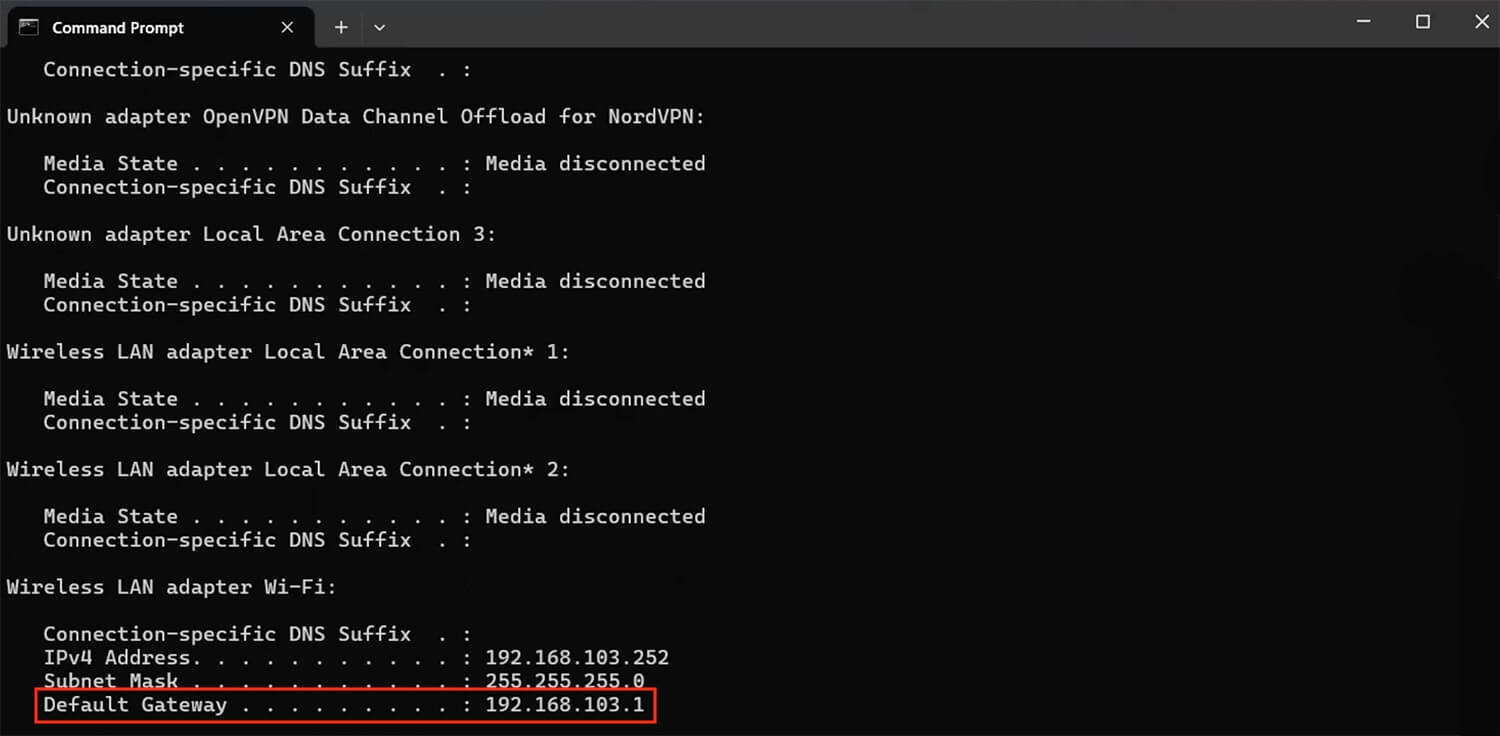
- Type ipconfig and press enter.
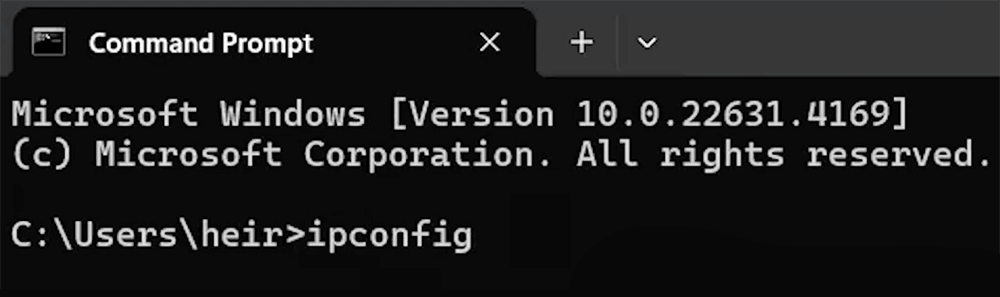
- Look for the router IP address listed next to the Default Gateway.
MacOS
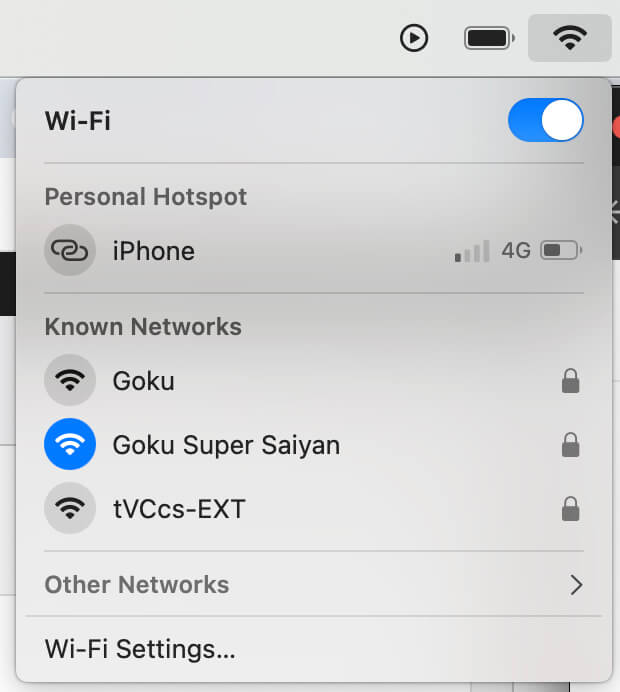
- Click the Wi-Fi icon in the menu bar and select Wi-Fi Settings.
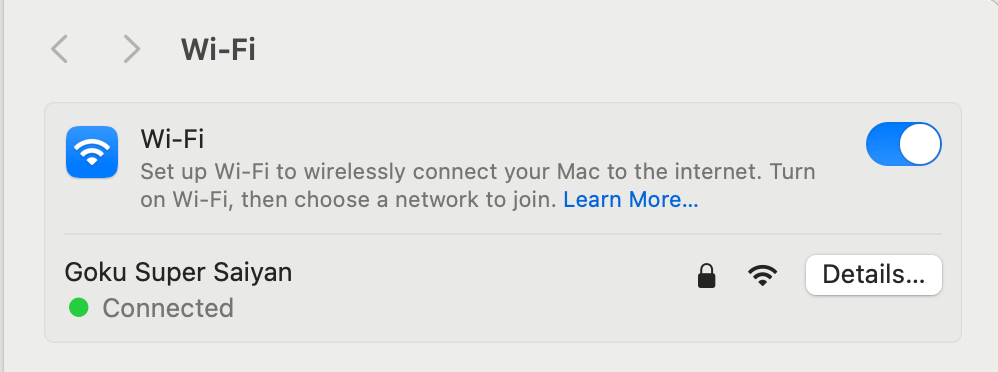
- Click Details next to your connected Wi-Fi network.
- Click TCP/IP.
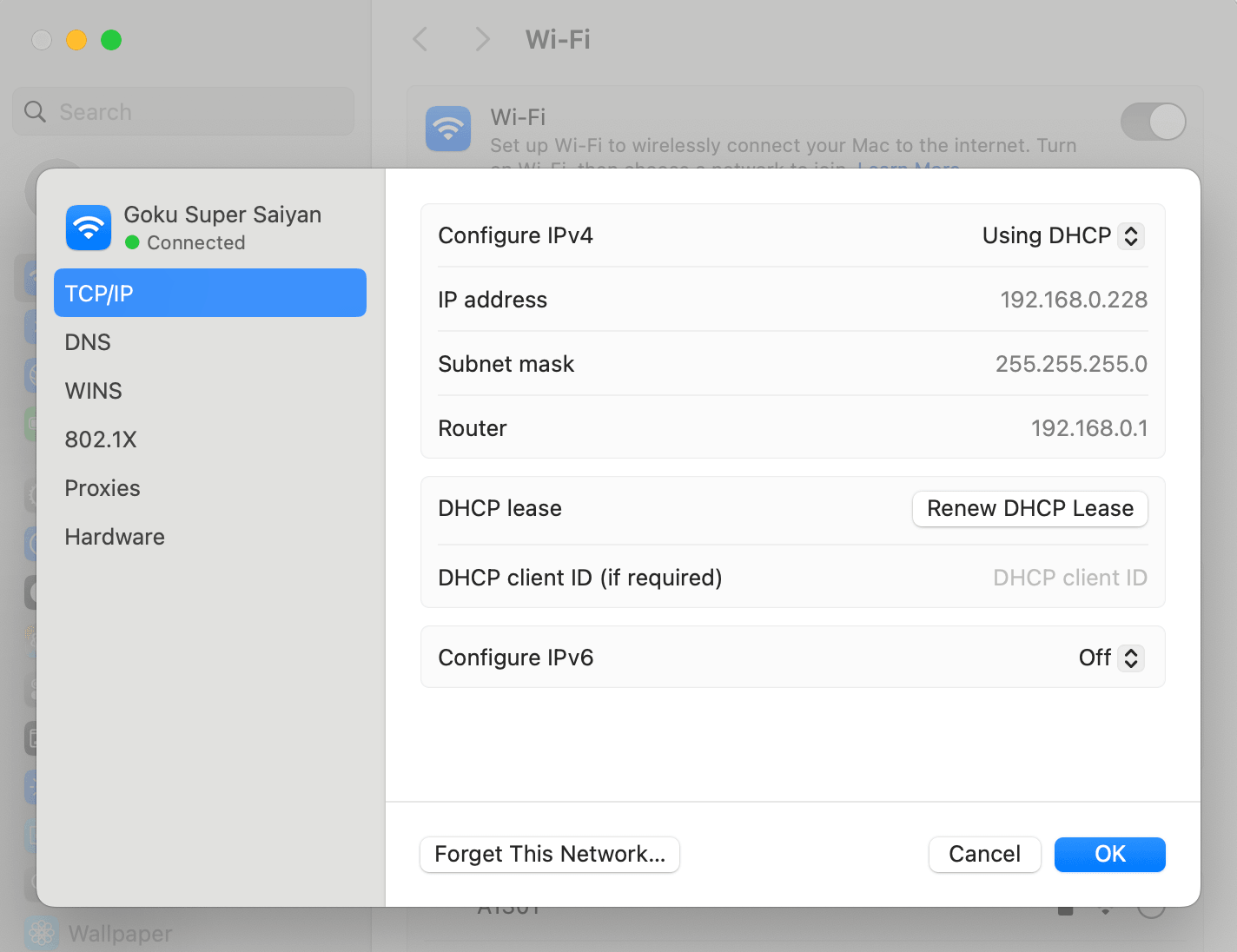
- Your router’s IP address is listed as Router.