
If you are trying to access your router web interface through gateway IP address but you are seeing a blank screen or an error message then use this article for troubleshooting steps. For most times the problem simply is that you are not connected to the router’s Wi-Fi network or you are connecting to the wrong IP address so make sure to first cross-check the correct IP address and try again. Other common solutions are: clear your browser’s cache or try a different web browser and rebooting your router. Use the following tips for help with accessing your router:
Connect to your router’s Wi-Fi network first
The IP address is only reachable when your device is connected to the router’s Wi-Fi network. If you are not connected to the router Wi-Fi network or you have typed the wrong IP address, the web interface won’t open and you will see connection timed out on your web browser.
Connect your device to the router with an wired Ethernet cable or wirelessly then try loading the IP address again. The default router IP address is usually printed on a label on the bottom or under side of the router.
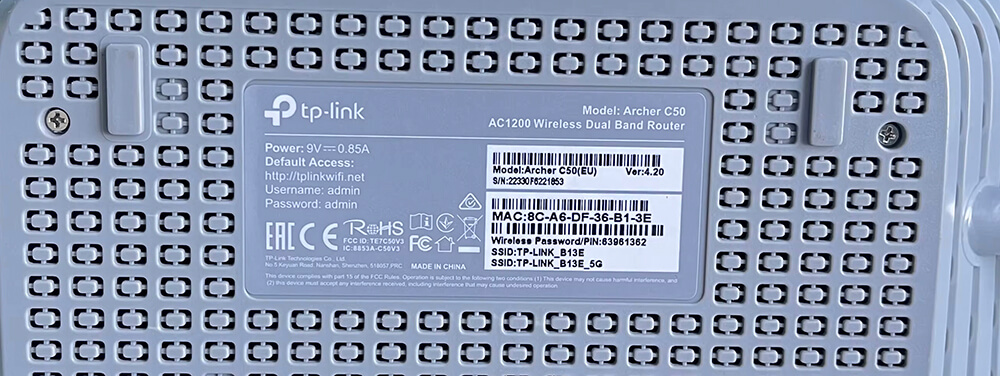
Use your router IP address instead of domain name
Most router brands offers custom domain names such as tplinkwifi.net for TP-Link, routerlogin.net for Asus, to access your router web interface. These web address resolves to the router’s gateway IP address. If that domain name is not working, try using the IP addresses directly, for example: 192.168.1.1 or 192.168.0.1.
To check your router IP address, see How to find your router’s IP address? for step-by-step instructions.
An IP address consists of numerics only in x.x.x.x format. Avoid common typos such as entering the alphabet L or O instead of the digits 1 or 0. For example:
- Correct: 192.168.1.1, 192.168.0.1, 192.168.100.1
- Incorrect: 192.168.l.l, 192.168.o.1, 192.168.l00.1
Clear your browser cache and cookies
If you see an error message while access the web interface, your browser may have cached the error page by accident. Try clearing your browser cache and cookies and try again. Visit the following links for instruction on how to clear your browser cache and cookies:
You can also try using a different web browser. For example, if you are using Google Chrome try switching to Mozilla Firefox.
Try connecting to your router with a different way
- If you are using a mobile phone to access your web interface, use a laptop, tablet or desktop.
- If you are connected to the router wirelessly, try using a Wired Ethernet cable.
- If you are using 5 GHz wireless band, connect to the 2.4 Ghz wireless band.
Disconnect from additional network connections
Don’t connect to multiple networks at the same time such as a wired connection, a wireless connection, and a virtual private network (VPN). Disconnect all Internet and VPN connection and only connect to the router’s who’s web interface you are to access.
Reboot your router
To reboot your router simply press the power button off and then on again or unplug the power cable and plug it back in.
You may also reboot your devices such as your mobile, laptop, tablet, desktop, game consoles as that can resolve many issues, including unable to access the router login page.
If you received a “Your Connection Is Not Private” warning
This is an expected response because these router domain names or IP addresses uses a self-signed SSL certificate which does not fulfill the default SSL policy of the browser. Your connection is still secure. To process:
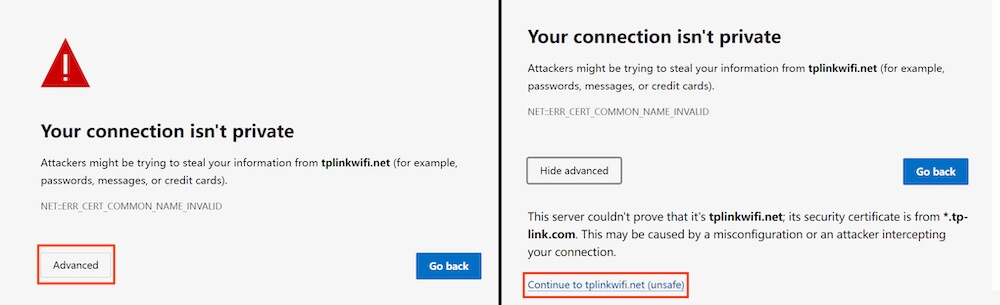
- Google Chrome: Click Advanced and click Proceed to <website> (unsafe).
- Mozilla Firefox: Click Advanced, then Proceed to <website> (Risky).
- Microsoft Edge: Click Advanced, then Continue to <website> (unsafe).
- Apple Safari: Click Show details, then visit this website.
Disable pop ads blocker or antivirus software
These software or browser extensions may interfere with accessing the web UI address. Temporarily disable any such software that you use normally use.
Perform a factory reset
A factory reset should always be your last option because it erases all router settings to factory default settings. This will reset your Wi-Fi password, guest networks, and other network settings so proceed with caution. Try all the steps mentioned above before taking this action.
To perform a factory reset, press and hold the small RESET button at the bottom or underside of the router. Once the LED lights starts blinking release the reset button and the reset will be completed. Now you need to reconfigure your router settings manually.