
192.168.1.1 is the gateway IP address of your router to access the web-based user interface to change Wi-Fi password, Network Name (SSID), and other default settings.
To access your router settings, type http://192.168.1.1 in the address bar of your web browser or click on the Login button below.
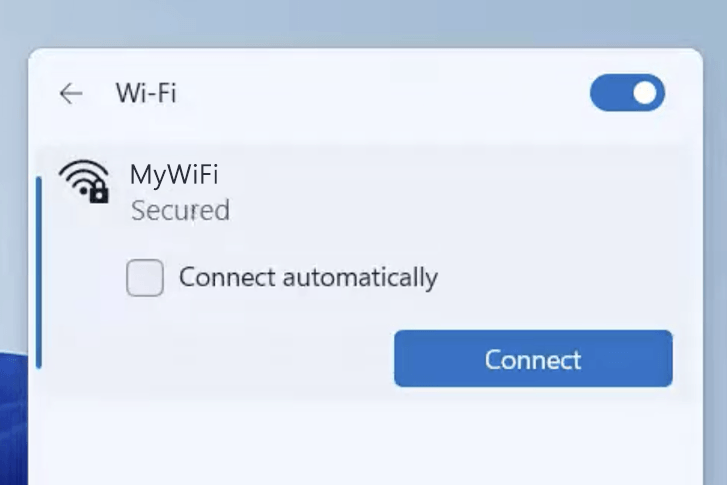
Your device must be connected to the router via Wi-Fi or an Ethernet cable.
The gateway IP address will only load on the browser when your device is connected to the router. For help, see How to find your router IP address? and Can’t connect to my Router login page; what do I do?.
Default Username and Password
Common default router username and password combinations.
| Router Model | IP Address | Username | Password |
|---|---|---|---|
| TP-Link VX220-G2v | 192.168.1.1 | admin | [Printed on router sticker] |
| ZTE ZXHN F660 | 192.168.1.1 | admin | admin |
| Tenda D301 | 192.168.1.1 | admin | admin |
| Huawei HG659 | 192.168.1.1 | admin | admin |
| NETGEAR R6700AX | 192.168.1.1 | admin | password |
| ASUS DSL-AC68U | 192.168.1.1 | admin | admin |
| NETGEAR M1 | 192.168.1.1 | admin | [Printed on router sticker] |
| Mercusys MW300D | 192.168.1.1 | admin | admin |
| ZTE ZXHN F680 | 192.168.1.1 | admin | Web@0063 |
| Netis NC21 | 192.168.1.1 | Not required | [Set during initial setup] |
| TP-Link Archer VR400 | 192.168.1.1 | admin | admin |
| Mercusys MW302R | 192.168.1.1 | Not required | [Set during initial setup] |
| ZTE ZXHN F670L | 192.168.1.1 | admin | admin |
| ZTE ZXHN F660 | 192.168.1.1 | user | user |
| ZTE ZXHN F609 | 192.168.1.1 | admin | Telkomdso123 |
| Netis WF2471 | 192.168.1.1 | Not required | Not required |
| Netis NX31 | 192.168.1.1 | admin | [Set during initial setup] |
| AT&T Internet Air | 192.168.1.1 | attadmin | admin |
| Tenda V12 | 192.168.1.1 | admin | admin |
| Tenda HG3 | 192.168.1.1 | admin | admin |
| Tenda D301 v2 | 192.168.1.1 | admin | admin |
| Tenda HG6 | 192.168.1.1 | admin | admin |
| Tenda D1201 | 192.168.1.1 | admin | admin |
| ZTE ZXHN F6600P | 192.168.1.1 | admin | 1234 |
| ZTE ZXHN H267N | 192.168.1.1 | cytauser | cytauser |
| ZTE ZXHN H288A | 192.168.1.1 | user | [Printed on router sticker] |
| ZTE ZXHN H288A | 192.168.1.1 | user | [Printed on router sticker] |
| TP-Link Archer VR300 | 192.168.1.1 | admin | admin |
| TP-Link Archer VR400 | 192.168.1.1 | admin | admin |
| TP-Link VX230v | 192.168.1.1 | Not required | admin |
| TP-Link TL-MR6400 | 192.168.1.1 | Not required | [Set during initial setup] |
| TP-Link Archer VR1600v | 192.168.1.1 | admin | admin |
| TP-Link TD-W8961N | 192.168.1.1 | admin | admin |
| TP-Link TD-W9970 | 192.168.1.1 | admin | admin |
| TP-Link TL-MR100 | 192.168.1.1 | Not required | [Set during initial setup] |
| TP-Link VB433v | 192.168.1.1 | [Set during initial setup] | [Set during initial setup] |
| TP-Link Archer D7 | 192.168.1.1 | Not required | admin |
| TP-Link Archer VR1210v-V2 | 192.168.1.1 | Not required | admin |
| TP-Link TD-W8970 | 192.168.1.1 | admin | admin |
| TP-Link Archer VR600 | 192.168.1.1 | Not required | [Set during initial setup] |
| TP-Link Archer VR2100 | 192.168.1.1 | Not required | [Set during initial setup] |
| TP-Link TD-W8968 | 192.168.1.1 | admin | admin |
| TP-Link Archer VR2100v | 192.168.1.1 | Not required | [Set during initial setup] |
| D-Link DSL-2730U | 192.168.1.1 | admin | admin |
| D-Link DSL-2877AL | 192.168.1.1 | admin | admin |
| D-Link DIR-850L | 192.168.1.1 | admin | [Printed on router sticker] |
| D-Link DSL-2878 | 192.168.1.1 | admin | [Printed on router sticker] |
| D-Link DSL -2878AL | 192.168.1.1 | Not required | [Printed on router sticker] |
| D-Link DSL-2888A | 192.168.1.1 | admin | admin |
| D-Link DSL-2900AL | 192.168.1.1 | admin | admin |
| D-Link DSL-3890 | 192.168.1.1 | admin | [Printed on router sticker] |
| D-Link DSL-4320L | 192.168.1.1 | admin | admin |
| D-Link DSL-5300 | 192.168.1.1 | admin | admin |
| D-Link DSL-X1852E | 192.168.1.1 | admin | [Printed on router sticker] |
| D-Link DVA-2800 | 192.168.1.1 | admin | admin |
| FiberHome HG6145D2 | 192.168.1.1 | user | user1234 |
| Huawei HG532 | 192.168.1.1 | admin | admin |
| Huawei HG532s | 192.168.1.1 | admin | admin |
| Huawei B2338-168 | 192.168.1.1 | user | [Printed on router sticker] |
| Huawei HG633 | 192.168.1.1 | admin | [Printed on router sticker] |
| Huawei E5172 | 192.168.1.1 | admin | admin |
| Huawei EchoLife HG8546M | 192.168.1.1 | user | [Printed on router sticker] |
| Huawei HG8145V | 192.168.1.1 | admin | [Printed on router sticker] |
| Huawei HG659 | 192.168.1.1 | admin | admin@HG659 |
Note: The default IP address, Username, and Password are printed on a sticker on the back or underside of the router. Some routers require you to create a new password during initial setup.
How to login to 192.168.1.1?

1) Connect your device to the router via an Ethernet cable or Wi-Fi connection.
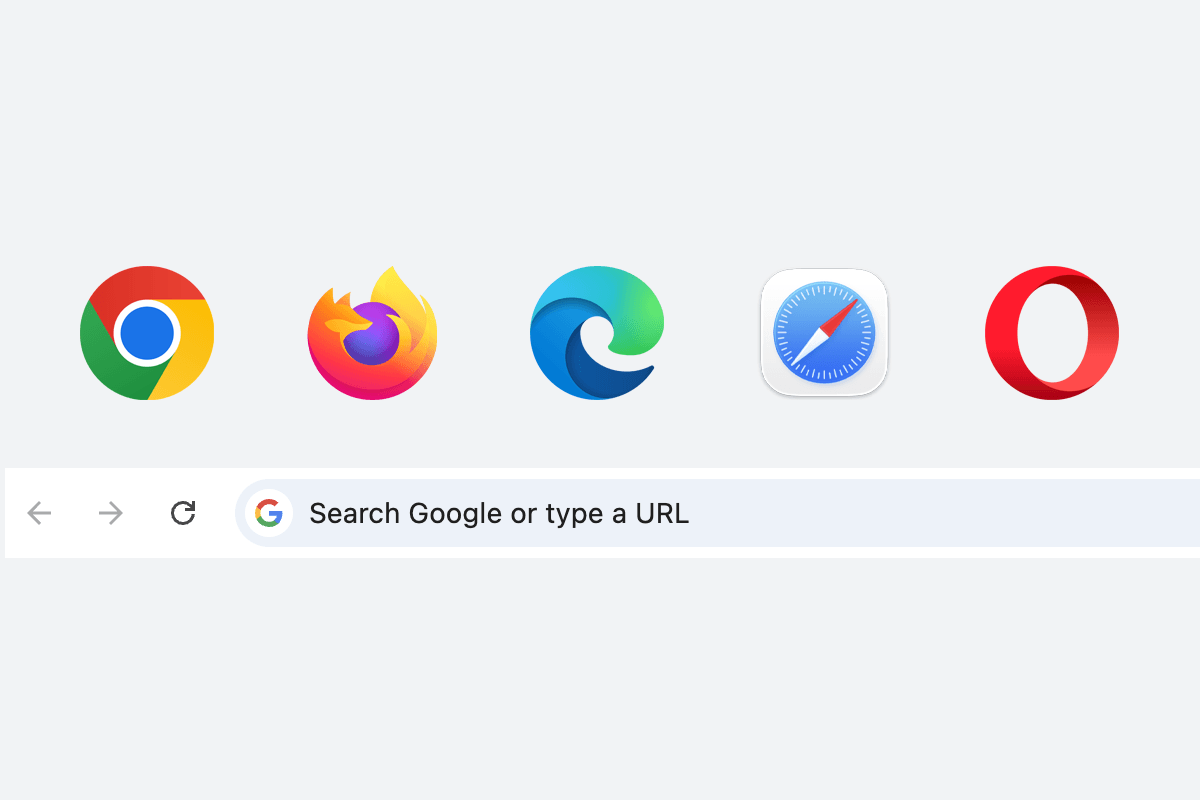
2) Open a web browser and type http://192.168.1.1 in the address bar.
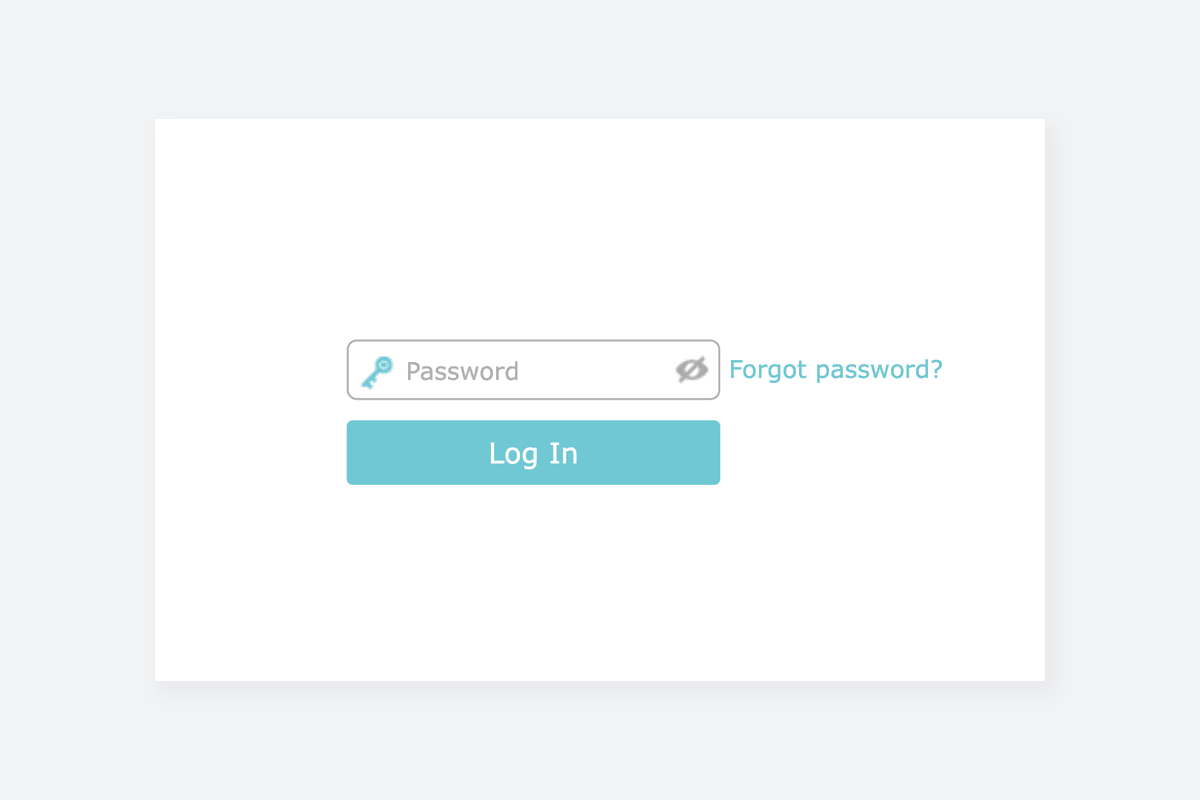
3) Enter the router username and password and click Login.
Change Wi-Fi Password and Network Name (SSID)
The exact menu path depends on your router brand, model and firmware version. Below are some router models using 192.168.1.1 as the default IP address.
TP-Link Archer VR400
- Connect your device to the router via Wi-Fi or an Ethernet cable.
- Open a browser and type http://192.168.1.1 in the address bar.
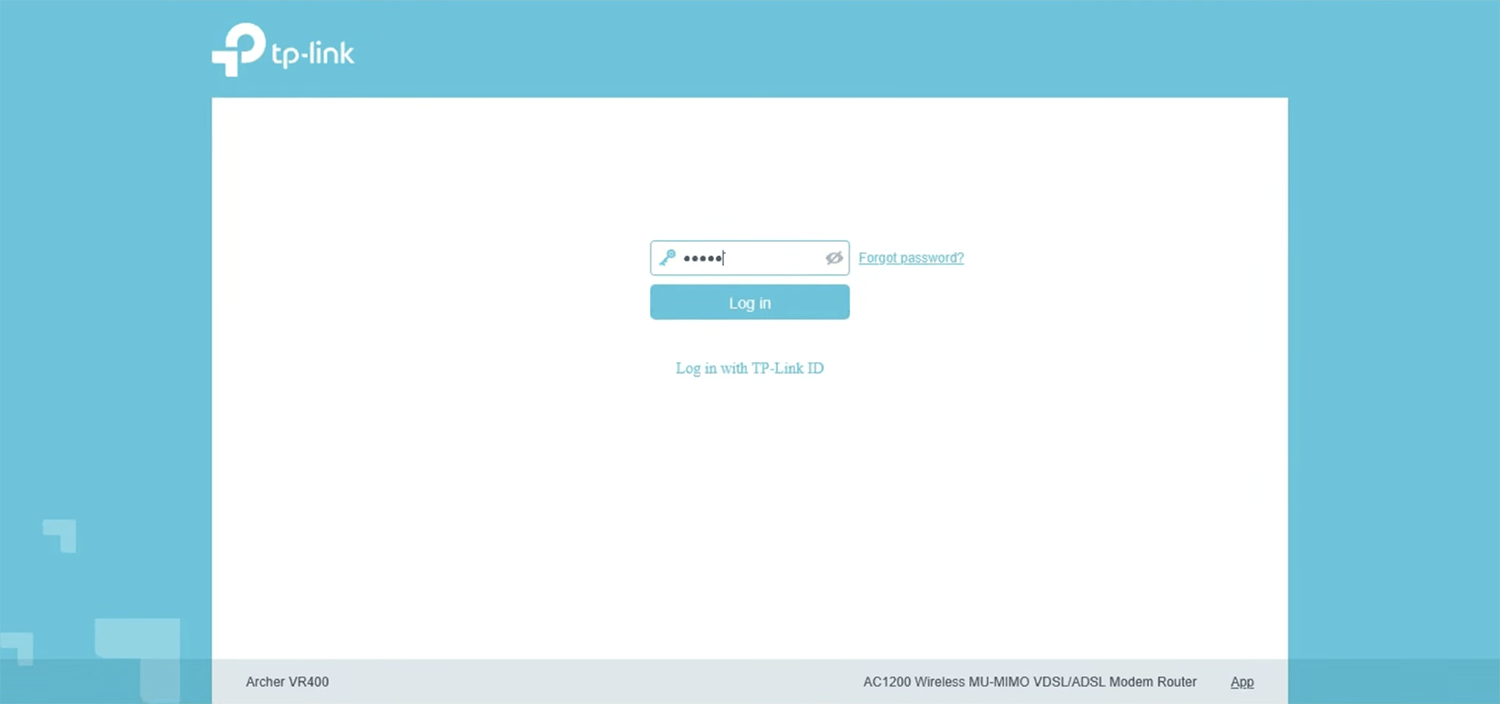
- Enter the Password and click Log In.
- Go to Basic > Wireless.
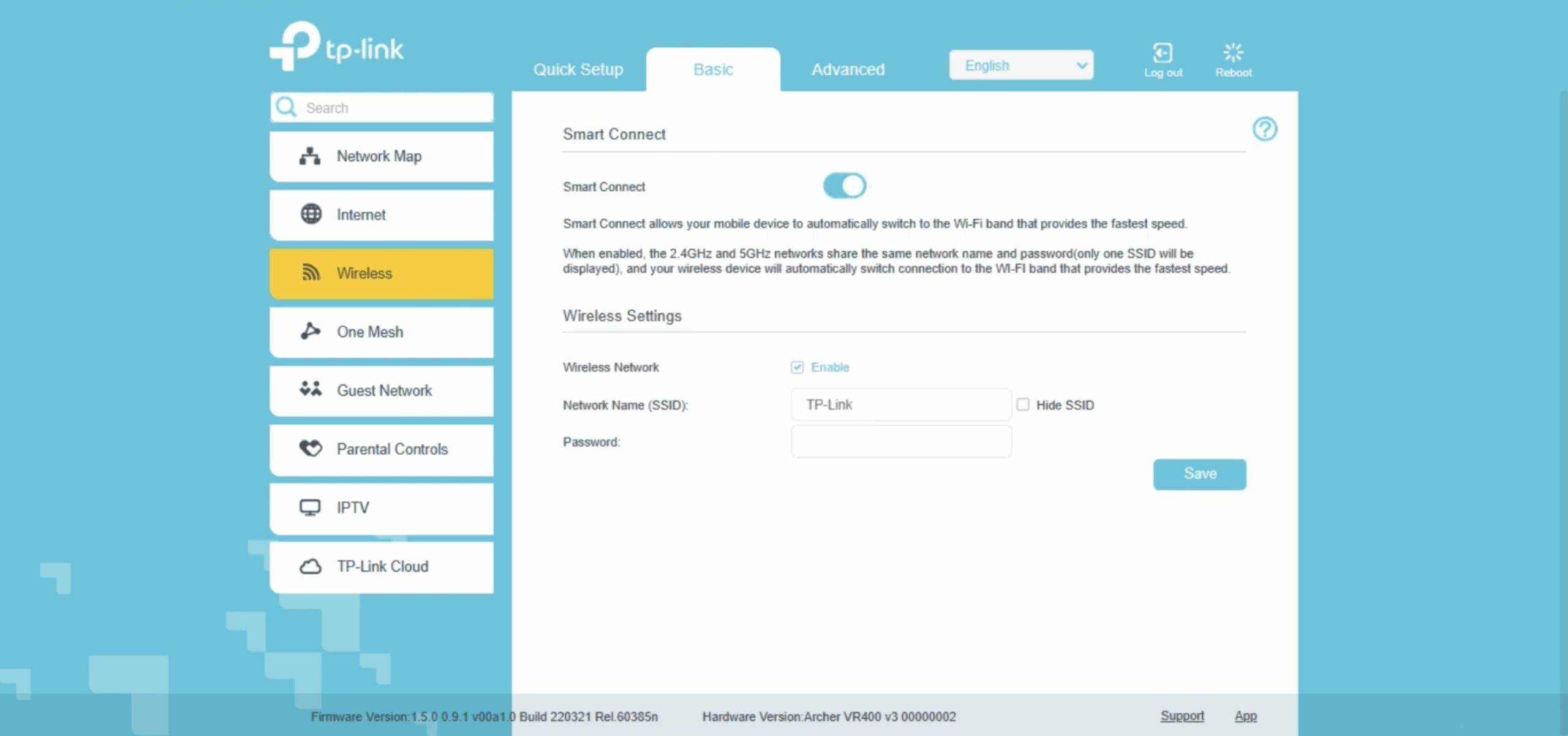
- Enter the Wi-Fi network name in the Network Name (SSID) field.
- Enter the Wi-Fi password in Password field.
- Click Save.
Tenda D301 v4
- Connect your device to the router via Wi-Fi or an Ethernet cable.
- Open a browser and type http://192.168.1.1 in the address bar.
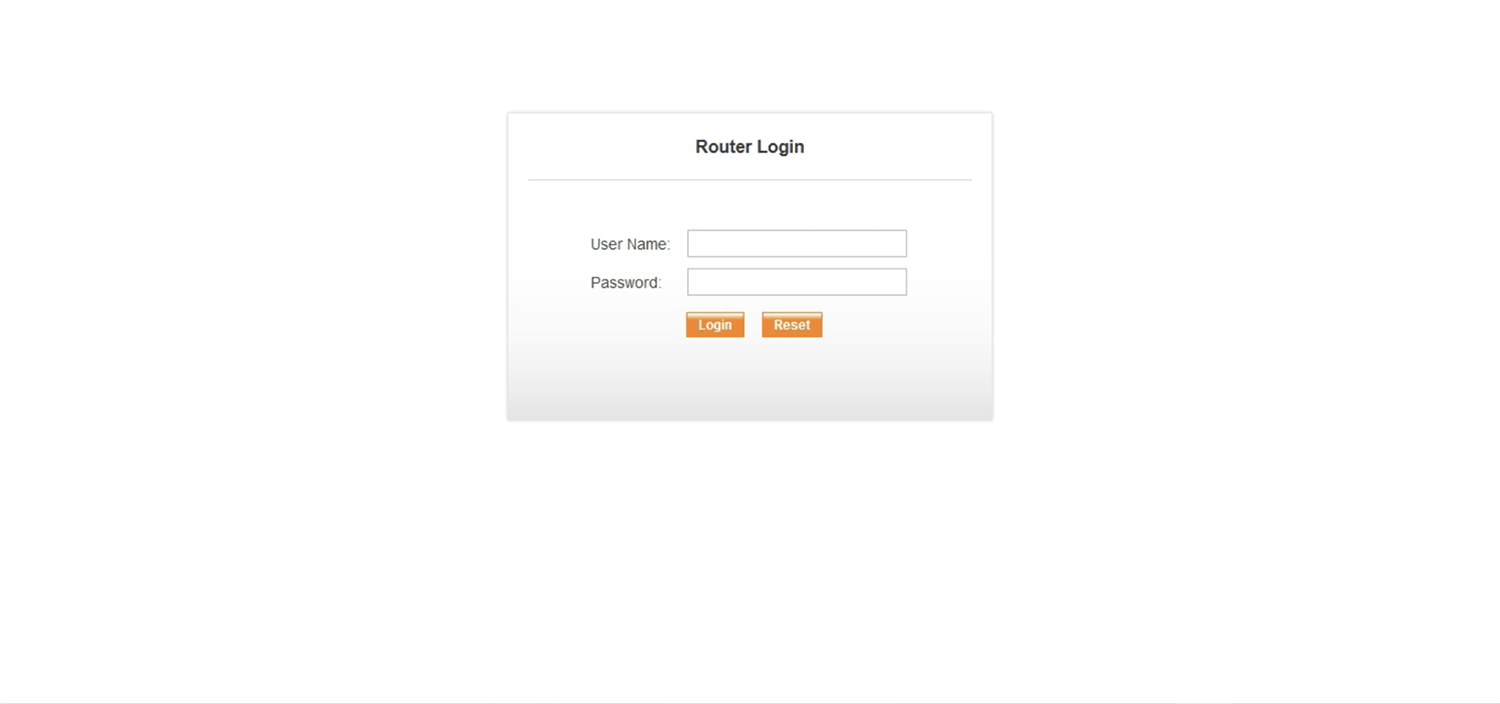
- Enter the User Name: admin and Password: admin and click Login.
- Go to Setup > WLAN > Basic.
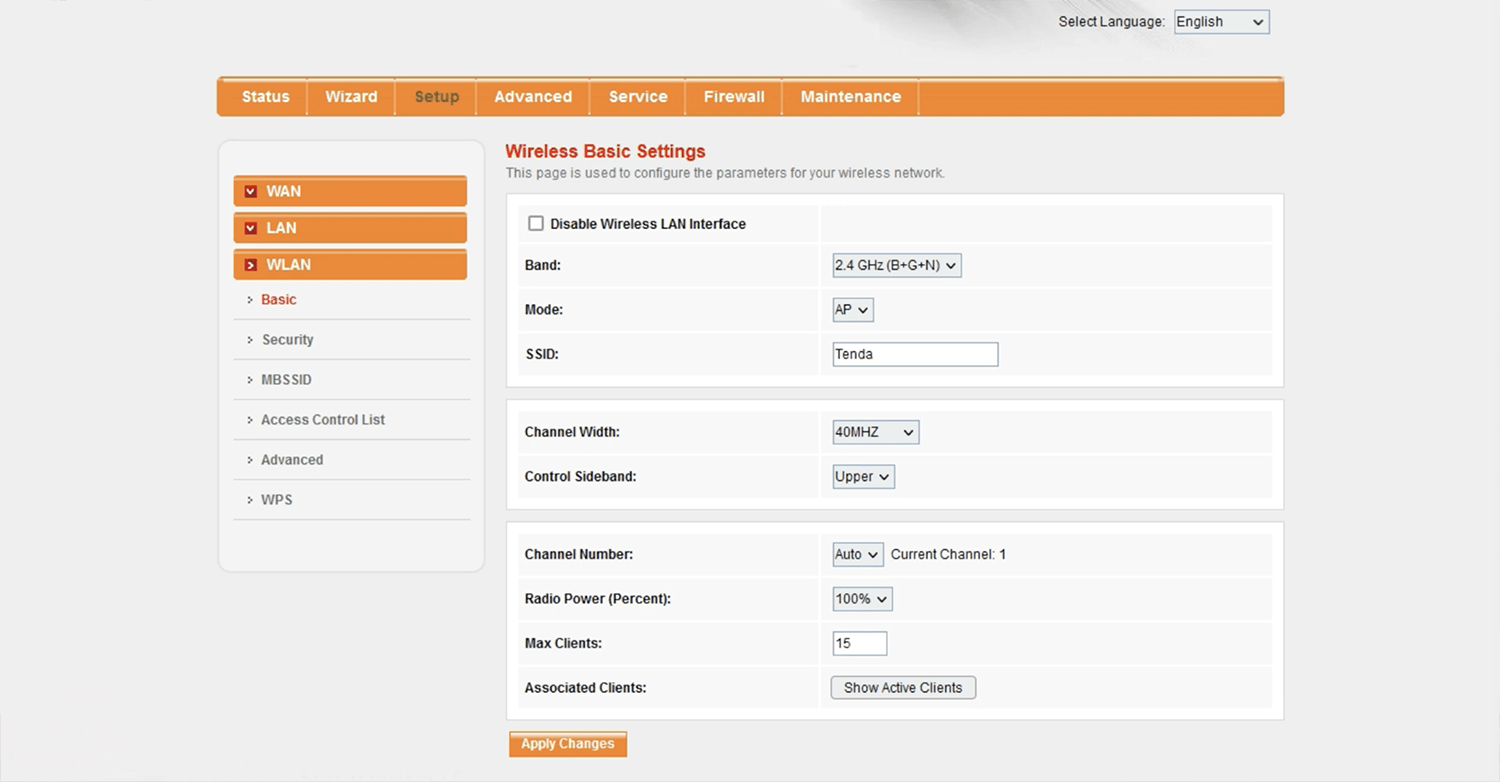
- Enter the Wi-Fi network name in the SSID field and click Apply Changes.
- Go to Setup > WLAN > Security.
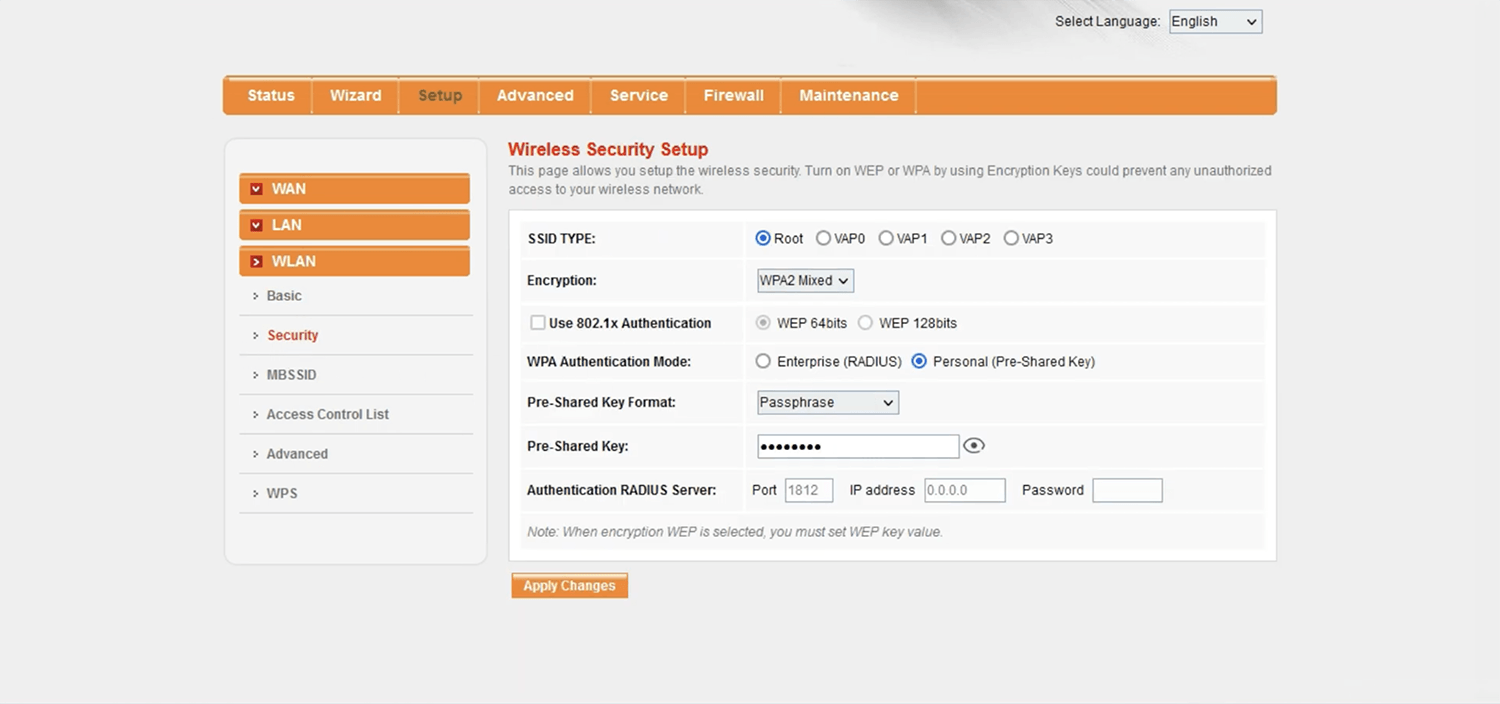
- Select Encryption: WPA2 Mixed, WPA Authentication Mode: Personal (Pre-Shared Key) and Pre-Shared Key Format: Passphrase.
- Enter the Wi-Fi password in Pre-Shared Key field and click Apply Changes.
ZTE ZXHN F609
- Connect your device to the router, either by Wi-Fi or with an Ethernet cable.
- Open a browser and type http://192.168.1.1 in the address bar.
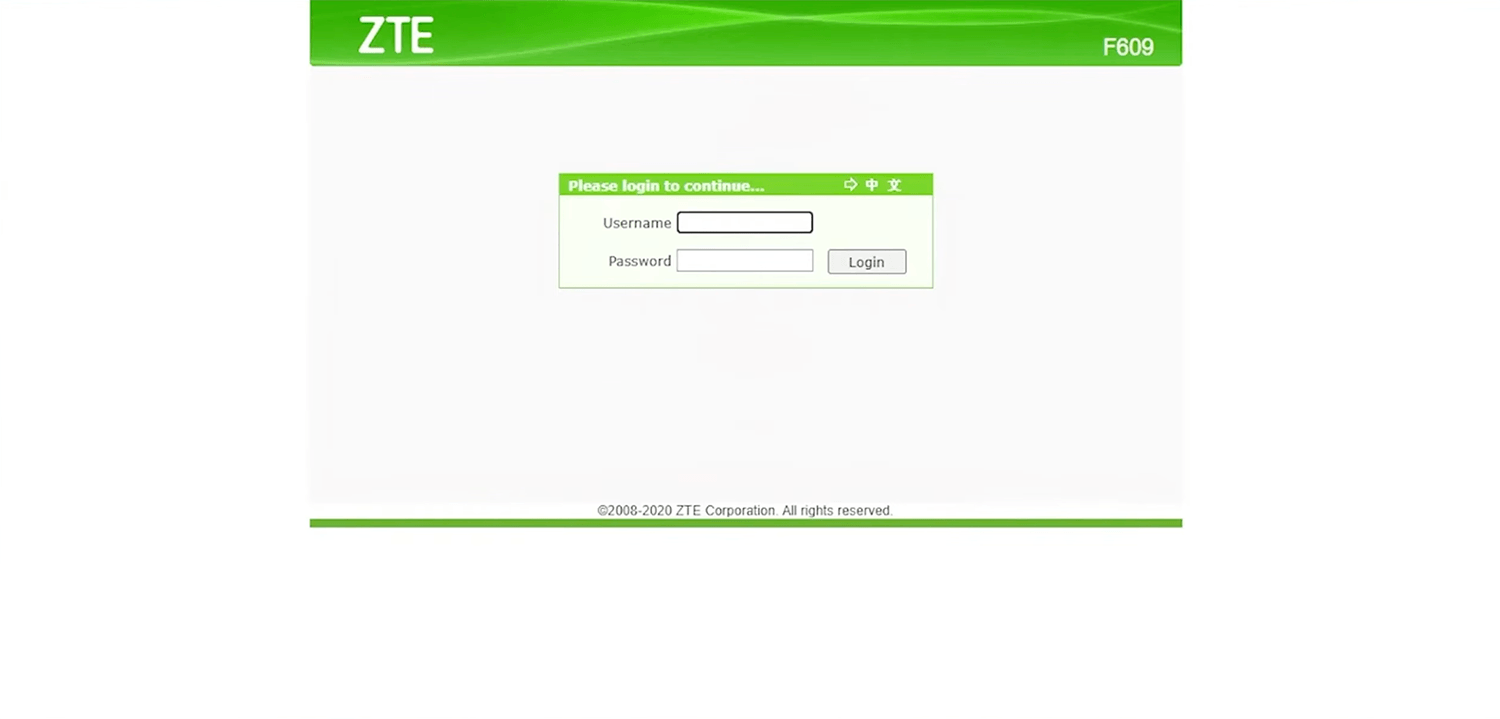
- Enter the Username and Password and click Login.
- Select Network > WLAN > SSID Settings.
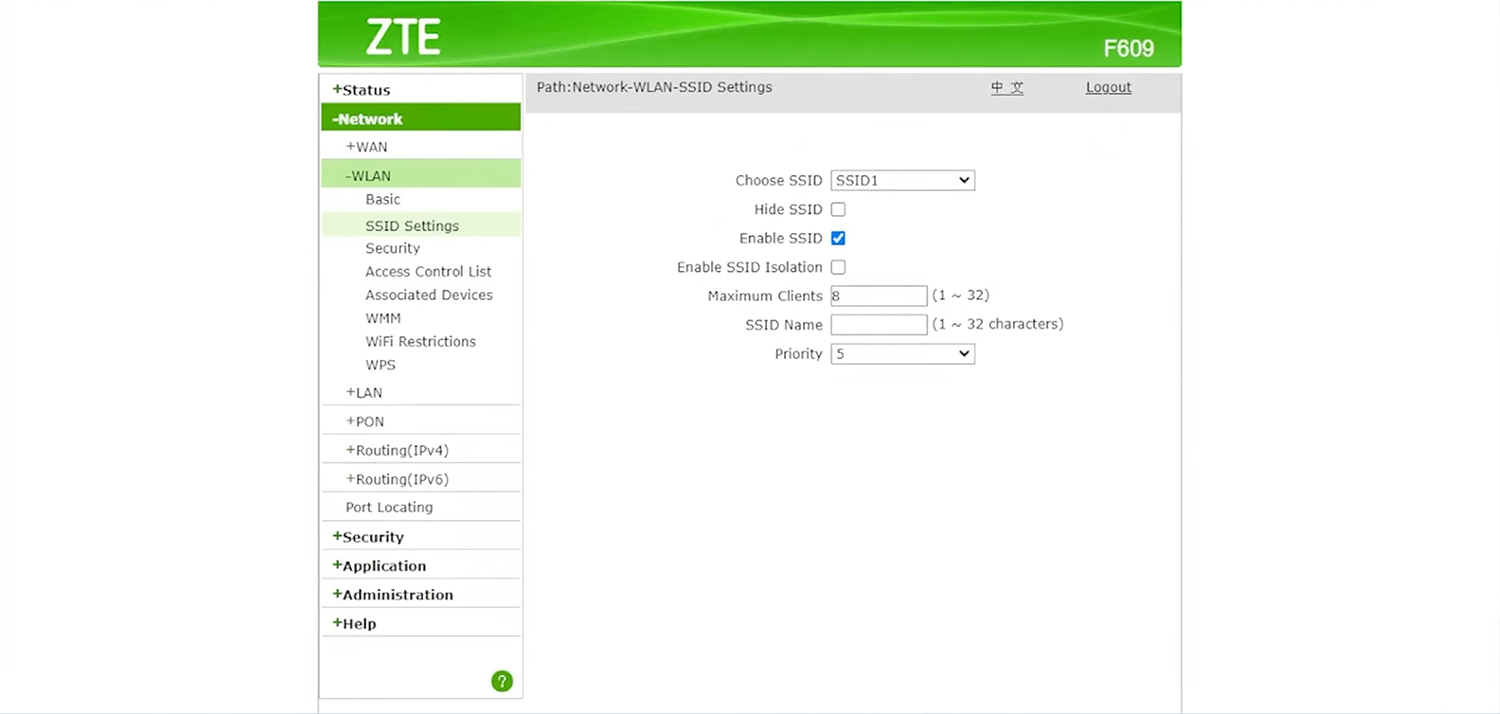
- Enter the Wi-Fi network name in the SSID Name field and click Submit.
- Select Network > WLAN > Security.
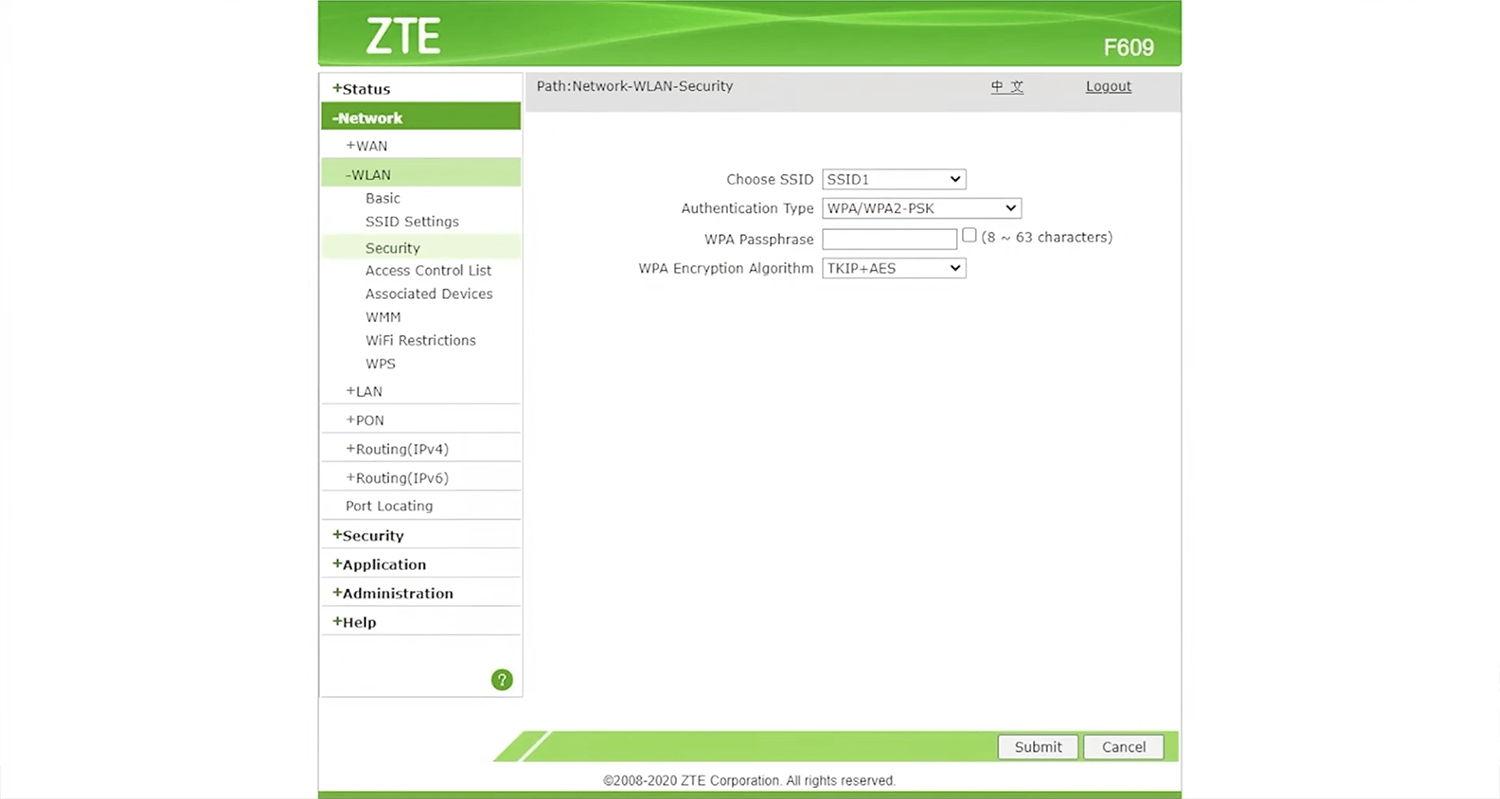
- Select Authentication Type: WPA/WPA2-PSK and WPA Encryption Algorithm: TKIP+AES.
- Enter the Wi-Fi password in the WPA passphrase field and click Submit.
Huawei HG659
- Connect your device to the router via Wi-Fi or an Ethernet cable.
- Open a browser and type http://192.168.1.1 in the address bar.
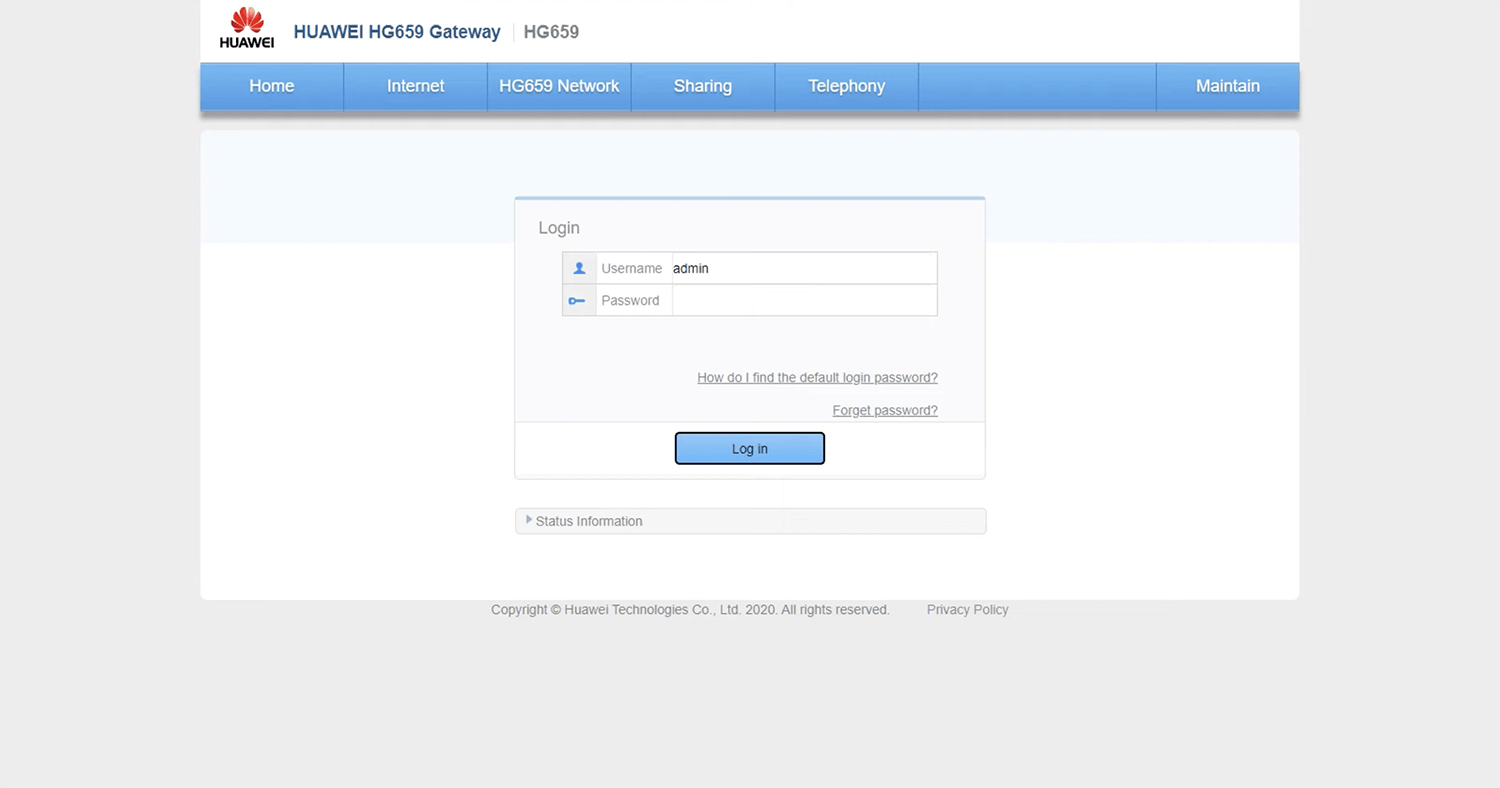
- Enter the Username and Password and click Log in.
- On the Home screen, select I want to Set Up WLAN.
- Enter the Wi-Fi network name in the WLAN 2.4 Ghz SSID field.
- Enter the Wi-Fi password in Password field.
- Click Save.
D-Link DSL-X1852E
- Connect your device to the router via Wi-Fi or an Ethernet cable.
- Open a browser and type http://192.168.1.1 in the address bar.
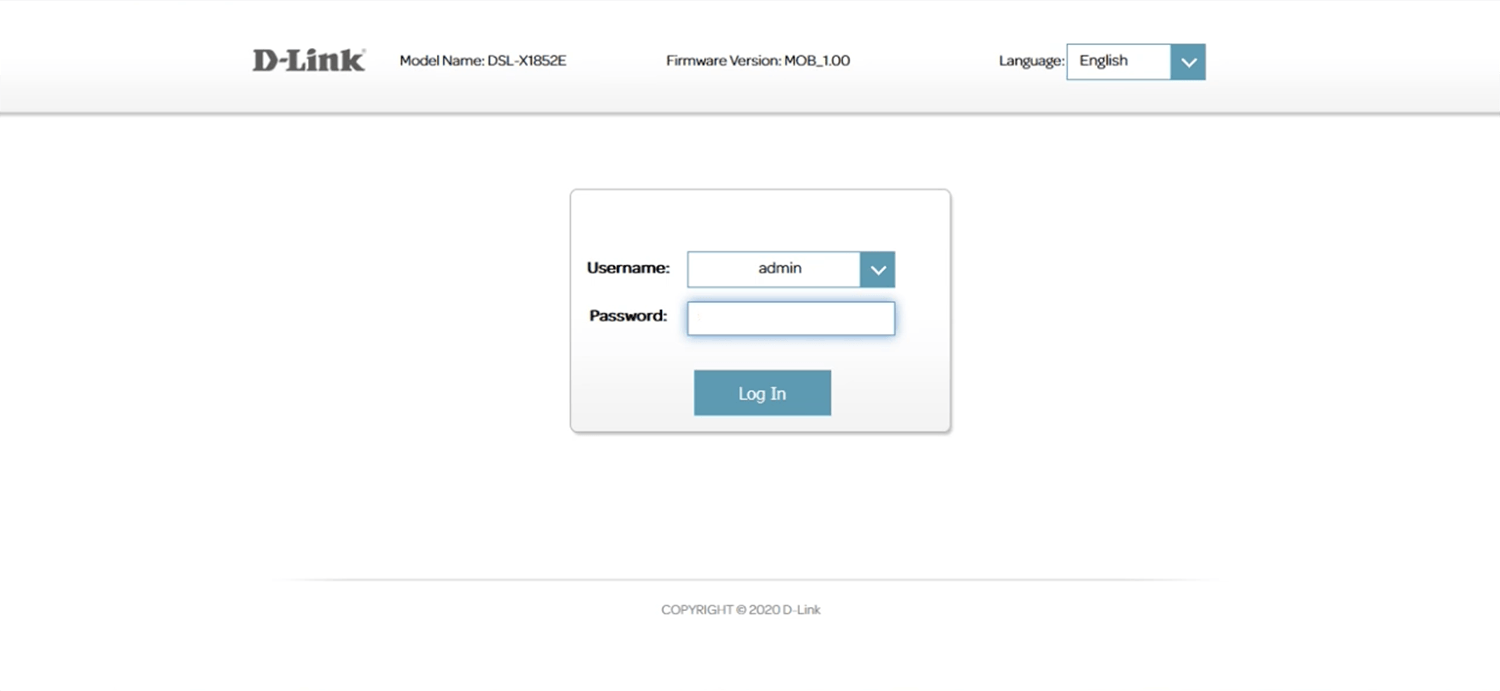
- Enter the Username: admin and Password and click Log In.
- Go to Settings > Wireless.
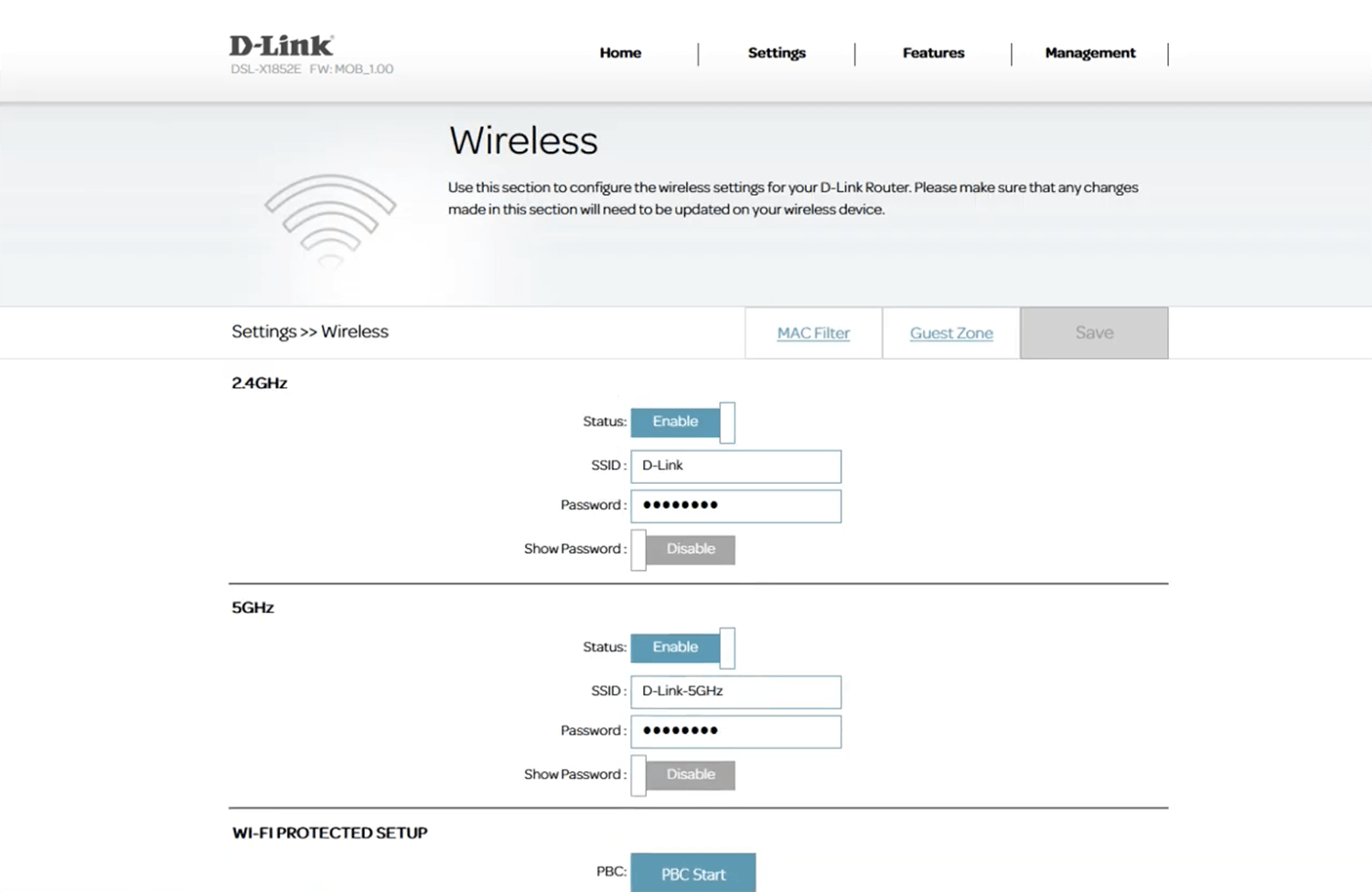
- Enter the Wi-Fi network name in the SSID field.
- Enter the Wi-Fi password in Password field.
- Click Save.
ZTE ZXHN F670L
- Connect your device to the router, either by Wi-Fi or with an Ethernet cable.
- Open a browser and type http://192.168.1.1 in the address bar.
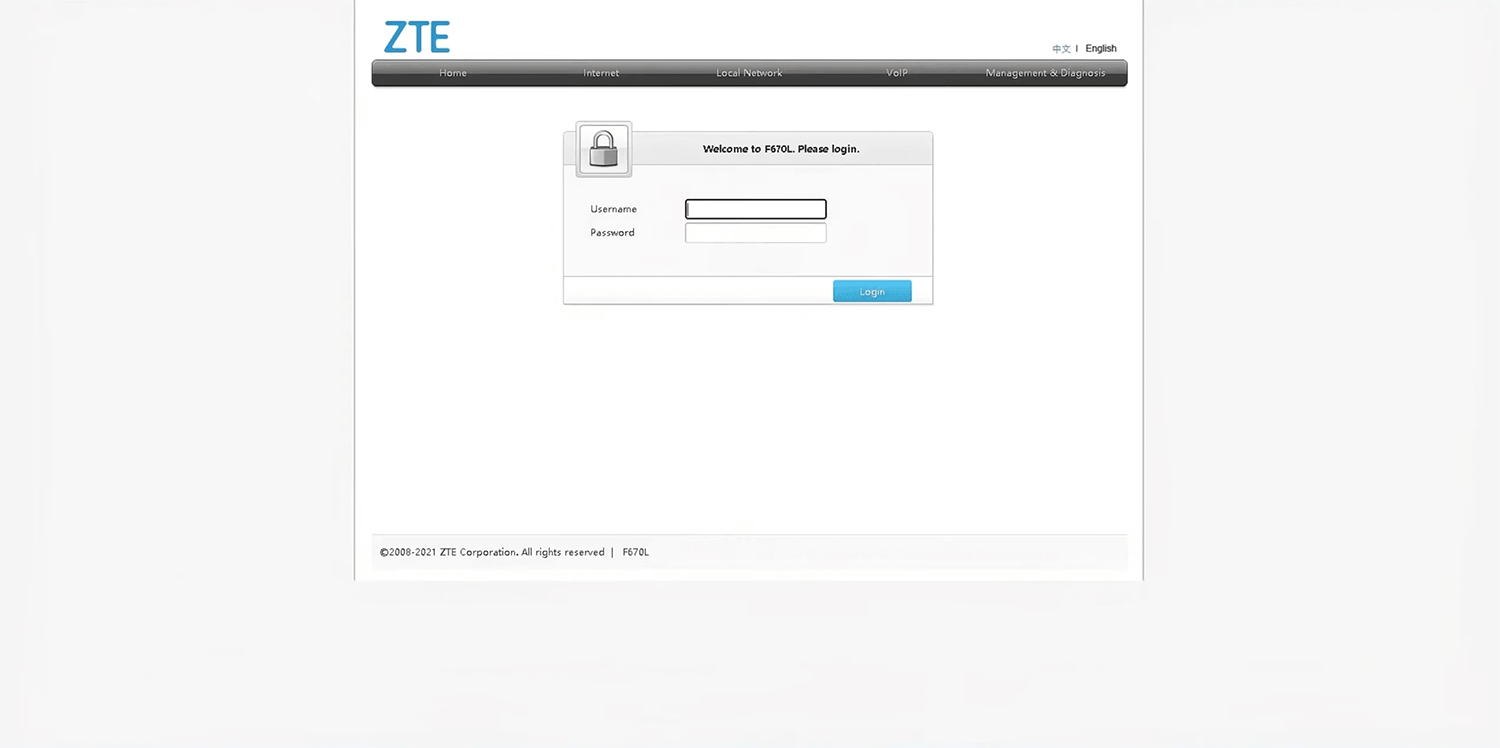
- Enter the Username and Password and click Login.
- Select Local Network > WLAN > WLAN Basic > WLAN SSID Configuration.
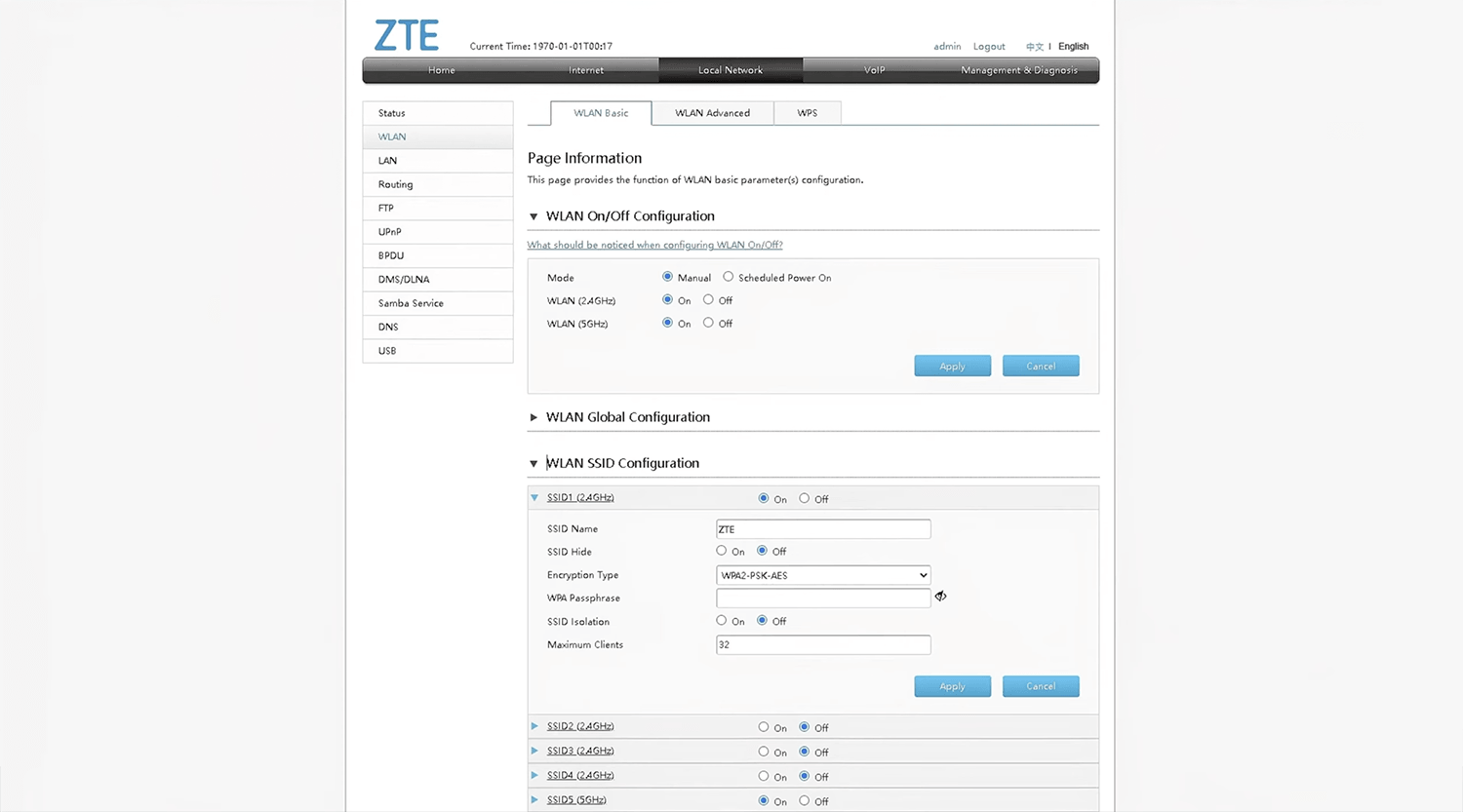
- Enter the Wi-Fi network name in the SSID Name field.
- Enter the Wi-Fi password in the WPA Passphrase field
- Click Apply to save the changes.
Mercusys MW301R
- Connect your device to the router via Wi-Fi or an Ethernet cable.
- Open a browser and type http://192.168.1.1 in the address bar.
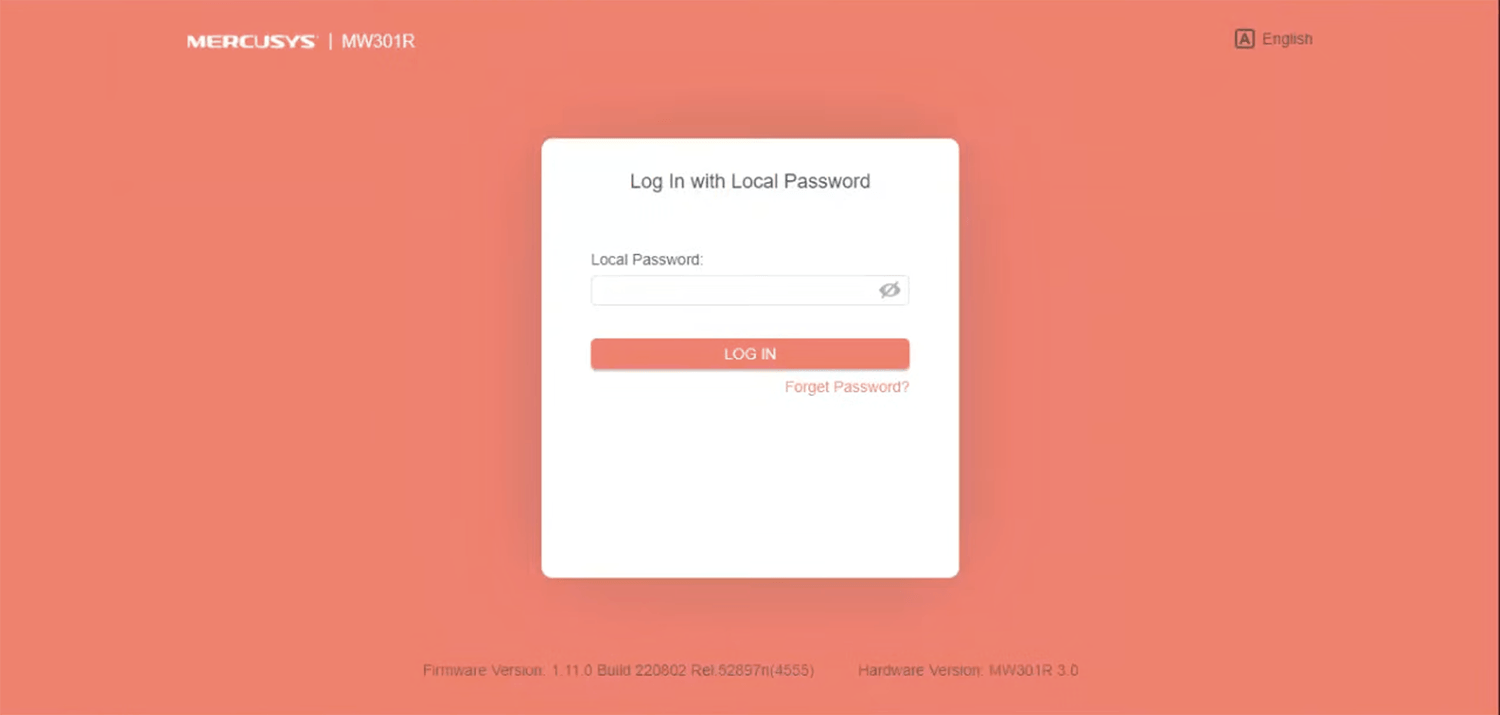
- Enter the Login Password and click Log In.
- Go to Wireless.
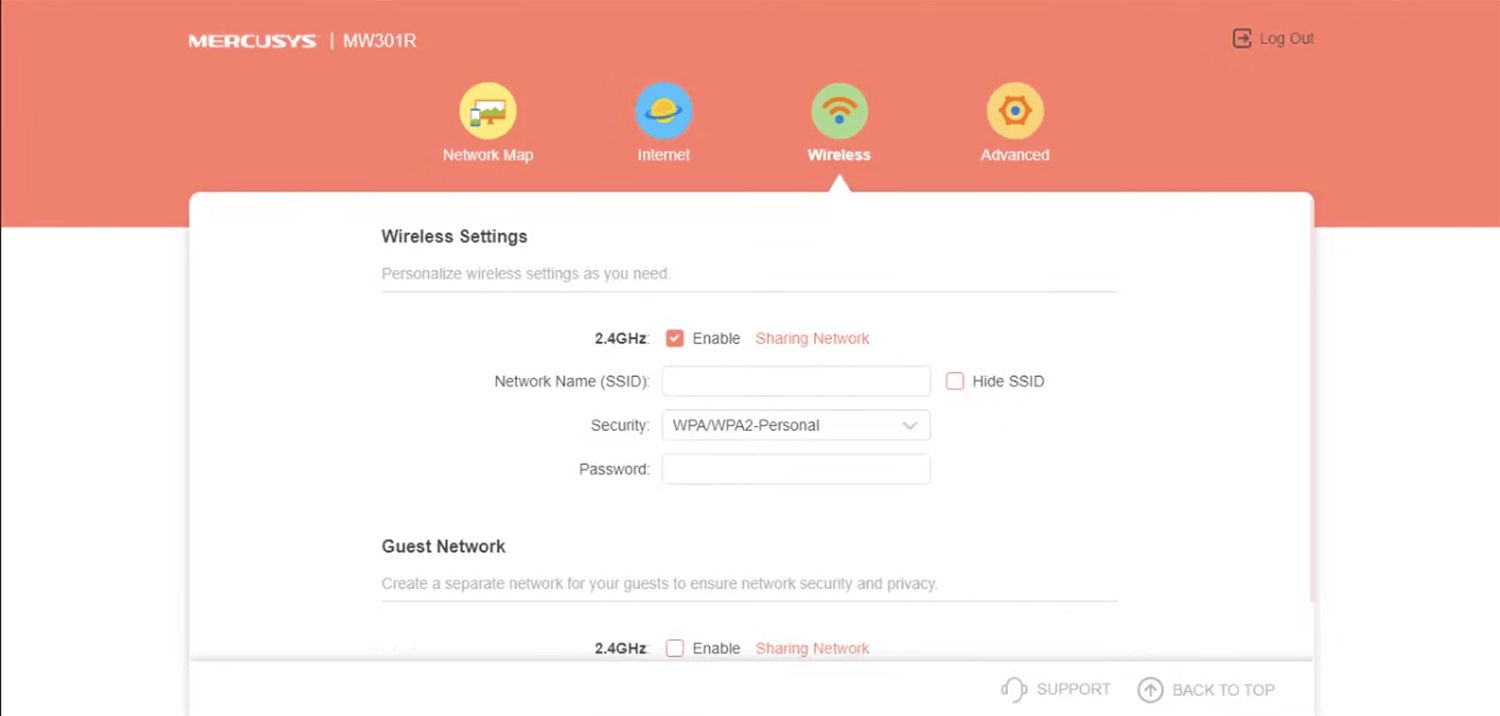
- Enter the Wi-Fi network name in the Network Name (SSID) field.
- Select Security: WPA/WPA2-Personal.
- Enter the Wi-Fi password in the Password field.
- Click Save.