
Tplinkwifi.net is the gateway address of your TP-Link router to access the web-based user interface to change Wi-Fi password, Network Name (SSID), and other default settings.
To access your router settings, type http://tplinkwifi.net in the address bar of your web browser or click on the Login button below.
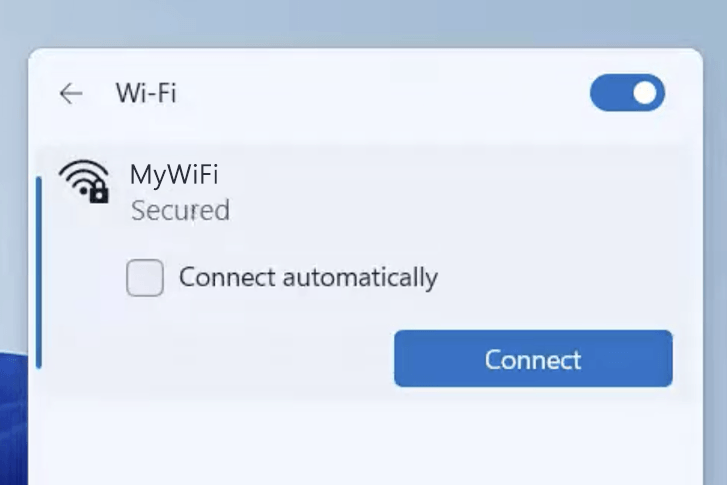
Your device must be connected to the router via Wi-Fi or an Ethernet cable.
The gateway IP address will only load on the browser when your device is connected to the router. For help, see How to find your router IP address? and Can’t connect to my Router login page; what do I do?.
Default Username and Password
Common default router username and password combinations.
| Router Model | IP Address | Username | Password |
|---|---|---|---|
| TP-Link Archer C20 | tplinkwifi.net | admin | admin |
| TP-Link TL-WR840N | tplinkwifi.net | admin | admin |
| TP-Link Archer C6 | tplinkwifi.net | Not required | [Set during initial setup] |
| TP-Link TL-WR940N | tplinkwifi.net | admin | admin |
| TP-Link TL-WR841N | tplinkwifi.net | admin | admin |
| TP-Link Archer AX3000 | tplinkwifi.net | Not required | [Set during initial setup] |
| TP-Link TL-WR845N | tplinkwifi.net | admin | admin |
| TP-Link Archer AX1800 | tplinkwifi.net | Not required | [Set during initial setup] |
| TP-Link Archer C54 | tplinkwifi.net | Not required | [Set during initial setup] |
| TP-Link TL-WR820N | tplinkwifi.net | Not required | [Set during initial setup] |
| TP-Link Archer C64 | tplinkwifi.net | Not required | [Set during initial setup] |
| TP-Link Archer C80 | tplinkwifi.net | Not required | [Set during initial setup] |
| TP-Link Archer C64 | tplinkwifi.net | Not required | [Set during initial setup] |
| TP-Link Archer AX73 | tplinkwifi.net | Not required | [Set during initial setup] |
| TP-Link Archer AX55 | tplinkwifi.net | Not required | [Set during initial setup] |
| TP-Link TL-WR902AC | tplinkwifi.net | admin | admin |
| TP-Link Archer C1200 | tplinkwifi.net | admin | admin |
| TP-Link Archer C50 | tplinkwifi.net | admin | admin |
| TP-Link Archer C60 | tplinkwifi.net | Not required | [Set during initial setup] |
| TP-Link Archer AX10 | tplinkwifi.net | Not required | [Set during initial setup] |
| TP-Link Archer AX11000 | tplinkwifi.net | Not required | [Set during initial setup] |
| TP-Link Archer AX21 | tplinkwifi.net | Not required | [Set during initial setup] |
| TP-Link Archer AXE75 | tplinkwifi.net | Not required | [Set during initial setup] |
| TP-Link Archer AX23 | tplinkwifi.net | Not required | [Set during initial setup] |
| TP-Link TL-WR829N | tplinkwifi.net | Not required | [Set during initial setup] |
| TP-Link Archer BE9300 | tplinkwifi.net | Not required | [Set during initial setup] |
| TP-Link Archer AX12 | tplinkwifi.net | Not required | [Set during initial setup] |
| TP-Link Archer AX6000 | tplinkwifi.net | Not required | [Set during initial setup] |
| TP-Link Archer AXE5400 | tplinkwifi.net | Not required | [Set during initial setup] |
| TP-Link EX141 | tplinkwifi.net | Not required | [Set during initial setup] |
| TP-Link Archer AX5400 | tplinkwifi.net | Not required | [Set during initial setup] |
| TP-Link Archer AX53 | tplinkwifi.net | Not required | [Set during initial setup] |
| TP-Link Archer C5 | tplinkwifi.net | Not required | [Set during initial setup] |
| TP-Link Archer C24 | tplinkwifi.net | Not required | [Set during initial setup] |
| TP-Link Archer AX72 | tplinkwifi.net | Not required | [Set during initial setup] |
| TP-Link TL-WR802N | tplinkwifi.net | admin | admin |
Note: The default IP address, Username, and Password are printed on a sticker on the back or underside of the router. Some routers require you to create a new password during initial setup.
How to login to Tplinkwifi.net?

1) Connect your device to the router via an Ethernet cable or Wi-Fi connection.
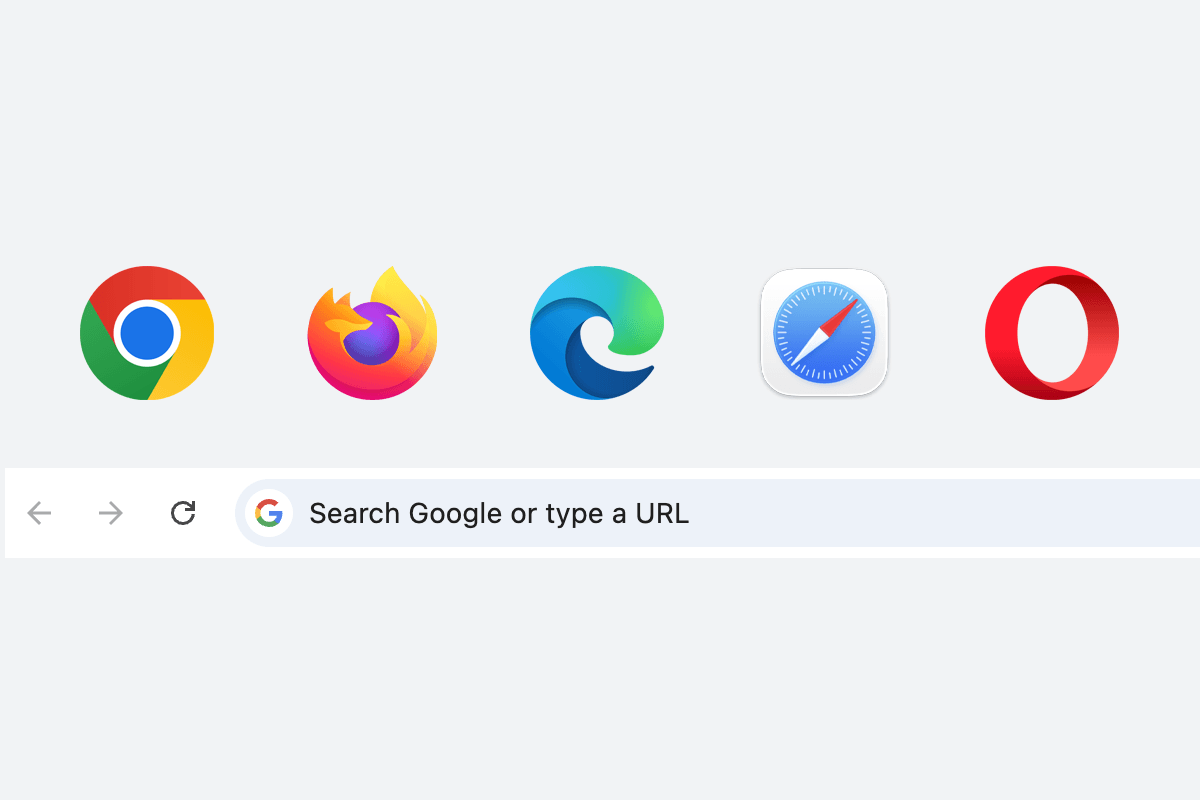
2) Open a web browser and type http://tplinkwifi.net in the address bar.
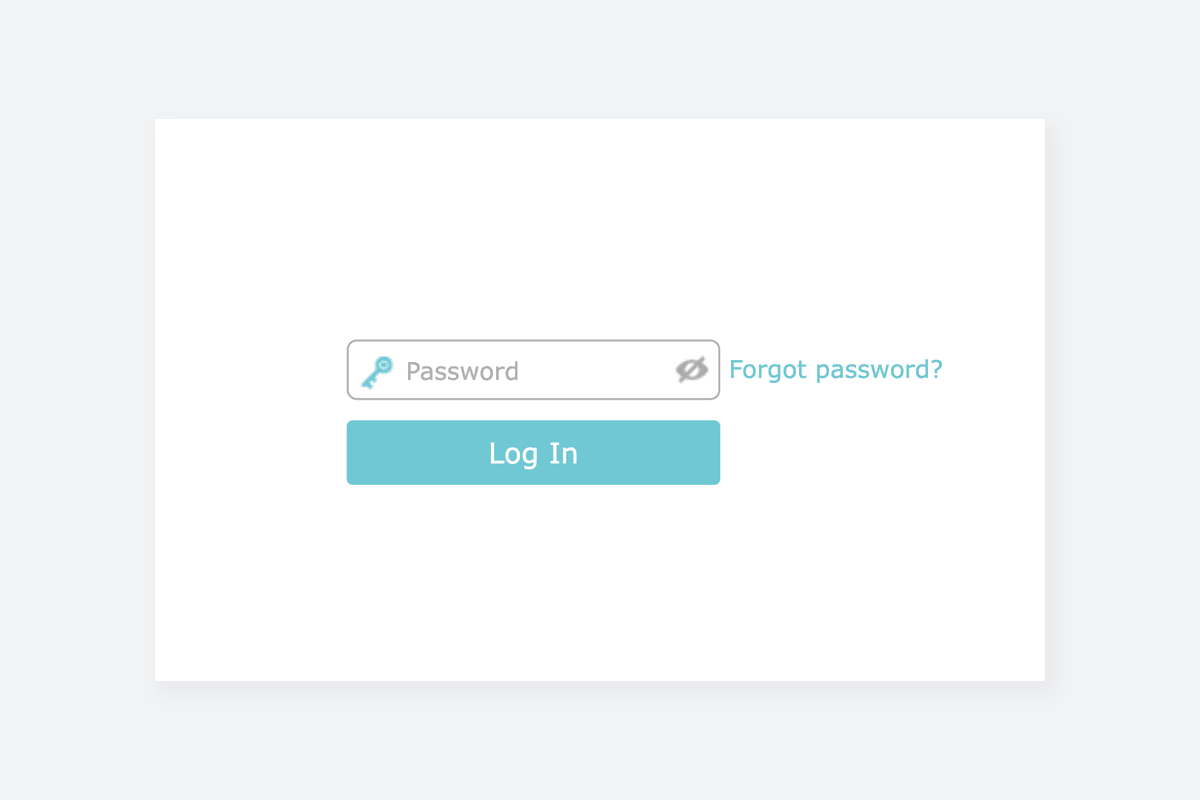
3) Enter the router username and password and click Login.
Change TP-Link Wi-Fi Password and Network Name (SSID)
TP-Link web interface varies depending on the router model and firmware version. Select a router model for your reference.
TP-Link TL-WR845N
- Connect your device to the router via an Ethernet cable or Wi-Fi.
- Open a browser and type http://tplinkwifi.net in the address bar.
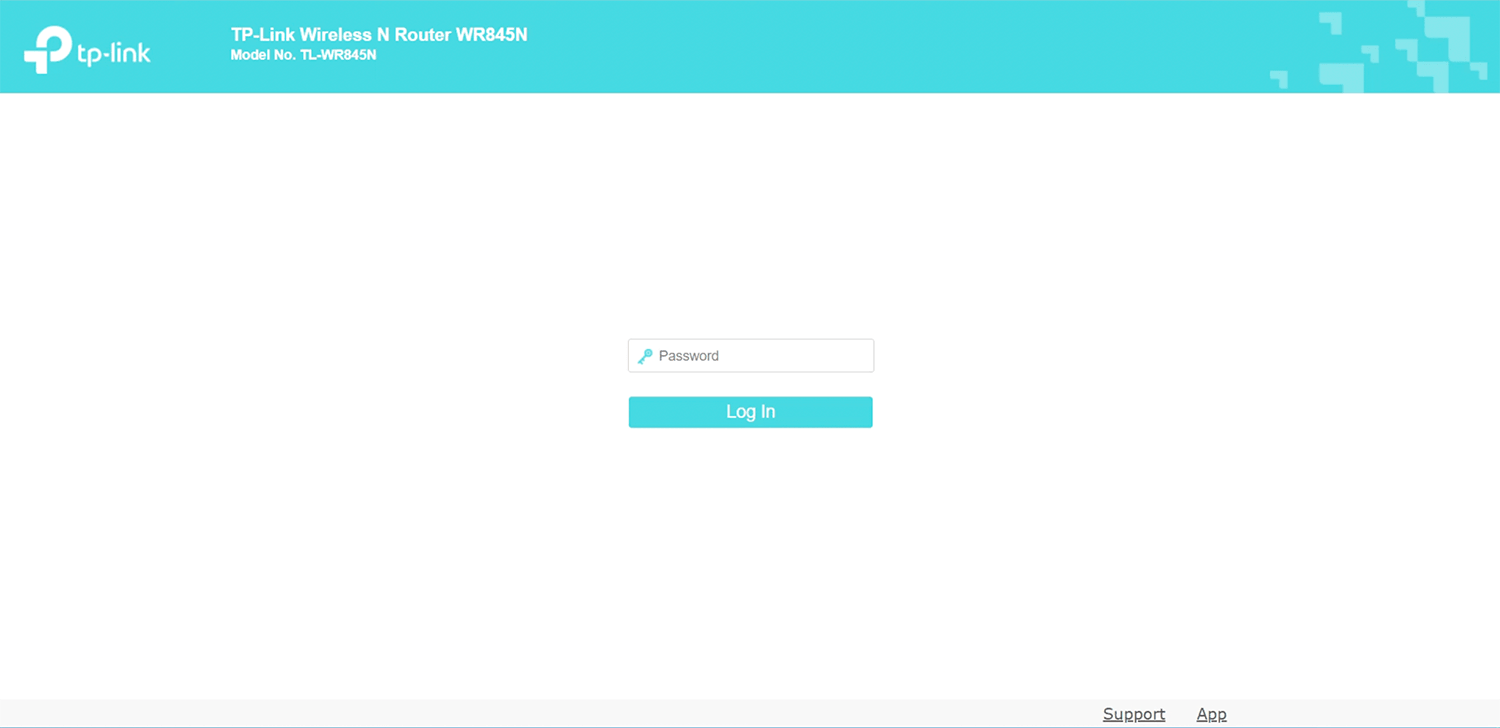
- Enter the password: admin and click Log In.
- Select Wireless > Basic Settings.
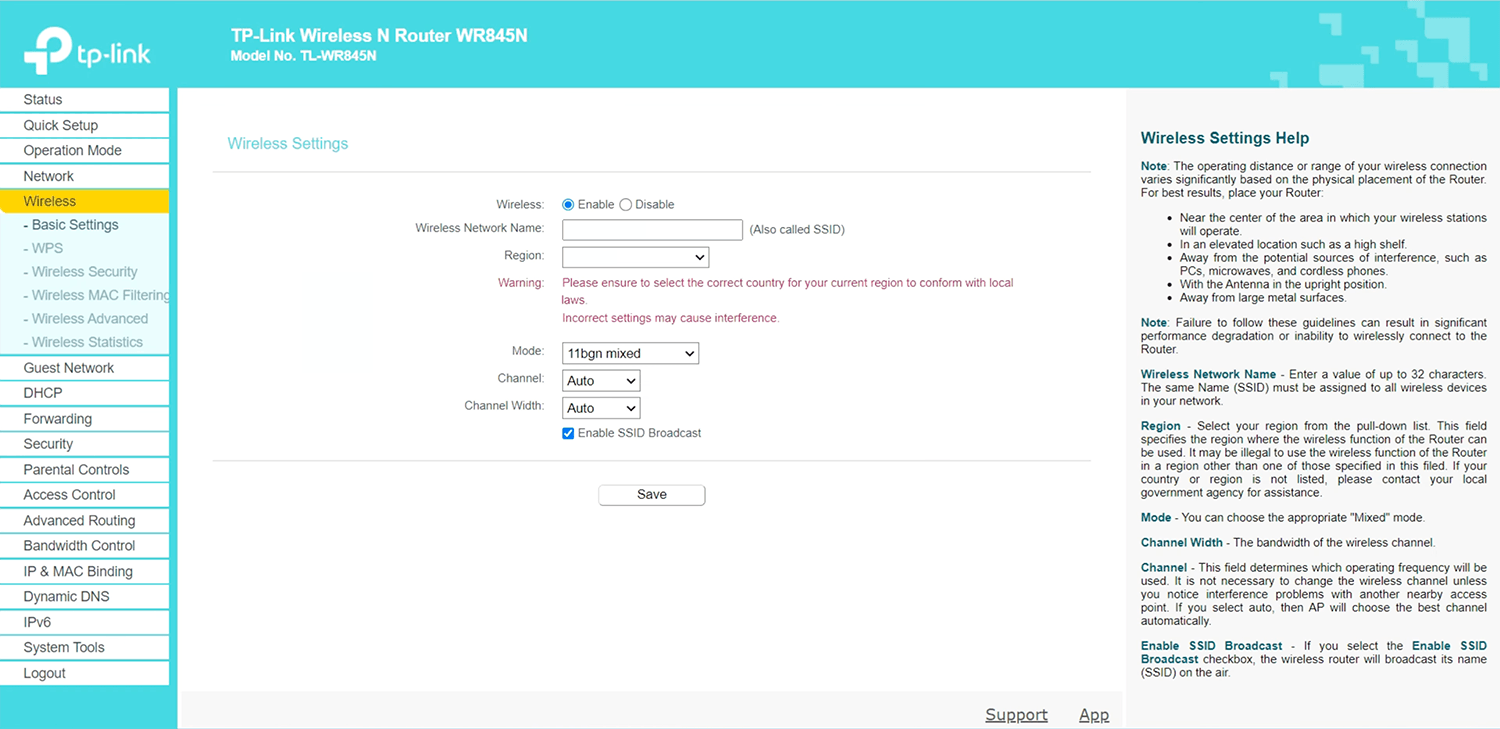
- Enter the Wi-Fi network name in the Wireless Network Name field and click Save.
- Go to Wireless > Wireless Security.
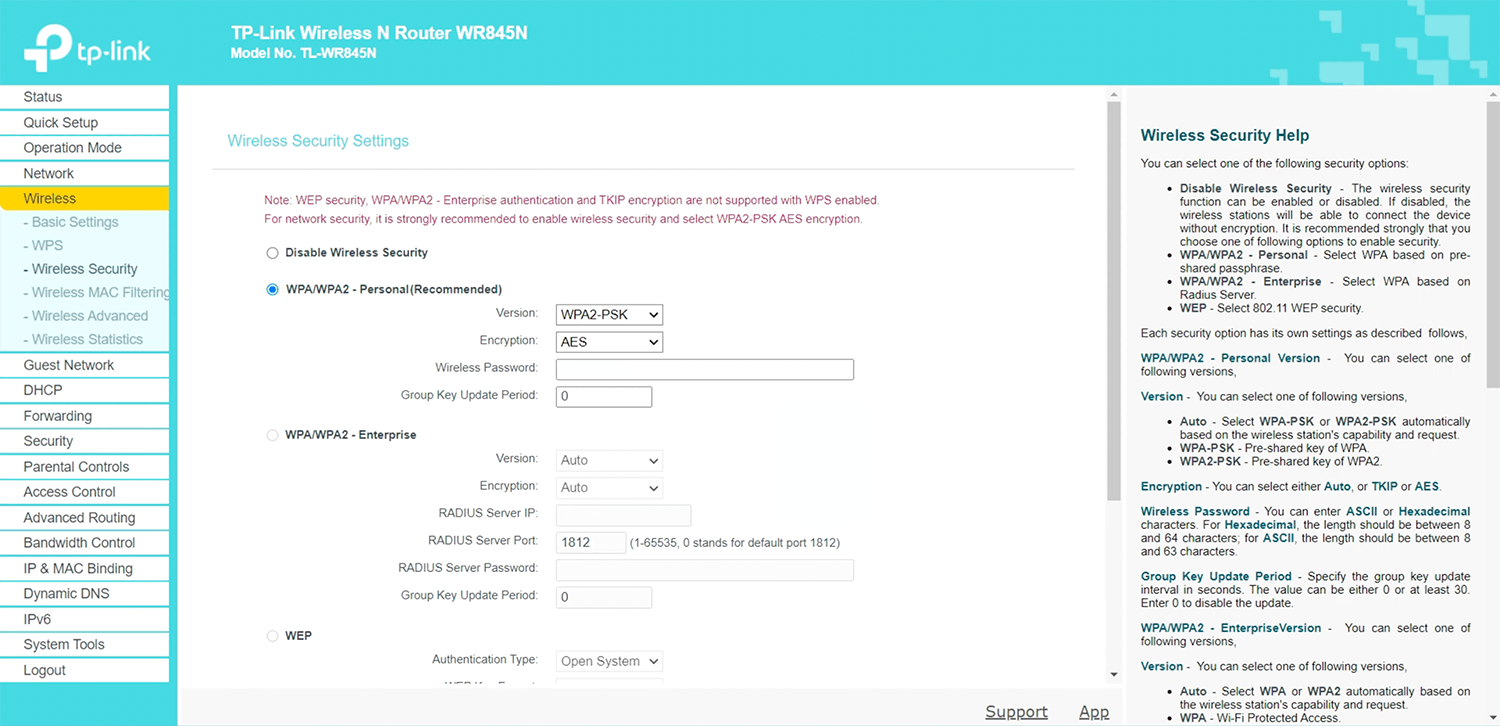
- Select WPA/WPA2 – Personal(Recommended), Version: WPA2-PSK and Encryption: AES.
- Enter the Wi-Fi password in the Wireless Password field and click Save.
TP-Link Archer Series
- Connect your device to the router via an Ethernet cable or Wi-Fi.
- Open a browser and type http://tplinkwifi.net or http://192.168.0.1 in the address bar.
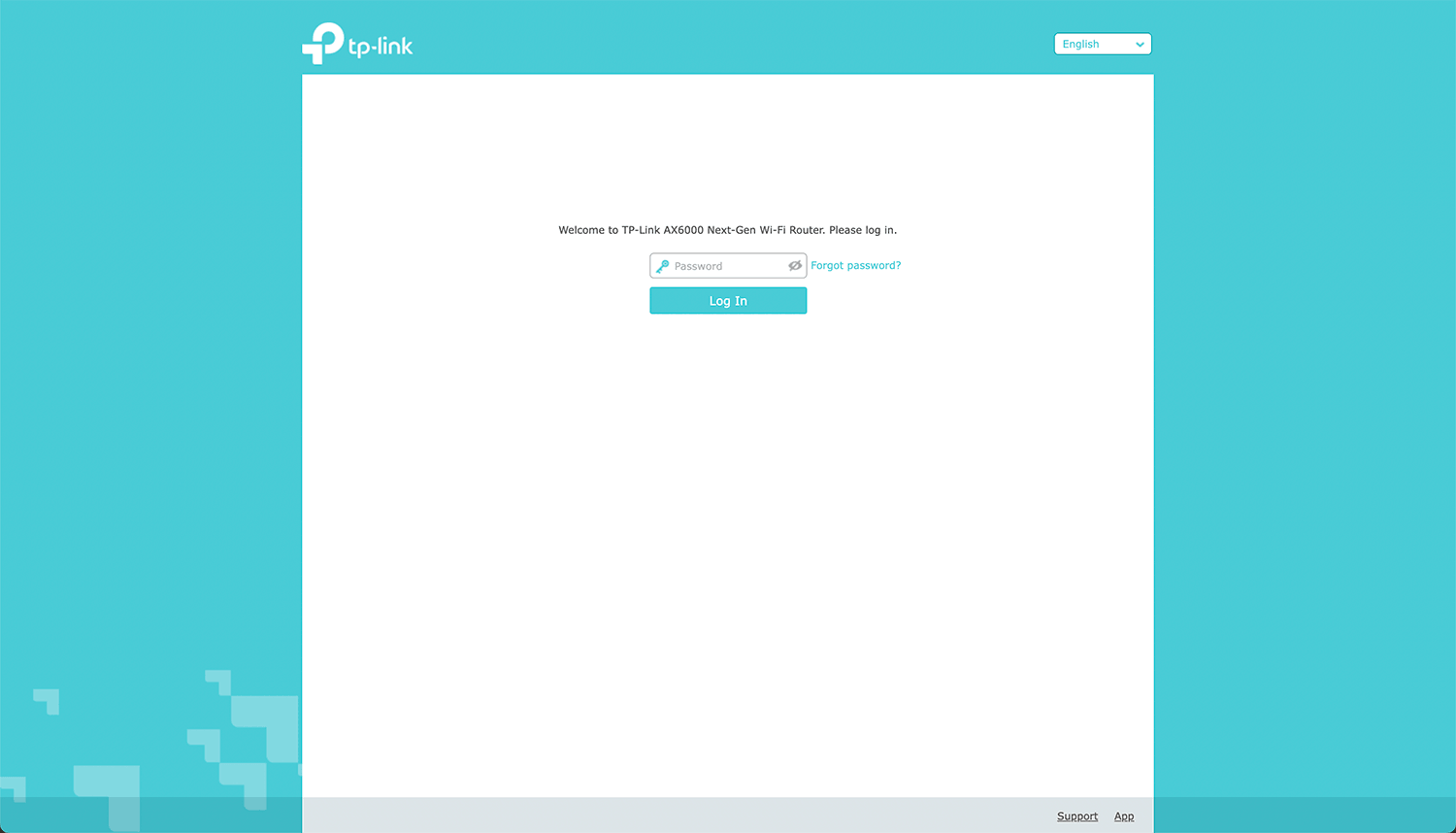
- Enter the Password and click Log In.
- Select Basic > Wireless.
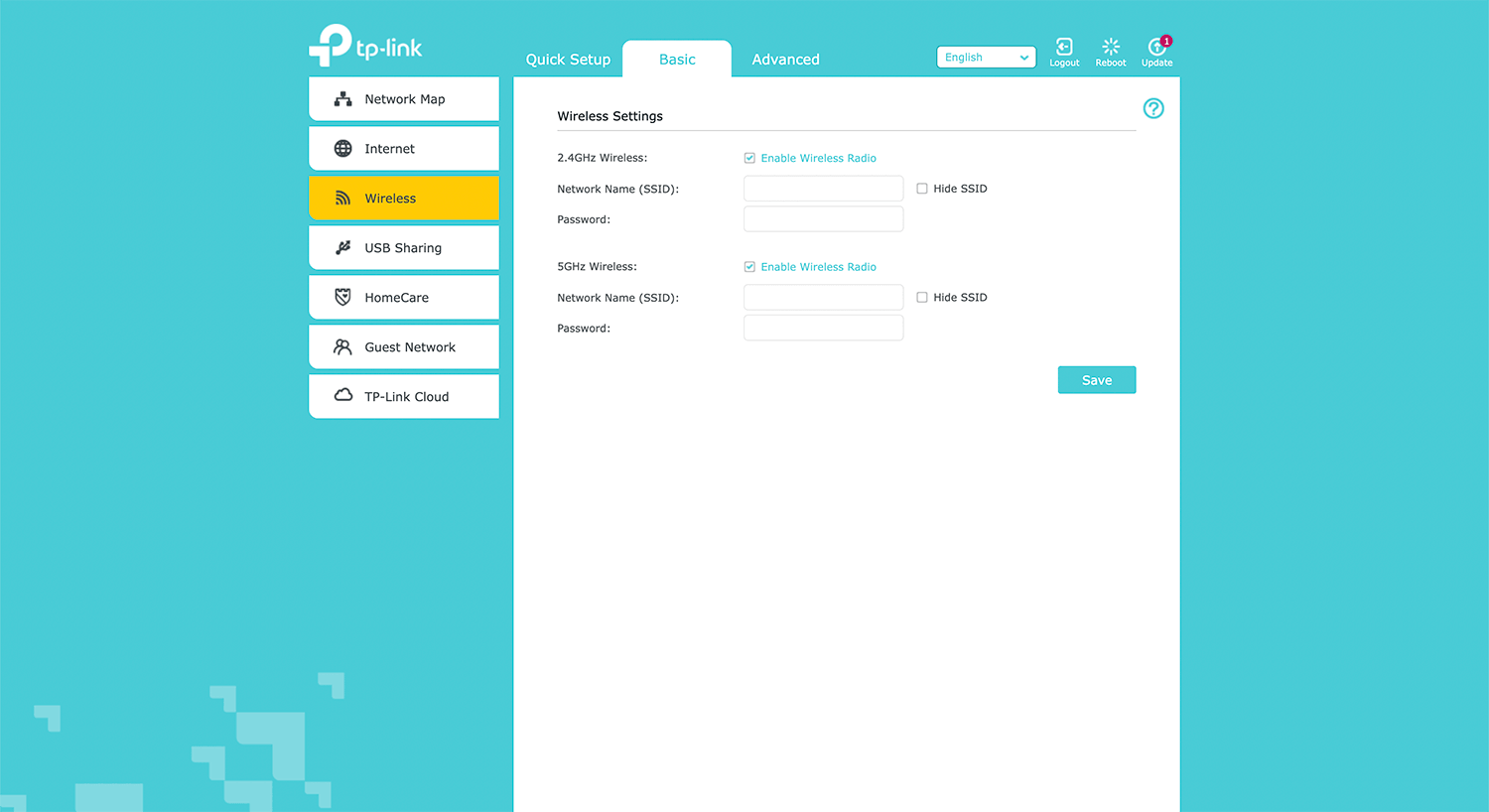
- Enter the Wi-Fi network name in the Network Name (SSID) field.
- Enter the Wi-Fi password in Password field and click Save.
TP-Link TL-WR841N
- Connect your device to the router via an Ethernet cable or Wi-Fi.
- Open a browser and type http://192.168.0.1 or http://tplinkwifi.net in the address bar.
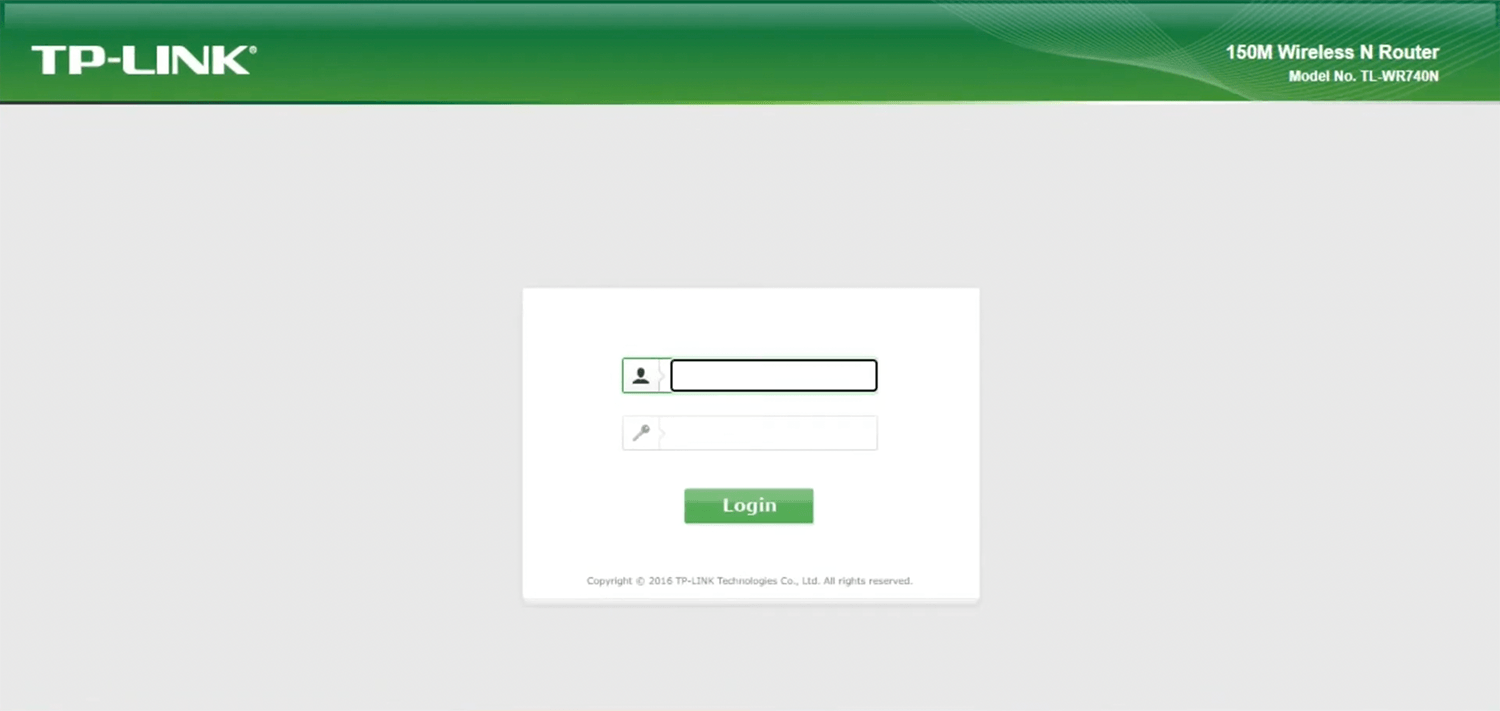
- Enter the Username: admin and Password: admin and click Login.
- Select Wireless > Wireless Settings.
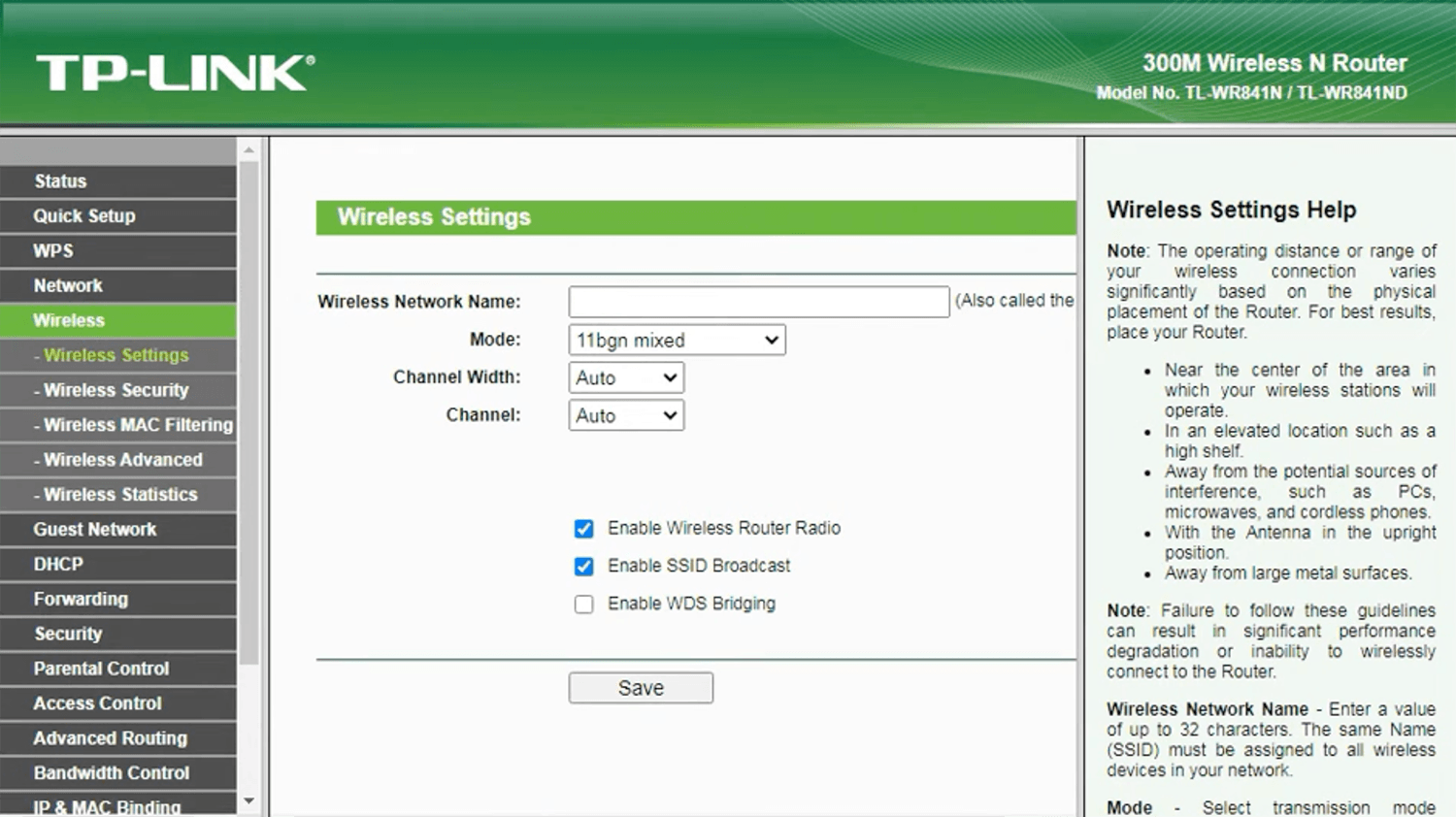
- Enter the Wi-Fi network name in the Wireless Network Name field and click Save.
- Go to Wireless > Wireless Security.
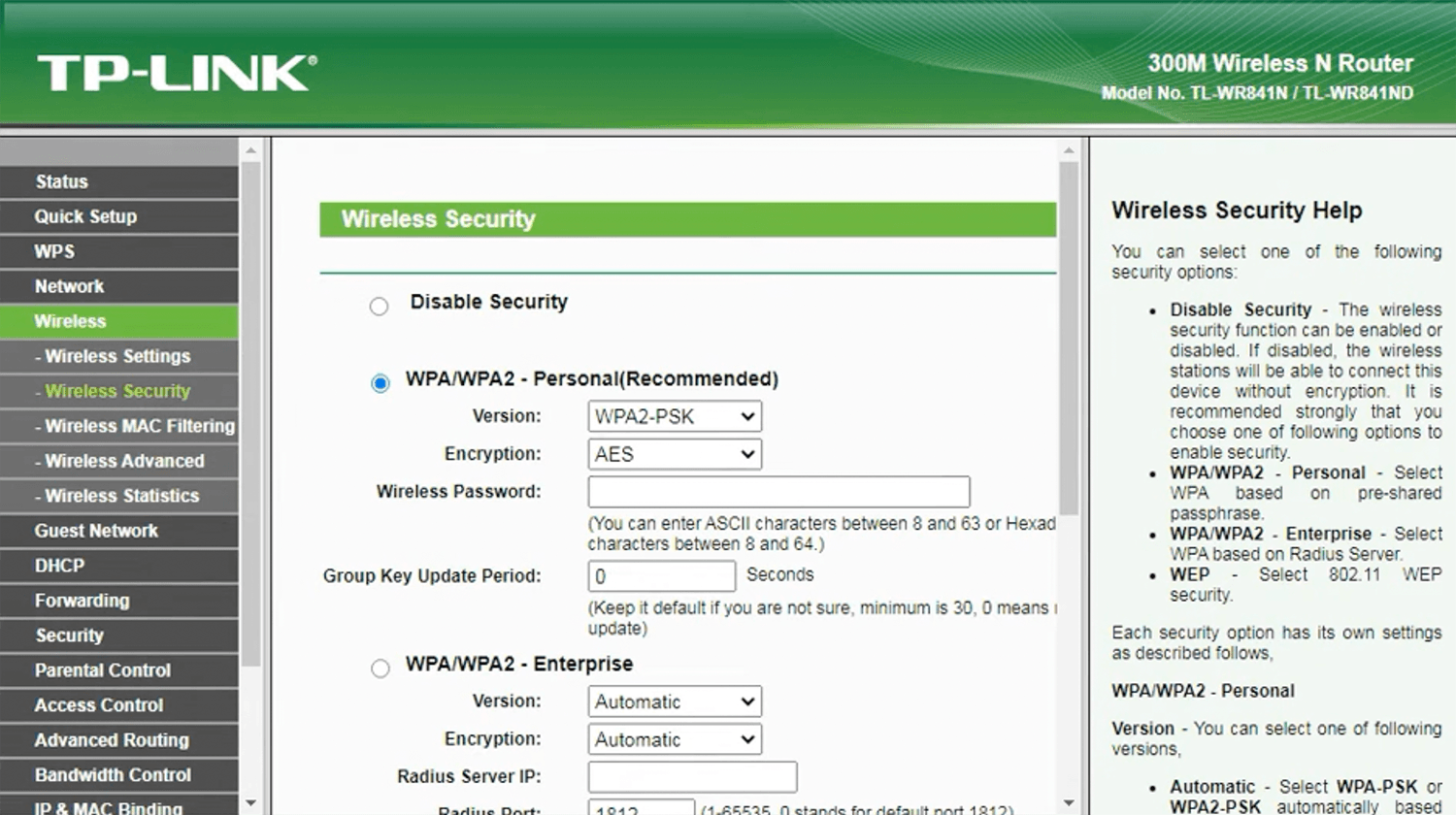
- Select WPA/WPA2 – Personal(Recommended), Version: WPA2-PSK and Encryption: AES.
- Enter the Wi-Fi password in the Wireless Password field and click Save.