Huawei Router Login

Huawei web-based user interface allows you to change your Wi-Fi password, Network Name (SSID), and other default router settings. The gateway IP address vary depending on the Huawei router model.
To access your Huawei router settings, type the IP address in the address bar of your web browser or click on the Login button below.
Default IP Address
Link
192.168.8.1
Login
192.168.100.1
Login
192.168.18.1
Login
192.168.1.1
Login
192.168.3.1
Login

Default Username and Password

Common Huawei routers default username and password combinations.
Router ModelIP AddressUsernamePassword
B535192.168.8.1Not requiredadmin
EchoLife EG8145V5192.168.18.1EpuseruserEp
EchoLife HG8245192.168.100.1telecomadminadmintelecom
EchoLife HG8546M192.168.100.1rootadmin
B618s-22d192.168.8.1adminadmin
EchoLife EG8145V5192.168.100.1rootadminHW
AX3192.168.3.1Not required[Set during initial setup]
HG659192.168.1.1adminadmin
B310192.168.8.1Not requiredadmin
EchoLife HG8245H192.168.100.1rootadmin
EchoLife EG8141A5192.168.100.1telecomadminadmintelecom
EchoLife HG8145V5192.168.100.1[Printed on router sticker][Printed on router sticker]
B311192.168.8.1Not requiredadmin
EchoLife HG8245Q192.168.100.1useruser
OptiXstar EG8145X6192.168.100.1admin[Printed on router sticker]
EchoLife HG8245W5192.168.100.1rootadminHW
OptiXstar B610-4E192.168.100.1root[Printed on router sticker]
EchoLife HS8546V5192.168.100.1rootadminHW
EchoLife HG8245192.168.100.1telecomadminadmintelecom
EchoLife HG8546M192.168.100.1rootadminHW
EchoLife HG8245W5192.168.100.1UseradminHW
EchoLife HG8546M192.168.100.1telecomadminadmintelecom
EchoLife HG8245A192.168.100.1Adminadmin
OptiXstar LG8245X6192.168.1.254user[Printed on router sticker]
H155-381192.168.8.1Not required[Printed on router sticker]
B315s-608192.168.8.1adminadmin
B612s-25d192.168.8.1adminadmin
B818-263192.168.8.1Not requiredadmin
B310 Home Fi192.168.8.1Not requiredADMIN
B312-926192.168.8.1Not requiredadmin
E5577192.168.8.1Not requiredadmin
B310s-925192.168.8.1user[Printed on router sticker]
E5573s-856192.168.8.1adminadmin
B628-265192.168.8.1Not required[Printed on router sticker]
EchoLife EG8245H5192.168.18.1EpuseruserEp
EchoLife EG8247W192.168.18.1EpuseruserEp
EchoLife EG8247H5192.168.18.1EpuseruserEp
EchoLife EG8143A5192.168.100.1telecomadminadmintelecom
OptiXstar EG8147X6-10192.168.18.1Epuser[Printed on router sticker]
WS319192.168.3.1adminadmin
WS7100192.168.3.1Not required[Set during initial setup]
HG633192.168.1.1admin[Printed on router sticker]
WS5200192.168.3.1Not required[Set during initial setup]
WS318n192.168.3.1Not required[Set during initial setup]
WS7200192.168.3.1Not required[Set during initial setup]
WS8100192.168.3.1Not required[Set during initial setup]
HG532192.168.1.1adminadmin
HG532s192.168.1.1adminadmin
B2338-168192.168.1.1user[Printed on router sticker]
B310s-927192.168.8.1adminadmin
E5172192.168.1.1adminadmin
HG8245X6-8N-30192.168.100.1admin[Printed on router sticker]
EchoLife HG8546M192.168.1.1user[Printed on router sticker]
HG8145V5192.168.100.1User[Printed on router sticker]
HG8145V5192.168.254.254user[Printed on router sticker]
HG814V5192.168.100.1rootadminHW
HG8145V192.168.1.1admin[Printed on router sticker]
HG8145V5-V2192.168.100.1admin[Printed on router sticker]
E5783-230a192.168.8.1Not required[Printed on router sticker]
EchoLife HG8245Q192.168.100.1rootadmin
EchoLife HG8145C192.168.100.1telecomadminadmintelecom
HG659192.168.1.1adminadmin@HG659
B535-232192.168.8.1Not requiredadmin
EchoLife EG8041V5192.168.18.1EpuseruserEp
EchoLife WA8021V5192.168.101.1admin[Set during initial setup]
Note: The default IP address, Username, and Password are printed on a sticker on the back or underside of the router. Some routers require you to create a new password during initial setup.

How to login to Huawei router?

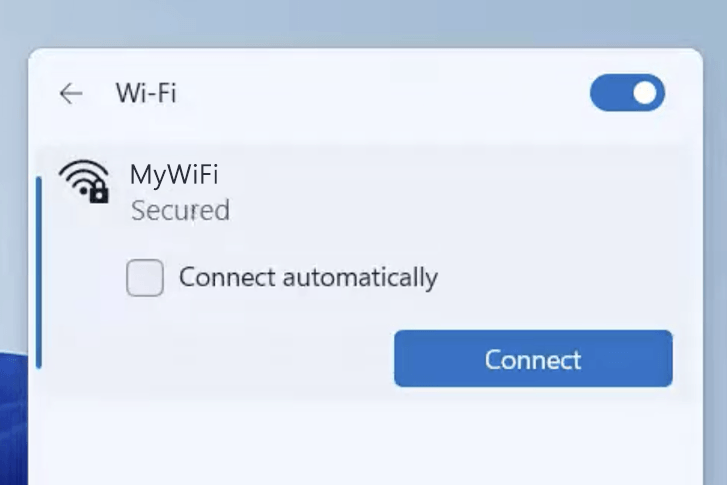
1) Connect your device to the router via an Ethernet cable or Wi-Fi connection.
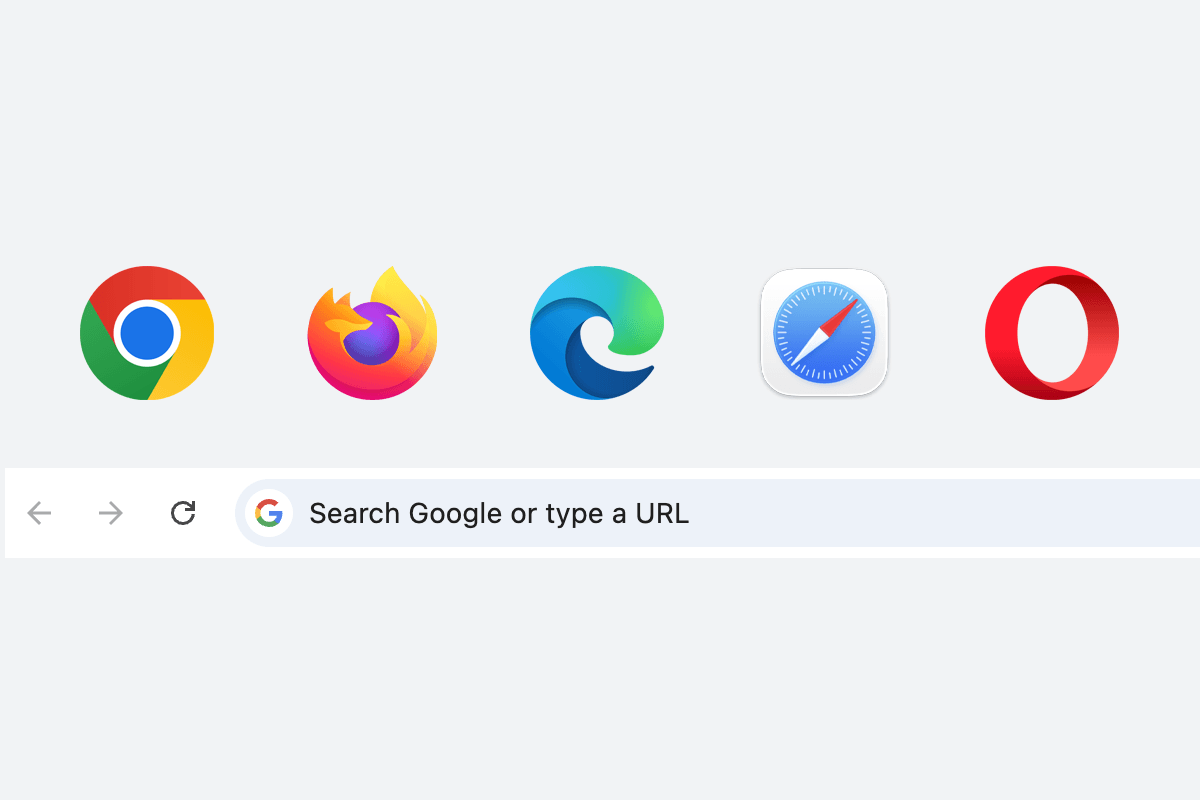
2) Open a web browser and type the IP address in the address bar.
3) Enter the router username and password and click Login.

Huawei router credentials vary by equipment and is set by the broadband service provider. This is why one router model may have multiple IP address, username and password combination listed on our website. You can look for the credentials on the nameplate at the bottom of the router or contact your Internet service provider for assistance. You can also enter your router model number in our search box to find available data.

Please note that the login password for the web-management page is different from the Wi-Fi password. If you are connected to multiple routers using Ethernet and Wi-Fi and there’s an IP conflict (such as both the router has 192.168.3.1 as default IP address), then the secondary router’s IP address will change to 192.168.4.1 automatically.

The router web interface may vary depending on the router model and version of the configuration page. It is recommended to connect your computer to the router’s LAN port using an Ethernet cable to complete the initial configuration for your router using the web-management page.

Change Huawei Wi-Fi Password and Network Name (SSID)

Huawei web interface varies depending on the router model and firmware version. Select a router model for your reference.
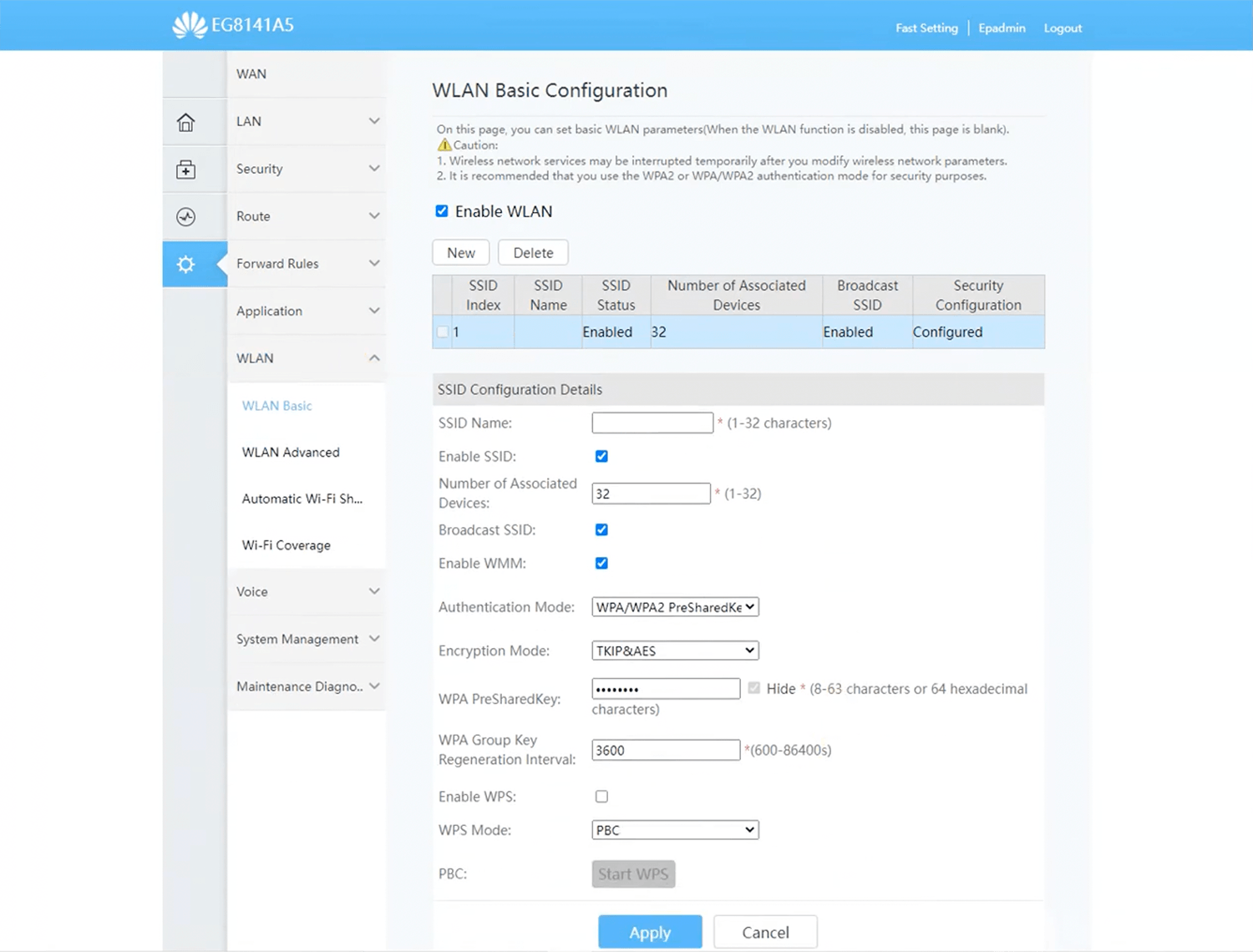
Huawei EchoLife EG8141A5
  1. Connect your device to the router via Wi-Fi or an Ethernet cable.
  2. Open a browser and type http://192.168.18.1 or http://192.168.100.1 in the address bar.
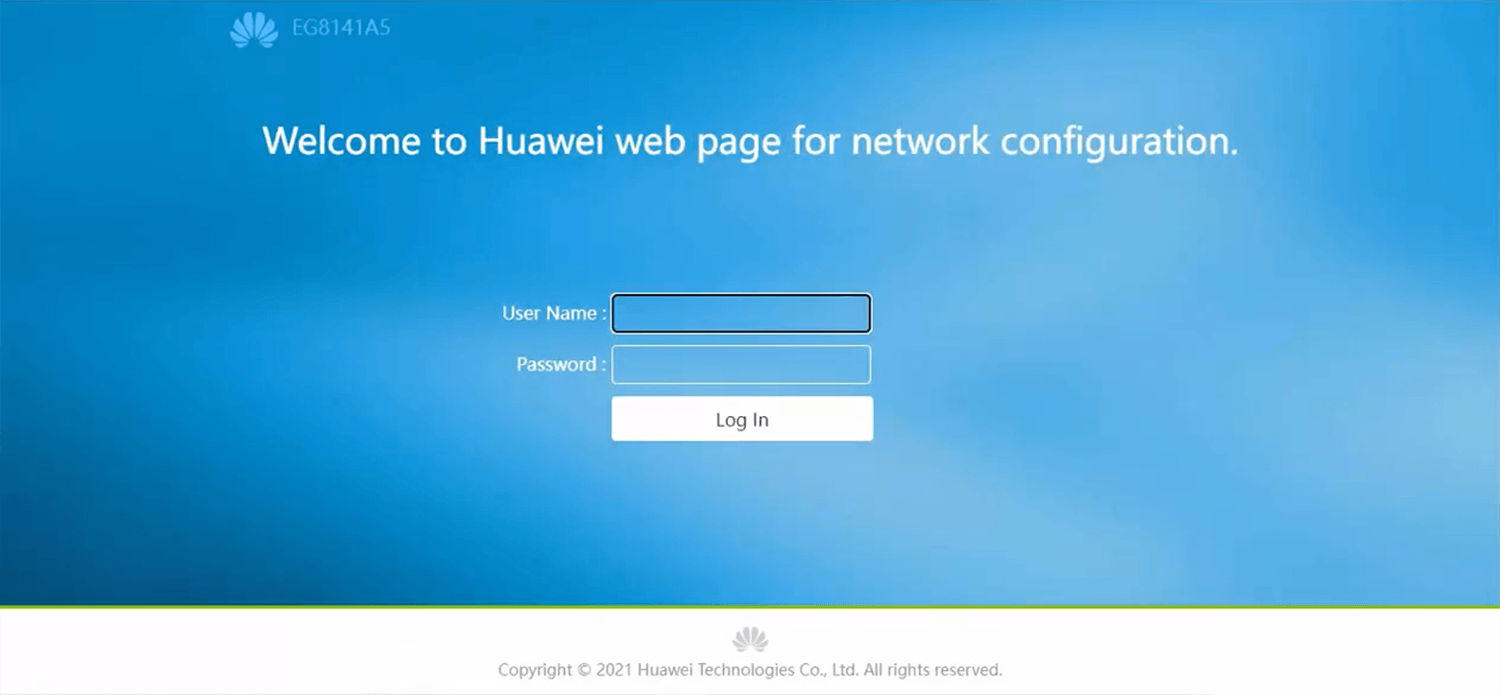
  3. Enter the User Name and Password and click Log In.
  4. Select Advanced > WLAN > WLAN Basic.
  5. Enter the Wi-Fi network name in the SSID Name field.
  6. Select Authentication Mode: WPA/WPA2 PreShared Key and Encryption Mode: TKIP&AES.
  7. Enter the Wi-Fi password in the WPA PreSharedKey field
  8. Click Apply.
  1. Connect your device to the router via Wi-Fi or an Ethernet cable.
  2. Open a browser and type http://192.168.18.1 or http://192.168.100.1 in the address bar.
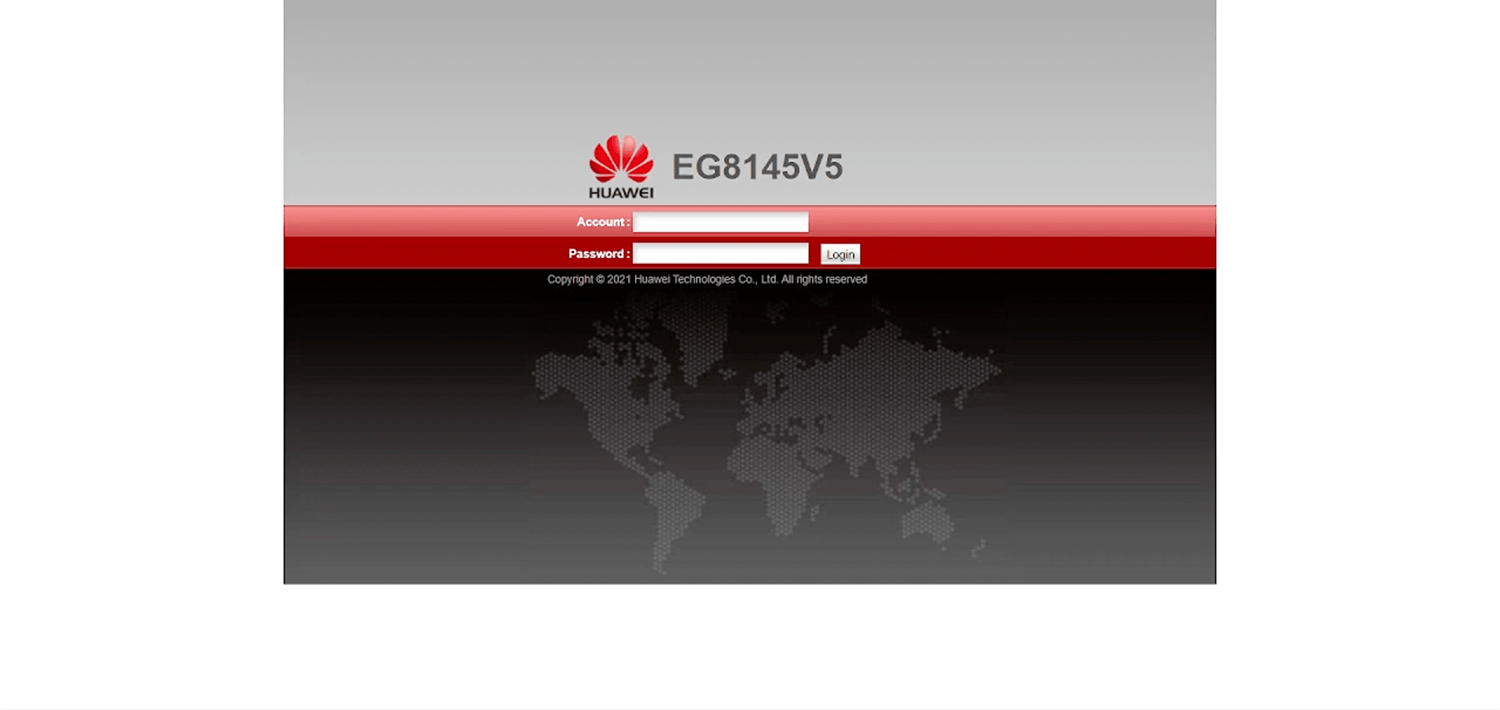
  3. Enter the Username and Password and click Log In.
  4. Select WLAN > 2.4G Basic Network Settings.
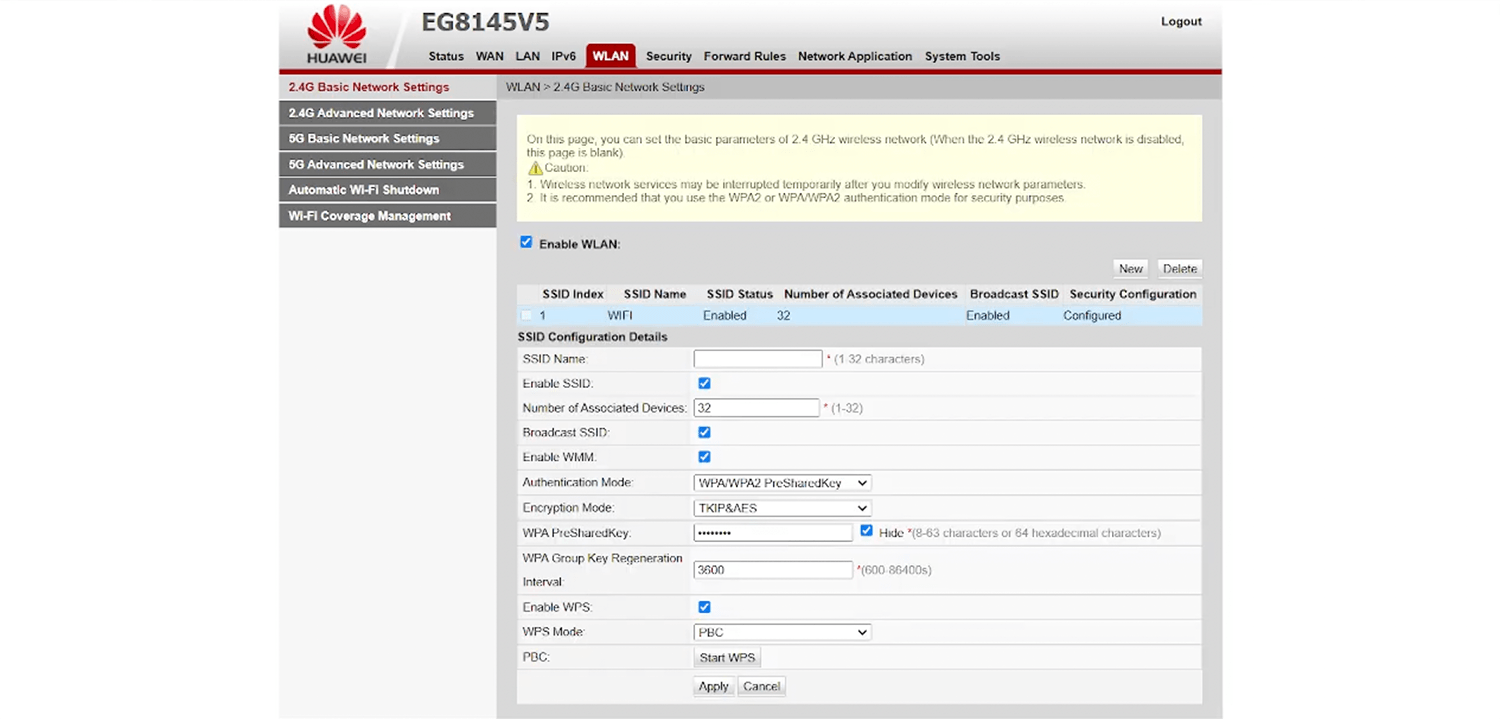
  5. Enter the Wi-Fi network name in the SSID Name field.
  6. Select Authentication Mode: WPA/WPA2 PreShared Key and Encryption Mode: TKIP&AES.
  7. Enter the Wi-Fi password in the WPA PreSharedKey field
  8. Click Apply.
  1. Connect your device to the router’s Wi-Fi network.
  2. Open a browser and type http://192.168.8.1 in the address bar.
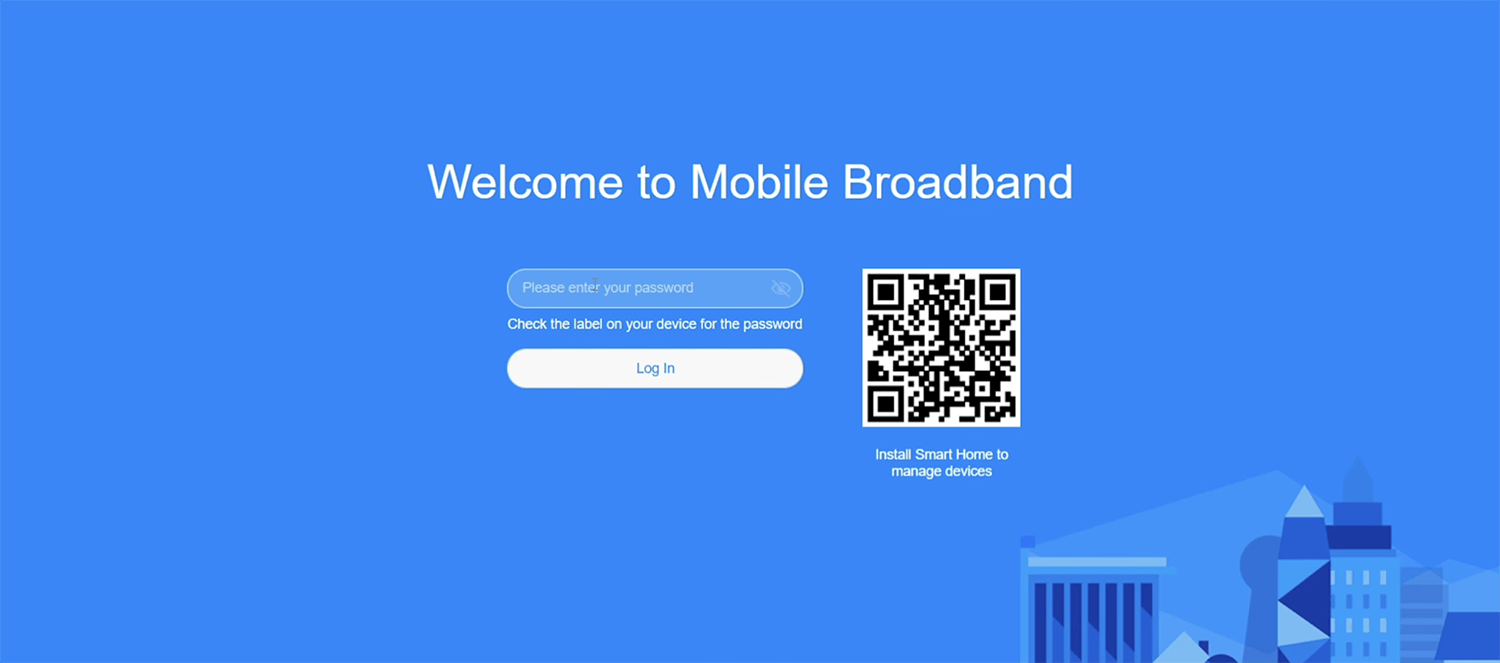
  3. Enter the password: admin and click Log In.
  4. Select Wi-Fi Settings > Wi-Fi Basic Settings.
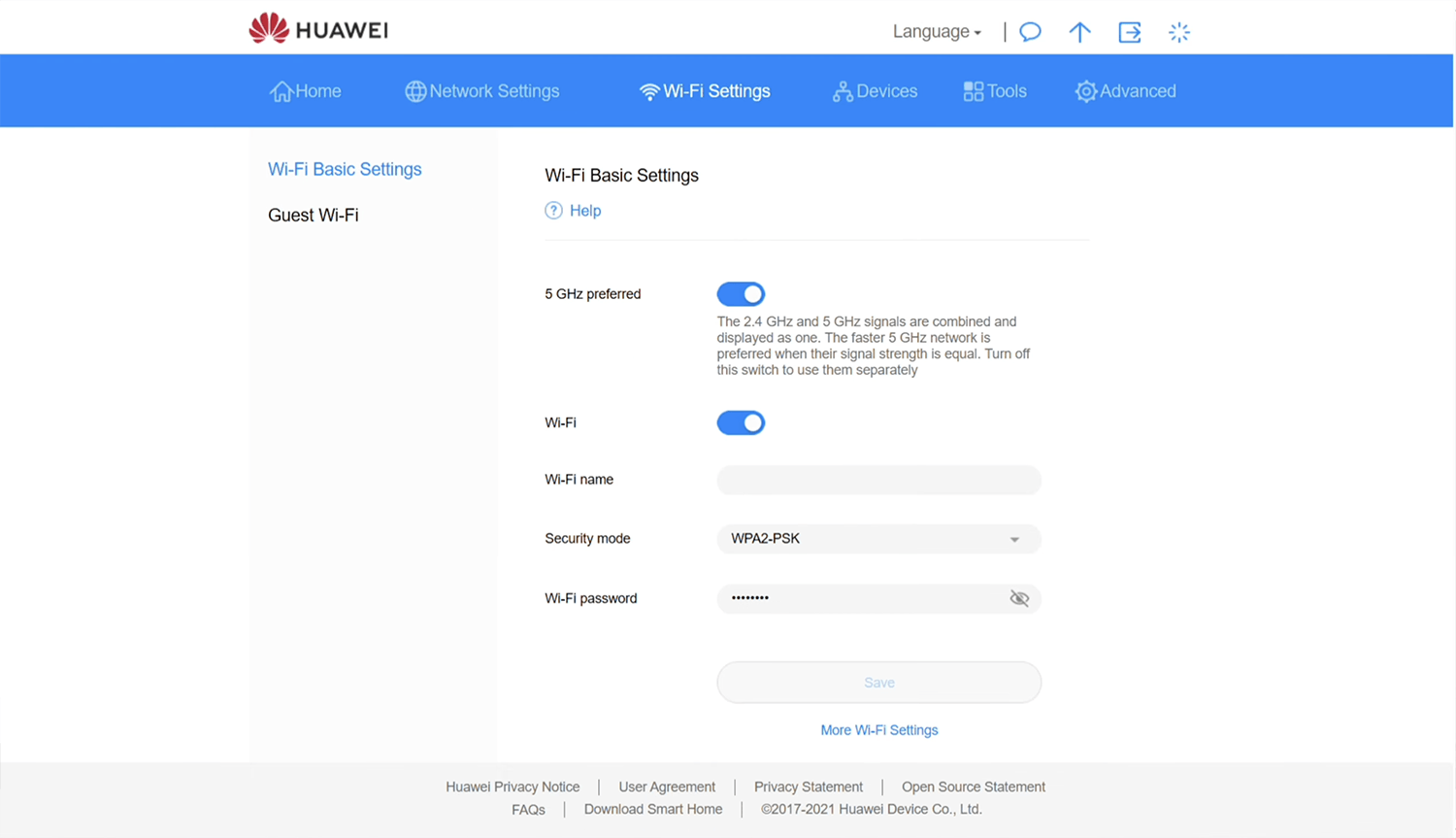
  5. Enter the Wi-Fi network name in the Wi-Fi name field.
  6. Select Security Mode: WPA2-PSK.
  7. Enter the Wi-Fi password in the Wi-Fi password field
  8. Click Save.
  1. Connect your device to the router’s Wi-Fi network.
  2. Open a browser and type http://192.168.8.1 in the address bar.
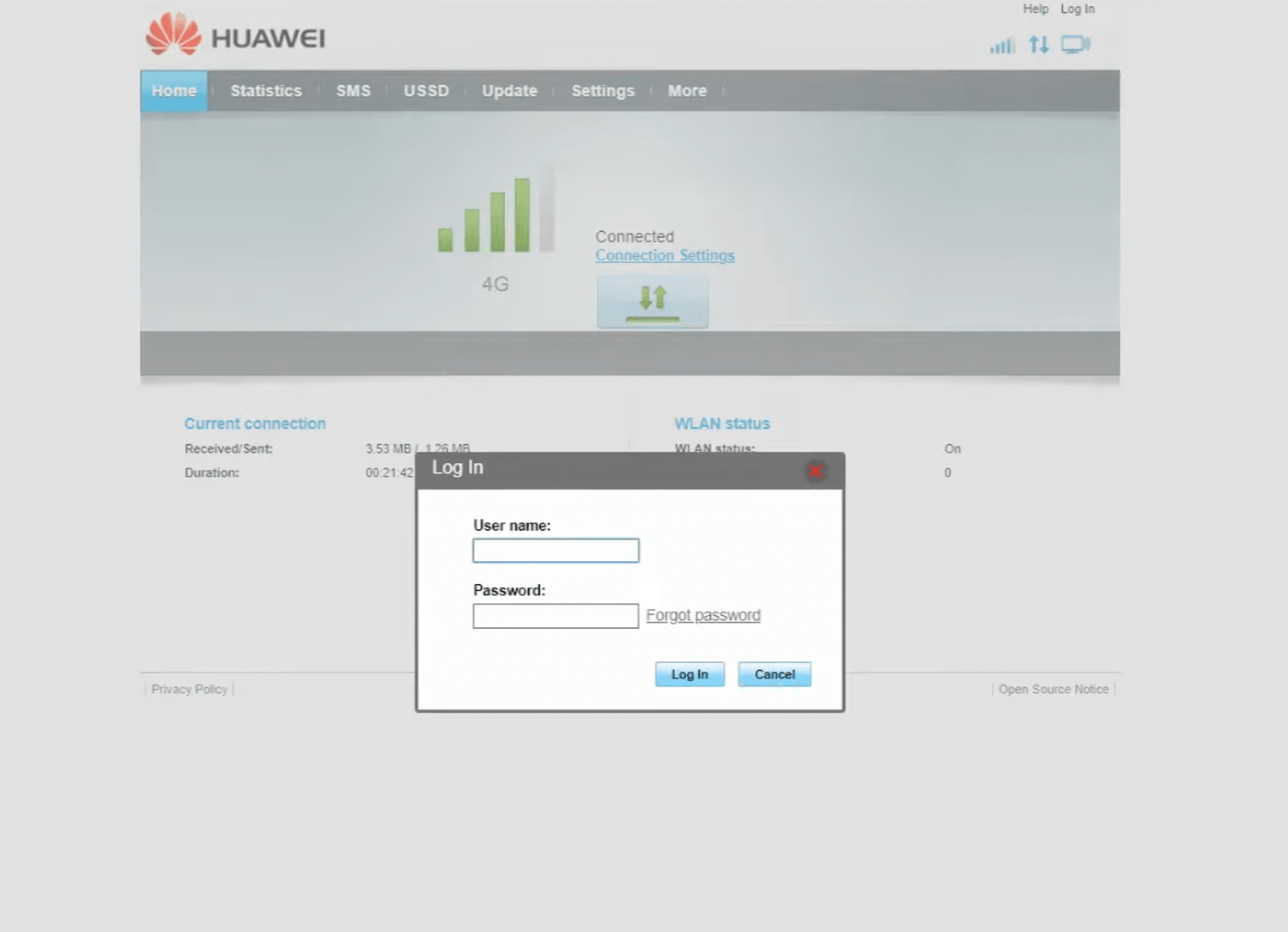
  3. Click Log In on the top right-hand side of the screen.
  4. Enter the Username: admin and Password: admin and click Log In. The default login credentials are printed on a label underside the router.
  5. Select Settings > WLAN > WLAN Basic Settings.
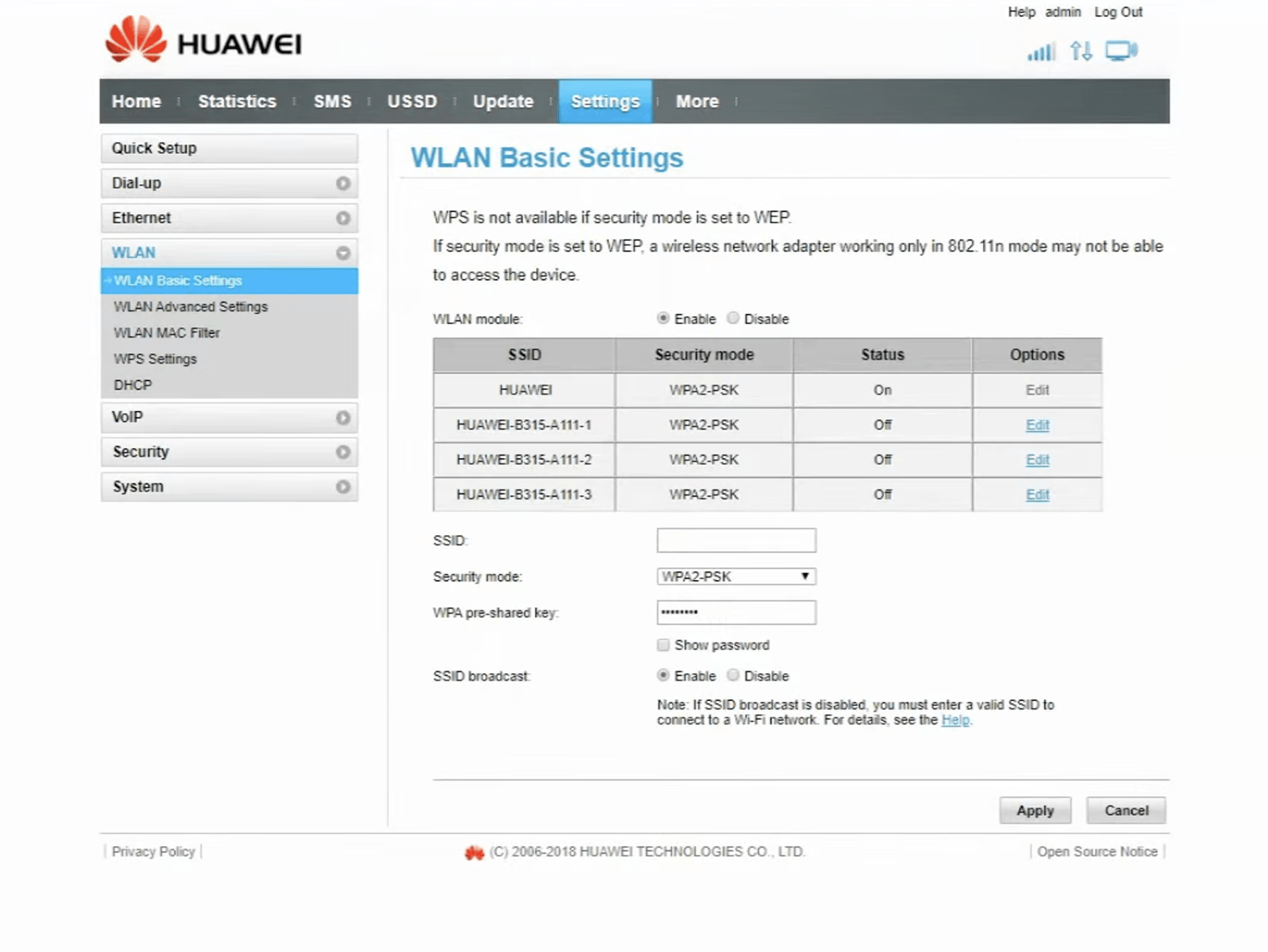
  6. Enter the Wi-Fi network name in the SSID field.
    Select Security Mode: WPA2-PSK.
  7. Enter the Wi-Fi password in the WPA pre-shared key field
  8. Click Apply.
  1. Connect your device to the router’s Wi-Fi network.
  2. Open a browser and type http://192.168.8.1 in the address bar.
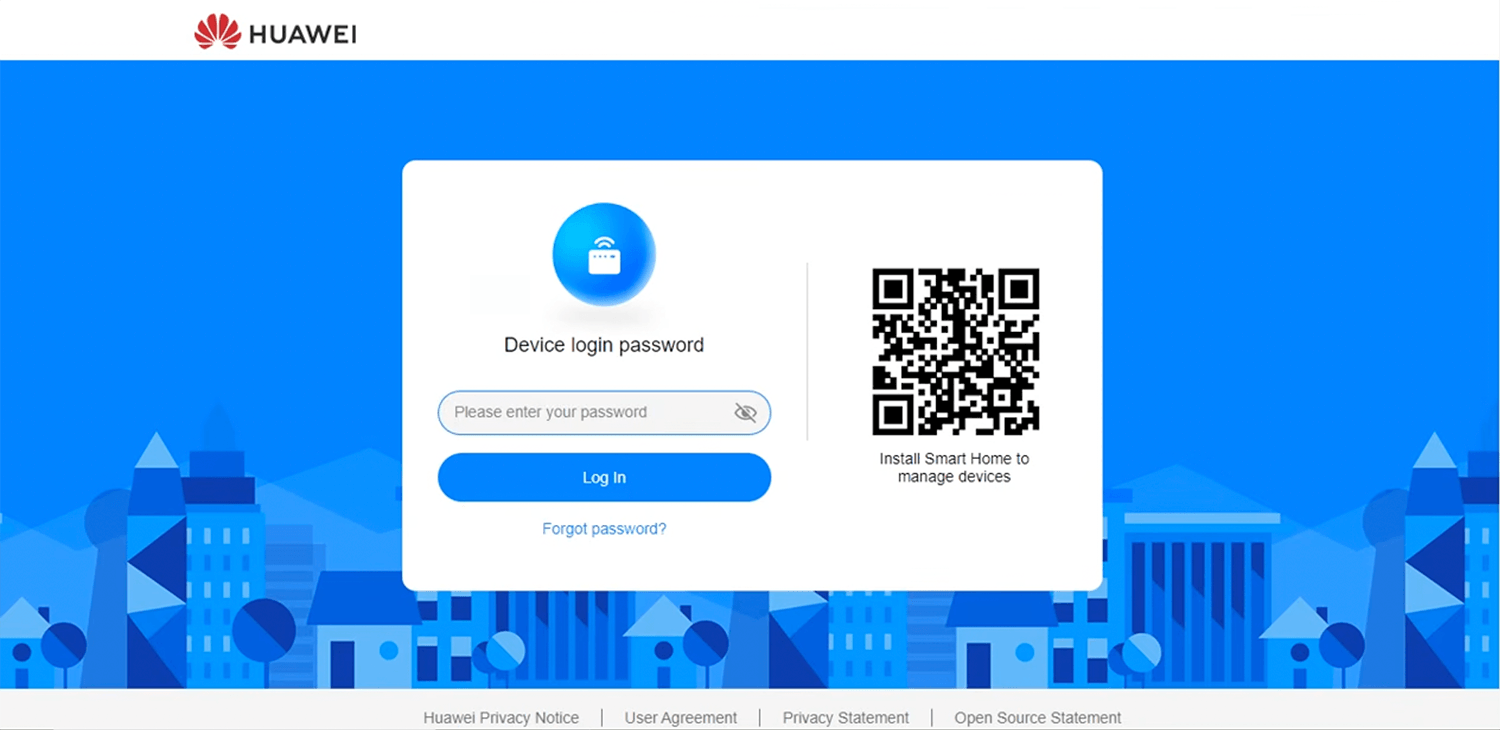
  3. Enter the Device Login Password and click Log In. The password is printed on a label in the battery compartment.
  4. Select Wi-Fi Settings > Wi-Fi Basic Settings.
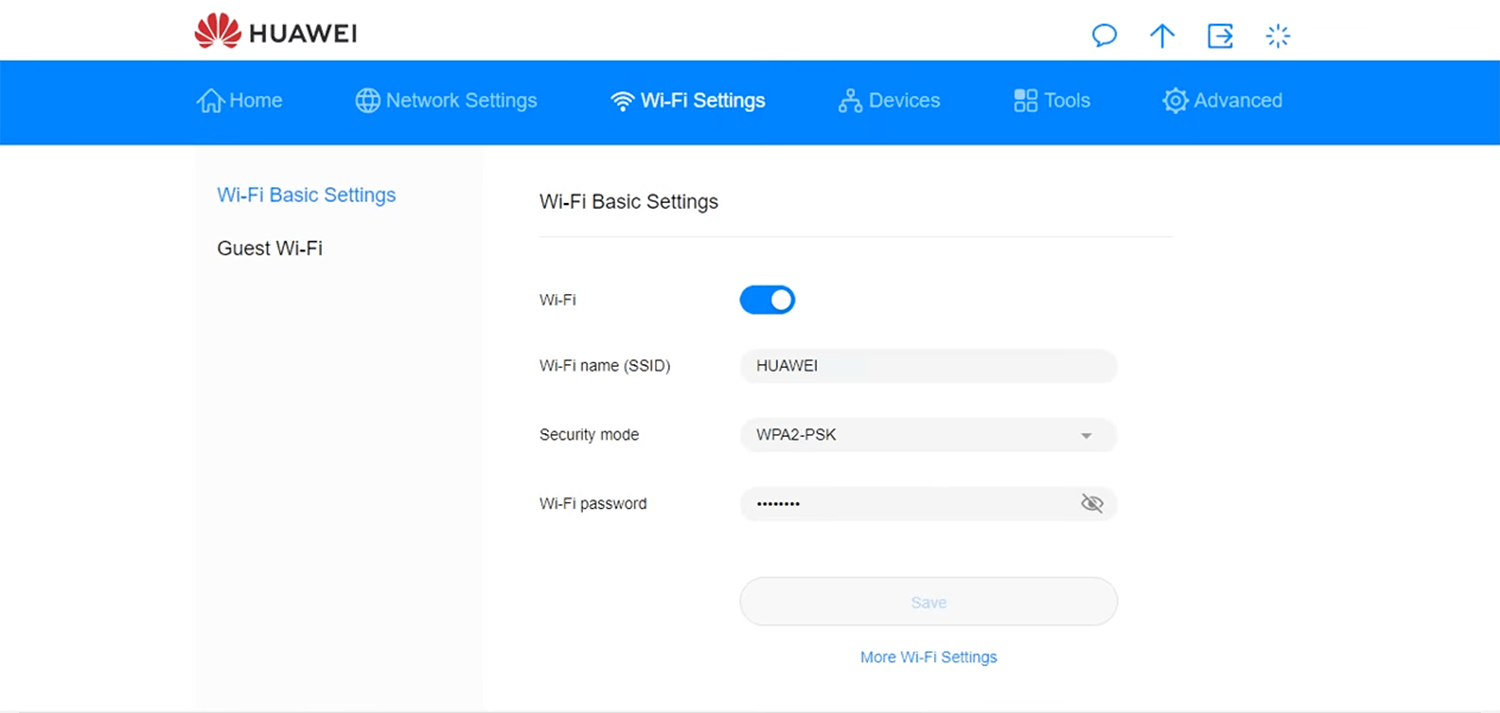
  5. Enter the Wi-Fi network name in the Wi-Fi name(SSID) field.
  6. Select Security Mode: WPA2-PSK.
  7. Enter the Wi-Fi password in the Wi-Fi password field
  8. Click Save.
  1. Connect your device to the router via Wi-Fi or an Ethernet cable.
  2. Open a browser and type http://192.168.100.1 in the address bar.
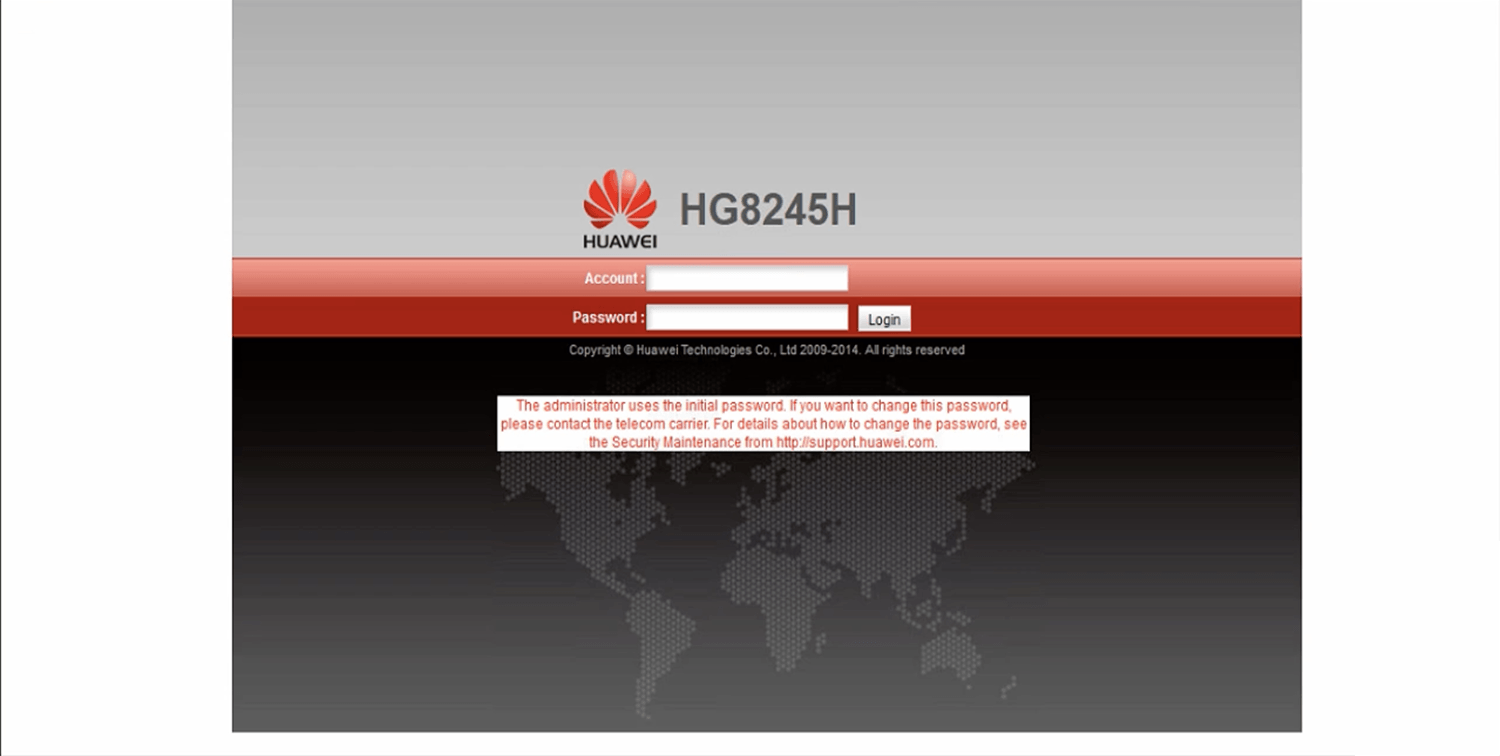
  3. Enter the Username and Password and click Log In.
  4. Select WLAN > WLAN Basic Configuration.
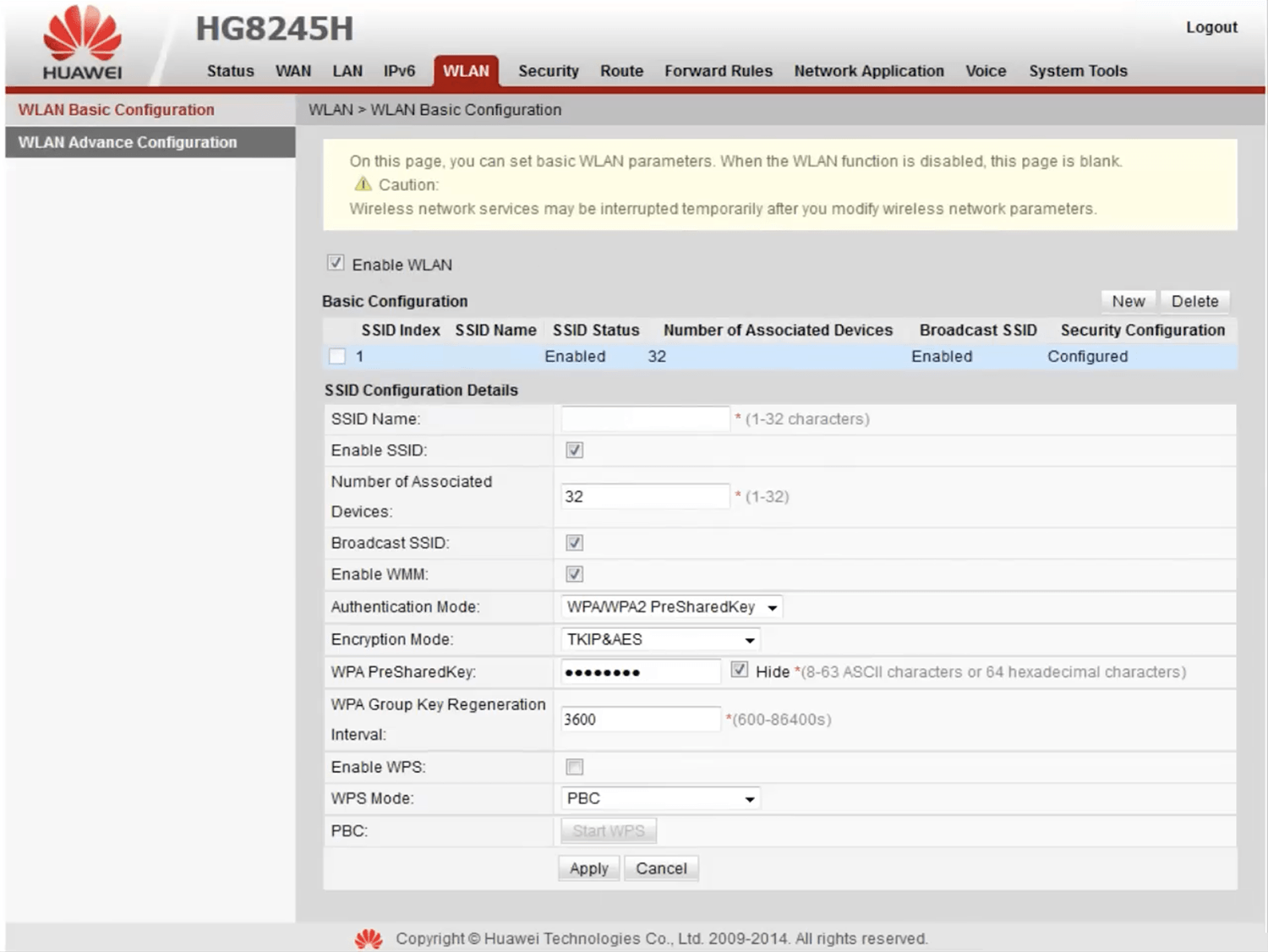
  5. Enter the Wi-Fi network name in the SSID Name field.
  6. Select Authentication Mode: WPA/WPA2 PreShared Key and Encryption Mode: TKIP&AES.
  7. Enter the Wi-Fi password in the WPA PreSharedKey field
  8. Click Apply.
  1. Connect your device to the router’s Wi-Fi network.
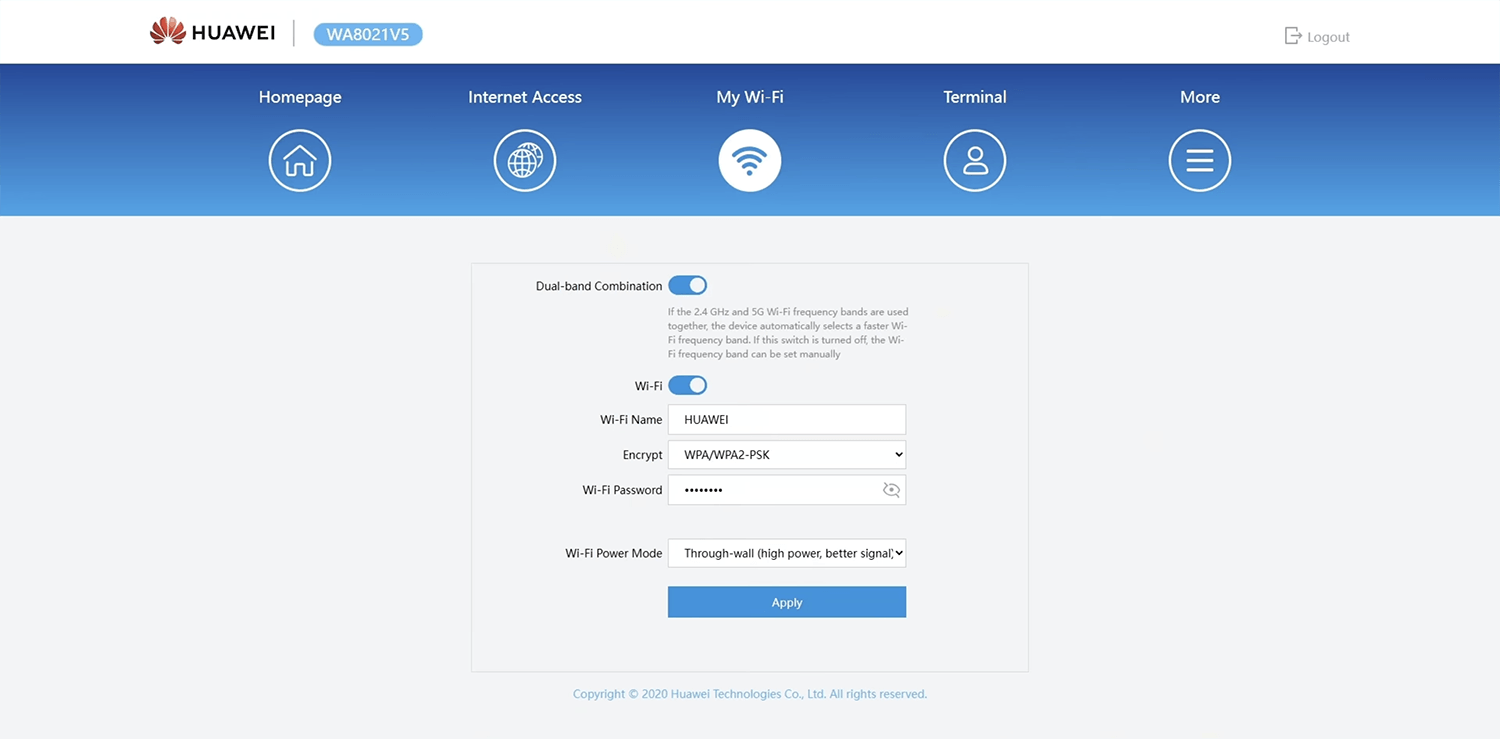
  2. Open a browser and type http://192.168.101.1 in the address bar.
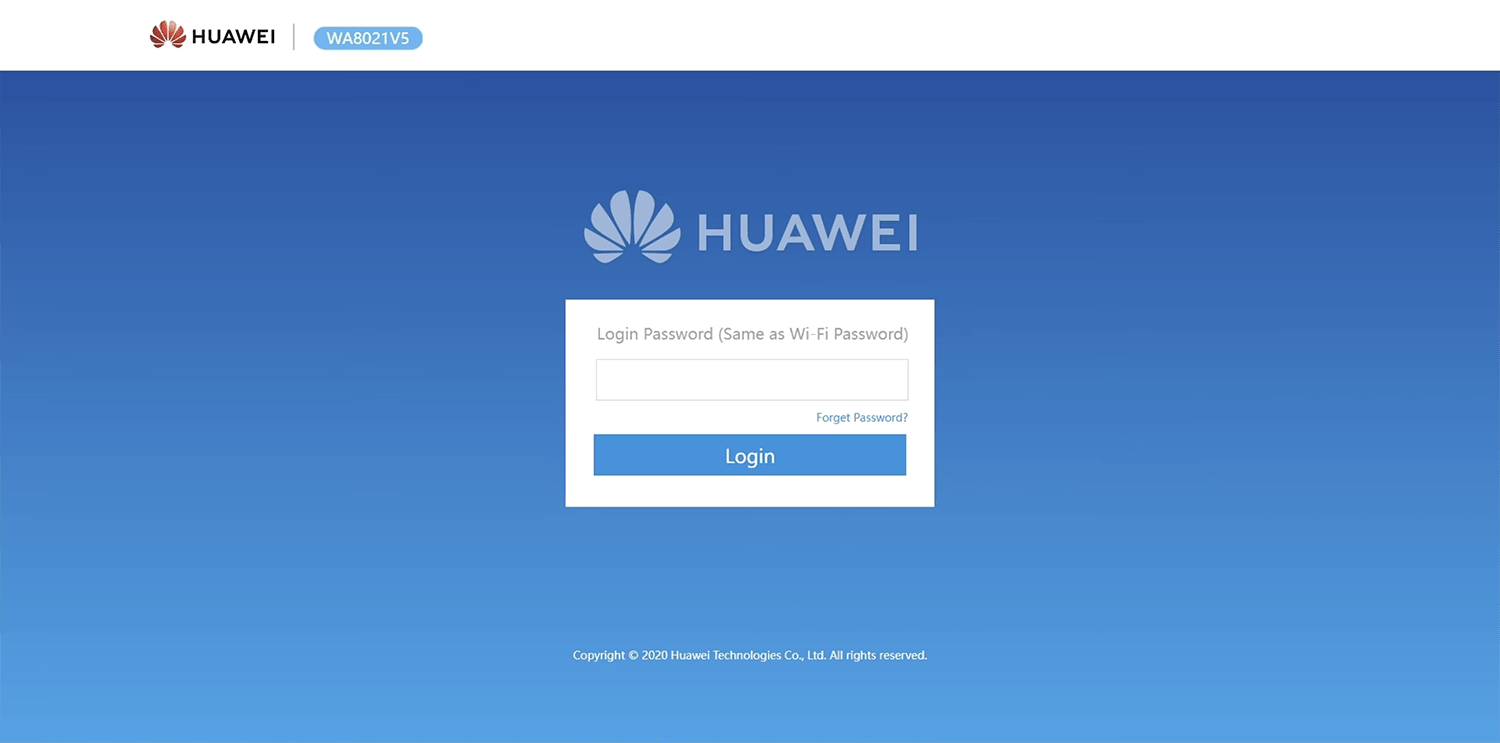
  3. Enter the Login Password and click Log In.
  4. Select My Wi-Fi.
  5. Enter the Wi-Fi network name in the Wi-Fi Name field.
  6. Select Encrypt: WPA/WPA2-PSK.
  7. Enter the Wi-Fi password in the Wi-Fi Password field
  8. Click Apply.

Popular Router IP Addresses

Popular Router Brands