TP-Link Router Login

TP-Link web-based user interface allows you to change your Wi-Fi password, Network Name (SSID), and other default router settings. The gateway IP address vary depending on the TP-Link router model.
To access your TP-Link router settings, type the IP address in the address bar of your web browser or click on the Login button below.
Default IP Address
Link
192.168.0.1
Login
tplinkwifi.net
Login
192.168.1.1
Login
tplinkmodem.net
Login
tplinkrepeater.net
Login

Default Username and Password

Common TP-Link routers default username and password combinations.
Router ModelIP AddressUsernamePassword
Archer C20192.168.0.1adminadmin
TL-WR840Ntplinkwifi.netadminadmin
Archer C6tplinkwifi.netNot required[Set during initial setup]
Archer VR400tplinkmodem.netadminadmin
VX220-G2v192.168.1.1admin[Printed on router sticker]
TL-WR940Ntplinkwifi.netadminadmin
TL-WR841Ntplinkwifi.netadminadmin
Archer AX3000
tplinkwifi.netNot required[Set during initial setup]
TL-WR845Ntplinkwifi.netadminadmin
Archer AX1800tplinkwifi.netNot required[Set during initial setup]
Archer C54tplinkwifi.netNot required[Set during initial setup]
TL-WR820Ntplinkwifi.netNot required[Set during initial setup]
Archer C80tplinkwifi.netNot required[Set during initial setup]
Archer C64tplinkwifi.netNot required[Set during initial setup]
Archer AX73tplinkwifi.netNot required[Set during initial setup]
Archer AX55tplinkwifi.netNot required[Set during initial setup]
TL-WR902ACtplinkwifi.netadminadmin
Archer C7tplinklogin.netadminadmin
Archer C1200tplinkwifi.netadminadmin
Archer C50tplinkwifi.netadminadmin
Archer C60tplinkwifi.netNot required[Set during initial setup]
Archer AX10tplinkwifi.netNot required[Set during initial setup]
Archer AX11000tplinkwifi.netNot required[Set during initial setup]
Archer AX21tplinkwifi.netNot required[Set during initial setup]
Archer AXE75tplinkwifi.netNot required[Set during initial setup]
Archer AX23tplinkwifi.netNot required[Set during initial setup]
TL-WR829Ntplinkwifi.netNot required[Set during initial setup]
Archer BE9300tplinkwifi.netNot required[Set during initial setup]
Archer AX12tplinkwifi.netNot required[Set during initial setup]
Archer AX6000tplinkwifi.netNot required[Set during initial setup]
Archer AXE5400tplinkwifi.netNot required[Set during initial setup]
EX141tplinkwifi.netNot required[Set during initial setup]
Archer AX5400tplinkwifi.netNot required[Set during initial setup]
Archer AX53tplinkwifi.netNot required[Set during initial setup]
Archer C5192.168.0.1Not required[Set during initial setup]
Archer C24tplinkwifi.netNot required[Set during initial setup]
Archer AX72tplinkwifi.netNot required[Set during initial setup]
TL-WR802Ntplinkwifi.netadminadmin
TL-WR740Ntplinkwifi.netadminadmin
Archer AX80tplinkwifi.netNot required[Set during initial setup]
Archer AX72 Protplinkwifi.netNot required[Set during initial setup]
Note: The default IP address, Username, and Password are printed on a sticker on the back or underside of the router. Some routers require you to create a new password during initial setup.

How to login to TP-Link router?

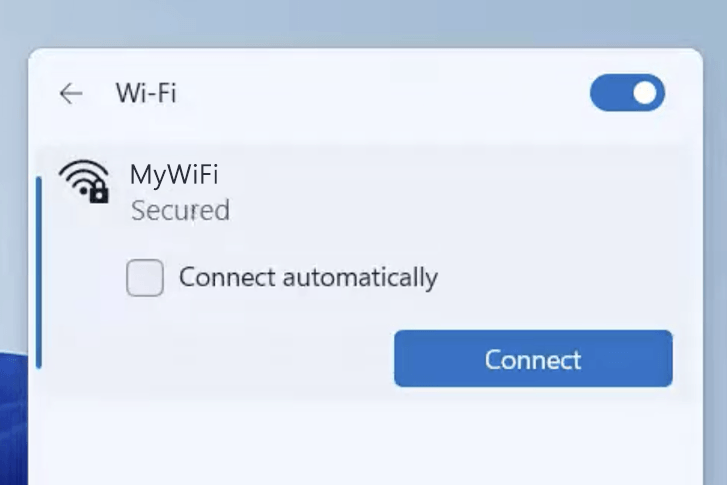
1) Connect your device to the router via an Ethernet cable or Wi-Fi connection.
2) Open a web browser and type the IP address in the address bar.
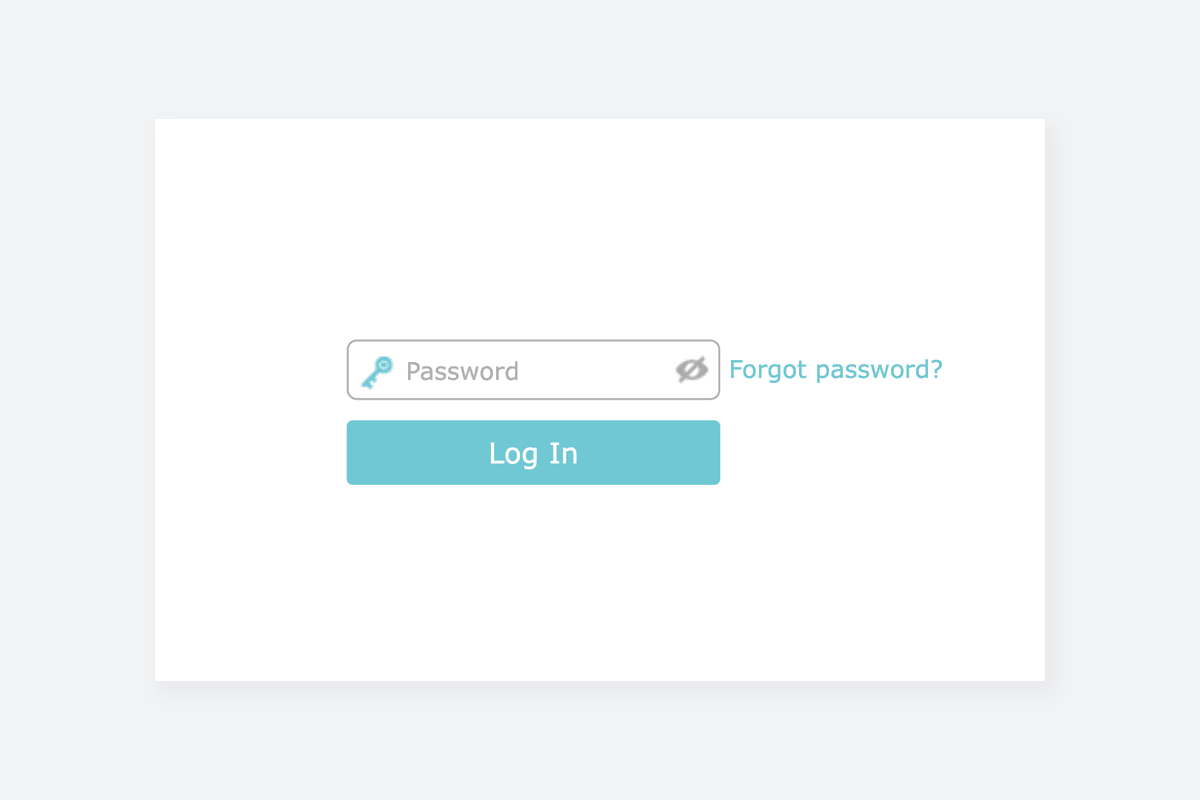
3) Enter the router username and password and click Login.

The web management page is a built-in internal web server that runs on your web browser. It does not require an active internet connection to load, however, your device (whether you are using a desktop, laptop or mobile phone) must be connected to the router either wirelessly or through a wired connection. TP-Link uses a variety of gateway IP and web addresses for their products. The following are some of the most common ones:

Product NameIP AddressWeb Address
TP-Link Routers192.168.1.1 and 192.168.0.1tplinkwifi.net
TP-Link Modems192.168.1.1tplinkmodem.net
TP-Link Wi-Fi Range Extenders192.168.0.254tplinkrepeater.net
TP-Link Access Point192.168.0.254tplinkap.net
TP-Link Deco192.168.68.1tplinkdeco.net

You can use either the IP address or the web address to access the router settings. The web addresses are a more memory-friendly options that simply resolves to the device default gateway IP address. In case your web browser have cached the web address, you can use the device IP address directly. A router model may have different IP addresses and login details because these credentials vary by device and every Internet service provider (ISP) uses different set of credentials.

Change TP-Link Wi-Fi Password and Network Name (SSID)

TP-Link web interface varies depending on the router model and firmware version. Select a router model for your reference.
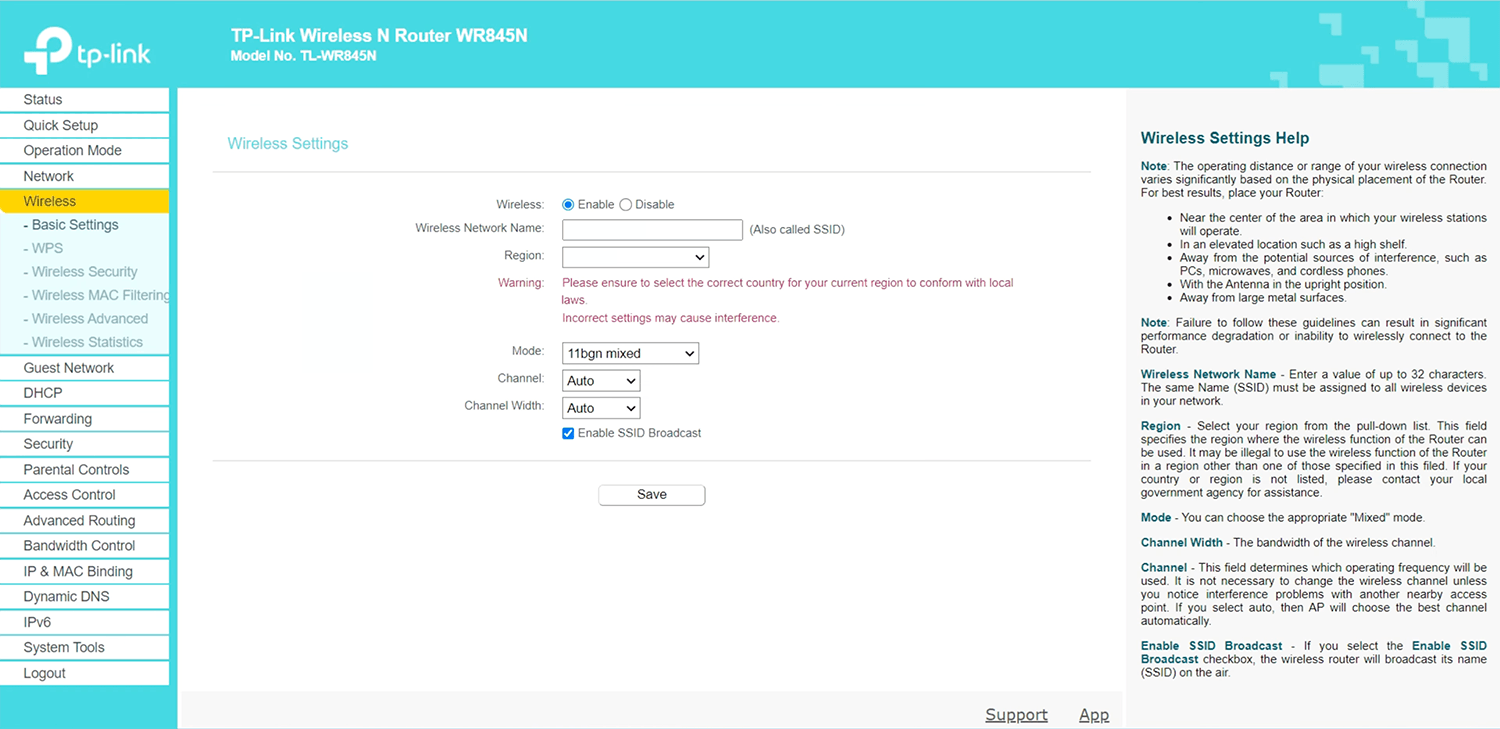
TP-Link TL-WR845N
  1. Connect your device to the router via an Ethernet cable or Wi-Fi.
  2. Open a browser and type http://tplinkwifi.net in the address bar.
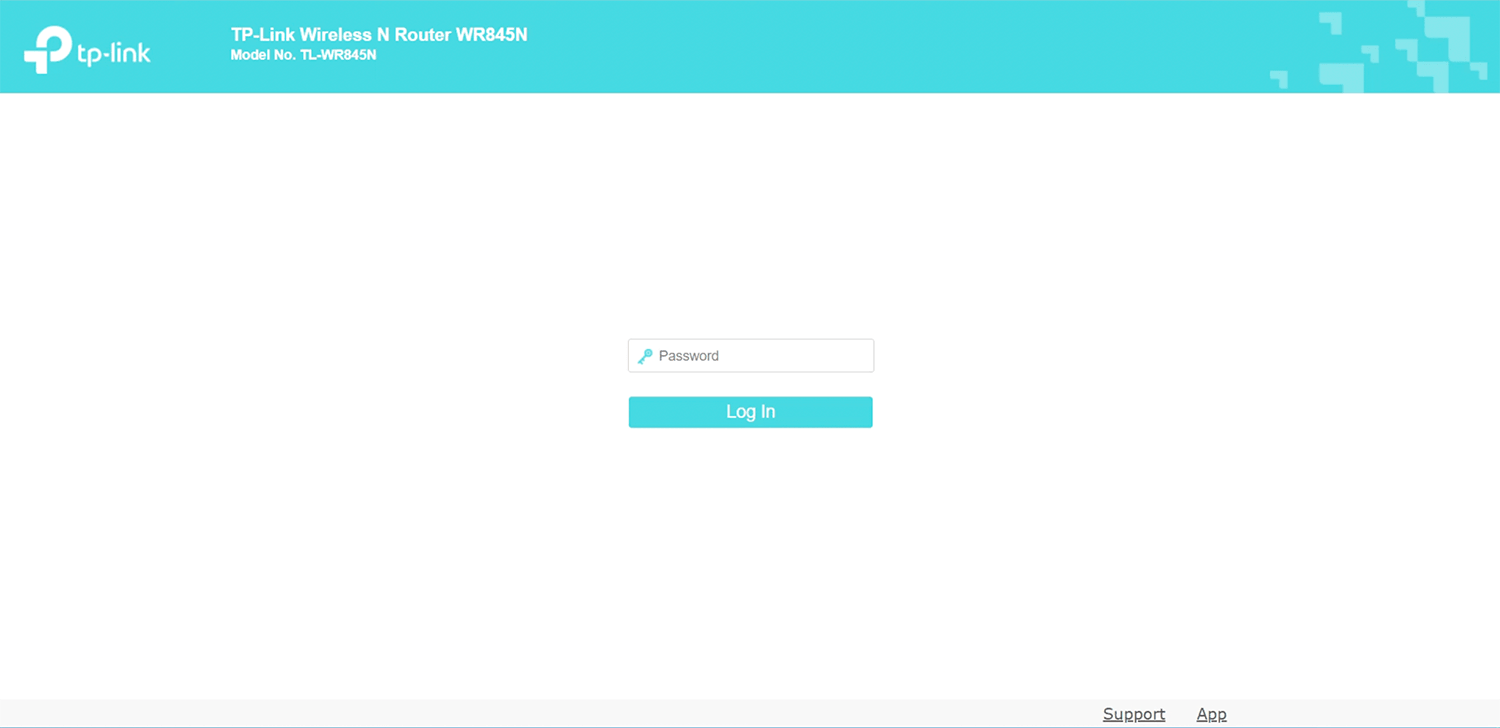
  3. Enter the password: admin and click Log In.
  4. Select Wireless > Basic Settings.
  5. Enter the Wi-Fi network name in the Wireless Network Name field and click Save.
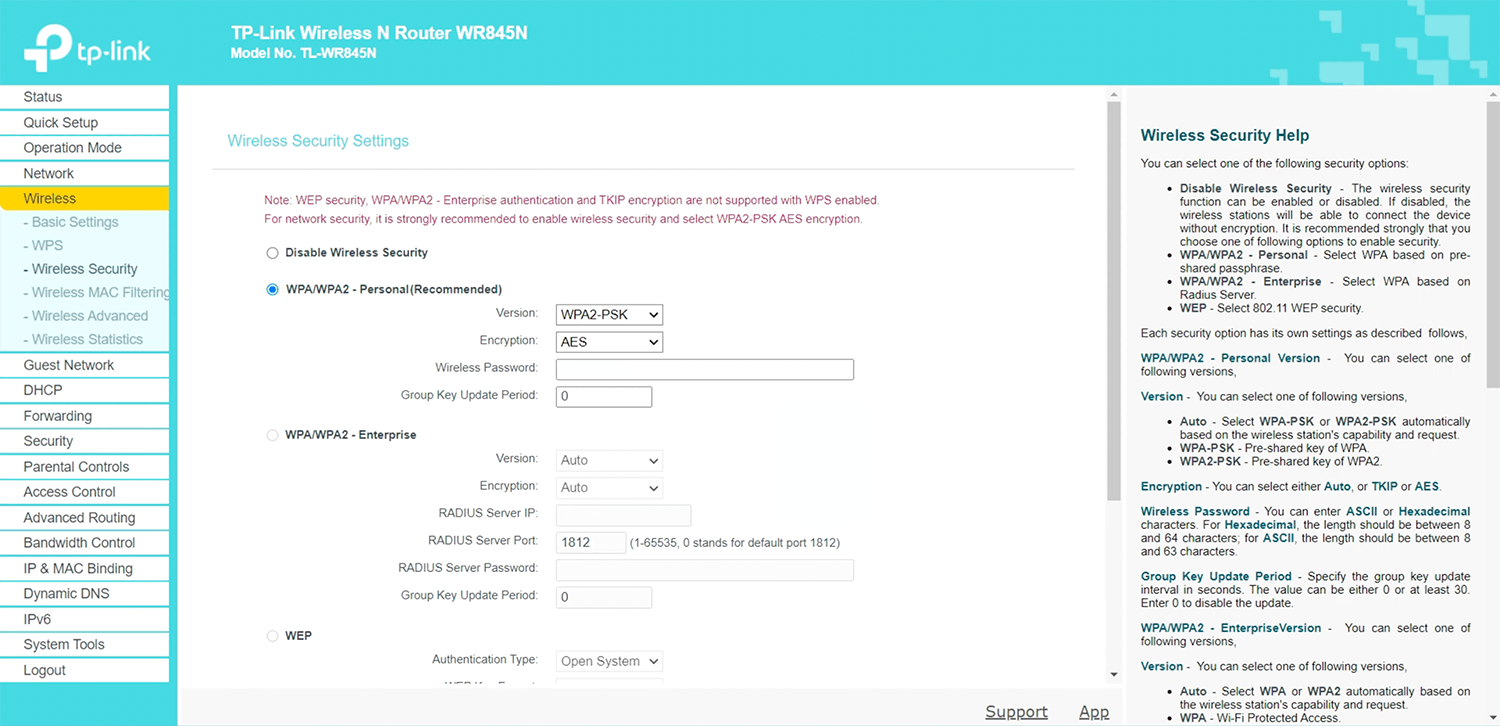
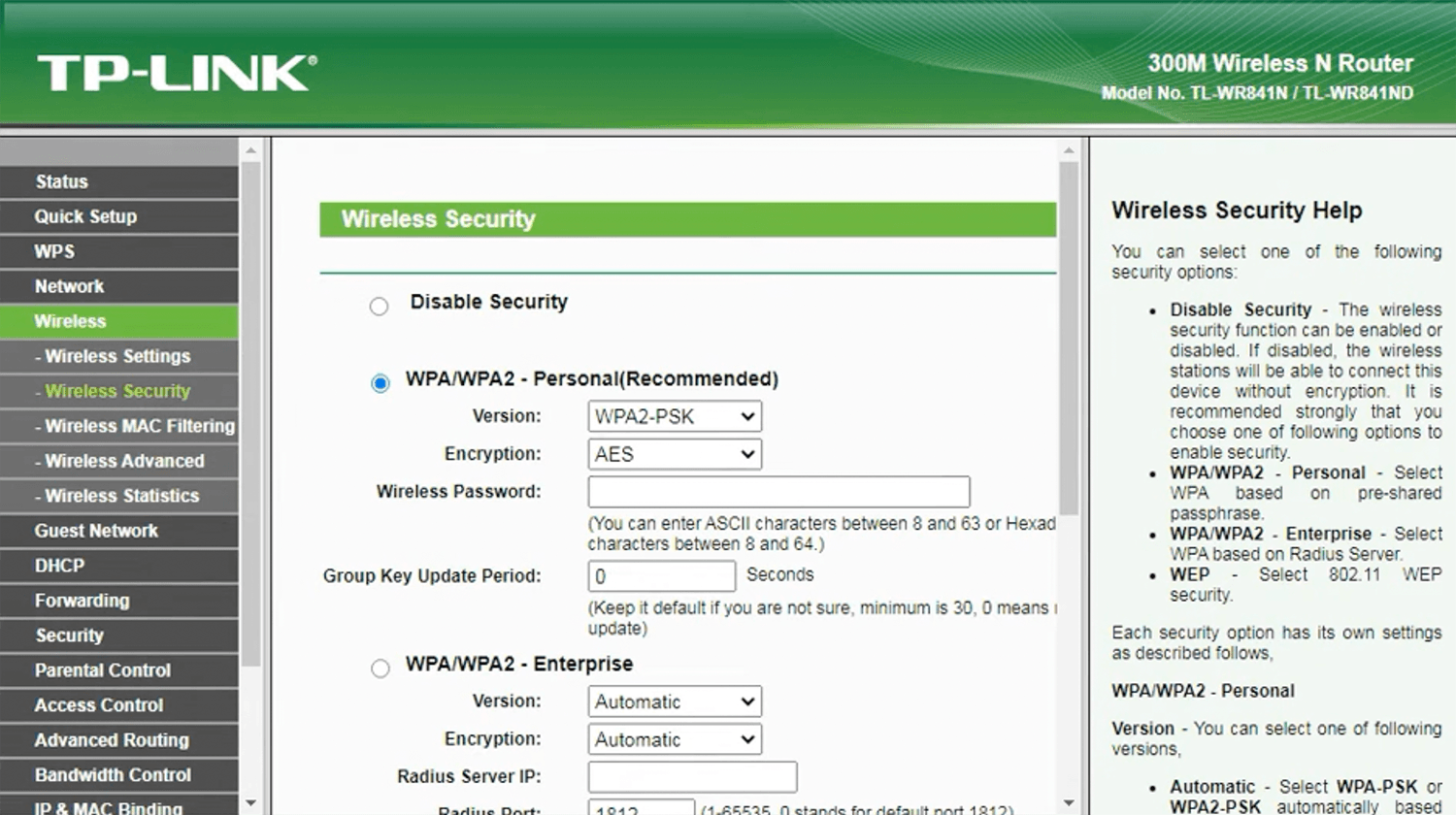
  6. Go to Wireless > Wireless Security.
  7. Select WPA/WPA2 – Personal(Recommended), Version: WPA2-PSK and Encryption: AES.
  8. Enter the Wi-Fi password in the Wireless Password field and click Save.
  1. Connect your device to the router via an Ethernet cable or Wi-Fi.
  2. Open a browser and type http://tplinkwifi.net or http://192.168.0.1 in the address bar.
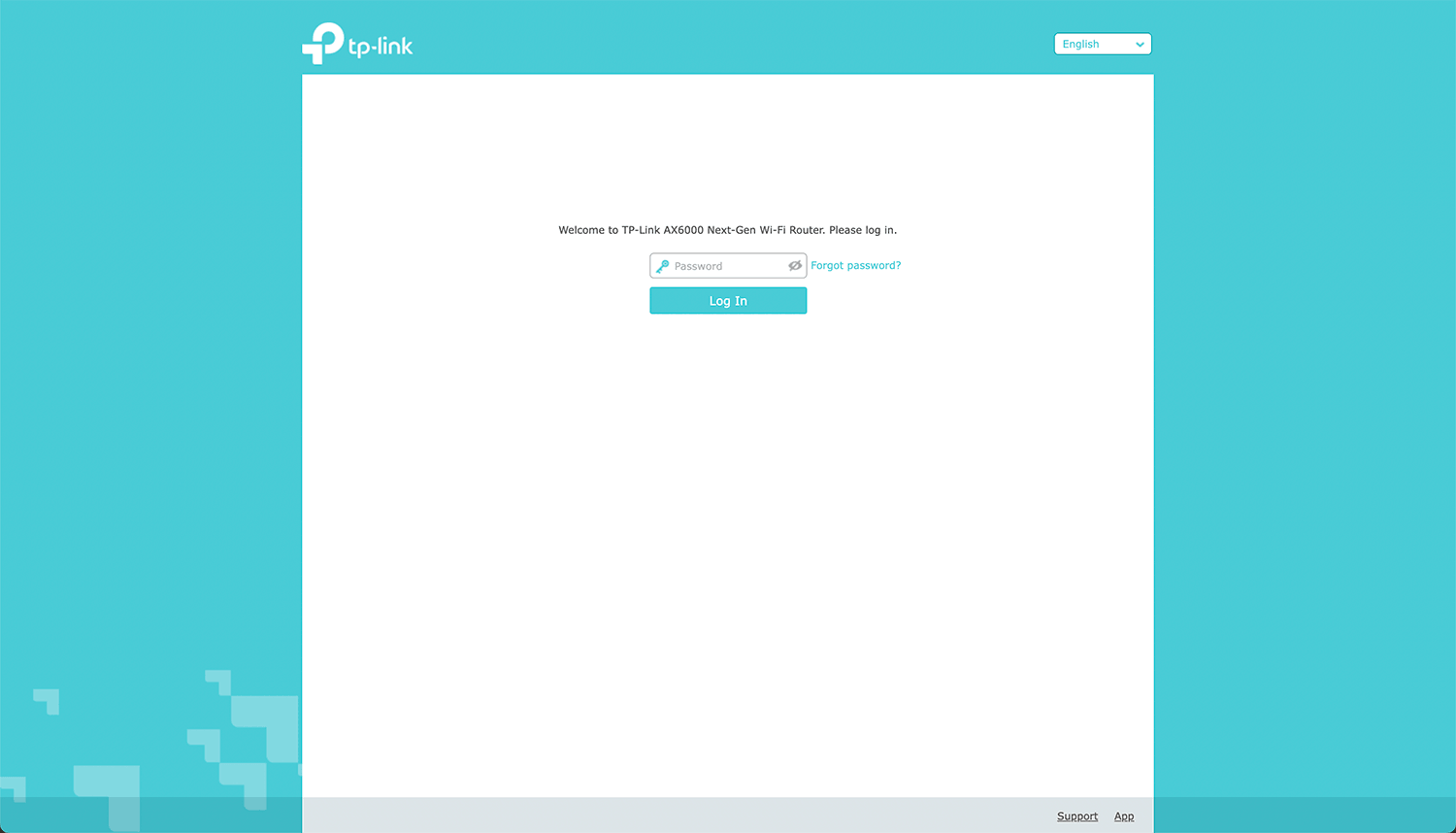
  3. Enter the Password and click Log In.
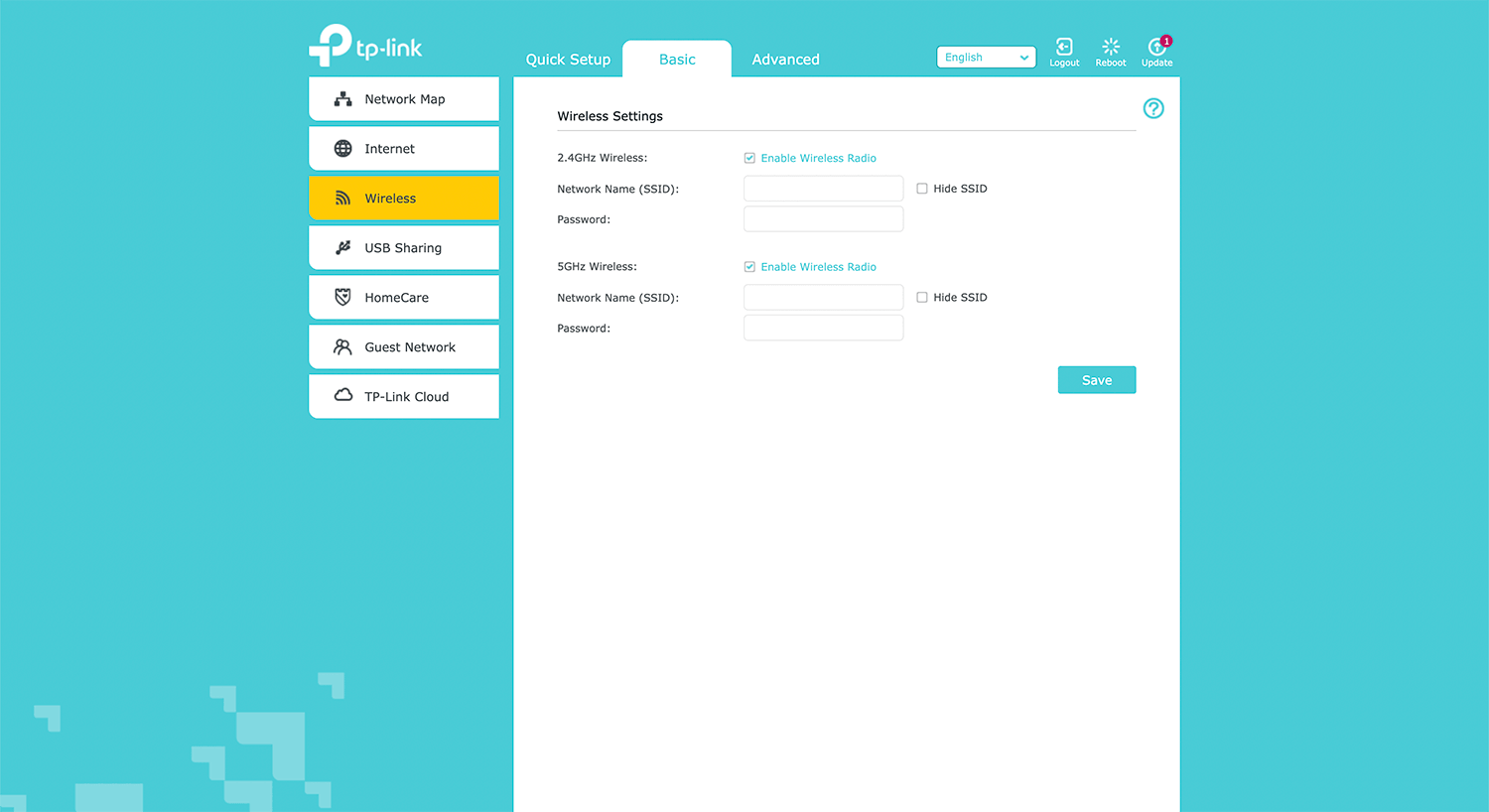
  4. Select Basic > Wireless.
  5. Enter the Wi-Fi network name in the Network Name (SSID) field.
  6. Enter the Wi-Fi password in Password field and click Save.
You can also click the Enable Wireless Radio checkbox next to 5GHz Wireless to enable the 5GHz network band.
  1. Connect your device to the router via an Ethernet cable or Wi-Fi.
  2. Open a browser and type http://192.168.0.1 or http://tplinkwifi.net in the address bar.
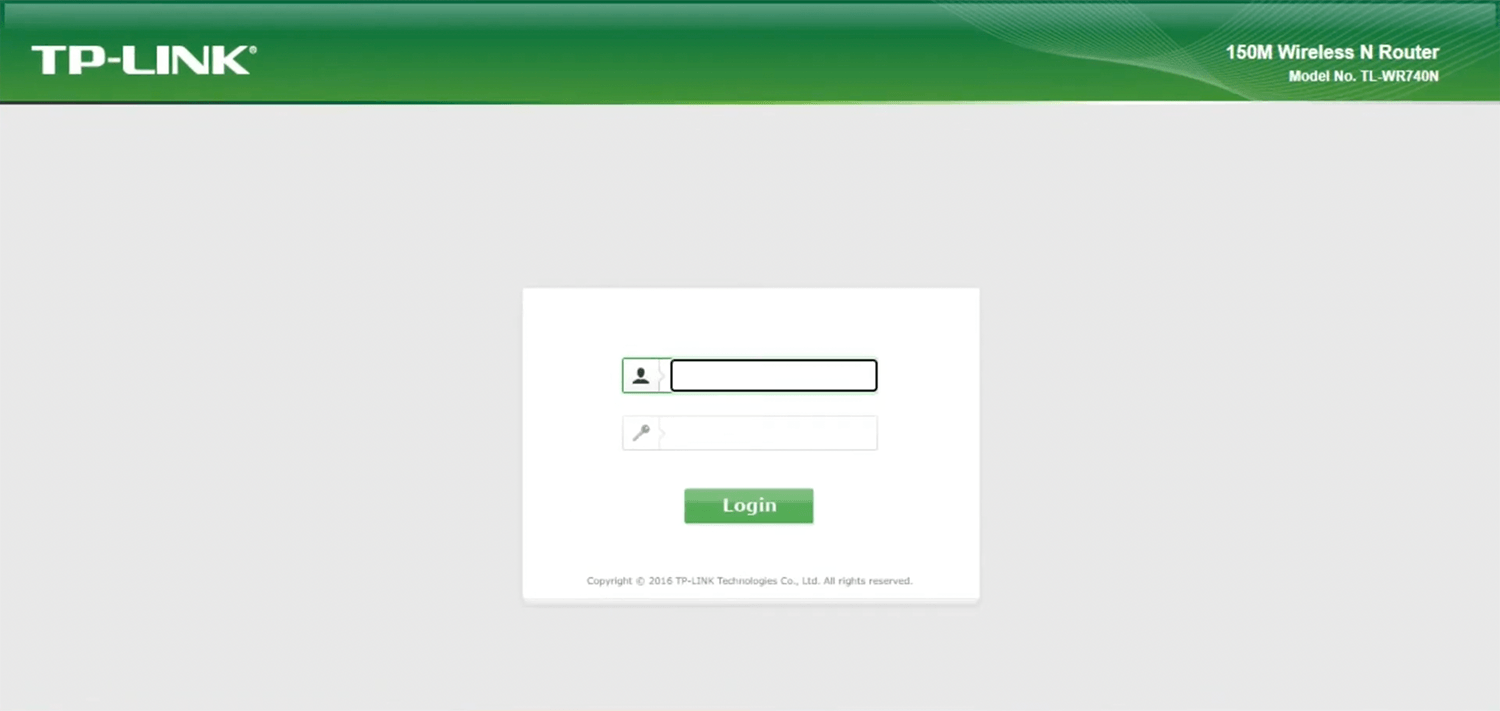
  3. Enter the Username: admin and Password: admin and click Login.
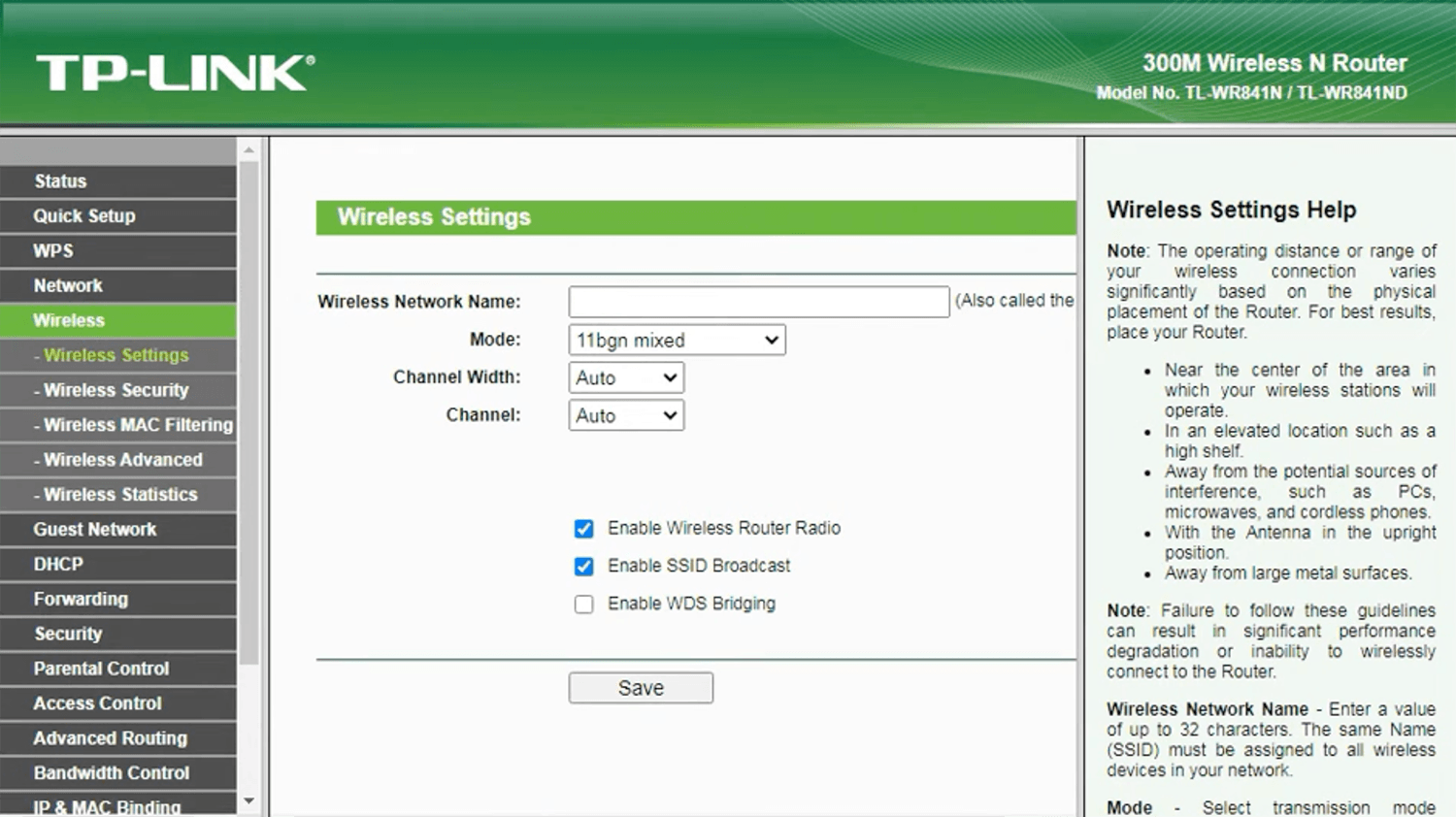
  4. Select Wireless > Wireless Settings.
  5. Enter the Wi-Fi network name in the Wireless Network Name field and click Save.
  6. Go to Wireless > Wireless Security.
  7. Select WPA/WPA2 – Personal(Recommended), Version: WPA2-PSK and Encryption: AES.
  8. Enter the Wi-Fi password in the Wireless Password field and click Save.

Popular Router IP Addresses

Popular Router Brands