
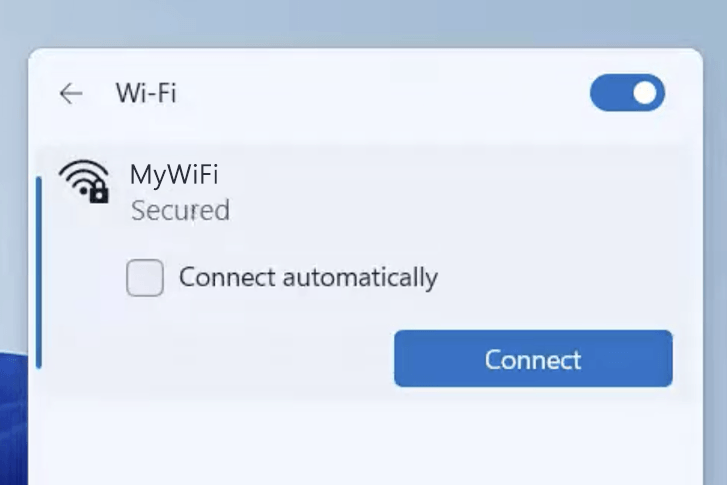
1) Connect your device to the router via an Ethernet cable or Wi-Fi connection.
2) Open a web browser and type the IP address in the address bar.
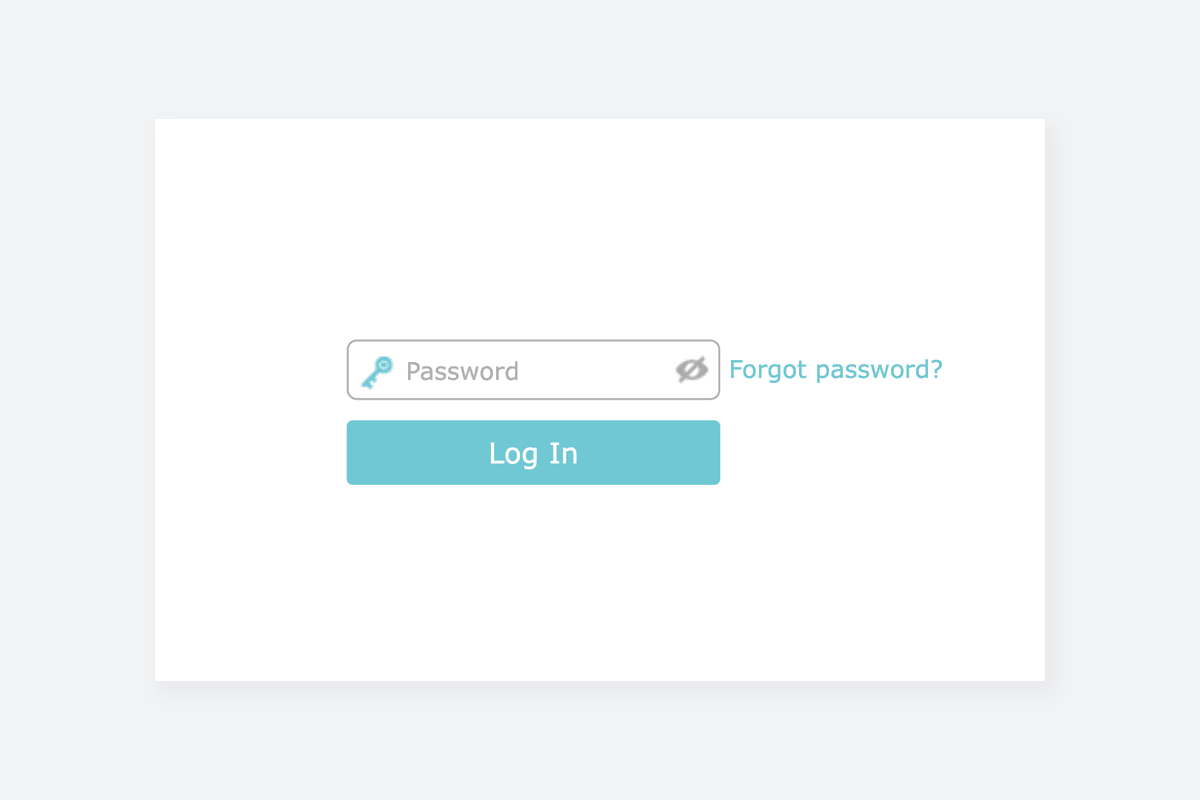
3) Enter the router username and password and click Login.
Netis WF2419E
- Connect your device to the router via Wi-Fi or an Ethernet cable.
- Open a browser and type http://netis.cc in the address bar.
- Enter the Username and Password and click Sign In.

- Once logged in, you can change your Wireless Setup directly in the Quick Setup page. Otherwise, click Advanced on the top right-hand side of the screen.

- On the Advanced Setup page, select Wireless > Wireless Settings.
- Enter the Wi-Fi network name in the SSID field.
- Select Authentication Type: WPA/WPA2-PSK, Encryption Type: TKIP & AES and Key Mode: ASCII..
- Enter the Wi-Fi password in the Password field.
- Click Save.
Netis WF2409E
- Connect your device to the router via Wi-Fi or an Ethernet cable.
- Open a browser and type http://192.168.1.1 or http://netis.cc in the address bar.
- Enter the Login Password and click Log In.
- Select Wireless Settings.

- Enter the Wi-Fi network name in the Network Name (SSID) field.
- Select Security: WPA2-PSK.
- Enter the Wi-Fi password in the Password field
- Click Save.
Netis N2
- Connect your device to the router via Wi-Fi or an Ethernet cable.
- Open a browser and type http://192.168.1.254 or http://netis.cc in the address bar.
- Enter the Username: guest and Password and click Log In. The password is guest@xxxx (Replace xxxx with last 4 digit MAC address). The password printed on a label underneath the router.

- You can change your Wireless Settings in the Quick Setup page. Otherwise, click Advanced on the top right-hand side of the screen.

- Select Wireless 2.4G > Wireless Settings.
- Enter the Wi-Fi network name in the SSID field.
- Select Authentication Type: WPA/WPA2-PSK, Encryption Type: TKIP & AES and Key Mode: ASCII..
- Enter the Wi-Fi password in the Password field.
- Click Save.