
192.168.2.1 is the gateway IP address of your router to access the web-based user interface to change Wi-Fi password, Network Name (SSID), and other default settings.
To access your router settings, type http://192.168.2.1 in the address bar of your web browser or click on the Login button below.
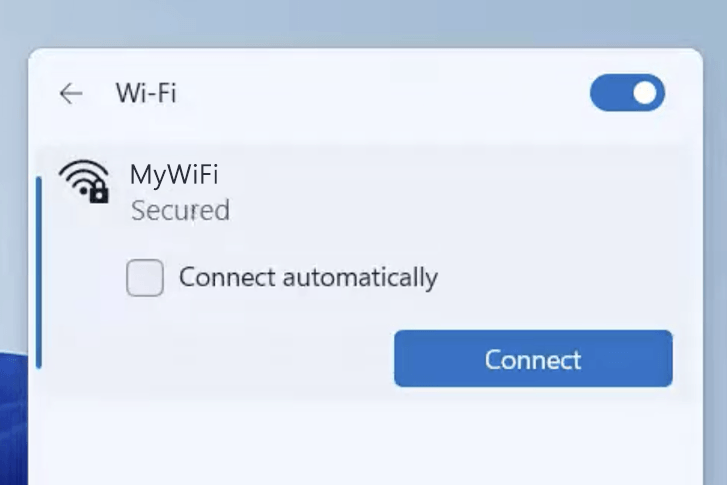
Your device must be connected to the router via Wi-Fi or an Ethernet cable.
The gateway IP address will only load on the browser when your device is connected to the router. For help, see How to find your router IP address? and Can’t connect to my Router login page; what do I do?.
Default Username and Password
Common default router username and password combinations.
| Router Model | IP Address | Username | Password |
|---|---|---|---|
| Telekom Speedport | 192.168.2.1 | (Not required) | [Printed on router sticker] |
| Belkin N150 | 192.168.2.1 | (Not required) | (Leave it blank) |
| Belkin N450 | 192.168.2.1 | (Not required) | (Leave it blank) |
| Bell Home Hub 1000 | 192.168.2.1 | (Not required) | admin |
| Bell Connection Hub | 192.168.2.1 | admin | admin |
| Vodafone H300s | 192.168.2.1 | admin | [Printed on router sticker] |
| Bell Home Hub 3000 | 192.168.2.1 | (Not required) | [S/N printed on back of the modem] |
| Bell Giga Hub 2.0 | 192.168.2.1 | (Not required) | [S/N printed on back of the modem] |
| Vodafone EasyBox 805 | 192.168.2.1 | (Not required) | [Printed on router sticker] |
| Bell Giga Hub | 192.168.2.1 | (Not required) | [S/N printed on back of the modem] |
| Bell Home Hub 4000 | 192.168.2.1 | (Not required) | [S/N printed on back of the modem] |
| Vodafone H500-S | 192.168.2.1 | vodafone | [Printed on router sticker] |
| Vodafone DSL-EasyBox 803 A | 192.168.2.1 | root | 123456 |
| Tenda 4G300 | 192.168.2.1 | admin | admin |
Note: The default IP address, Username, and Password are printed on a sticker on the back or underside of the router. Some routers require you to create a new password during initial setup.
How to login to 192.168.2.1?

1) Connect your device to the router via an Ethernet cable or Wi-Fi connection.
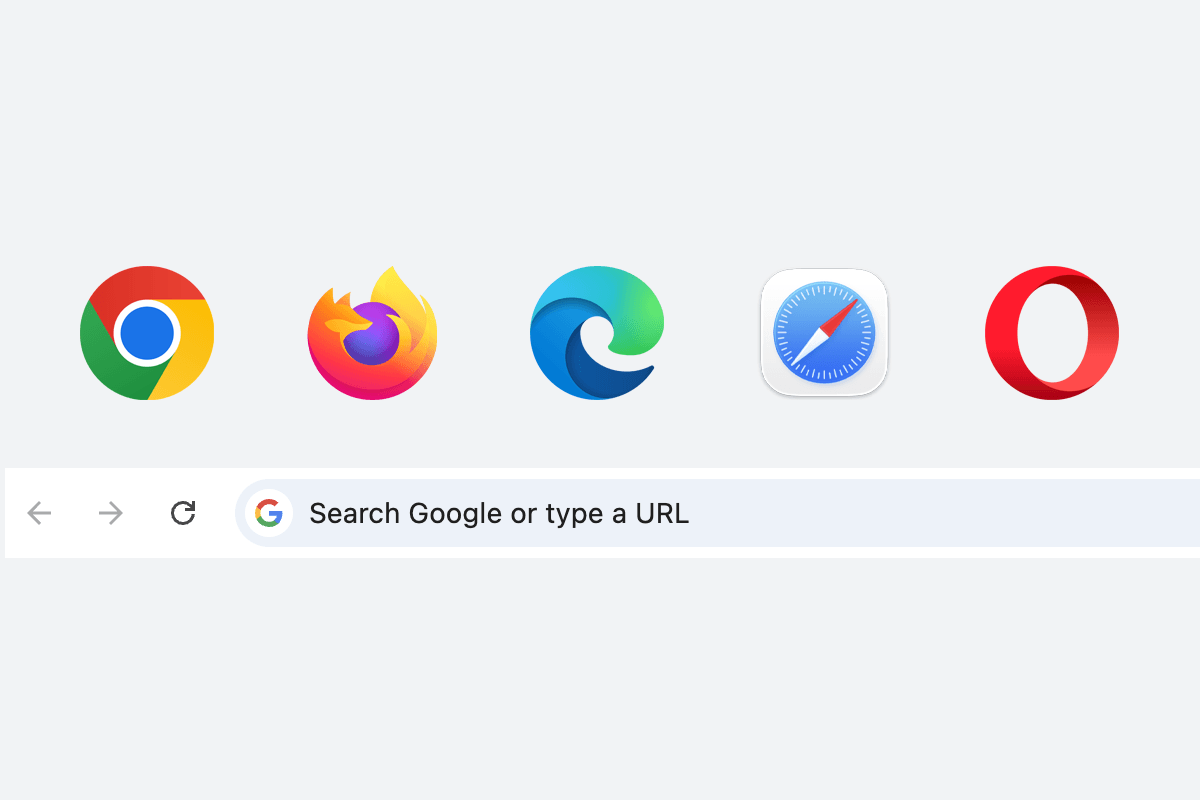
2) Open a web browser and type http://192.168.2.1 in the address bar.
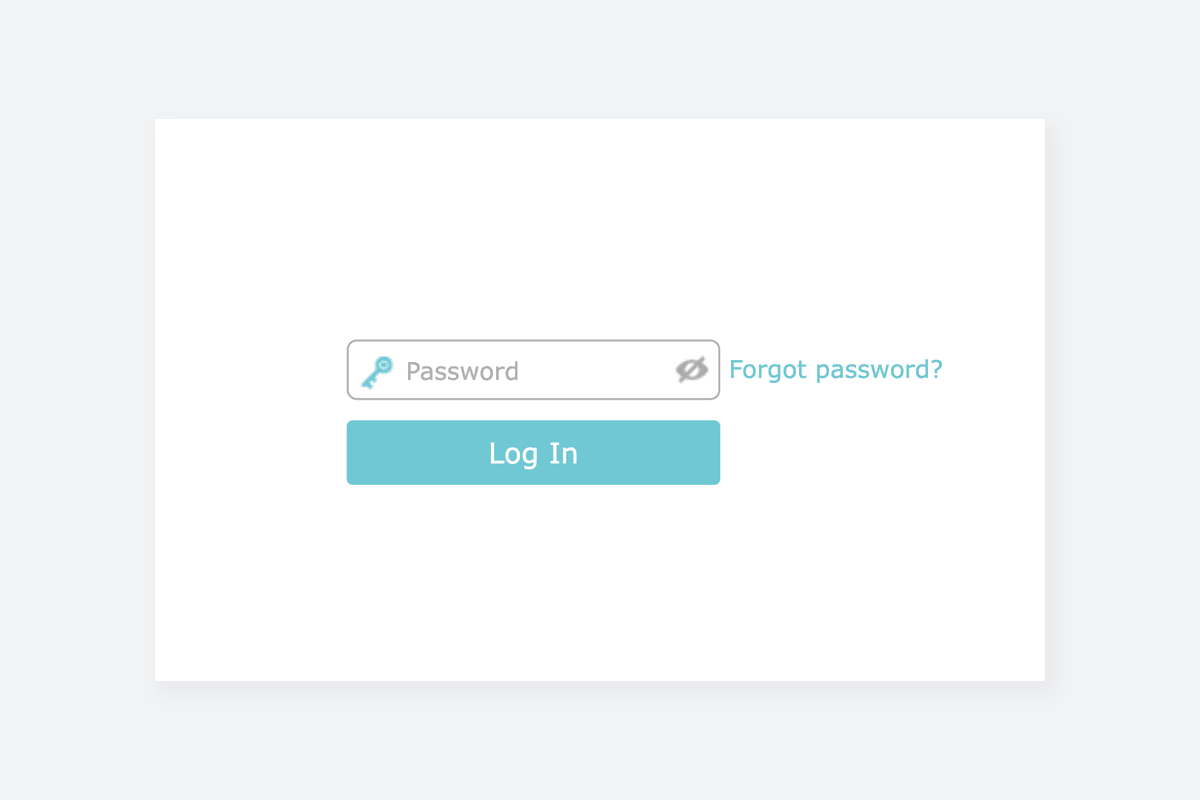
3) Enter the router username and password and click Login.
Change Wi-Fi Password and Network Name (SSID)
The exact menu path depends on your router brand, model and firmware version. Below are some router models using 192.168.2.1 as the default IP address.
Bell Giga Hub
- Connect your device to the router via Wi-Fi or an Ethernet cable.
- Open a browser and type http://192.168.2.1 in the address bar.
- On the Dashboard, select Manage my Wi-Fi under Home network.
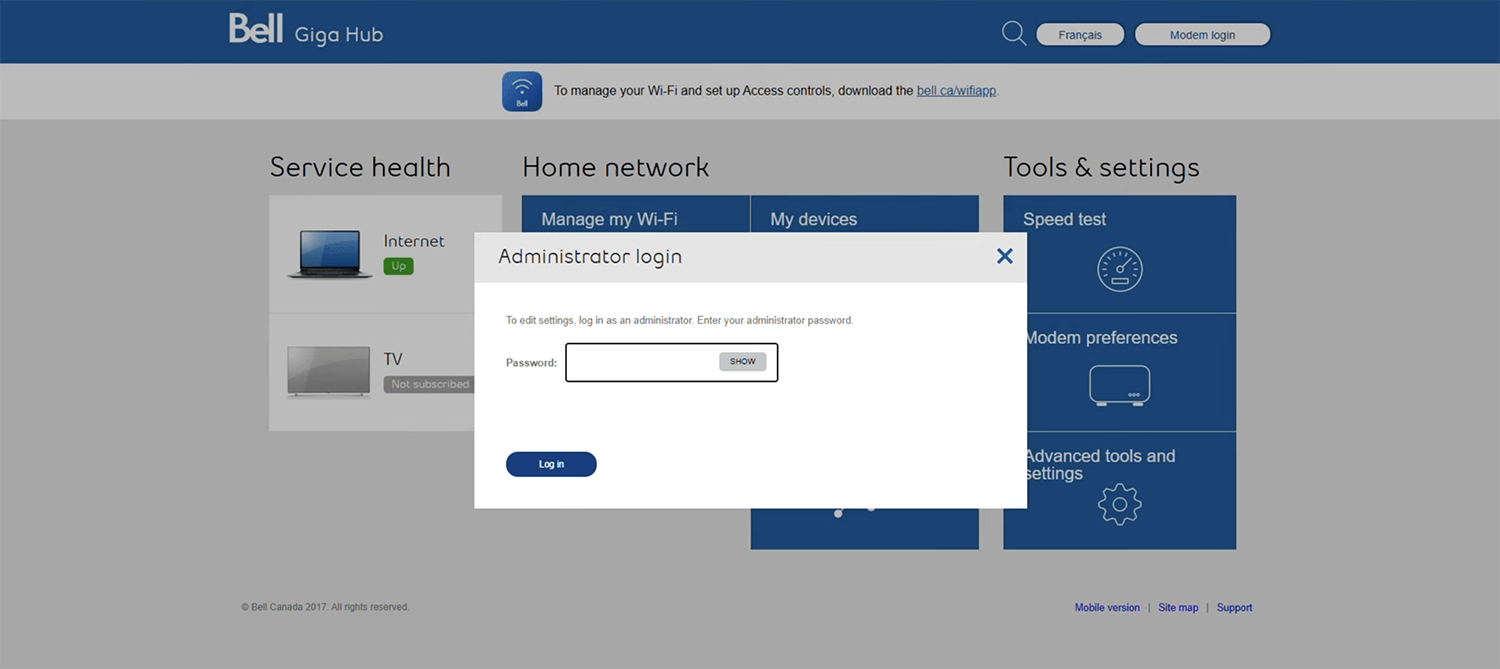
- Enter the adminstrator password and click Log in. By default, the password is the serial number (S/N) printed on the back of the modem.
- Select Primary Wi-Fi network. If you wish to change 2.4 GHz and 5.0 GHz settings separately, toggle off the Whole Home Wi-Fi settings.
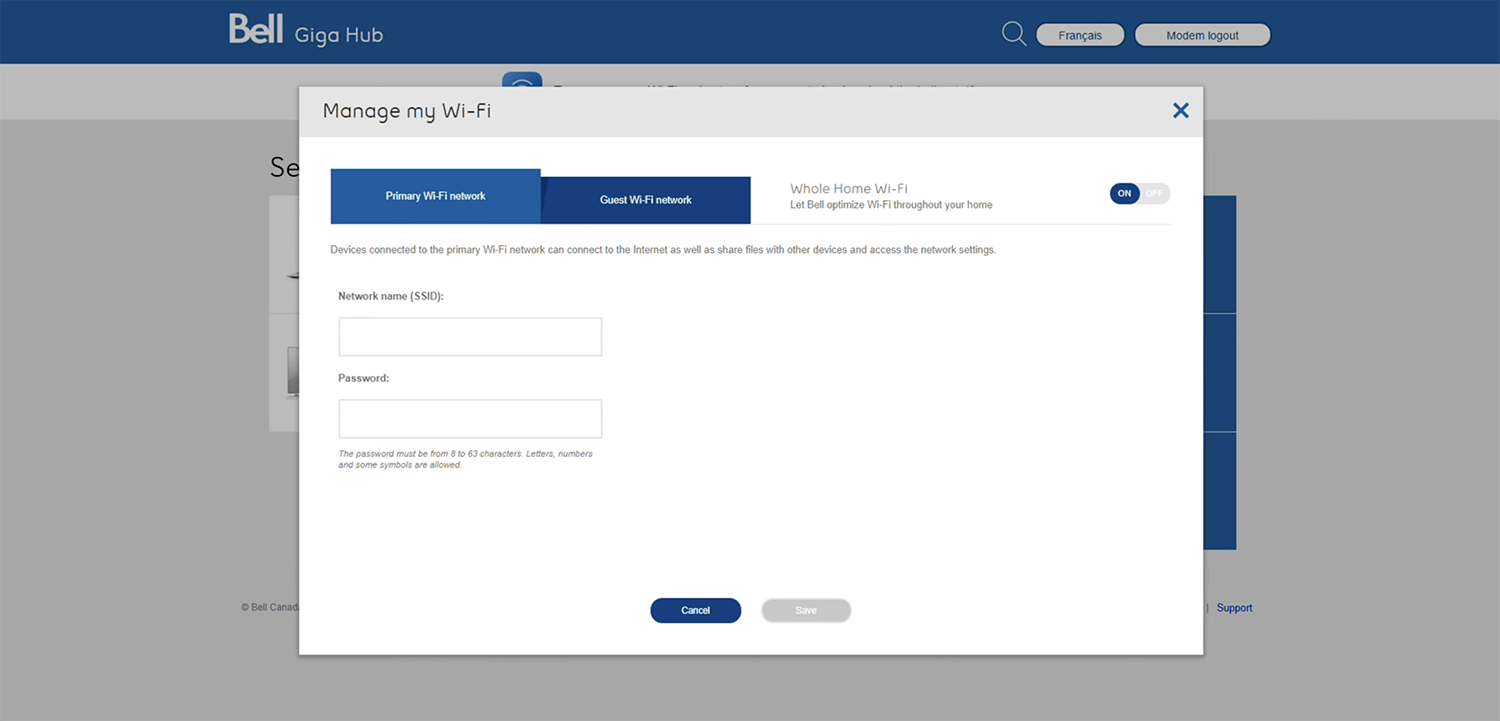
- Enter the Wi-Fi network name in the Network name (SSID) field.
- Enter the Wi-Fi password in the Password field.
- Click Save.
Belkin N450 DB
- Connect your device to the router via Wi-Fi or an Ethernet cable.
- Open a browser and type http://192.168.2.1 in the address bar.
- Select Login from the top right side of the screen. Enter the Password and click Submit. By default, the device is not shipped with a password. If you have not previously changed the password, leave it blank.
- Select Wireless > Channel and SSID.
- Enter the Wi-Fi network name in the SSID field and click Apply Changes.
- Select Wireless > Security.
- Select Security Mode: WPA/WPA2-Personal (PSK) and Authentication: WPA-PSK+WPA2-PSK.
- Enter the Wi-Fi password in the Pre-shared Key (PSK) field
- Click Apply Changes.
Telekom Speedport Smart 2
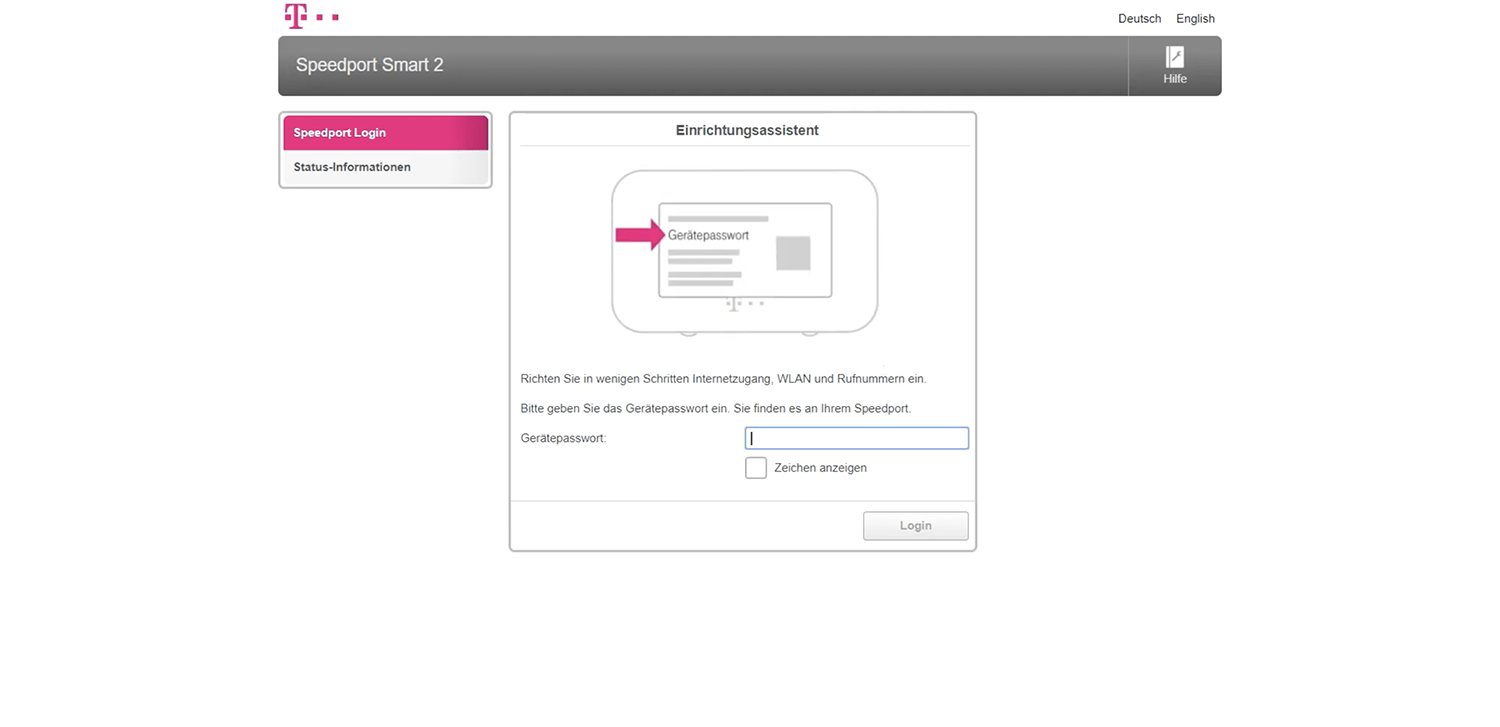
- Connect your device to the router via Wi-Fi or an Ethernet cable.
- Open a browser and type http://192.168.2.1 in the address bar.

- Enter the password in the Gerätepasswort field and click Login. The password is printed on the back of your Speedport device.
- Select Heimnetzwerk > WLAN-Grundeinstellungen > Name and Verschlüsselung.
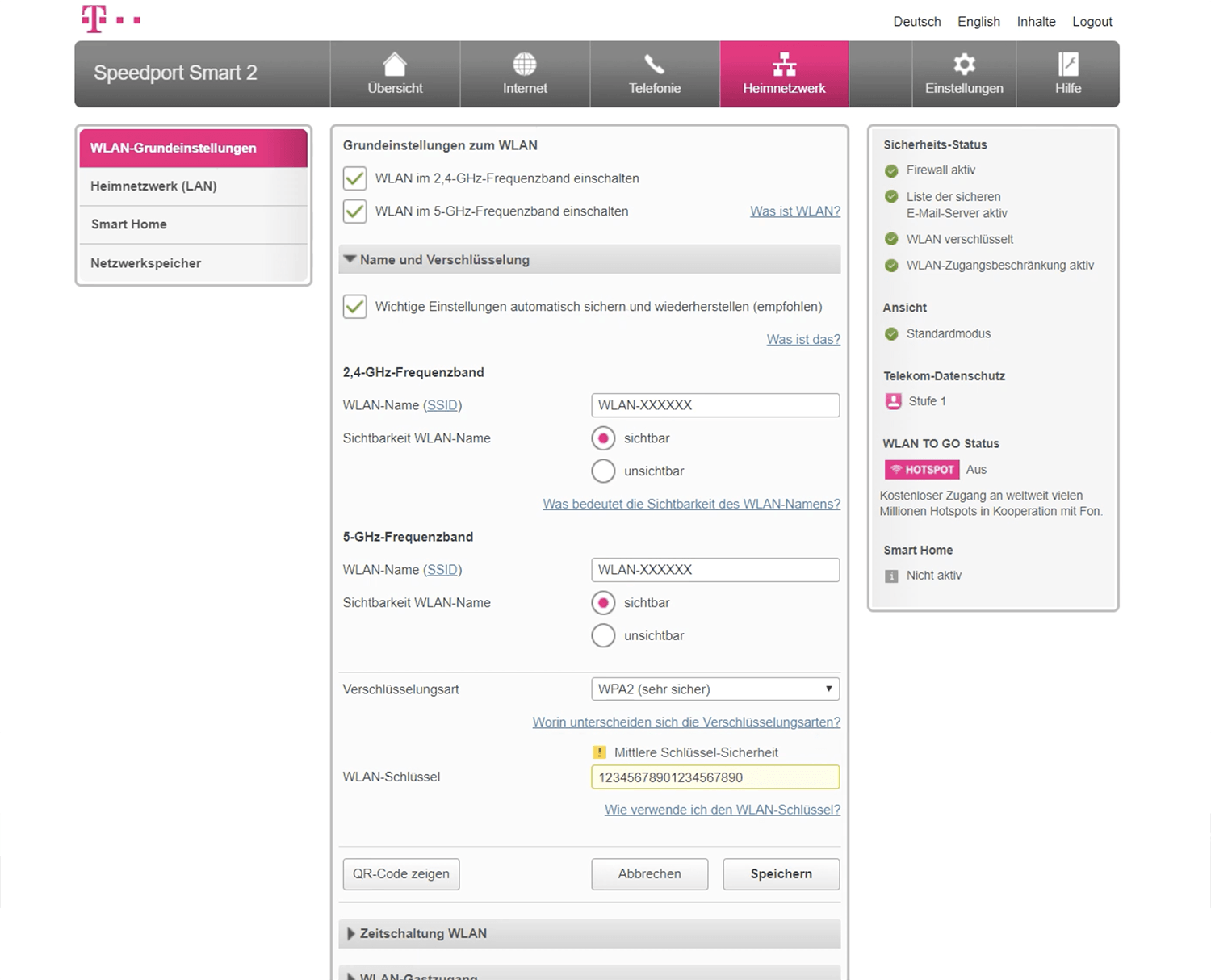
- Enter the Wi-Fi network name in the WLAN-Name (SSID) field.
- Select Verschlüsselungsart: WPA2 (sehr sicher).
- Enter the Wi-Fi password in the WLAN-Schlüssel field
- Click Speichern.