192.168.100.1

192.168.100.1 is the gateway IP address of your router to access the web-based user interface to change Wi-Fi password, Network Name (SSID), and other default settings.

To access your router settings, type http://192.168.100.1 in the address bar of your web browser or click on the Login button below.

Default Username and Password

Common default router username and password combinations.
Router ModelIP AddressUsernamePassword
Huawei EchoLife HG8245A192.168.100.1Adminadmin
Huawei EchoLife HG8546M192.168.100.1rootadmin
Huawei EchoLife HG8245192.168.100.1telecomadminadmintelecom
Huawei EchoLife EG8145V5192.168.100.1rootadminHW
Huawei EchoLife EG8141A5192.168.100.1telecomadminadmintelecom
Huawei EchoLife HG8145V5192.168.100.1[Printed on router sticker][Printed on router sticker]
Huawei EchoLife HG8245H192.168.100.1rootadmin
Huawei EchoLife HG8245Q192.168.100.1useruser
Huawei OptiXstar EG8145X6192.168.100.1admin[Printed on router sticker]
Huawei EchoLife HG8245W5192.168.100.1rootadminHW
Huawei OptiXstar B610-4E192.168.100.1root[Printed on router sticker]
Huawei EchoLife HS8546V5192.168.100.1rootadminHW
Huawei EchoLife HG8245192.168.100.1telecomadminadmintelecom
Huawei EchoLife HG8546M192.168.100.1rootadminHW
Huawei EchoLife HG8245W5192.168.100.1UseradminHW
Huawei EchoLife HG8546M192.168.100.1telecomadminadmintelecom
MF800192.168.100.1adminadmin
Huawei HG8245X6-8N-30192.168.100.1admin[Printed on router sticker]
Huawei HG8145V5192.168.100.1User[Printed on router sticker]
Huawei HG814V5192.168.100.1rootadminHW
Huawei HG8145V5-V2192.168.100.1admin[Printed on router sticker]
Huawei EchoLife HG8245Q192.168.100.1rootadmin
Note: The default IP address, Username, and Password are printed on a sticker on the back or underside of the router. Some routers require you to create a new password during initial setup.

How to login to 192.168.100.1?

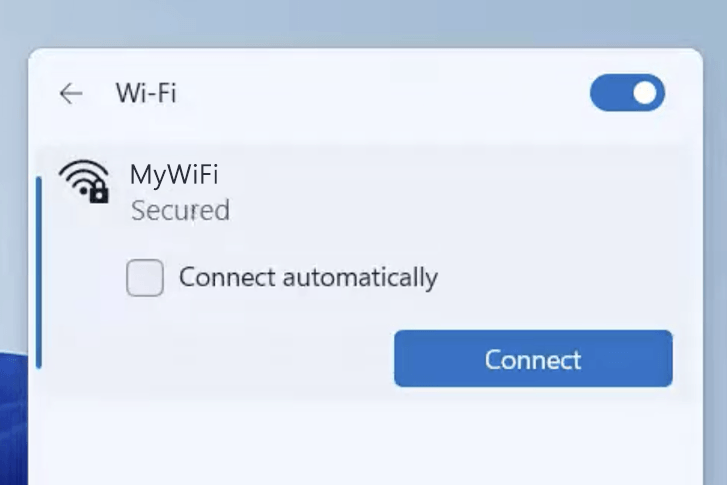
1) Connect your device to the router via an Ethernet cable or Wi-Fi connection.
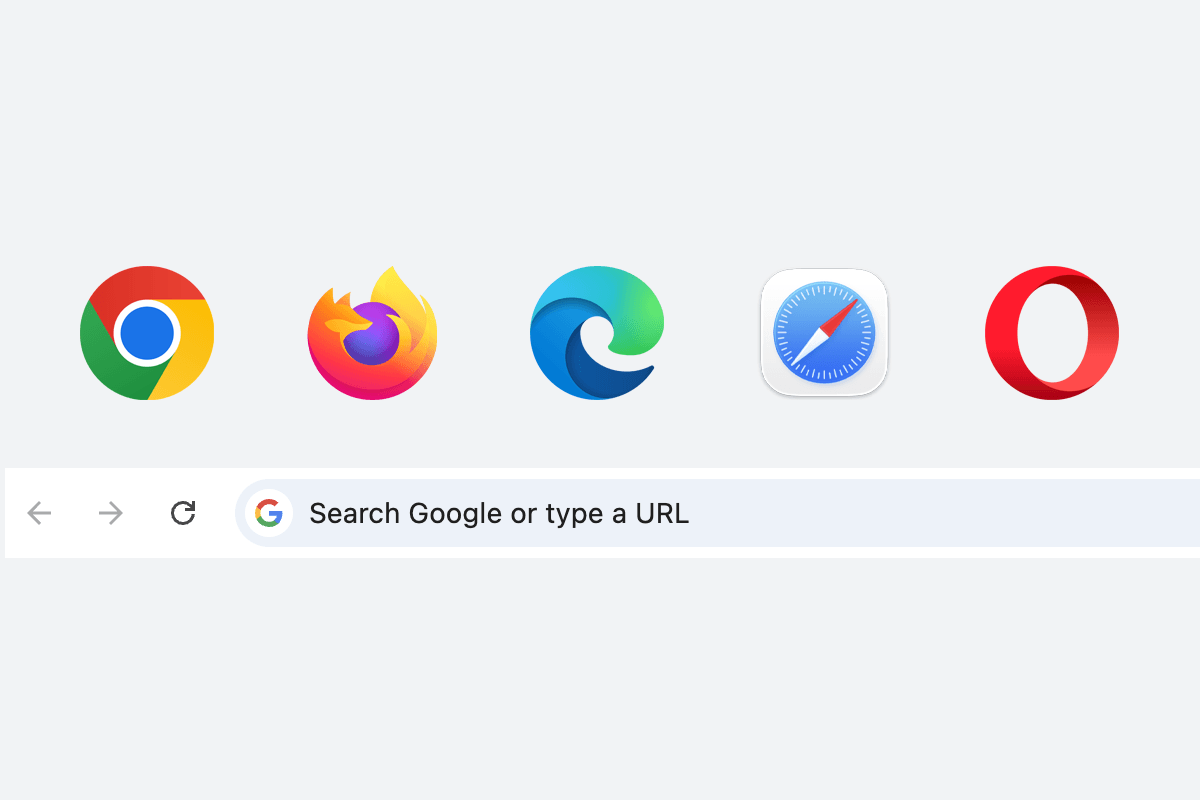
2) Open a web browser and type http://192.168.100.1 in the address bar.
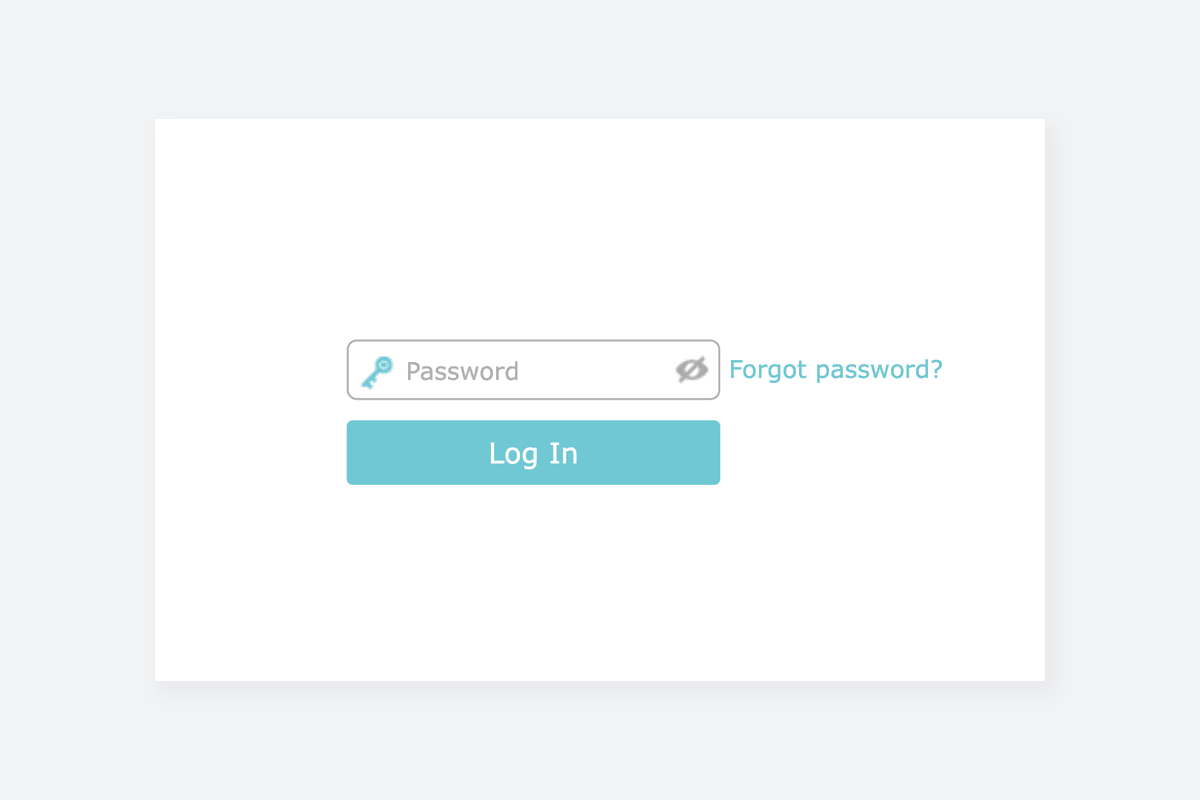
3) Enter the router username and password and click Login.

Change Wi-Fi Password and Network Name (SSID)

The exact menu path depends on your router brand, model and firmware version. Below are some router models using 192.168.100.1 as the default IP address.
Huawei EG8145V5
  1. Connect your device to the router via Wi-Fi or an Ethernet cable.
  2. Open a browser and type http://192.168.100.1 in the address bar.
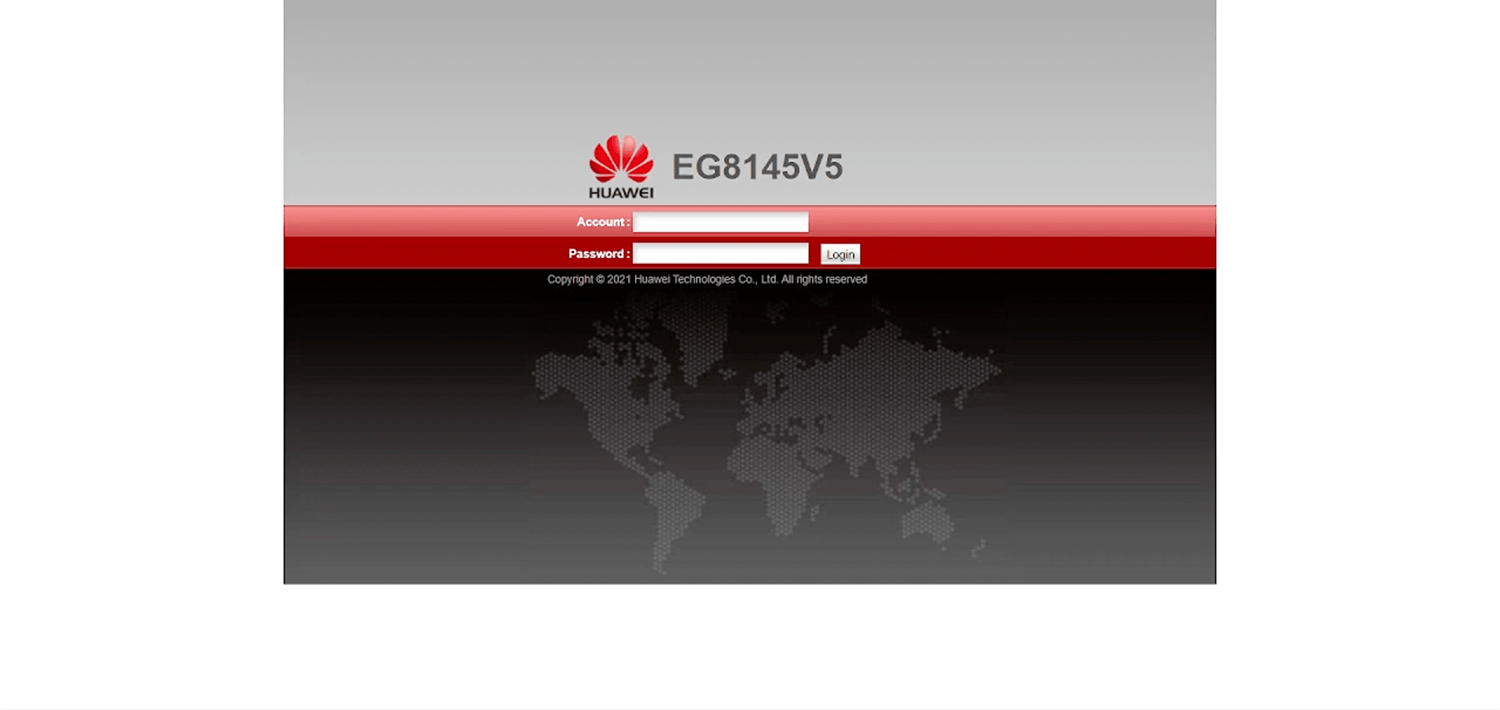
  3. Enter the Username and Password and click Log In.
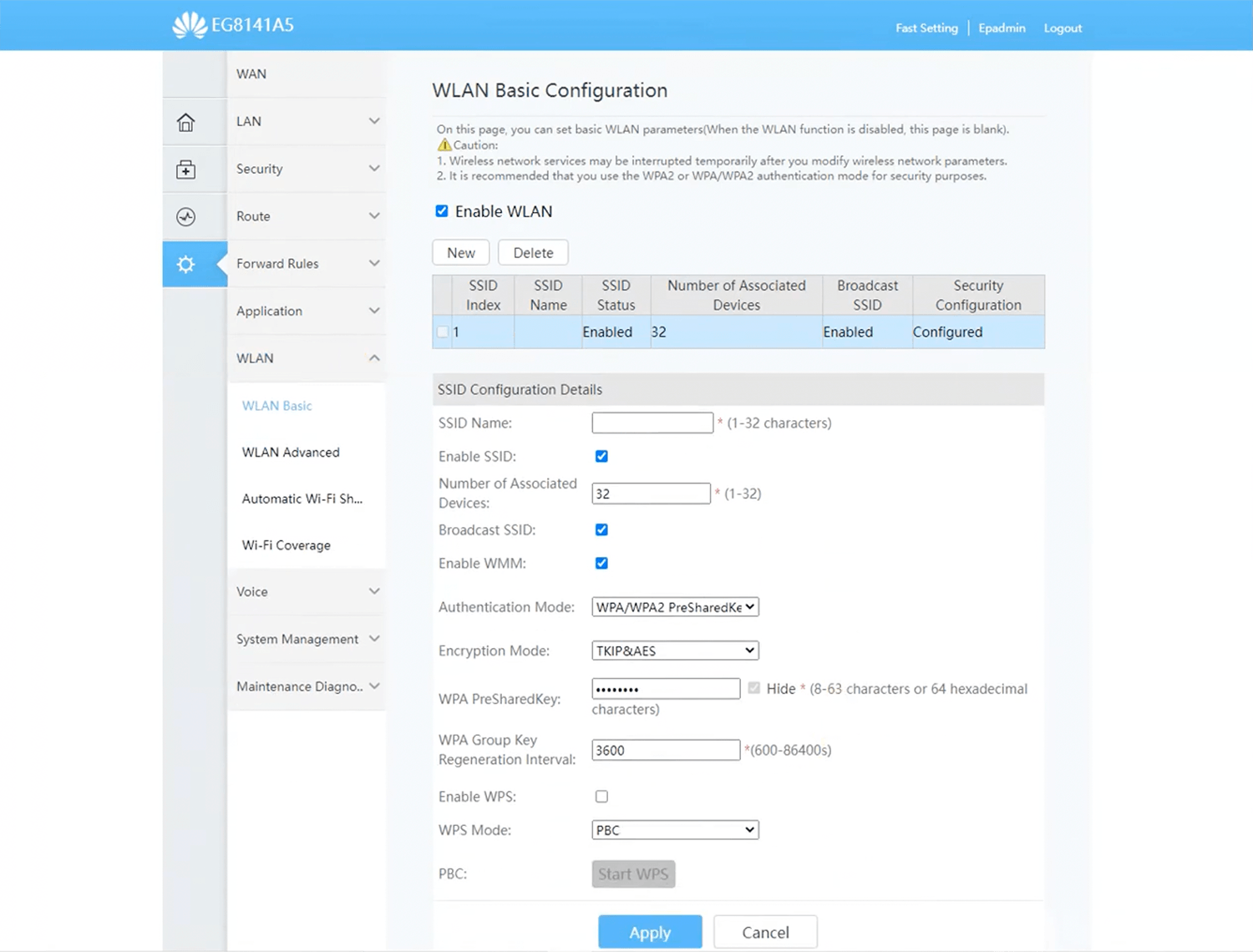
  4. Select WLAN > 2.4G Basic Network Settings.
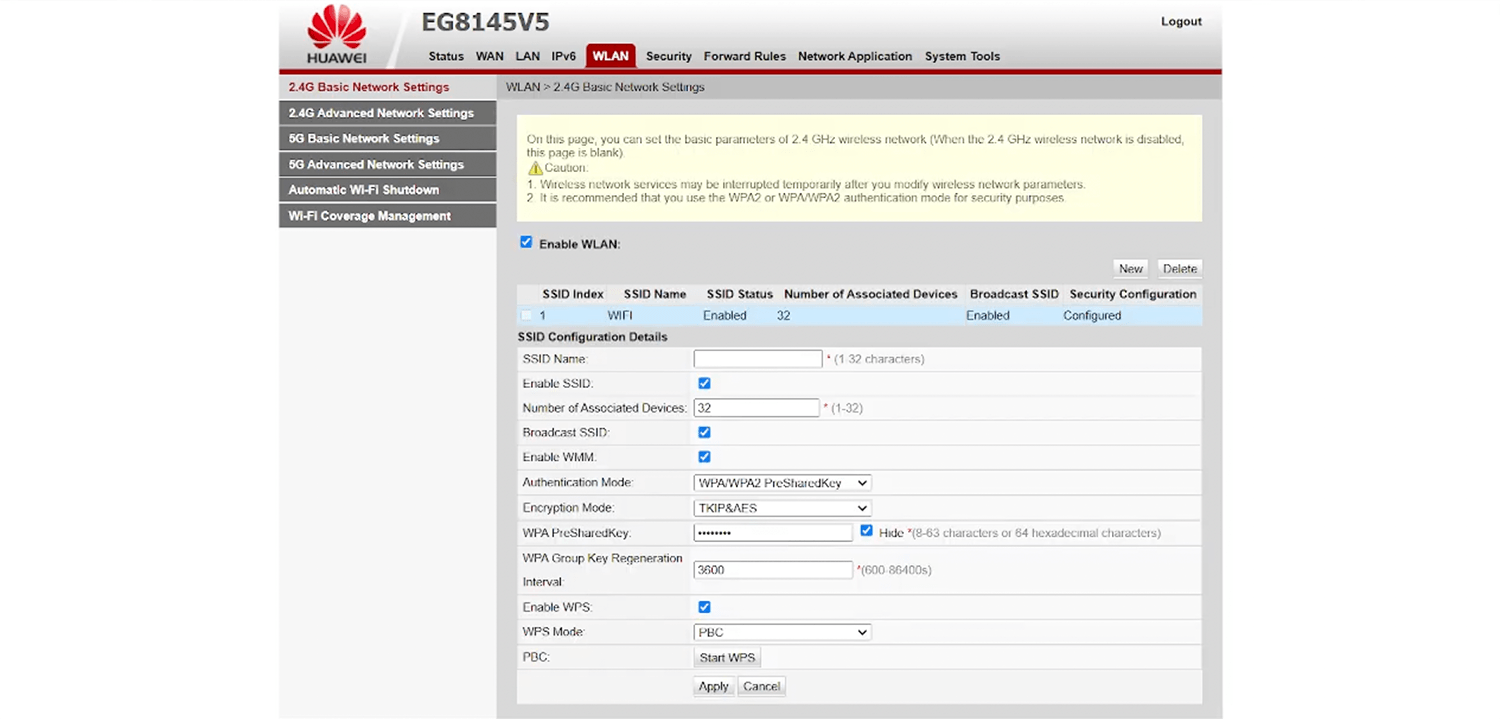
  5. Enter the Wi-Fi network name in the SSID Name field.
  6. Select Authentication Mode: WPA/WPA2 PreShared Key and Encryption Mode: TKIP&AES.
  7. Enter the Wi-Fi password in the WPA PreSharedKey field
  8. Click Apply.
  1. Connect your device to the router via Wi-Fi or an Ethernet cable.
  2. Open a browser and type http://192.168.100.1 in the address bar.
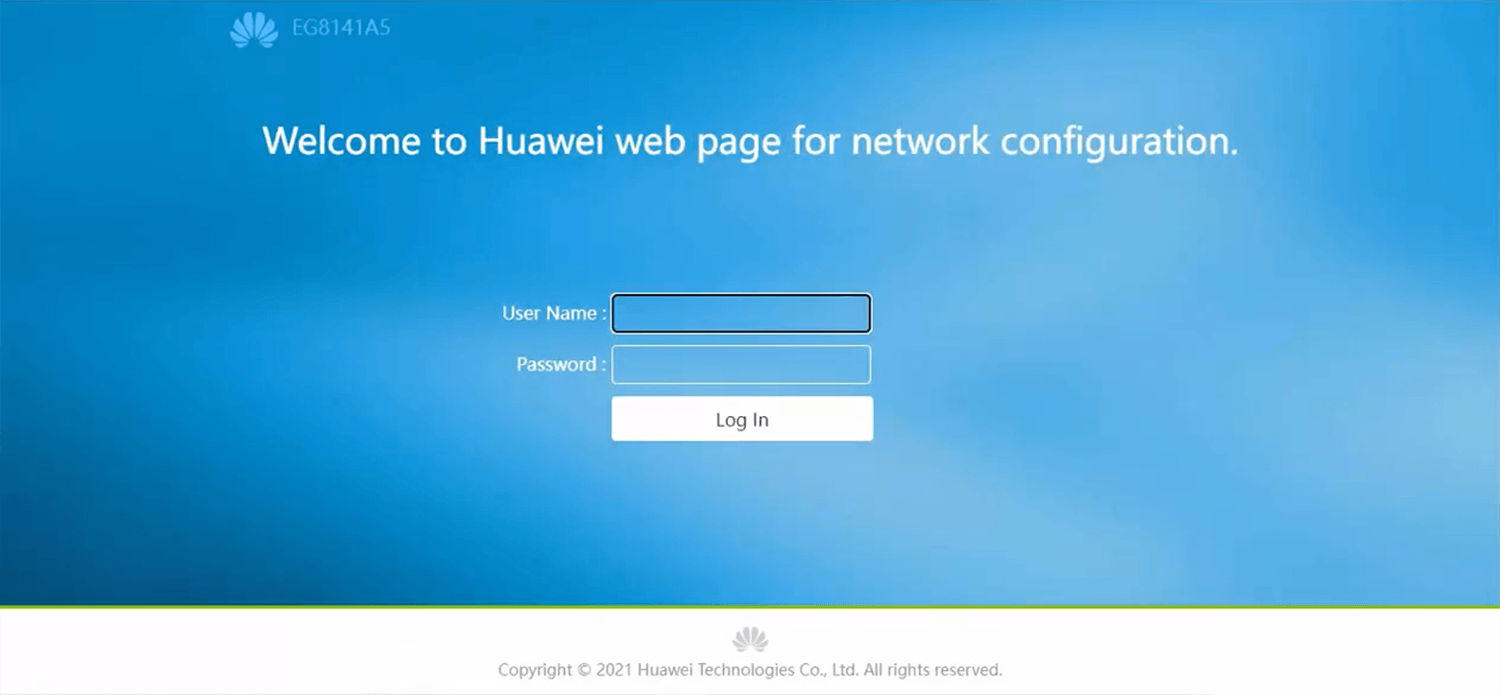
  3. Enter the User Name and Password and click Log In.
  4. Select Advanced > WLAN > WLAN Basic.
  5. Enter the Wi-Fi network name in the SSID Name field.
  6. Select Authentication Mode: WPA/WPA2 PreShared Key and Encryption Mode: TKIP&AES.
  7. Enter the Wi-Fi password in the WPA PreSharedKey field
  8. Click Apply.
  1. Connect your device to the router via Wi-Fi or an Ethernet cable.
  2. Open a browser and type http://192.168.100.1 in the address bar.
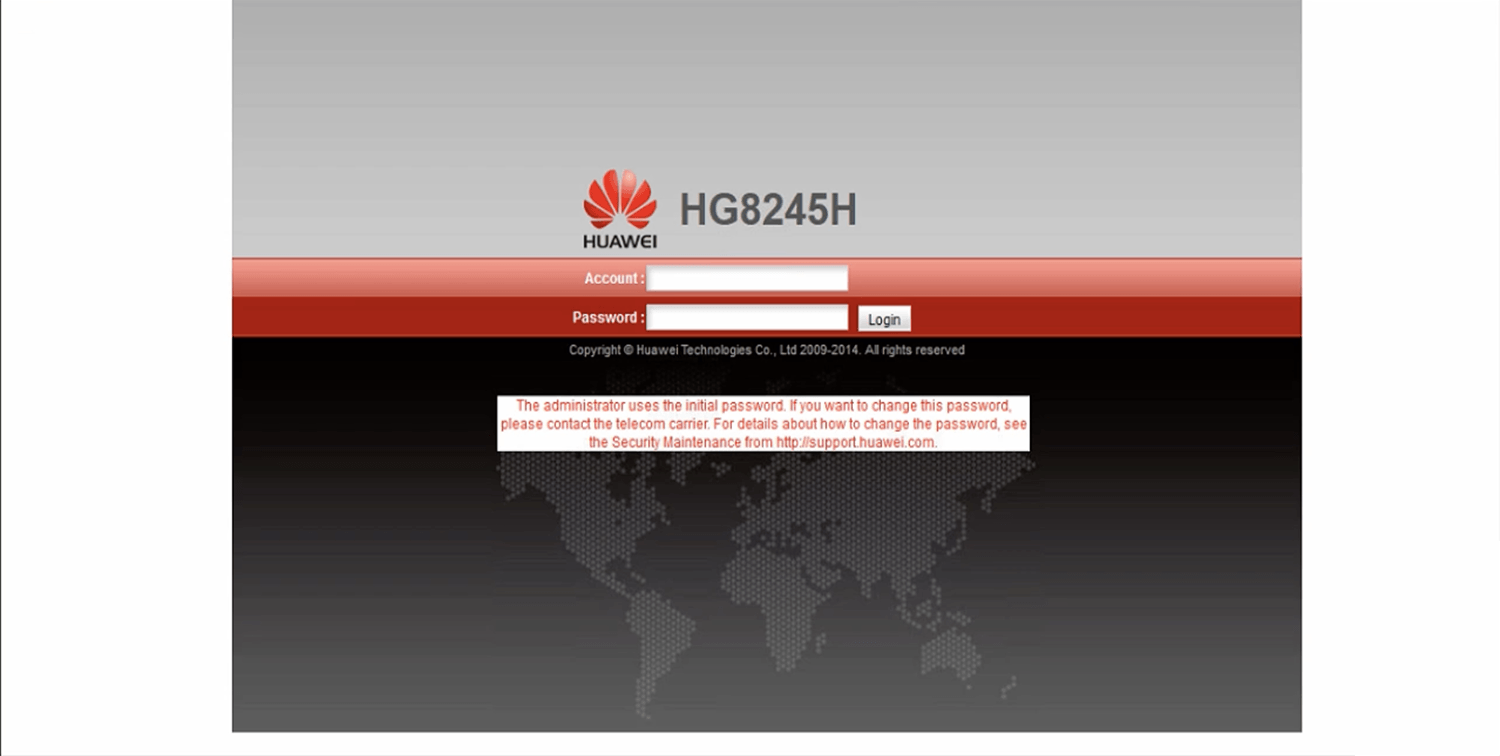
  3. Enter the Username and Password and click Log In.
  4. Select WLAN > WLAN Basic Configuration.
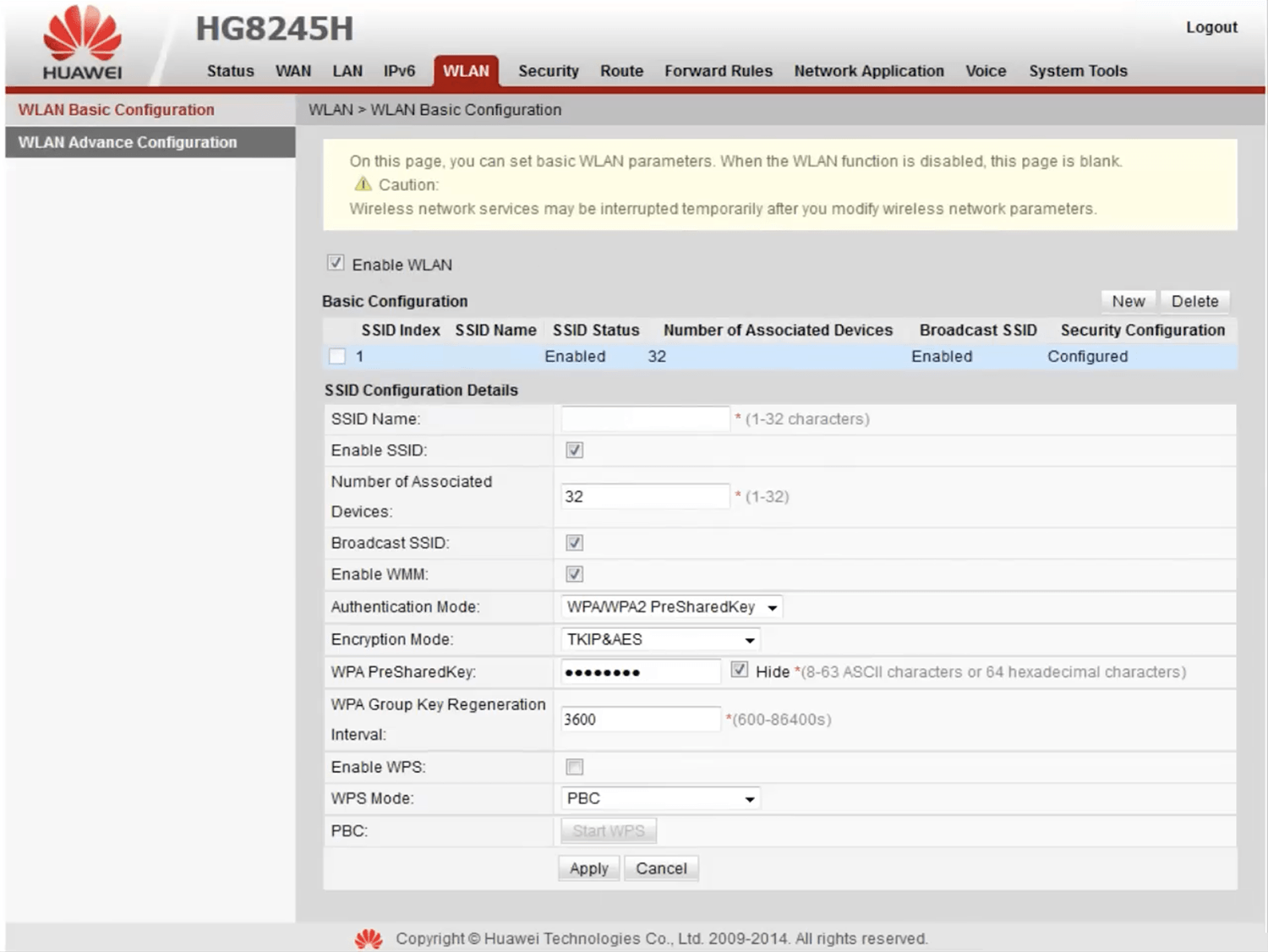
  5. Enter the Wi-Fi network name in the SSID Name field.
  6. Select Authentication Mode: WPA/WPA2 PreShared Key and Encryption Mode: TKIP&AES.
  7. Enter the Wi-Fi password in the WPA PreSharedKey field
  8. Click Apply.

Popular Router IP Addresses

Popular Router Brands