
192.168.1.254 is the gateway IP address of your router to access the web-based user interface to change Wi-Fi password, Network Name (SSID), and other default settings.
To access your router settings, type http://192.168.1.254 in the address bar of your web browser or click on the Login button below.
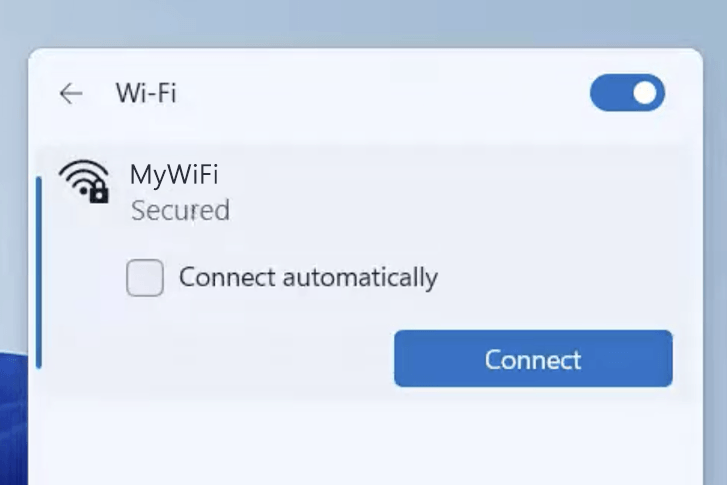
Your device must be connected to the router via Wi-Fi or an Ethernet cable.
The gateway IP address will only load on the browser when your device is connected to the router. For help, see How to find your router IP address? and Can’t connect to my Router login page; what do I do?.
Default Username and Password
Common default router username and password combinations.
| Router Brand | IP Address | Username | Password |
|---|---|---|---|
| Nokia G-140W-G | 192.168.1.254 | userAdmin | [Printed on router sticker] |
| AT&T Gateway | 192.168.1.254 | Not required | [Printed on router sticker] |
| BT Smart Hub | 192.168.1.254 | Not required | [Printed on router sticker] |
| EE Smart Hub | 192.168.1.254 | Not required | [Printed on router sticker] |
| TELUS Boost Wi-Fi | 192.168.1.254 | admin | [Printed on router sticker] |
| Technicolor TG789vac v2 | 192.168.1.254 | advanceduser | advanced |
| Plusnet Hub Two | 192.168.1.254 | admin | [Printed on router sticker] |
| Technicolor TG788VN | 192.168.1.254 | fastweb | (Leave it blank) |
| Spark Smart Modem 2 | 192.168.1.254 | admin | admin |
| Nokia G-140W-G | 192.168.1.254 | AdminGPON | ALC#FGU |
| BT Home Hub | 192.168.1.254 | Not required | [Printed on router sticker] |
| Nokia G-2425G-A | 192.168.1.254 | userAdmin | [Printed on router sticker] |
| Maxis Archer C5v | 192.168.1.254 | administrator | [Router's Serial No. printed on router sticker] |
| Telmex Infinitum | 192.168.1.254 | TELMEX | [Printed on router sticker] |
| Spark HG630b | 192.168.1.254 | admin | admin |
| Technicolor MediaAccess TG1100 | 192.168.1.254 | fastweb | (Leave it blank) |
| Nokia G-2425G-B | 192.168.1.254 | userAdmin | [Printed on router sticker] |
| Huawei LG8245X6 | 192.168.1.254 | user | [Printed on router sticker] |
| EE Smart Hub 7 Pro | 192.168.1.254 | Not required | [Printed on router sticker] |
| Smart Hub 7 Plus | 192.168.1.254 | Not required | [Printed on router sticker] |
| Smart Hub 6 Plus | 192.168.1.254 | Not required | [Printed on router sticker] |
| BT Smart Hub 2 | 192.168.1.254 | Not required | [Printed on router sticker] |
| ZTE ZXHN H288A | 192.168.1.254 | admin | [Printed on router sticker] |
| Nokia G-2426G-A | 192.168.1.254 | userAdmin | [Printed on router sticker] |
Note: The default IP address, Username, and Password are printed on a sticker on the back or underside of the router. Some routers require you to create a new password during initial setup.
How to login to 192.168.1.254?

1) Connect your device to the router via an Ethernet cable or Wi-Fi connection.
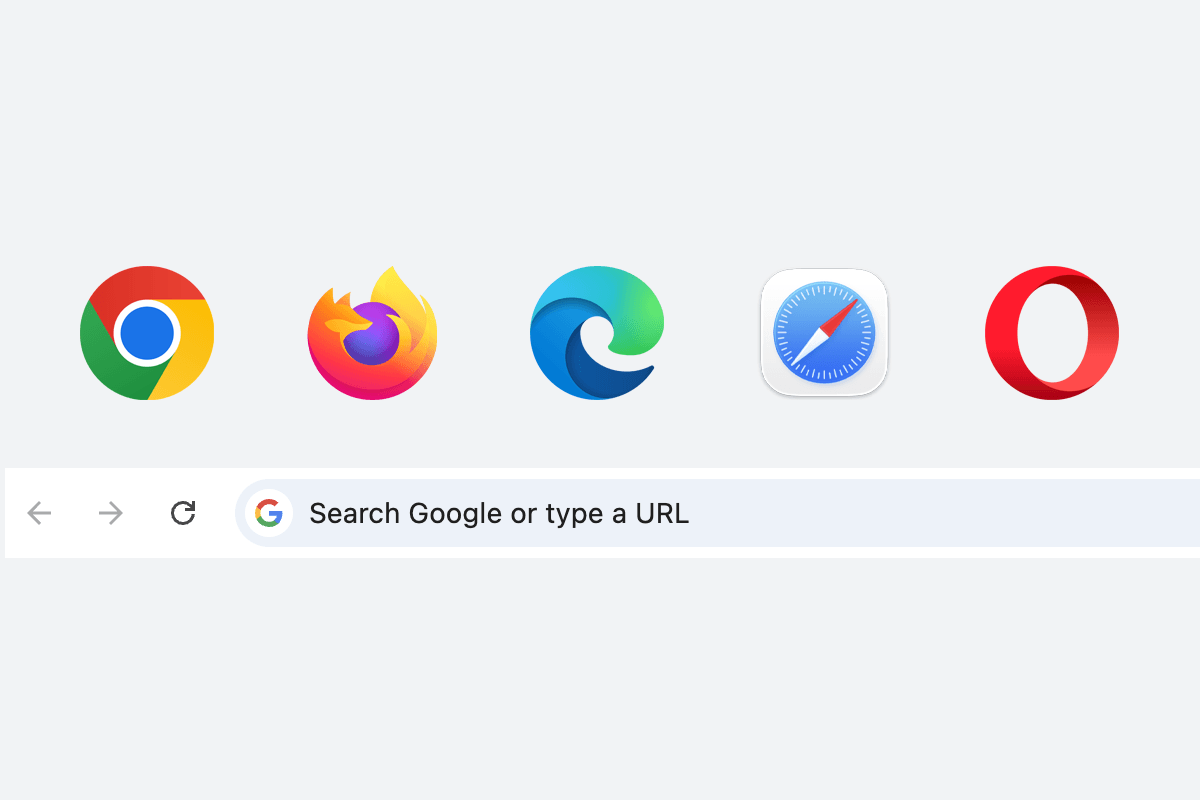
2) Open a web browser and type http://192.168.1.254 in the address bar.
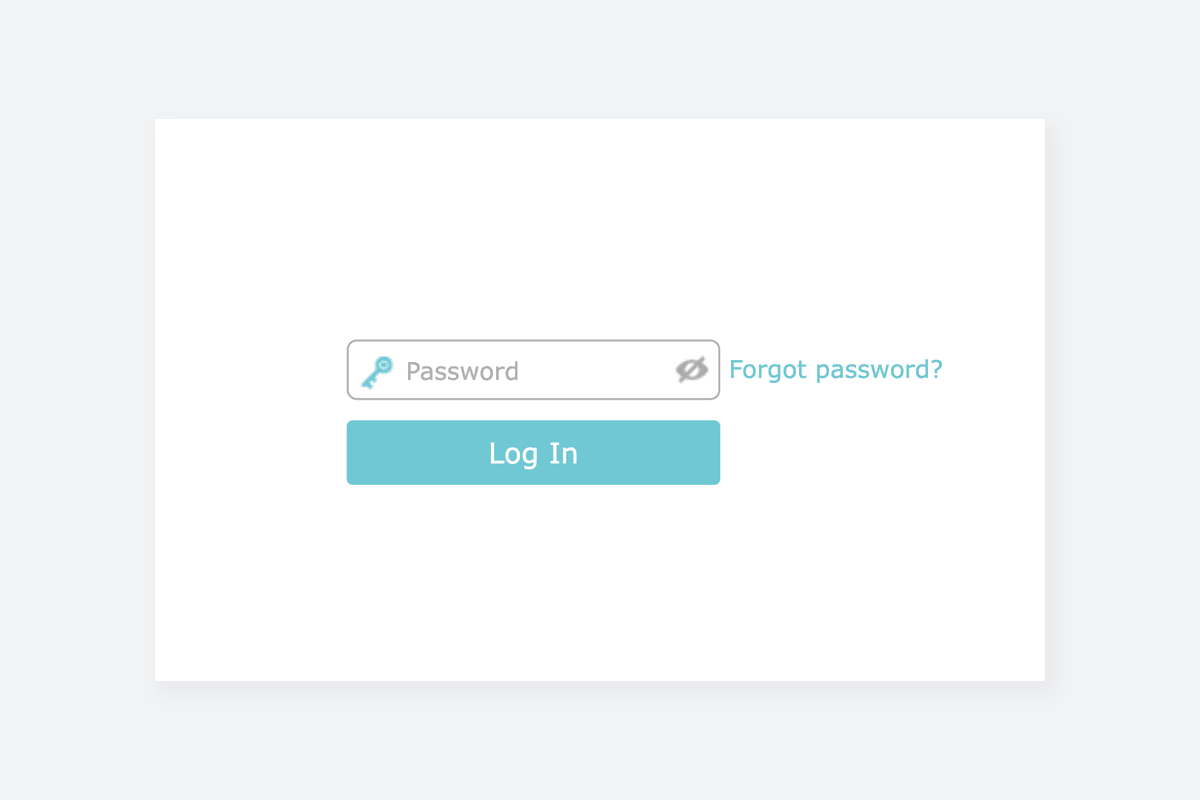
3) Enter the router username and password and click Login.
Change Wi-Fi Password and Network Name (SSID)
The exact menu path depends on your router brand, model and firmware version. Below are some router models using 192.168.1.254 as the default IP address.
Nokia G-2425G-A
- Connect your device to the router via Wi-Fi or an Ethernet cable.
- Open a browser and type http://192.168.1.254 in the address bar.
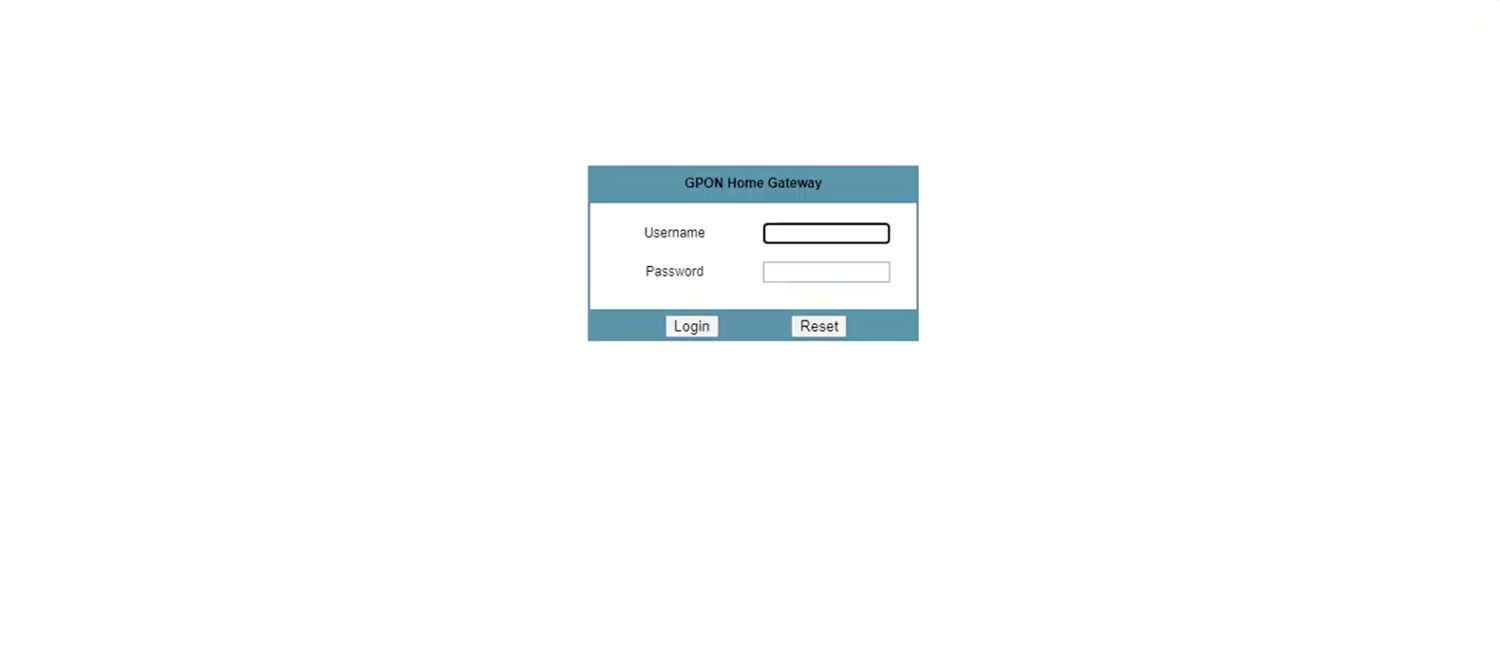
- Enter the Username and Password and click Login.
- Select Network > Wireless (2.4GHz).
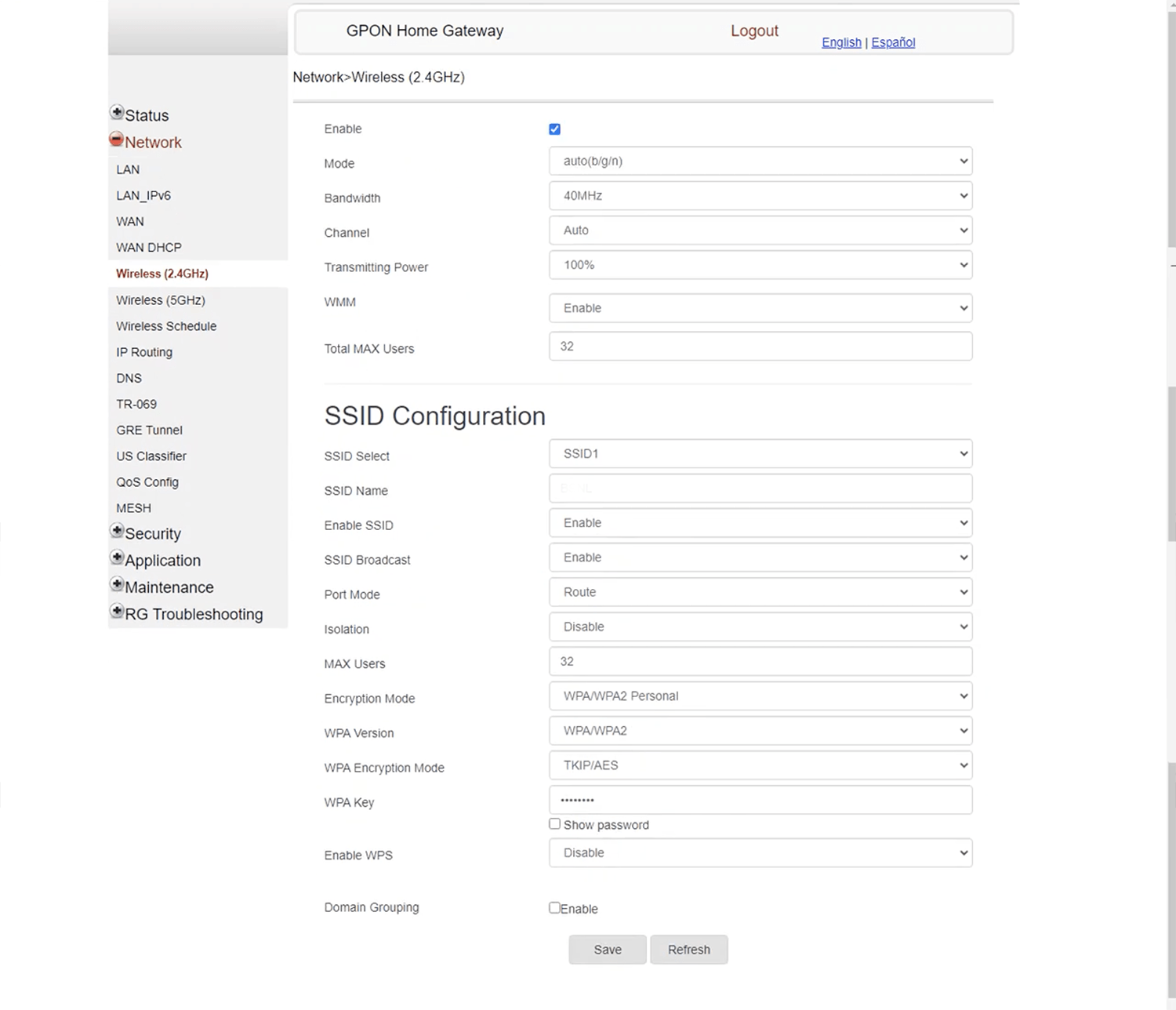
- Enter the Wi-Fi network name in the SSID Name field.
- Select Encryption Mode: WPA/WPA2 Personal, WPA Version: WPA/WPA2, and WPA Encryption Mode: TKIP/AES.
- Enter the Wi-Fi password in the WPA Key field.
- Click Save.
Technicolor TG582n v2
- Connect your device to the router via Wi-Fi or an Ethernet cable.
- Open a browser and type http://192.168.1.254 in the address bar.
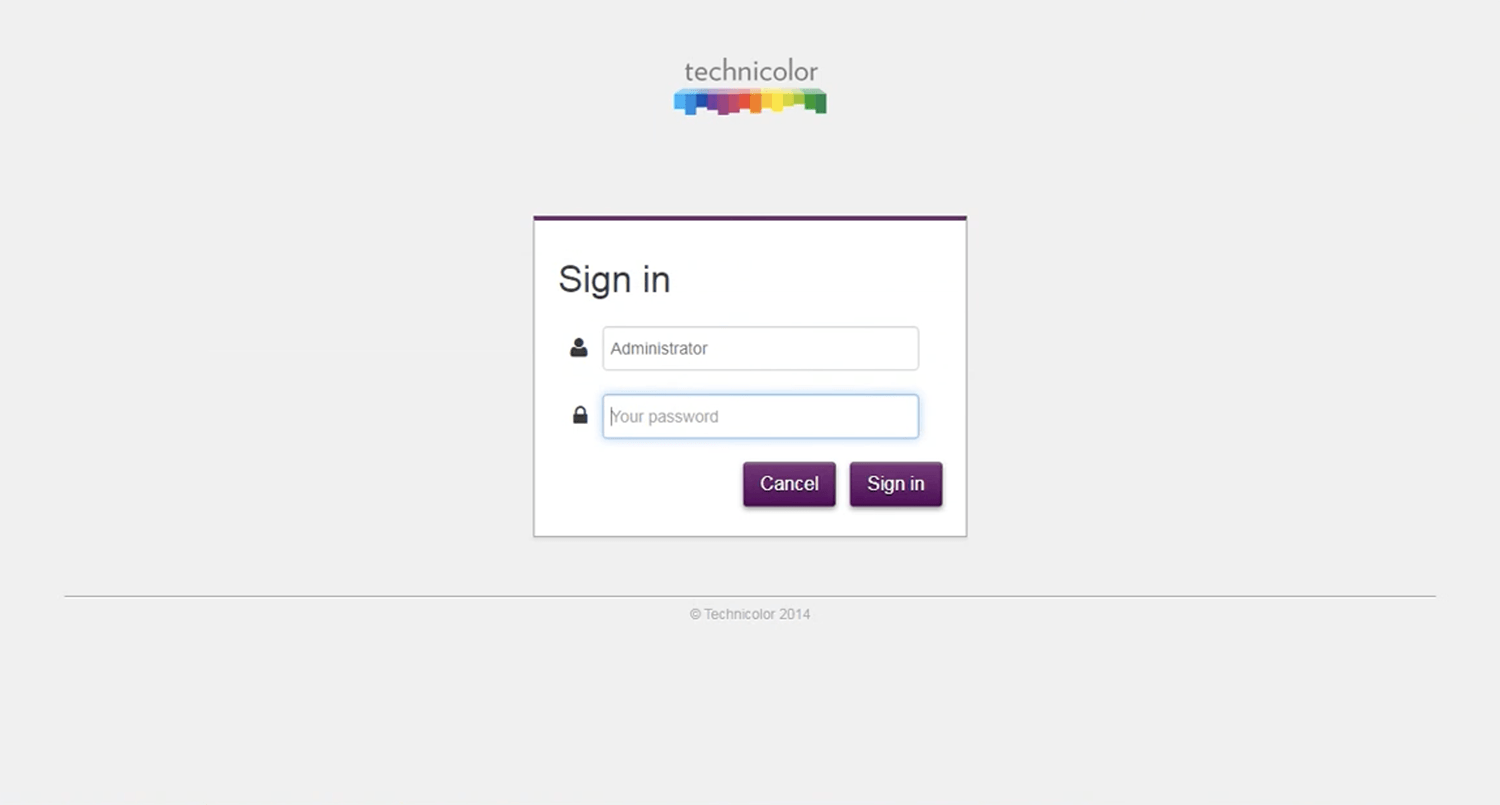
- Enter the Username and Password and click Sign in.
- Select Wireless.
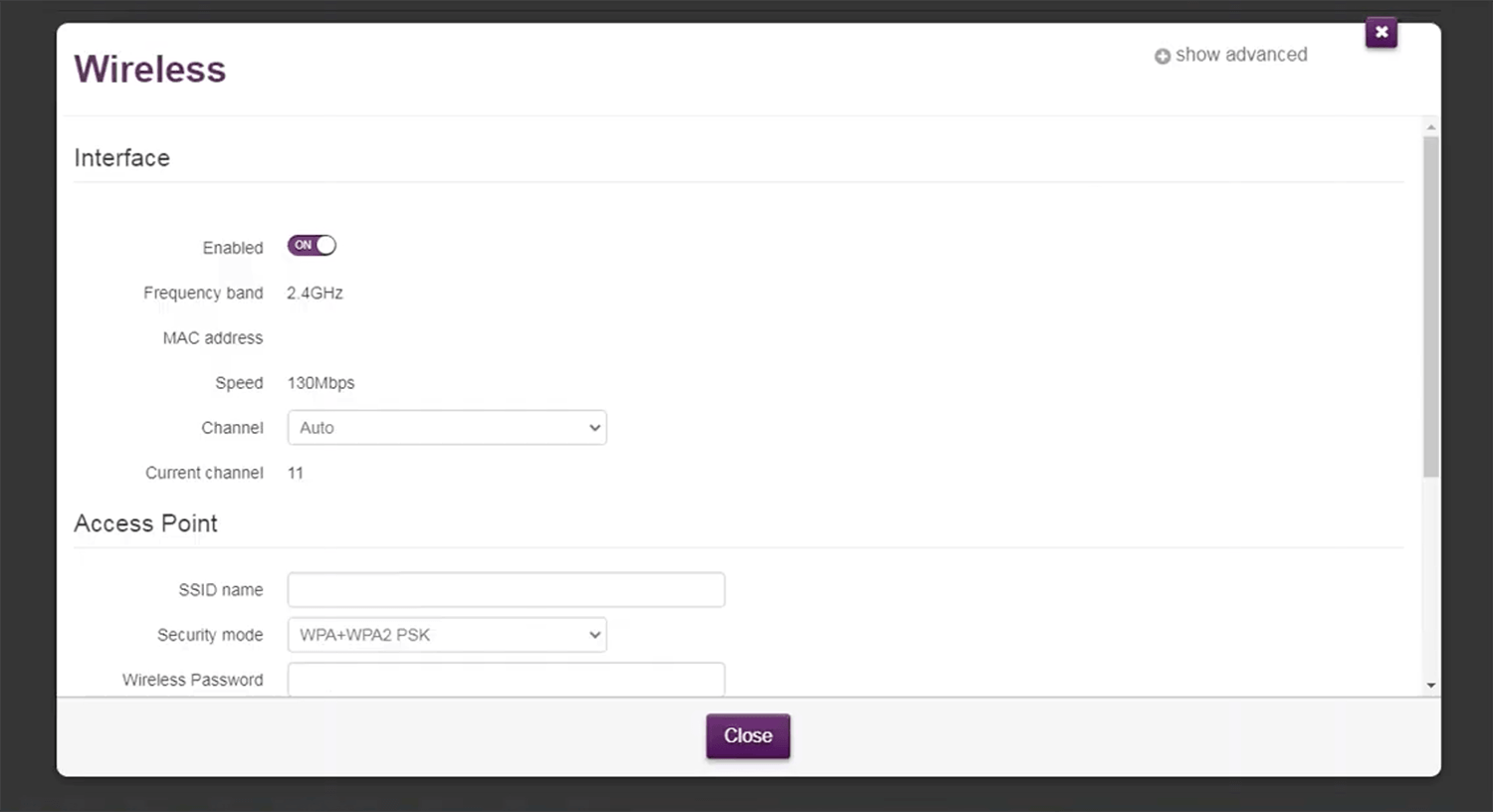
- Enter the Wi-Fi network name in the SSID Name field.
- Select Security mode: WPA+WPA2 PSK.
- Enter the Wi-Fi password in the Wireless Password field
- The changes will be saved automatically.
AT&T BGW320-505
- Connect your device to the router via Wi-Fi or an Ethernet cable.
- Open a browser and type http://192.168.1.254 in the address bar.
- Select Home Network > Wi-Fi.
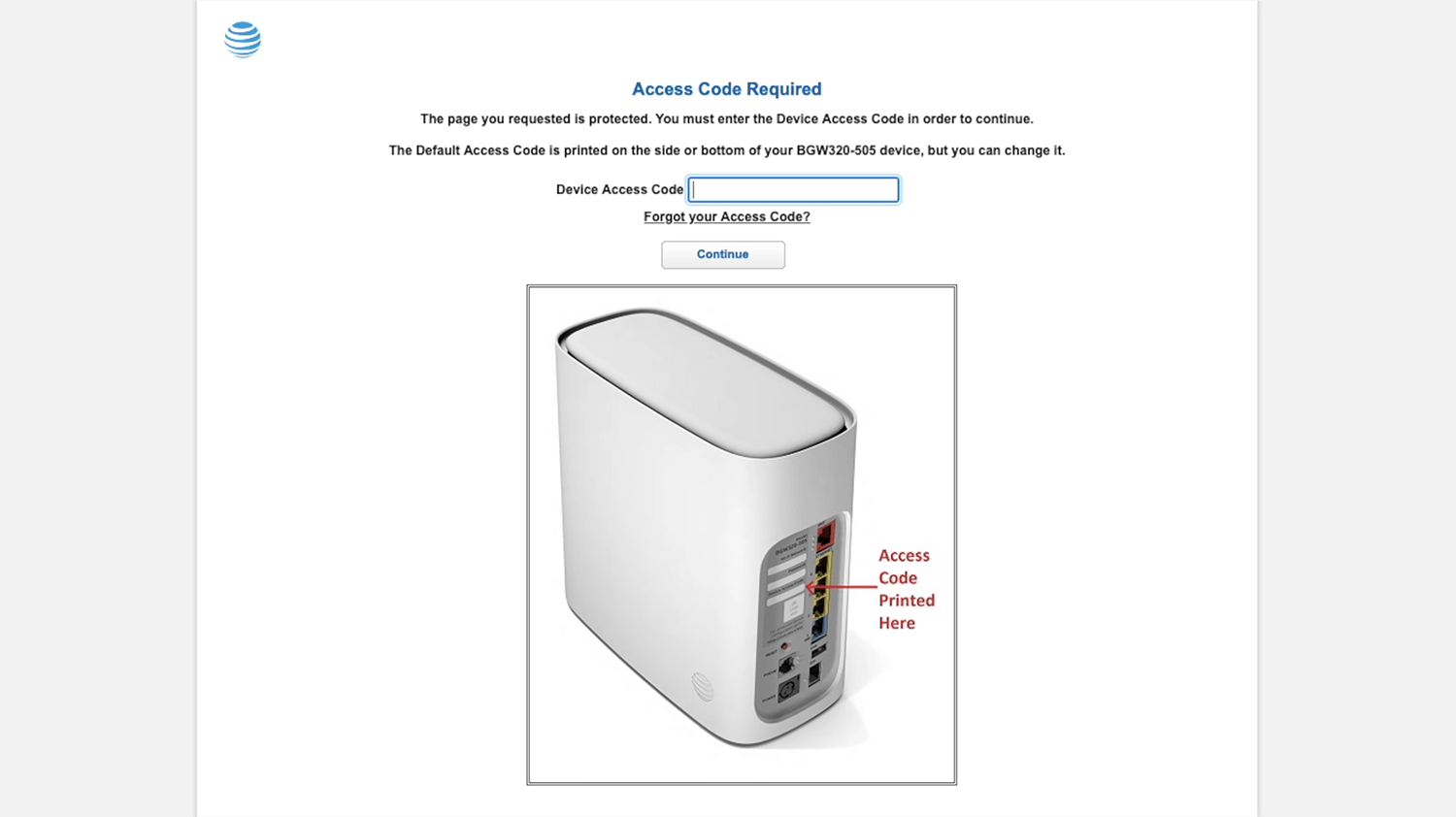
- Enter the Device Access Code that is printed on the side or bottom of your device.
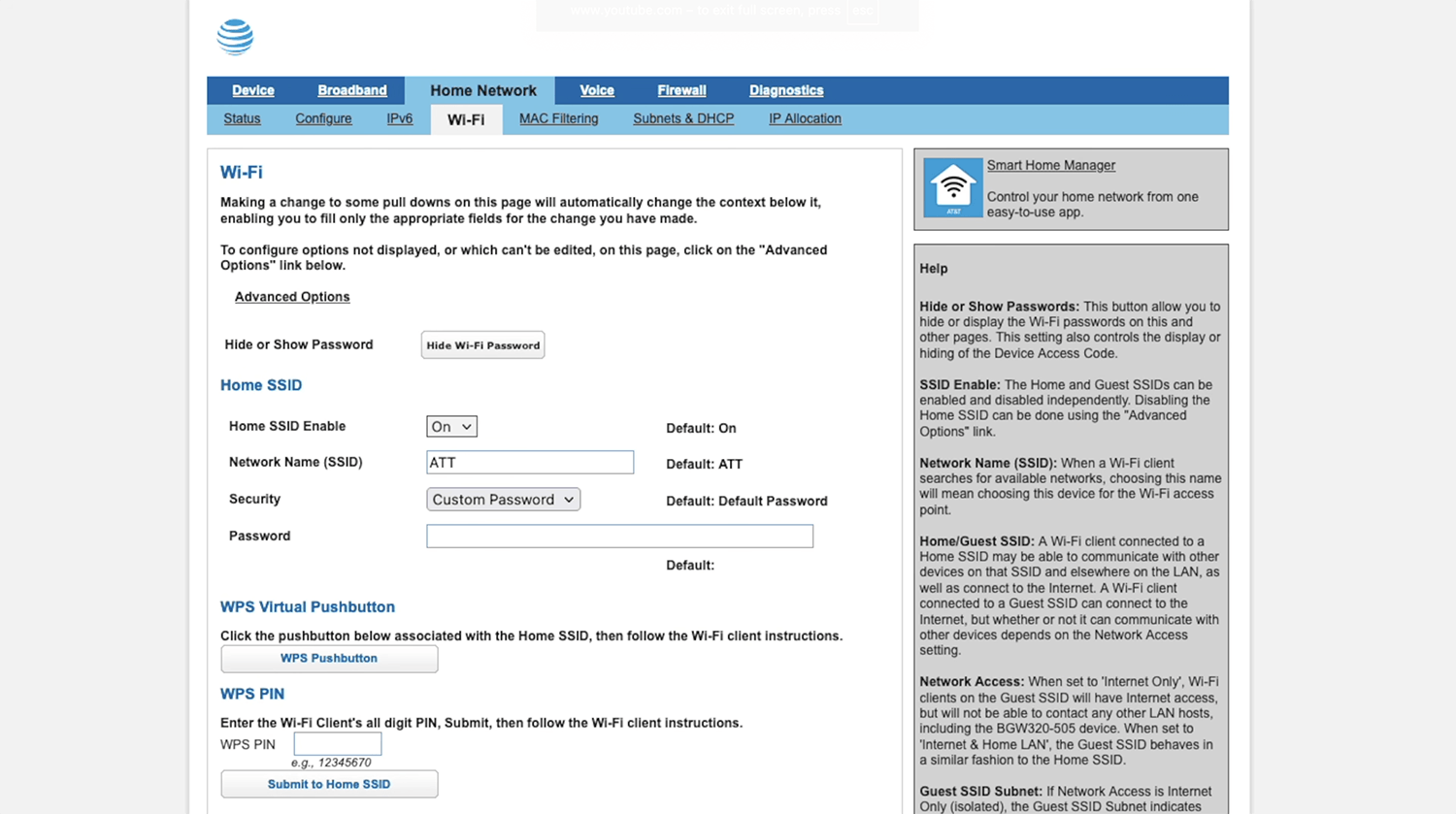
- Enter the Wi-Fi network name in the Network Name (SSID) field.
- Enter the Wi-Fi password in the Password field.
- Click Save and Continue to proceed with the changes.
BT Business Smart Hub 3
- Connect your device to the router’s Wi-Fi network.
- Open a browser and type http://192.168.1.254 in the address bar.
- On the dashboard screen, select Wireless, then click Change settings.
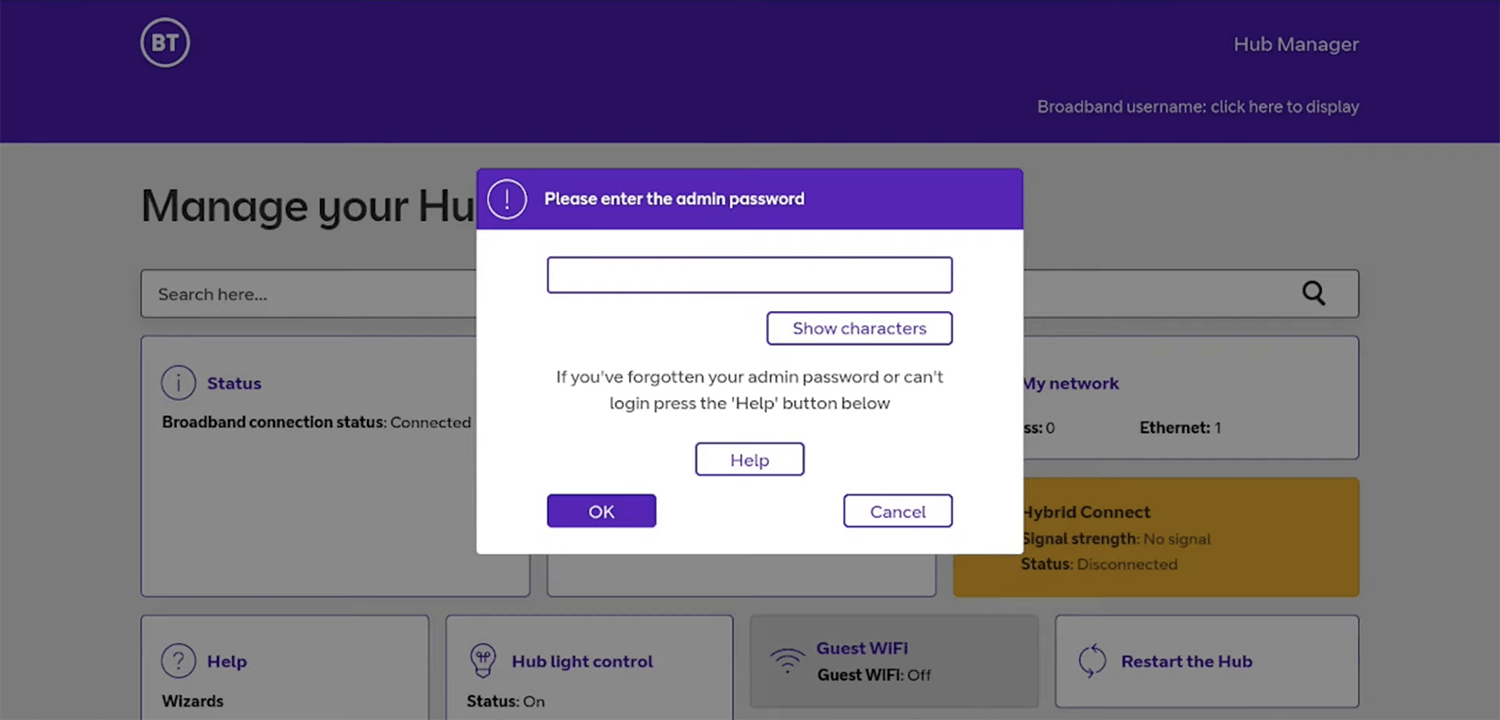
- Enter the Admin Password that is printed on the side or bottom of your device and click OK.
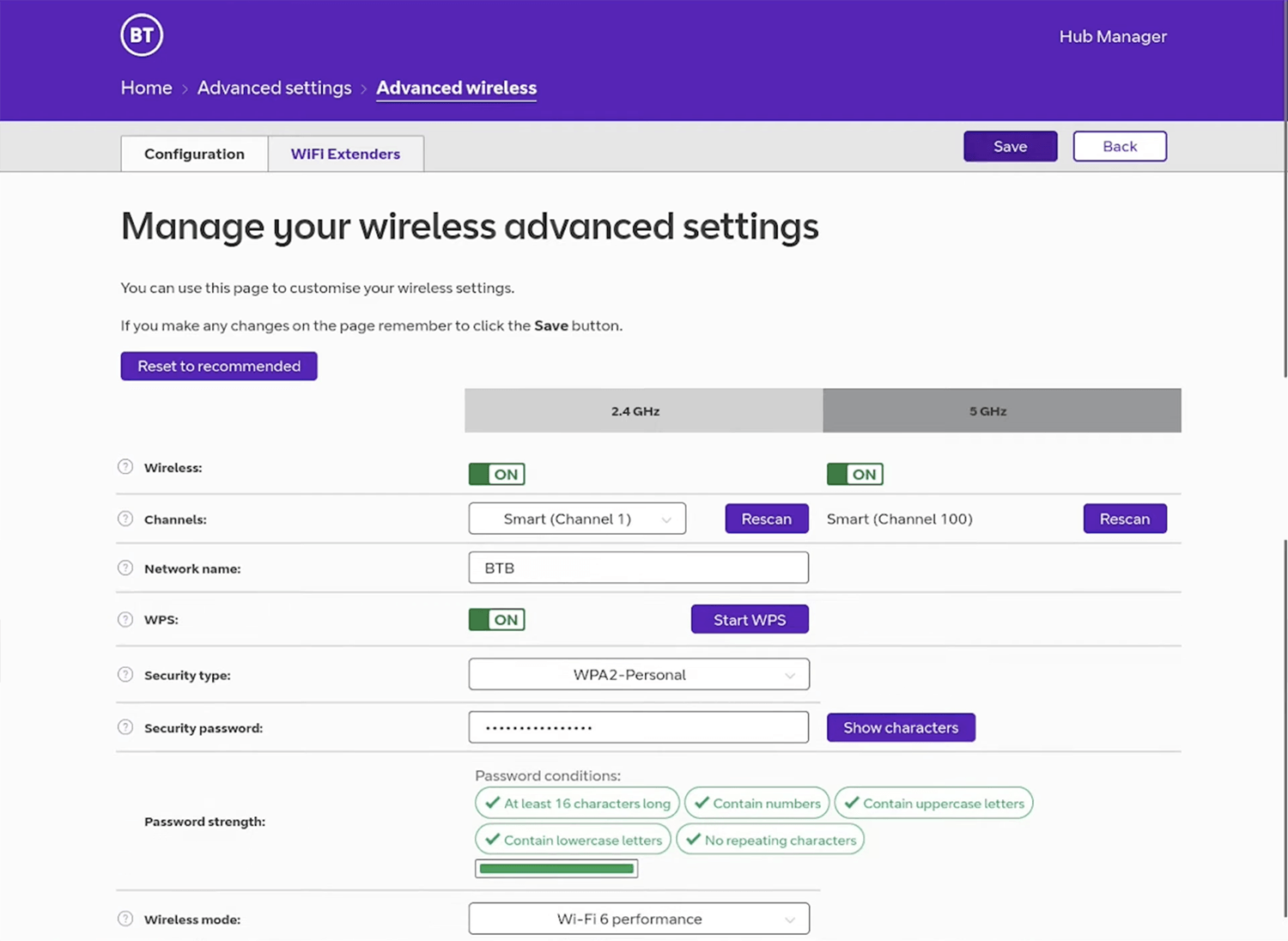
- Enter the Wi-Fi network name in the Network name field.
- Enter Security type: WPA2-Personal.
- Enter the Wi-Fi password in the Security password field.
- Click Save.
EE Smart Hub 3
- Connect your device to the router’s Wi-Fi network.
- Open a browser and type http://192.168.1.254 in the address bar.
- On the dashboard screen, select Wireless, then click Change settings.
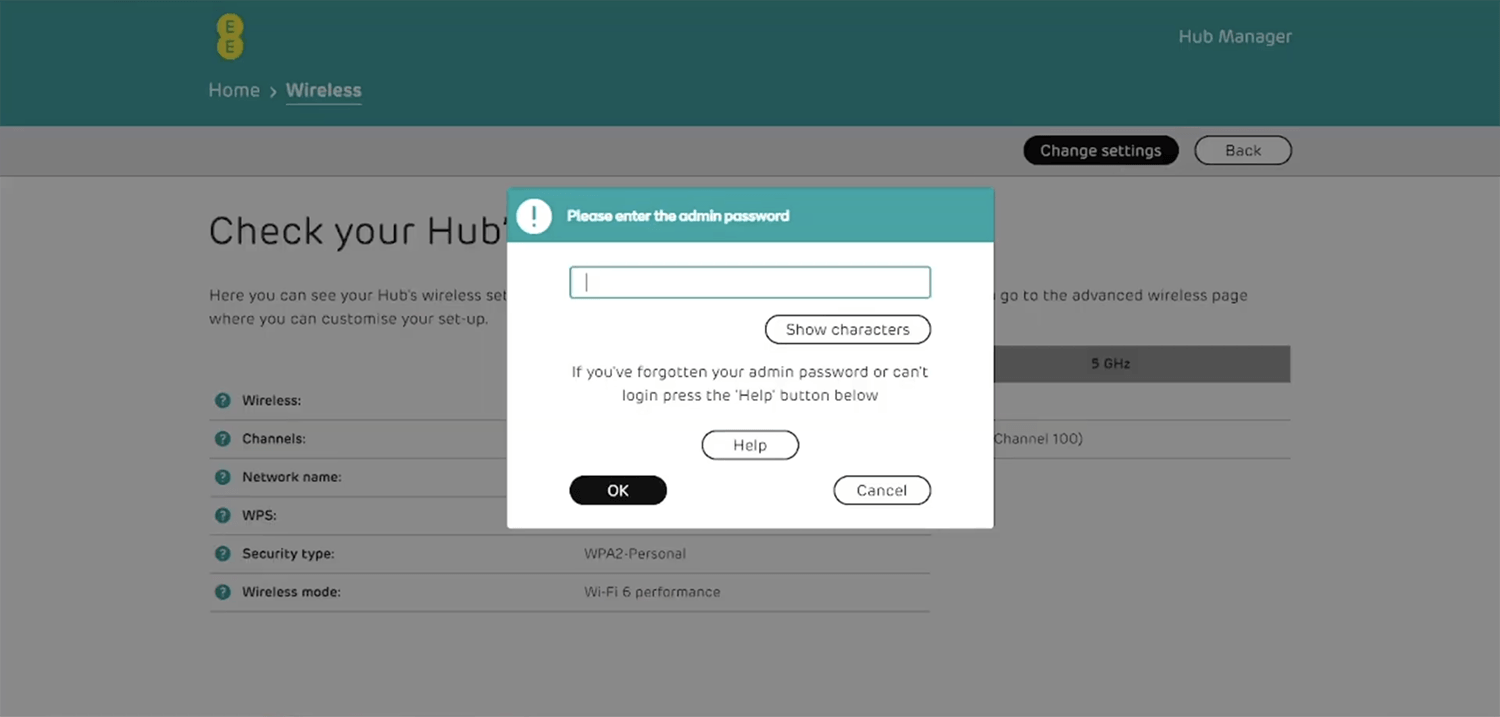
- Enter the Admin Password that is printed on the side or bottom of your device and click OK.
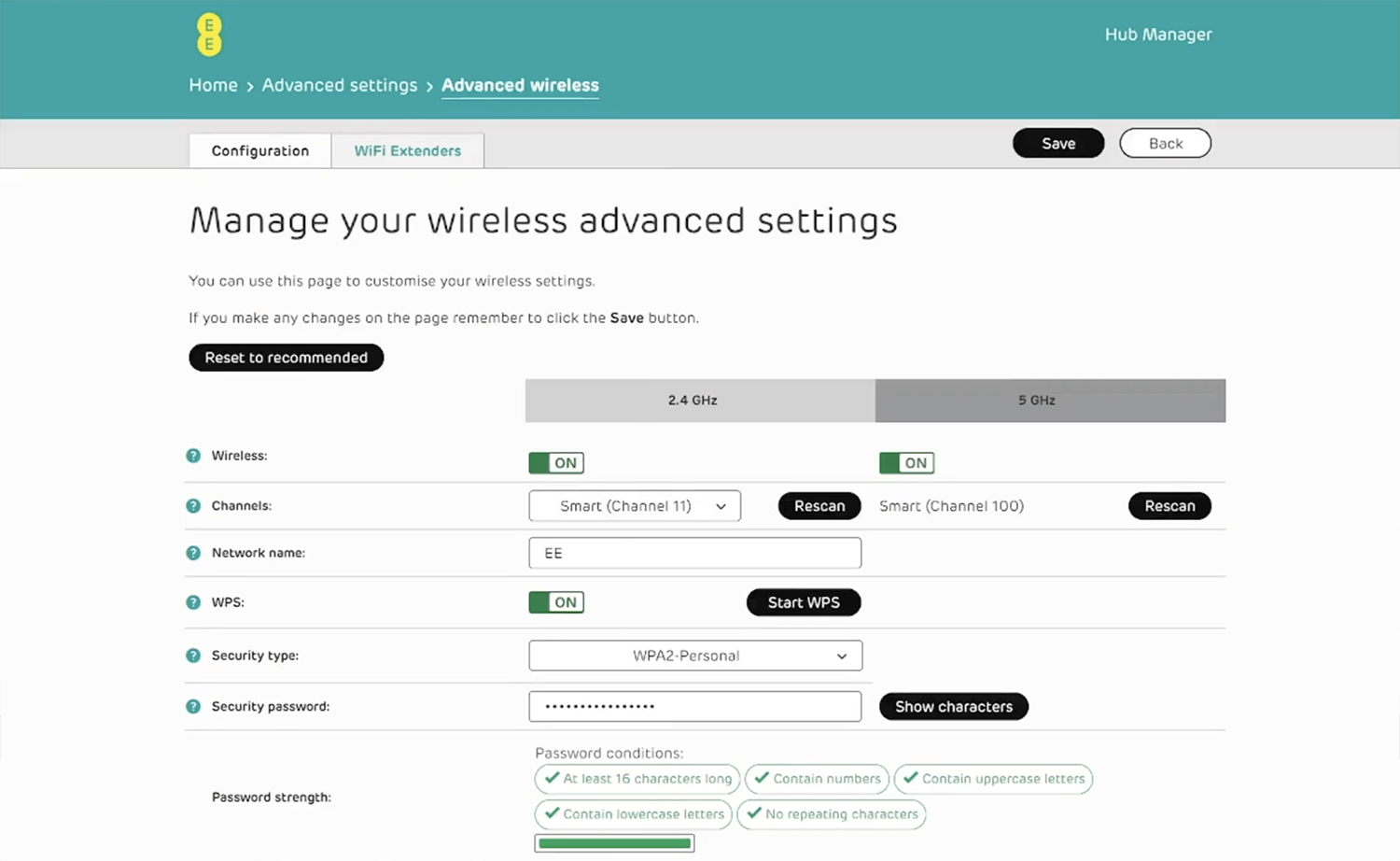
- Enter the Wi-Fi network name in the Network name field.
- Enter Security type: WPA2-Personal.
- Enter the Wi-Fi password in the Security password field.
- Click Save.
Plusnet Hub Two
- Connect your device to the router’s Wi-Fi network.
- Open a browser and type http://192.168.1.254 in the address bar.
- On the dashboard screen, select Wireless, then click Change settings.
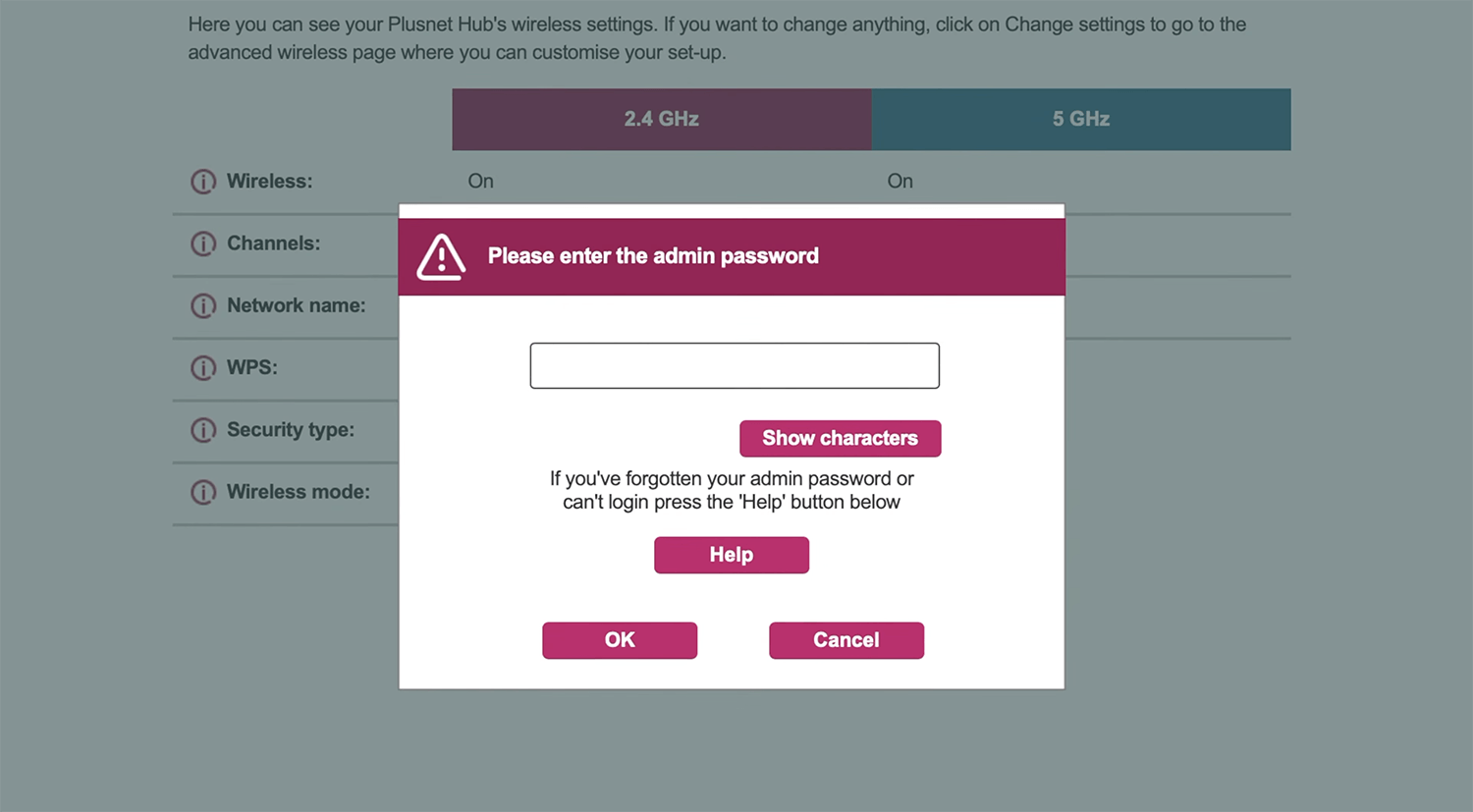
- Enter the Admin Password that is printed on the side or bottom of your device and click OK.
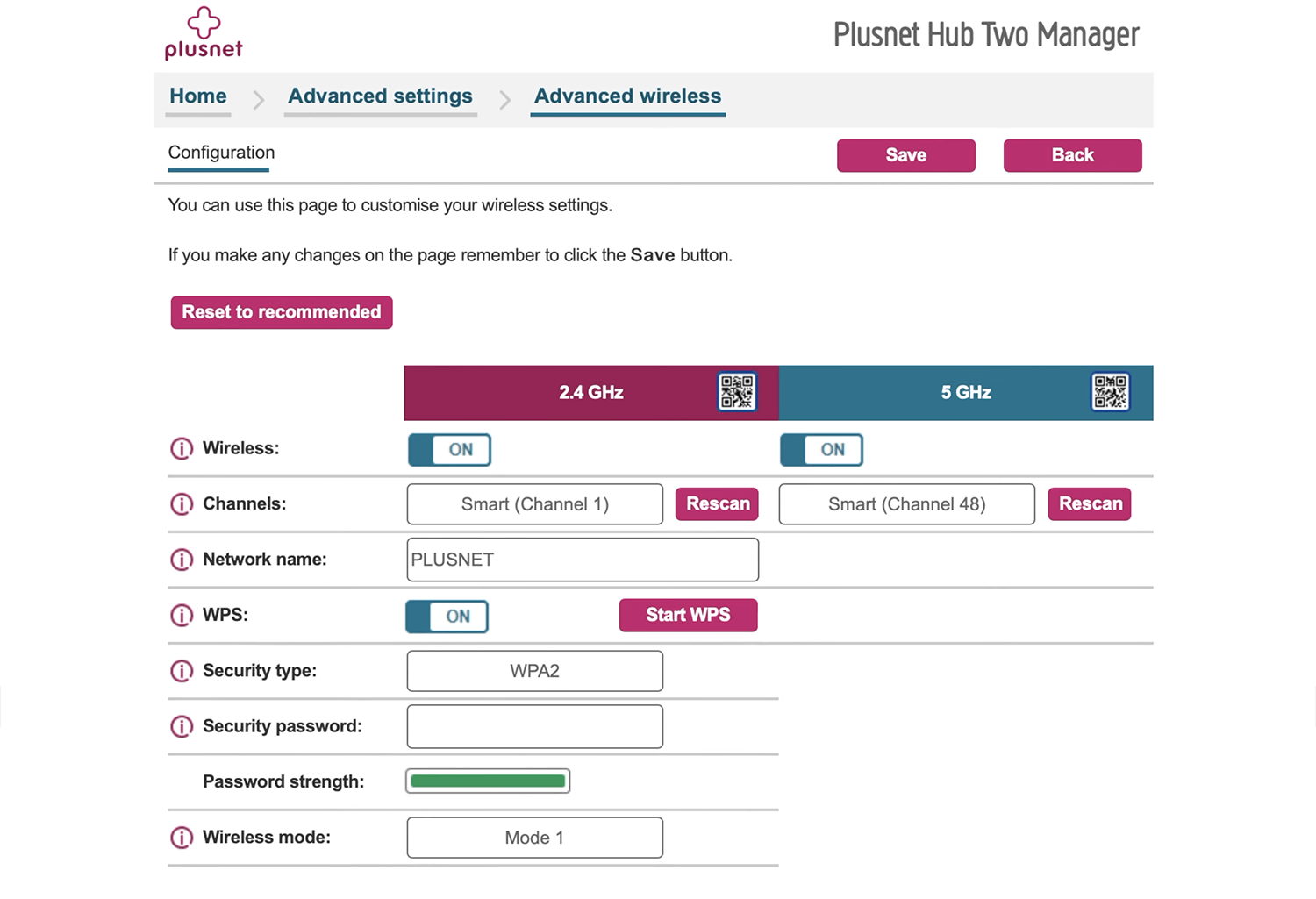
- Enter the Wi-Fi network name in the Network name field.
- Enter Security type: WPA2-Personal.
- Enter the Wi-Fi password in the Security password field.
- Click Save.