
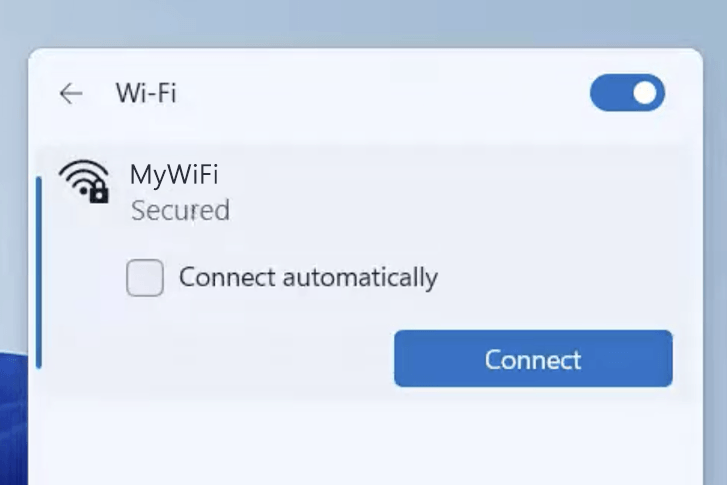
1) Connect your device to the router via an Ethernet cable or Wi-Fi connection.
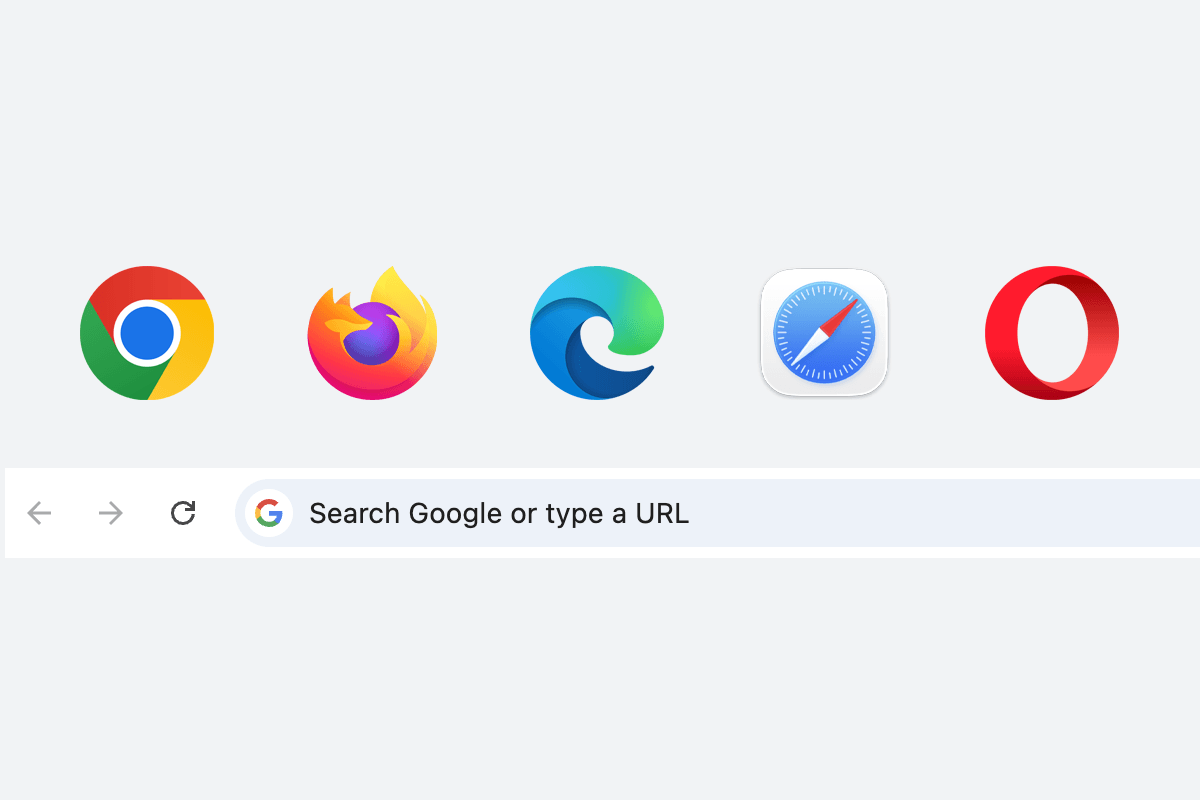
2) Open a web browser and type http://192.168.18.1 in the address bar.
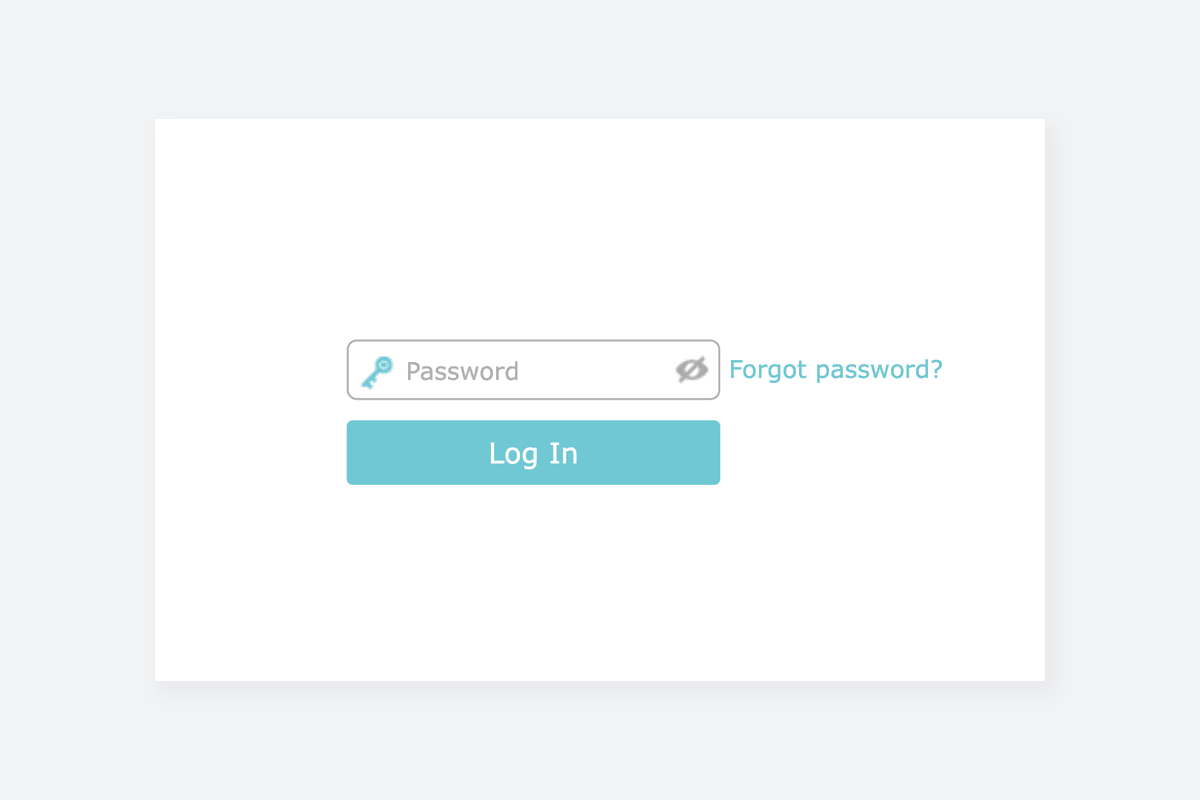
3) Enter the router username and password and click Login.
Huawei EG8141A5
- Connect your device to the router via Wi-Fi or an Ethernet cable.
- Open a browser and type http://192.168.18.1 in the address bar.
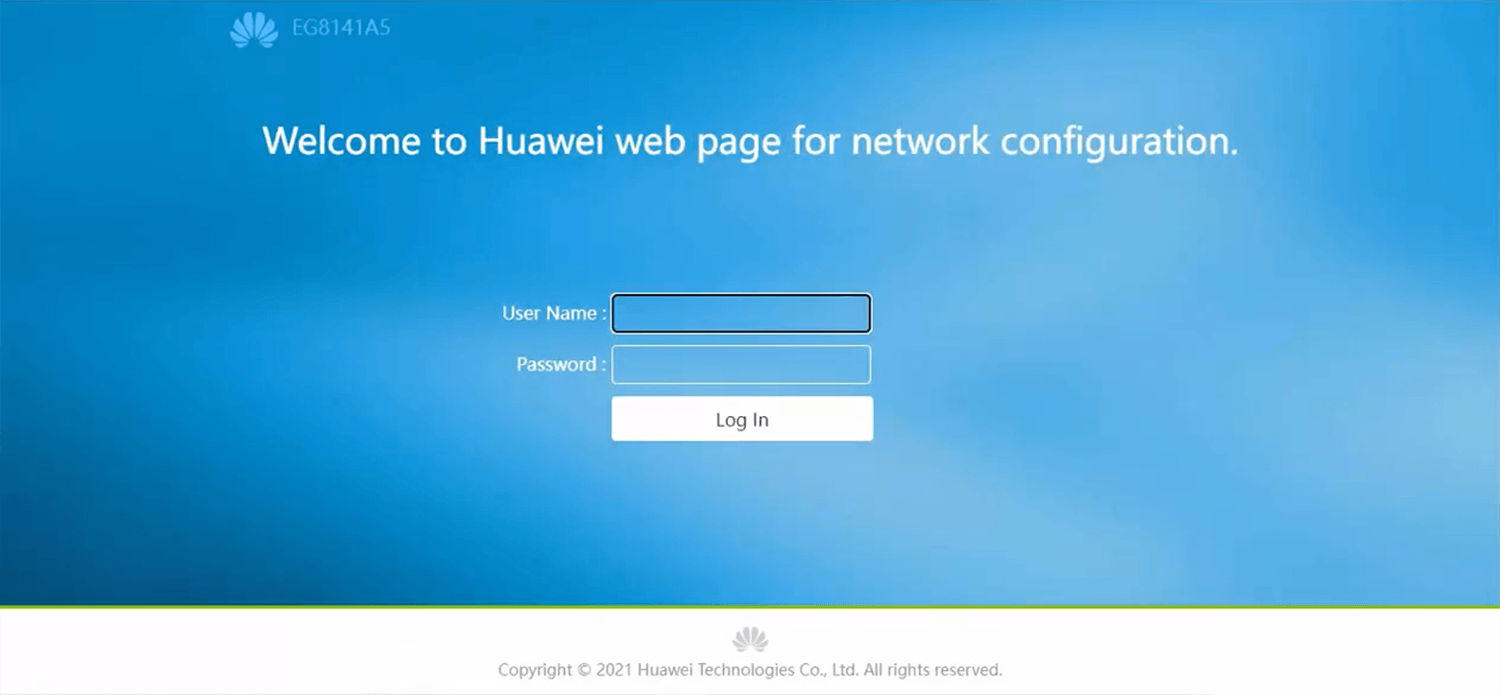
- Enter the User Name and Password and click Log In.
- Select Advanced > WLAN > WLAN Basic.
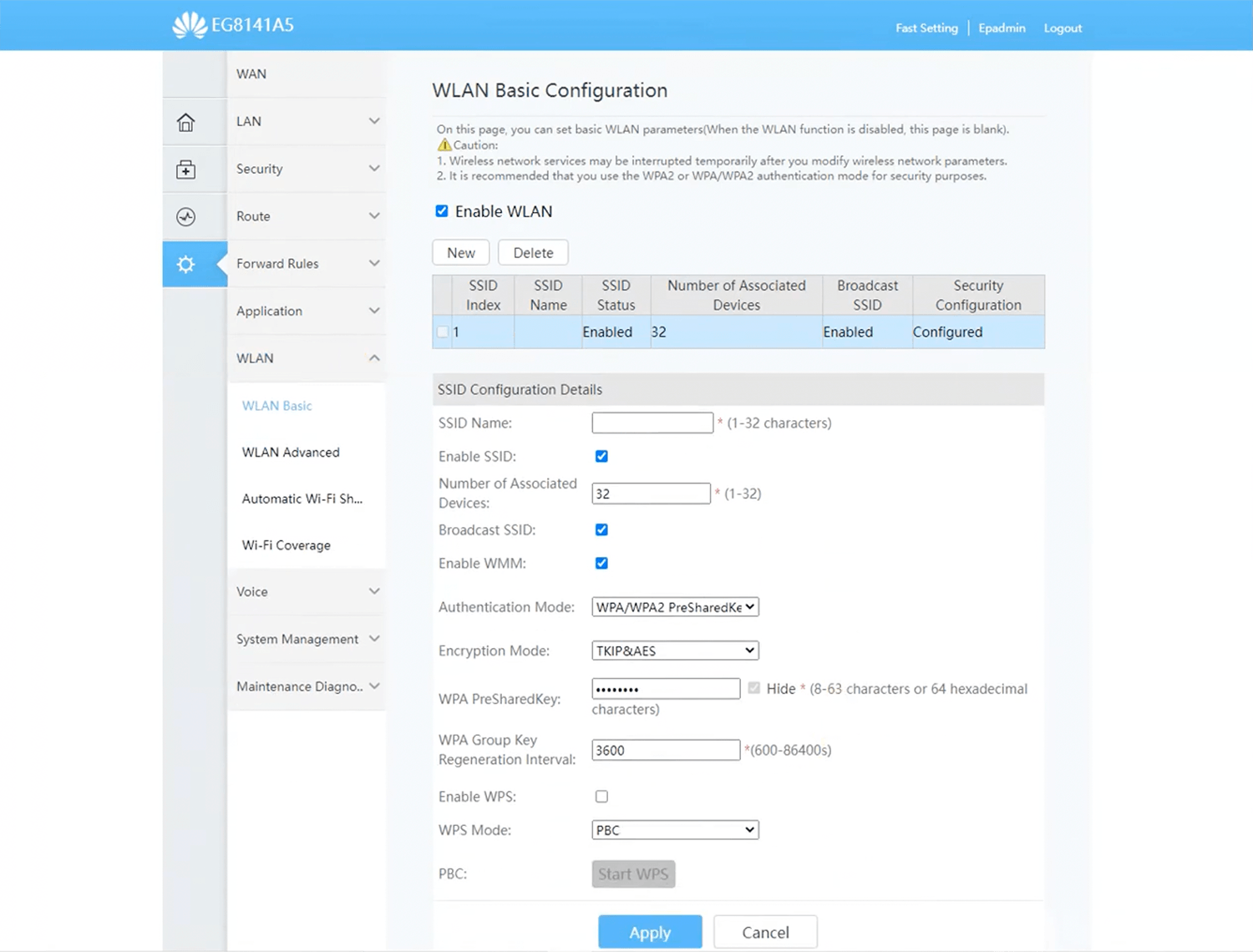
- Enter the Wi-Fi network name in the SSID Name field.
- Select Authentication Mode: WPA/WPA2 PreShared Key and Encryption Mode: TKIP&AES.
- Enter the Wi-Fi password in the WPA PreSharedKey field
- Click Apply.
Nokia WiFi Beacon 2
- Connect your device to the router via Wi-Fi or an Ethernet cable.
- Open a browser and type http://192.168.18.1 in the address bar.
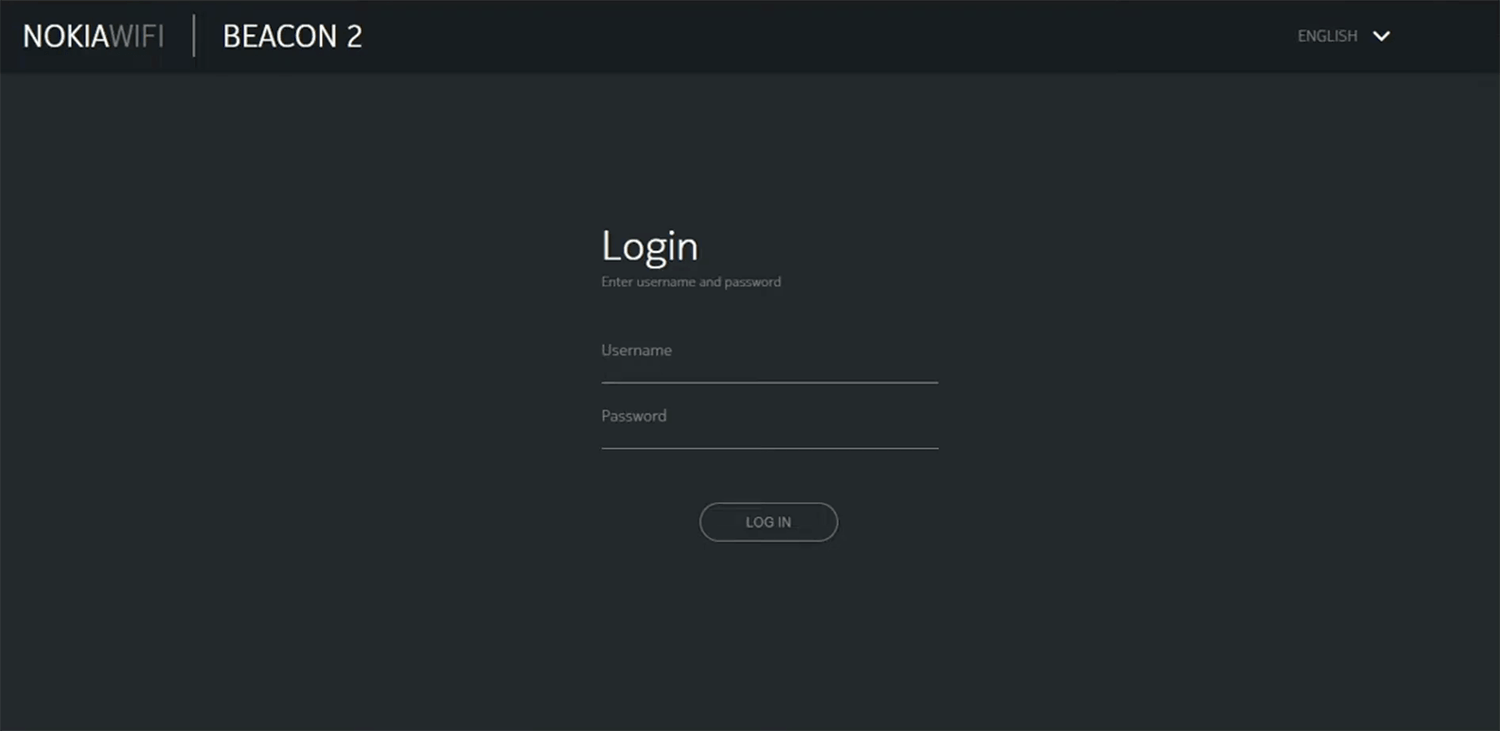
- Enter the Username and Password and click Log In.
- Select Network > Wireless (2.4GHz).
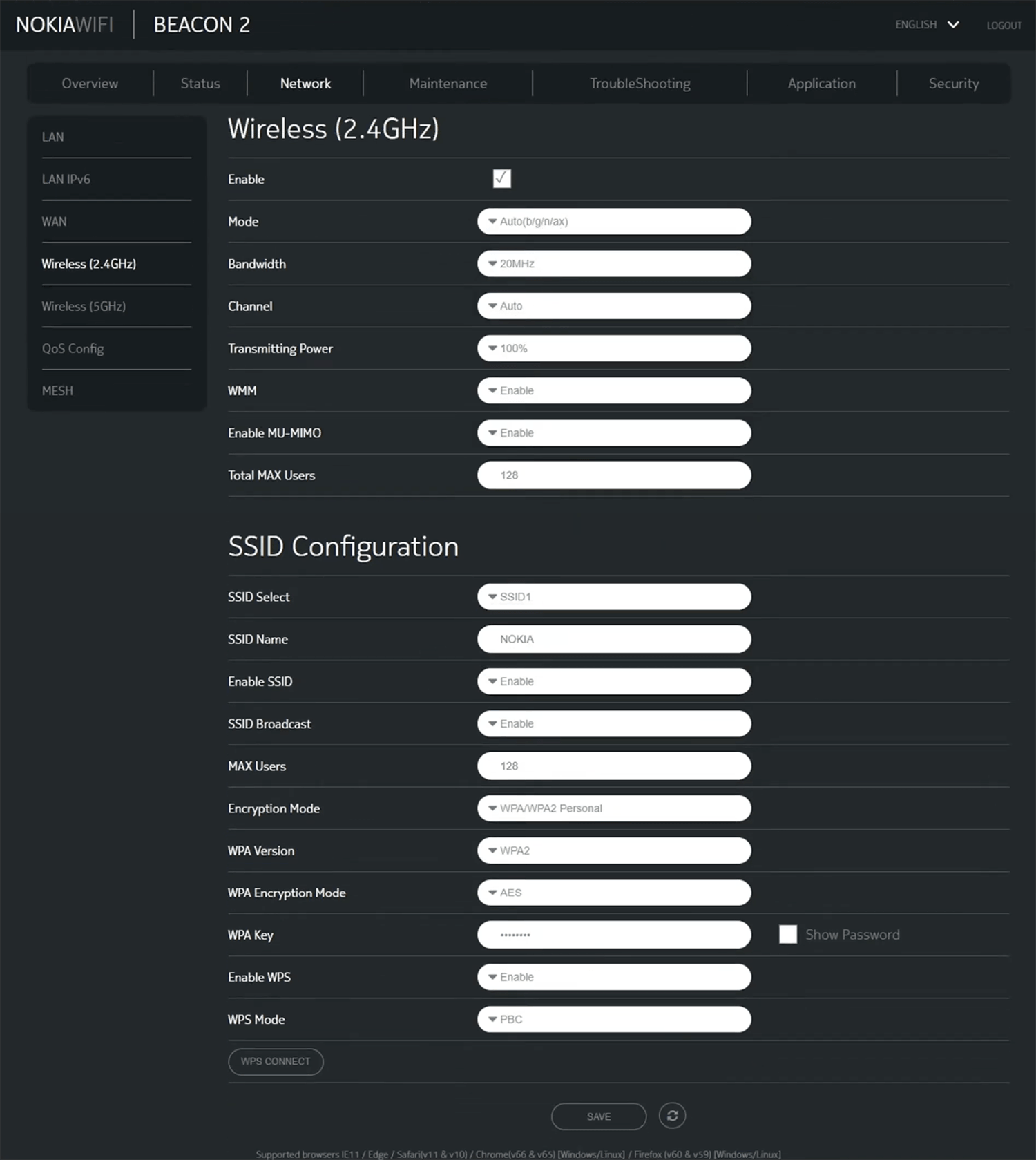
- Enter the Wi-Fi network name in the SSID Name field.
- Select Encryption Mode: WPA/WPA2 Personal, WPA Version: WPA2 and WPA Encryption Mode: AES.
- Enter the Wi-Fi password in the WPA Key field.
- Click Save.
Huawei EG8145V5
- Connect your device to the router via Wi-Fi or an Ethernet cable.
- Open a browser and type http://192.168.18.1 in the address bar.
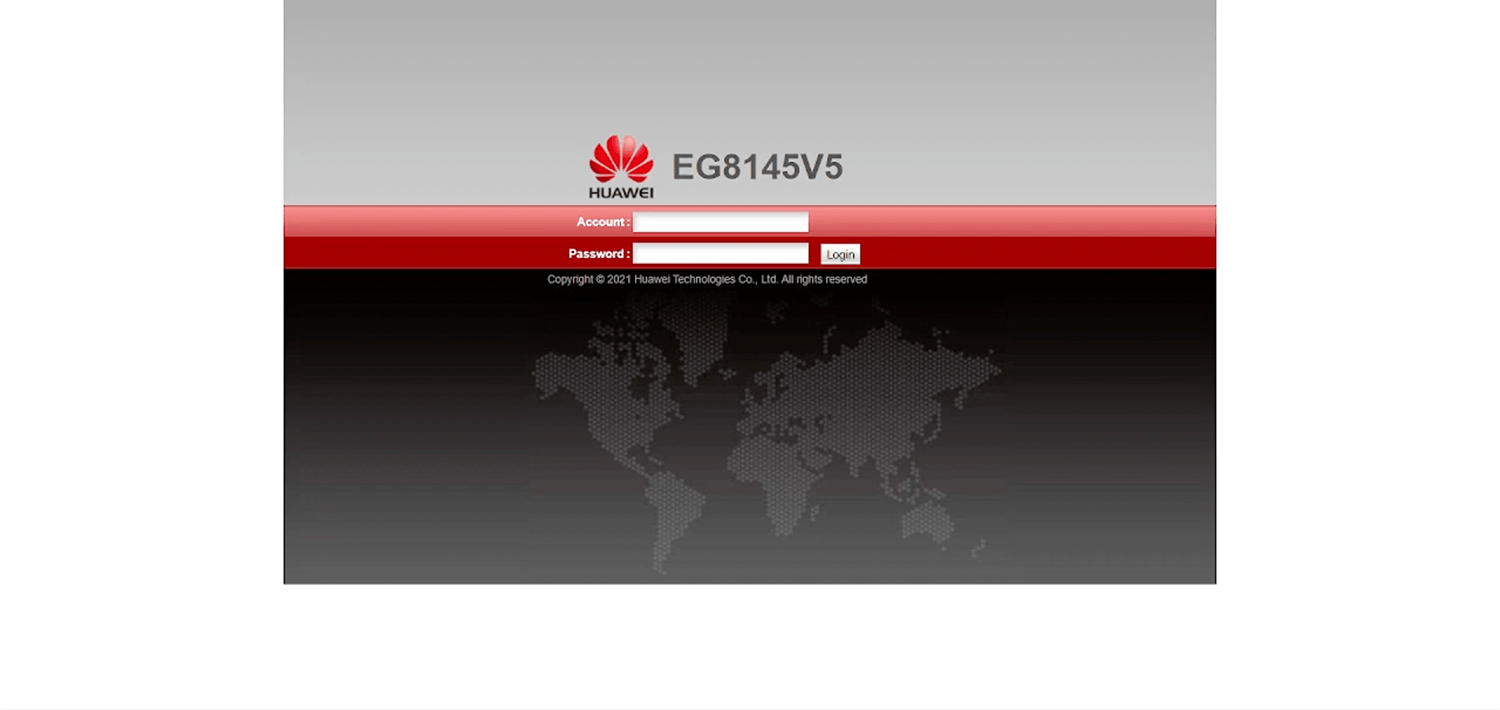
- Enter the Username and Password and click Log In.
- Select WLAN > 2.4G Basic Network Settings.
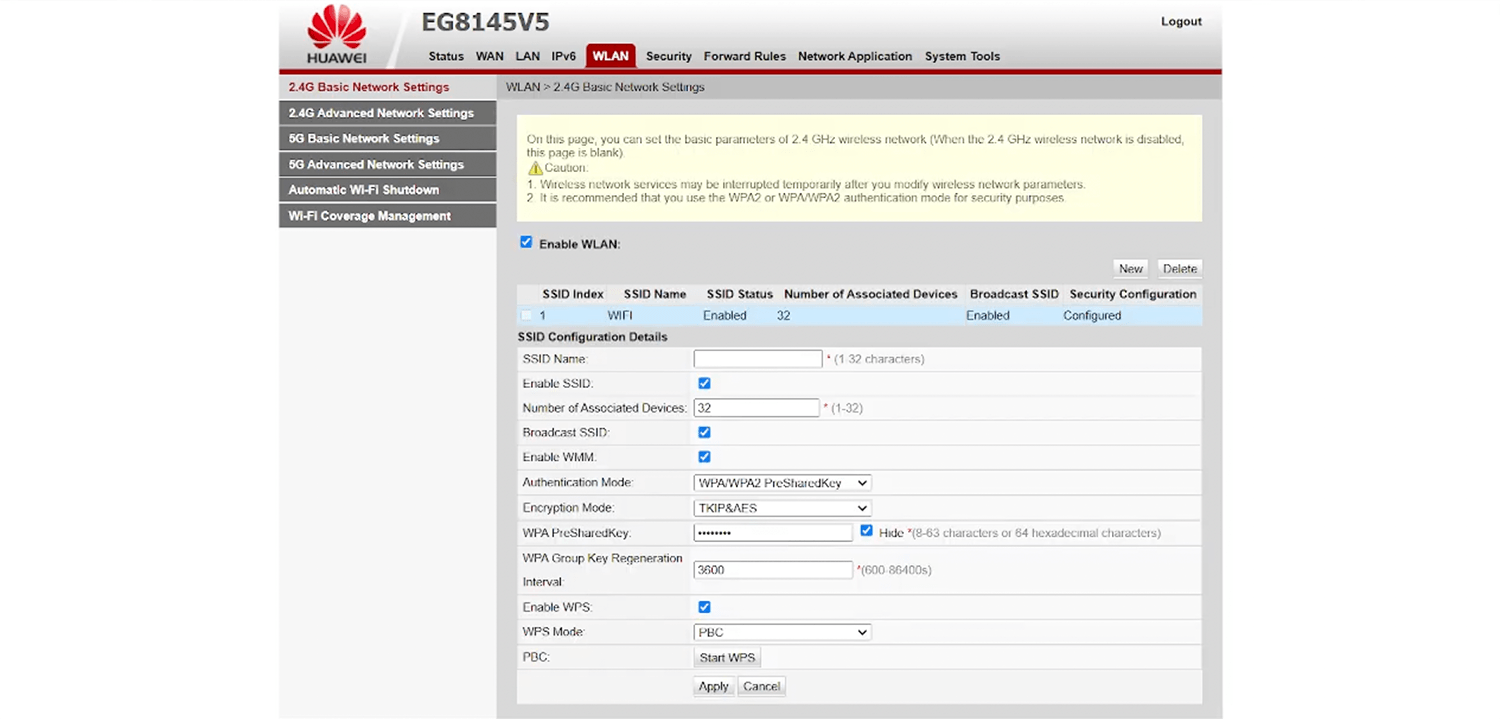
- Enter the Wi-Fi network name in the SSID Name field.
- Select Authentication Mode: WPA/WPA2 PreShared Key and Encryption Mode: TKIP&AES.
- Enter the Wi-Fi password in the WPA PreSharedKey field
- Click Apply.