
| Default IP Address | |
|---|---|
| 192.168.0.1 | |
| tplinkwifi.net | |
| 192.168.1.1 | |
| tplinkmodem.net | |
| tplinkrepeater.net |
Default Username and Password
| Router Model | IP Address | Username | Password |
|---|---|---|---|
| Archer C20 | 192.168.0.1 | admin | admin |
| TL-WR840N | tplinkwifi.net | admin | admin |
| Archer C6 | tplinkwifi.net | Not required | [Set during initial setup] |
| Archer VR400 | tplinkmodem.net | admin | admin |
| VX220-G2v | 192.168.1.1 | admin | [Printed on router sticker] |
| TL-WR940N | tplinkwifi.net | admin | admin |
| TL-WR841N | tplinkwifi.net | admin | admin |
| Archer AX3000 | tplinkwifi.net | Not required | [Set during initial setup] |
| TL-WR845N | tplinkwifi.net | admin | admin |
| Archer AX1800 | tplinkwifi.net | Not required | [Set during initial setup] |
| Archer C54 | tplinkwifi.net | Not required | [Set during initial setup] |
| TL-WR820N | tplinkwifi.net | Not required | [Set during initial setup] |
| Archer C80 | tplinkwifi.net | Not required | [Set during initial setup] |
| Archer C64 | tplinkwifi.net | Not required | [Set during initial setup] |
| Archer AX73 | tplinkwifi.net | Not required | [Set during initial setup] |
| Archer AX55 | tplinkwifi.net | Not required | [Set during initial setup] |
| TL-WR902AC | tplinkwifi.net | admin | admin |
| Archer C7 | tplinklogin.net | admin | admin |
| Archer C1200 | tplinkwifi.net | admin | admin |
| Archer C50 | tplinkwifi.net | admin | admin |
| Archer C60 | tplinkwifi.net | Not required | [Set during initial setup] |
| Archer AX10 | tplinkwifi.net | Not required | [Set during initial setup] |
| Archer AX11000 | tplinkwifi.net | Not required | [Set during initial setup] |
| Archer AX21 | tplinkwifi.net | Not required | [Set during initial setup] |
| Archer AXE75 | tplinkwifi.net | Not required | [Set during initial setup] |
| Archer AX23 | tplinkwifi.net | Not required | [Set during initial setup] |
| TL-WR829N | tplinkwifi.net | Not required | [Set during initial setup] |
| Archer BE9300 | tplinkwifi.net | Not required | [Set during initial setup] |
| Archer AX12 | tplinkwifi.net | Not required | [Set during initial setup] |
| Archer AX6000 | tplinkwifi.net | Not required | [Set during initial setup] |
| Archer AXE5400 | tplinkwifi.net | Not required | [Set during initial setup] |
| EX141 | tplinkwifi.net | Not required | [Set during initial setup] |
| Archer AX5400 | tplinkwifi.net | Not required | [Set during initial setup] |
| Archer AX53 | tplinkwifi.net | Not required | [Set during initial setup] |
| Archer C5 | 192.168.0.1 | Not required | [Set during initial setup] |
| Archer C24 | tplinkwifi.net | Not required | [Set during initial setup] |
| Archer AX72 | tplinkwifi.net | Not required | [Set during initial setup] |
| TL-WR802N | tplinkwifi.net | admin | admin |
| TL-WR740N | tplinkwifi.net | admin | admin |
| Archer AX80 | tplinkwifi.net | Not required | [Set during initial setup] |
| Archer AX72 Pro | tplinkwifi.net | Not required | [Set during initial setup] |
How to login to TP-Link router?

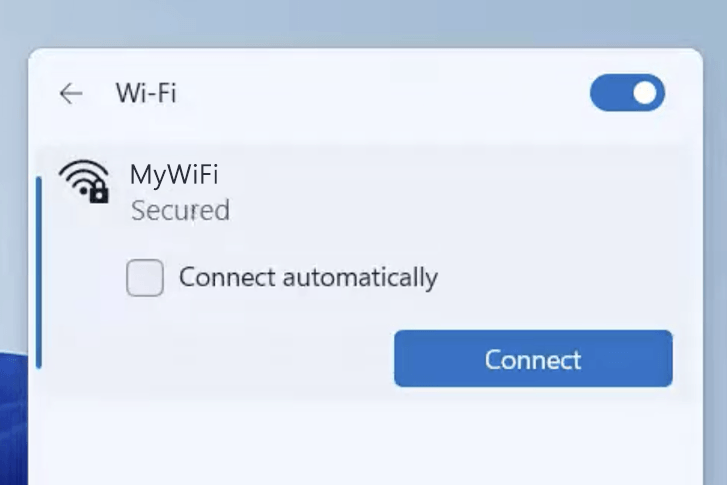
1) Connect your device to the router via an Ethernet cable or Wi-Fi connection.
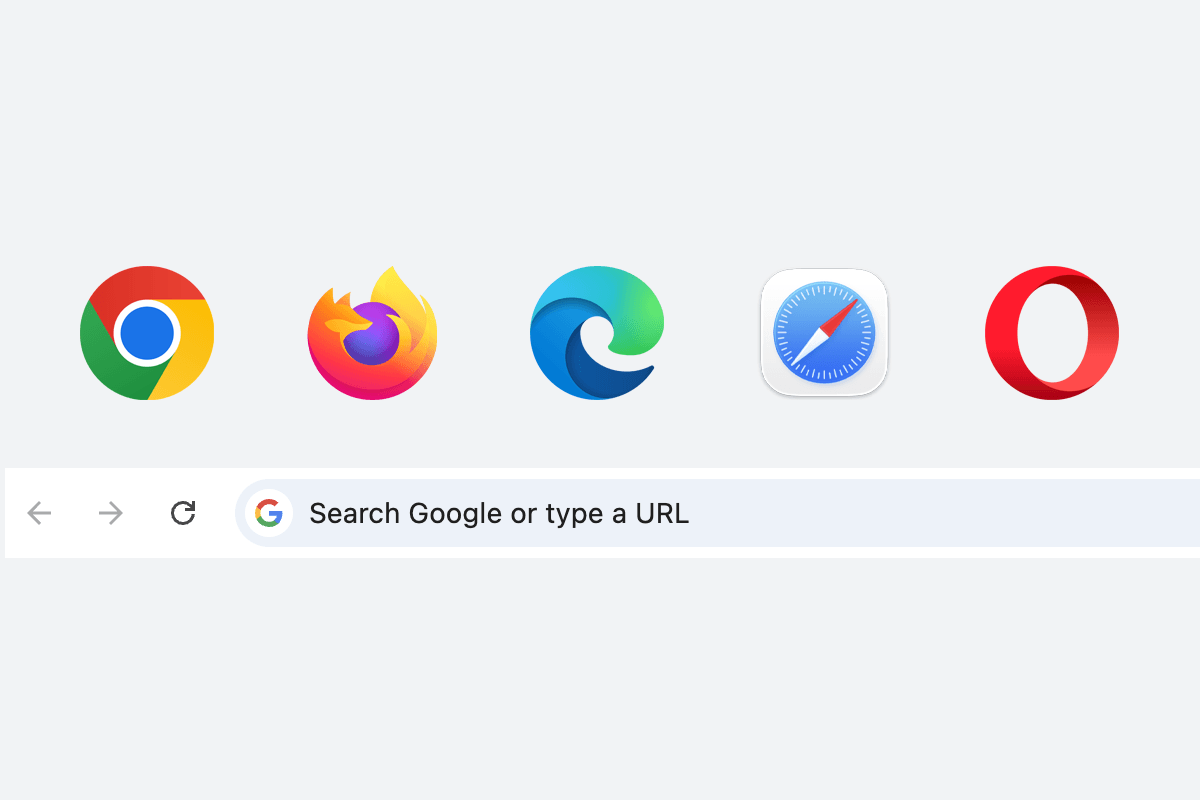
2) Open a web browser and type the IP address in the address bar.
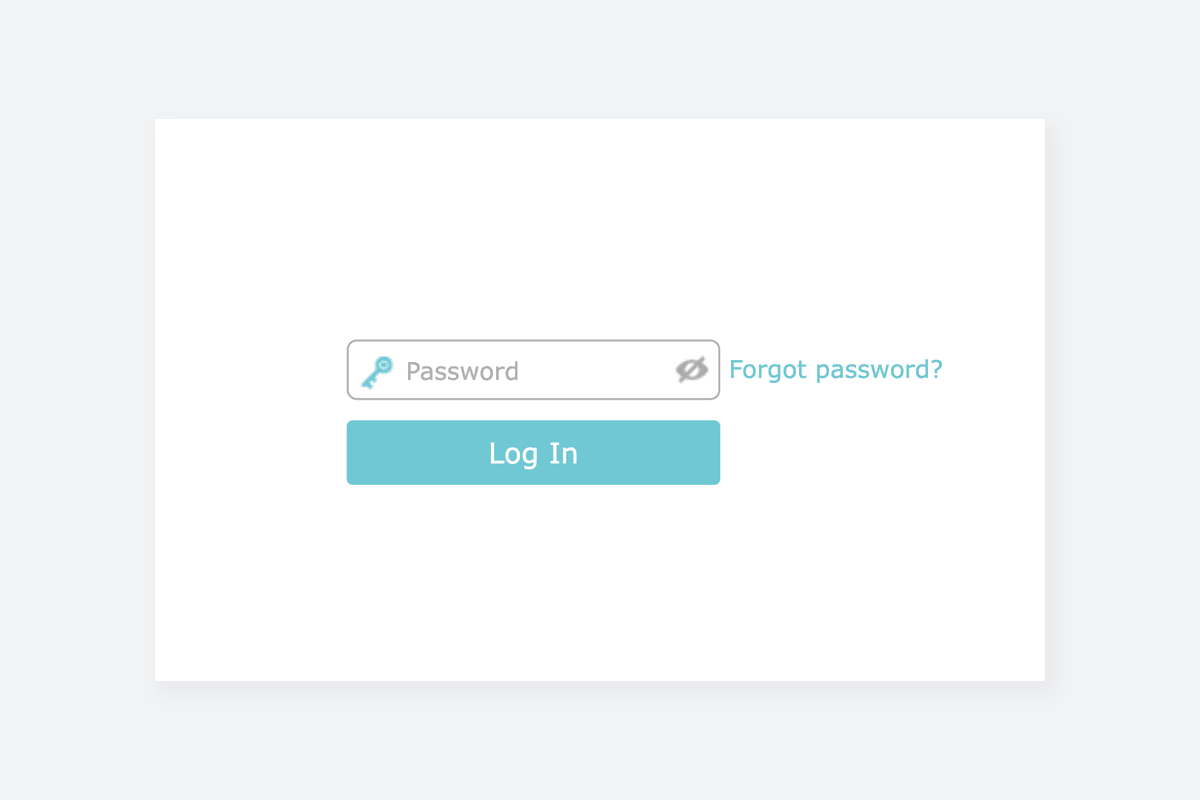
3) Enter the router username and password and click Login.
The web management page is a built-in internal web server that runs on your web browser. It does not require an active internet connection to load, however, your device (whether you are using a desktop, laptop or mobile phone) must be connected to the router either wirelessly or through a wired connection. TP-Link uses a variety of gateway IP and web addresses for their products. The following are some of the most common ones:
| Product Name | IP Address | Web Address |
| TP-Link Routers | 192.168.1.1 and 192.168.0.1 | tplinkwifi.net |
| TP-Link Modems | 192.168.1.1 | tplinkmodem.net |
| TP-Link Wi-Fi Range Extenders | 192.168.0.254 | tplinkrepeater.net |
| TP-Link Access Point | 192.168.0.254 | tplinkap.net |
| TP-Link Deco | 192.168.68.1 | tplinkdeco.net |
You can use either the IP address or the web address to access the router settings. The web addresses are a more memory-friendly options that simply resolves to the device default gateway IP address. In case your web browser have cached the web address, you can use the device IP address directly. A router model may have different IP addresses and login details because these credentials vary by device and every Internet service provider (ISP) uses different set of credentials.
Change TP-Link Wi-Fi Password and Network Name (SSID)
TP-Link TL-WR845N
- Connect your device to the router via an Ethernet cable or Wi-Fi.
- Open a browser and type http://tplinkwifi.net in the address bar.
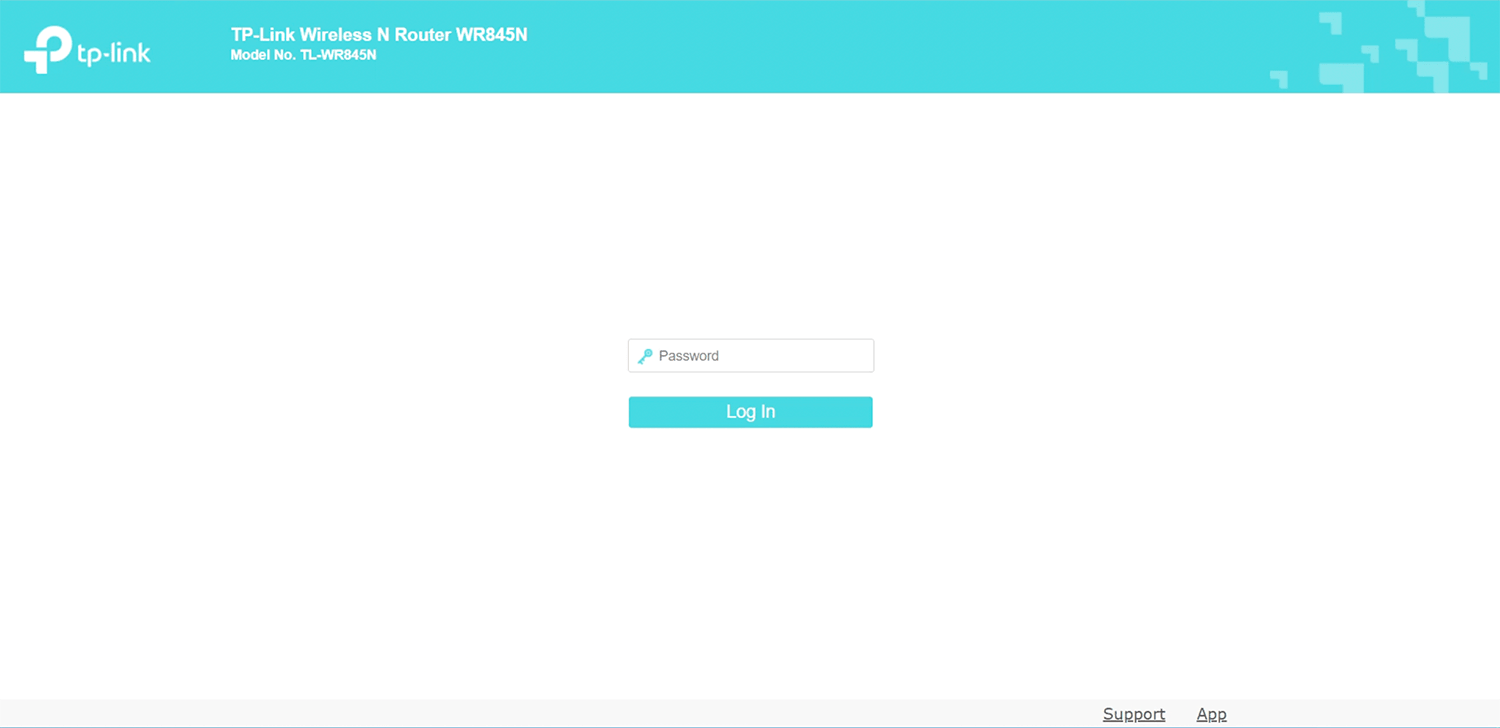
- Enter the password: admin and click Log In.
- Select Wireless > Basic Settings.
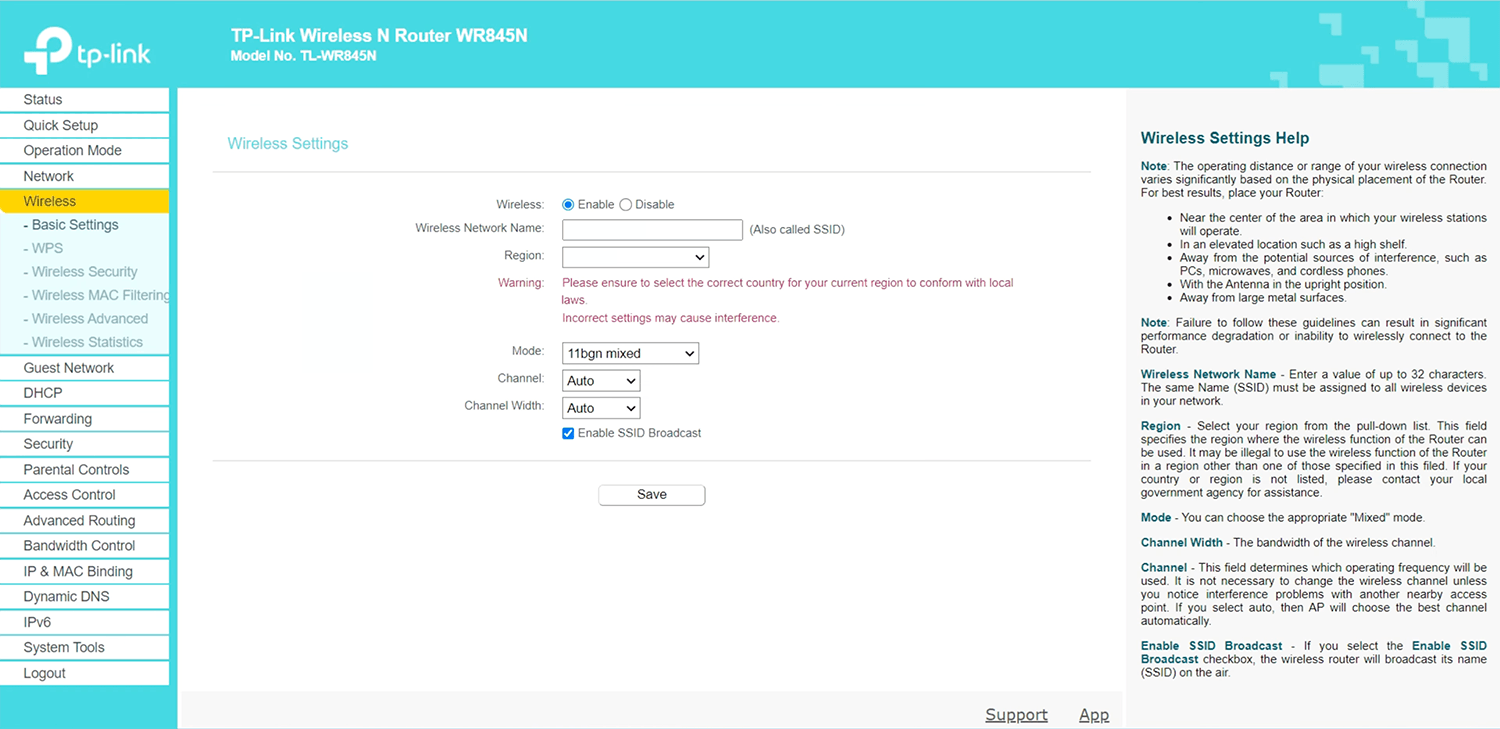
- Enter the Wi-Fi network name in the Wireless Network Name field and click Save.
- Go to Wireless > Wireless Security.
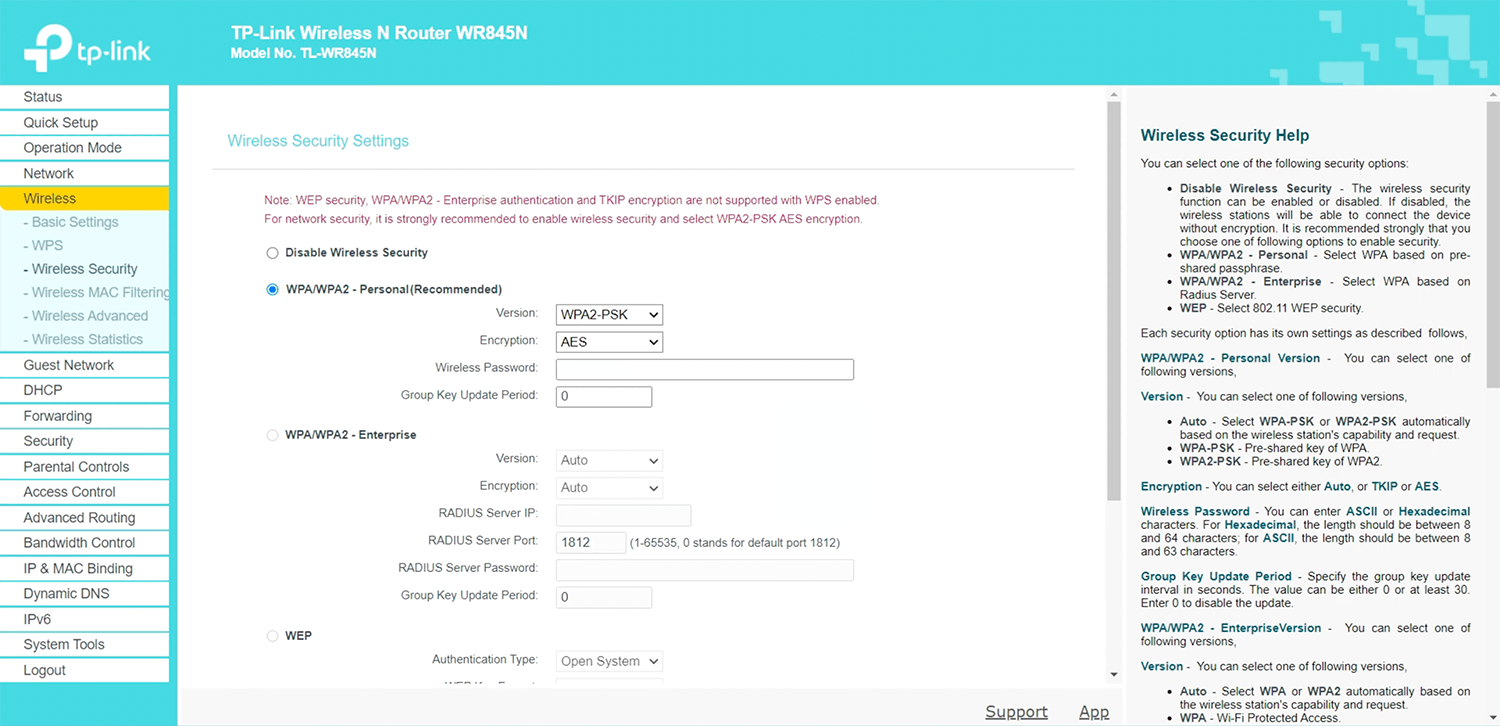
- Select WPA/WPA2 – Personal(Recommended), Version: WPA2-PSK and Encryption: AES.
- Enter the Wi-Fi password in the Wireless Password field and click Save.
TP-Link Archer Series
- Connect your device to the router via an Ethernet cable or Wi-Fi.
- Open a browser and type http://tplinkwifi.net or http://192.168.0.1 in the address bar.
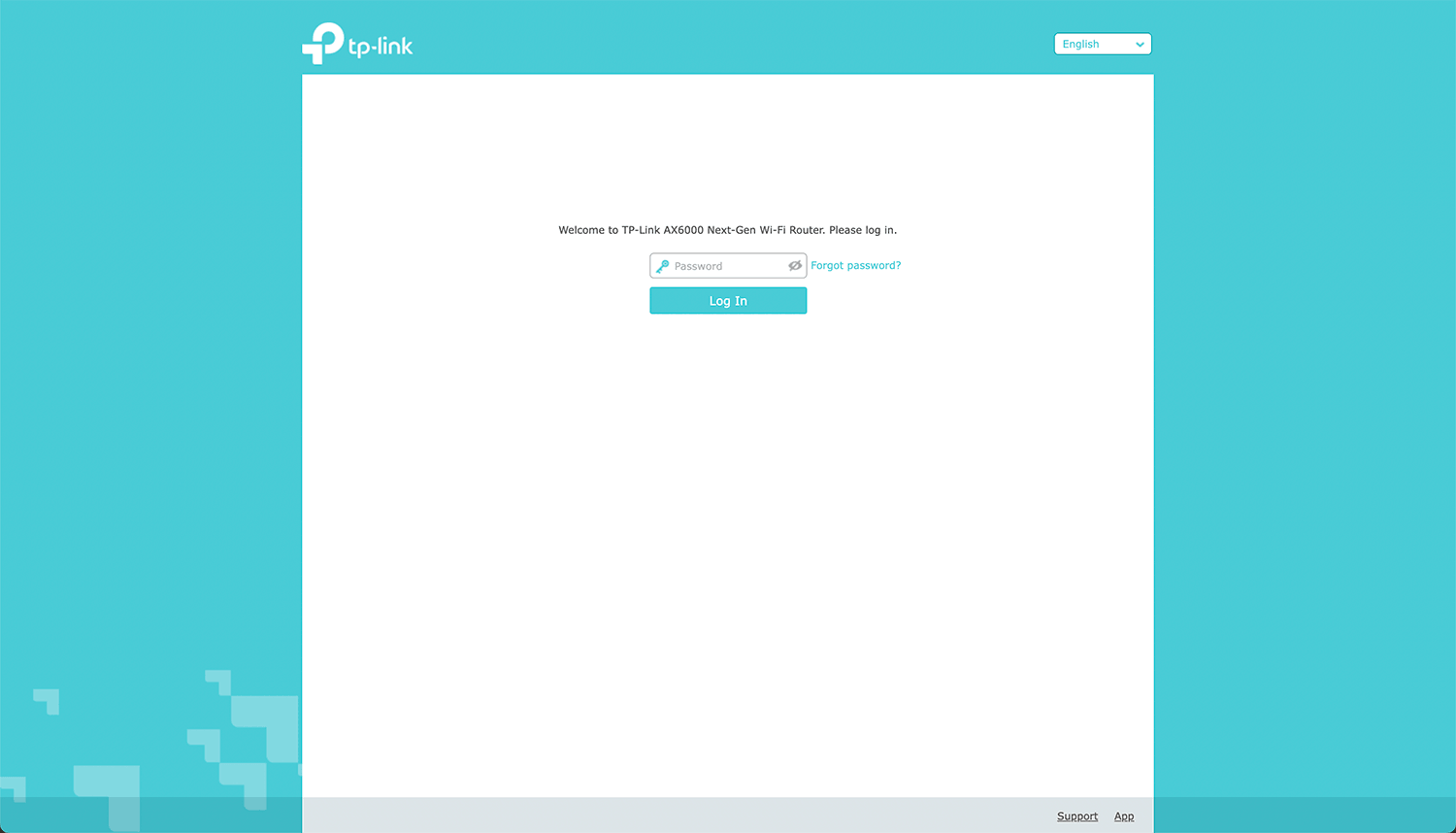
- Enter the Password and click Log In.
- Select Basic > Wireless.
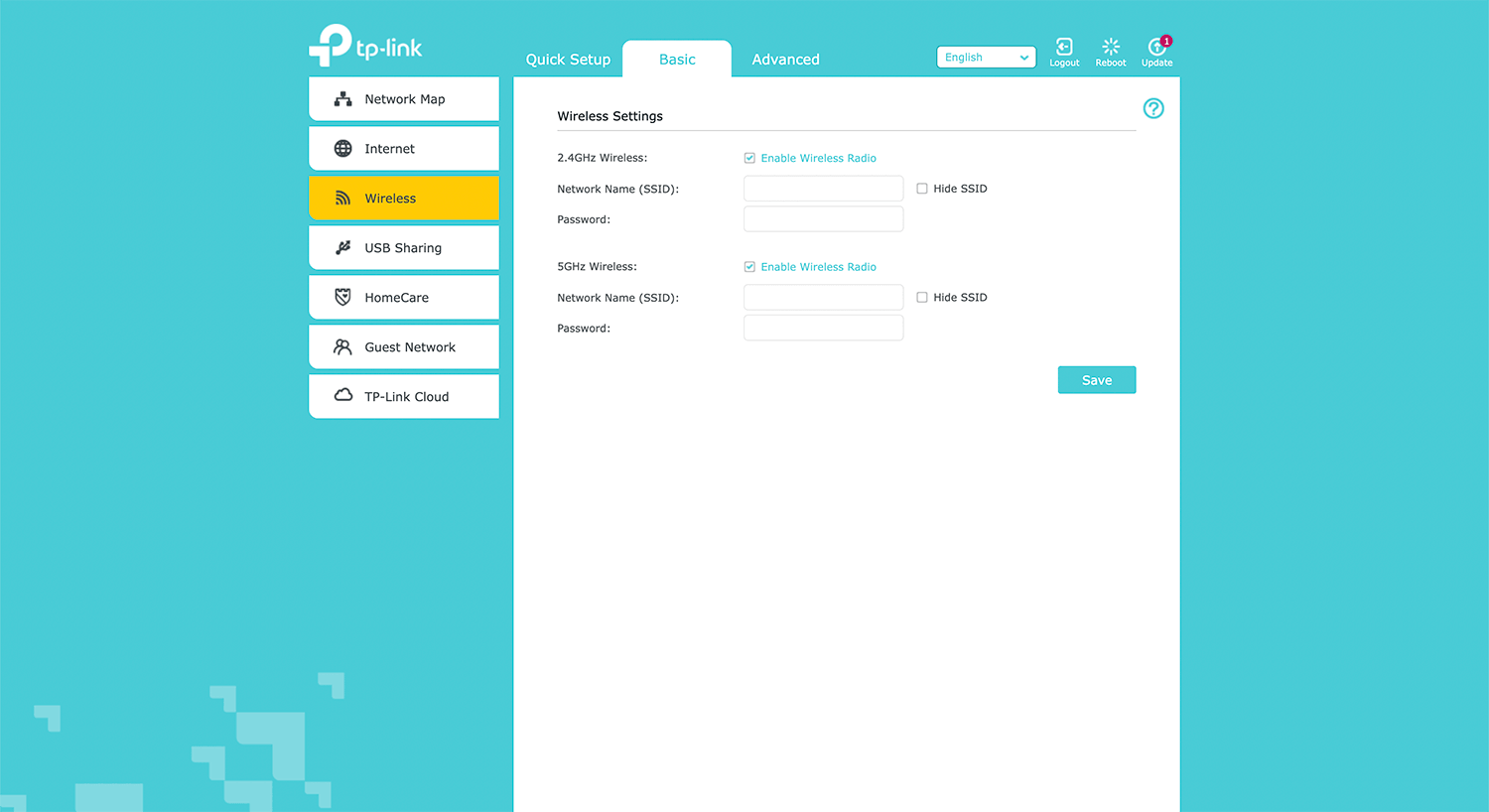
- Enter the Wi-Fi network name in the Network Name (SSID) field.
- Enter the Wi-Fi password in Password field and click Save.
TP-Link TL-WR841N
- Connect your device to the router via an Ethernet cable or Wi-Fi.
- Open a browser and type http://192.168.0.1 or http://tplinkwifi.net in the address bar.
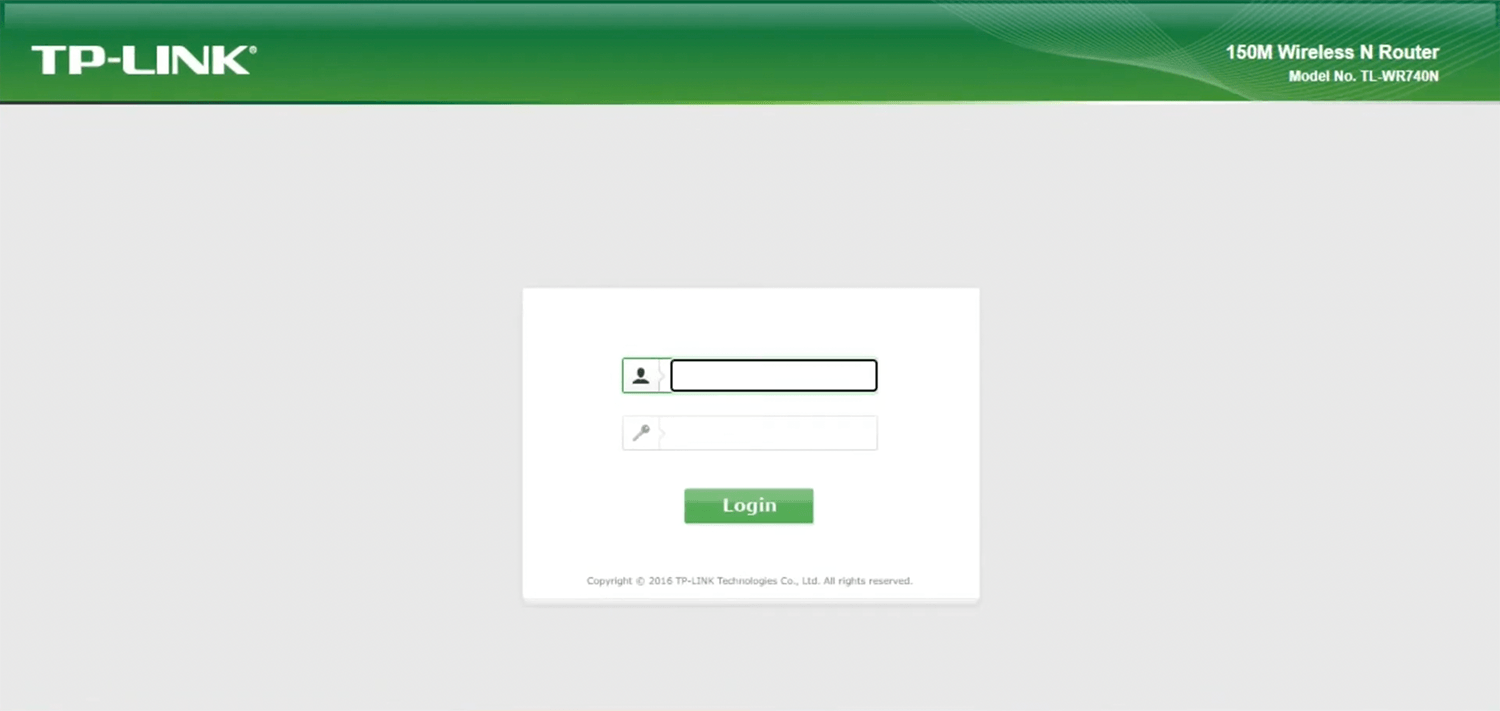
- Enter the Username: admin and Password: admin and click Login.
- Select Wireless > Wireless Settings.
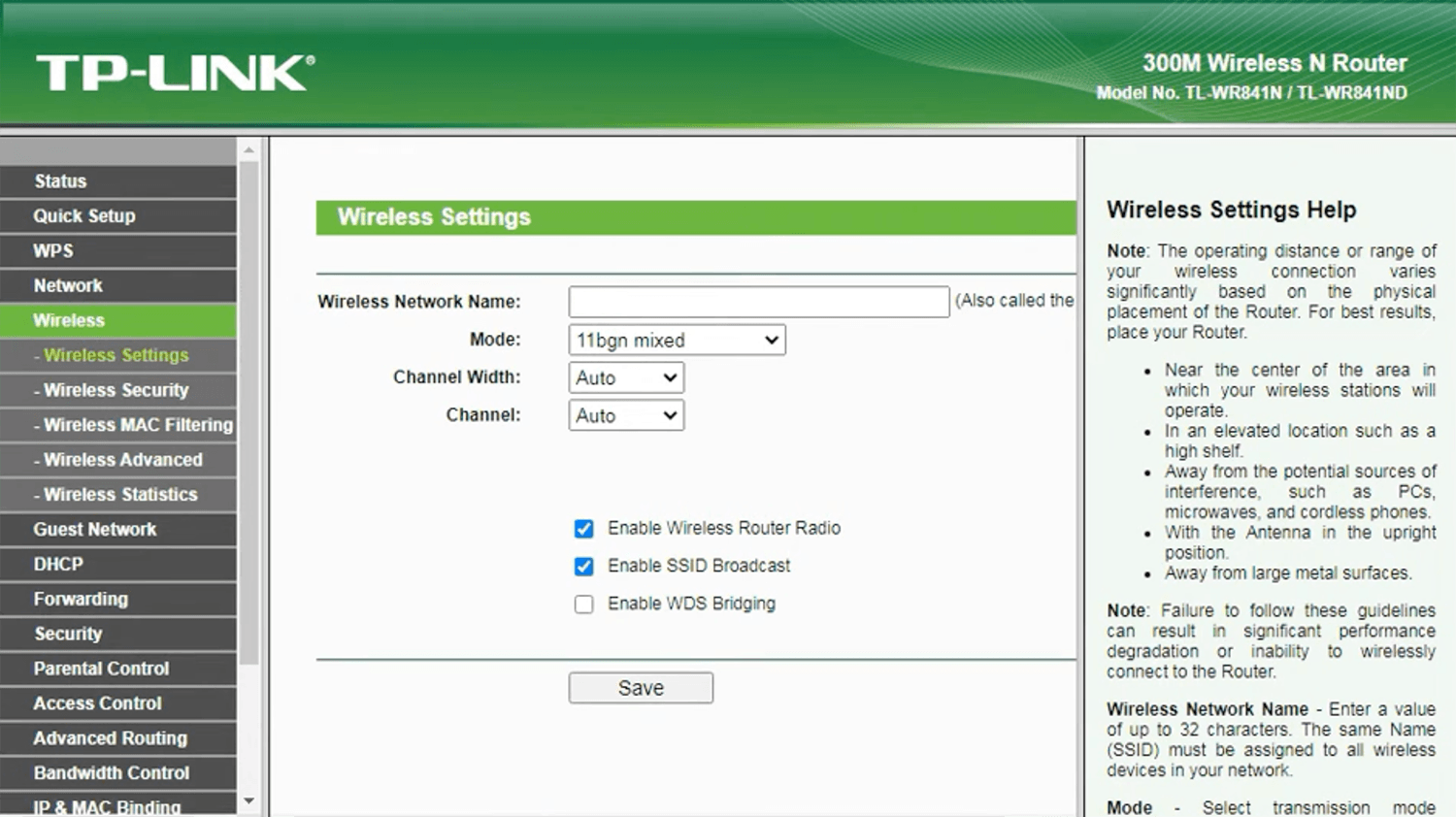
- Enter the Wi-Fi network name in the Wireless Network Name field and click Save.
- Go to Wireless > Wireless Security.
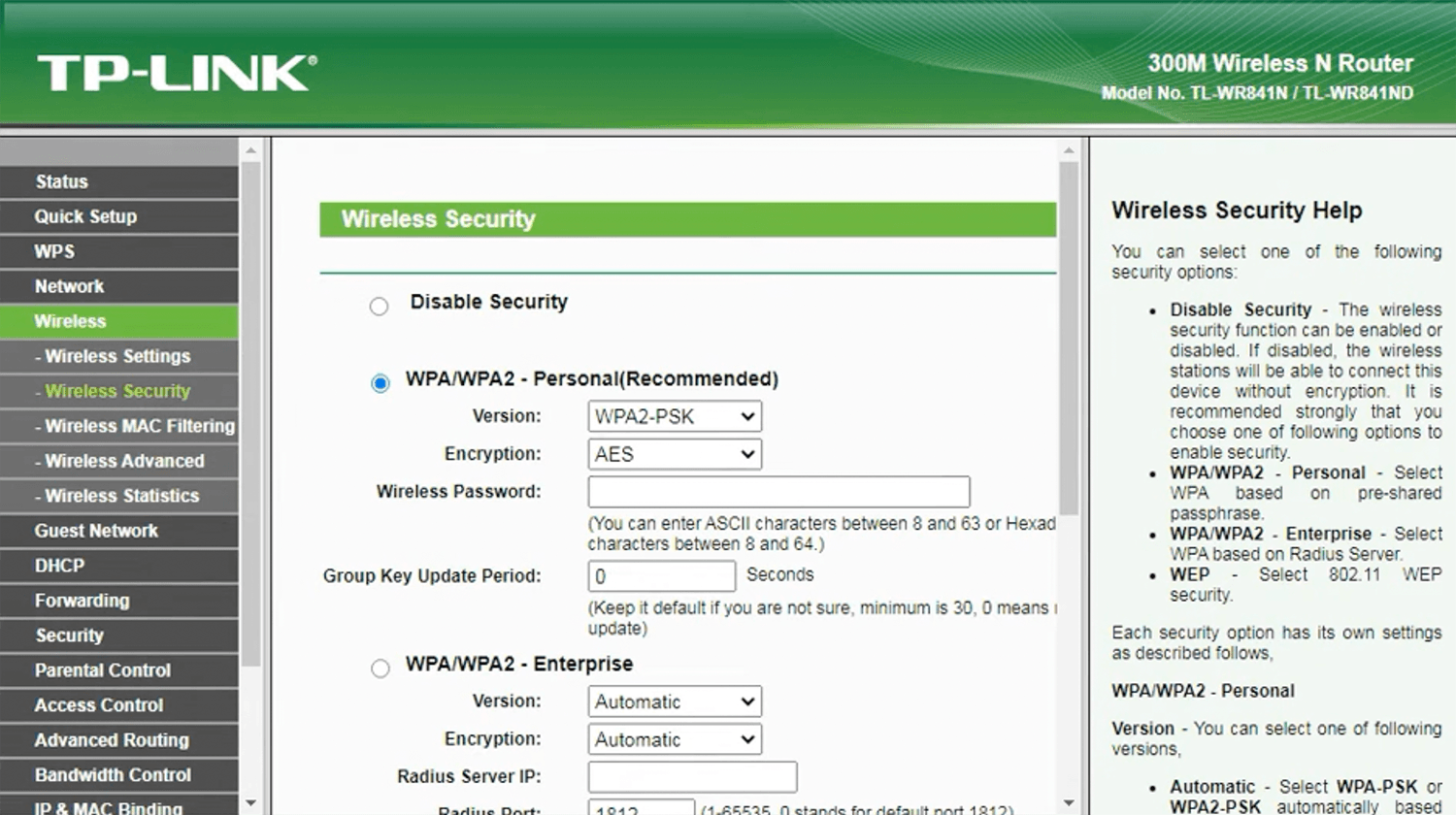
- Select WPA/WPA2 – Personal(Recommended), Version: WPA2-PSK and Encryption: AES.
- Enter the Wi-Fi password in the Wireless Password field and click Save.