Tendawifi.net

Tendawifi.net is the gateway IP address of your Tenda router to access the web-based user interface to change Wi-Fi password, Network Name (SSID), and other default settings.

To access your router settings, type http://tendawifi.net in the address bar of your web browser or click on the Login button below.

Default Username and Password

Common default router username and password combinations.
Router ModelIP AddressUsernamePassword
Tenda AC10tendawifi.comadminadmin
Tenda AC5tendawifi.comadminadmin
Tenda AC15tendawifi.comNot required[Set during initial setup]
Tenda AC6tendawifi.comNot required[Set during initial setup]
Tenda AC10Utendawifi.comNot required[Set during initial setup]
Tenda AC5tendawifi.comNot required[Set during initial setup]
Tenda AC9tendawifi.comNot required[Set during initial setup]
Tenda AC21tendawifi.comNot required[Set during initial setup]
Tenda AC11tendawifi.comNot required[Set during initial setup]
Tenda 4G03 Protendawifi.comNot required[Set during initial setup]
Tenda AX12 Pro v2tendawifi.comNot required[Set during initial setup]
Tenda 5G03tendawifi.comNot required[Set during initial setup]
Tenda AC10 v3tendawifi.comNot required[Set during initial setup]
Tenda TX12 Protendawifi.comNot required[Set during initial setup]
Tenda AC21tendawifi.comNot required[Set during initial setup]
Tenda 4G03tendawifi.comNot required[Set during initial setup]
Note: The default IP address, Username, and Password are printed on a sticker on the back or underside of the router. Some routers require you to create a new password during initial setup.

How to login to Tendawifi.net?

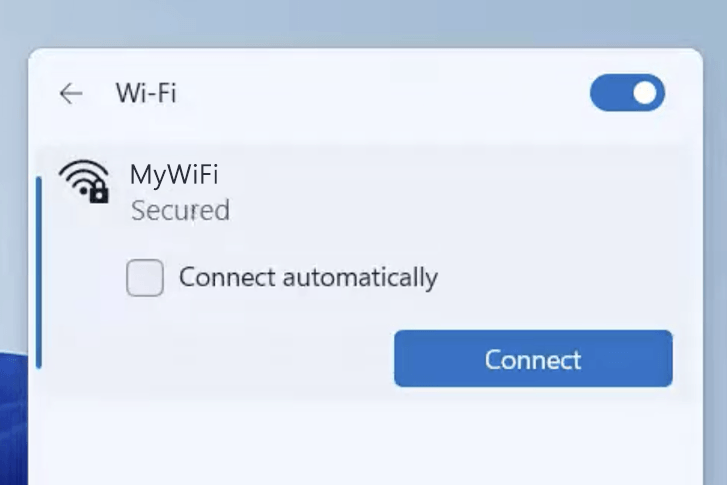
1) Connect your device to the router via an Ethernet cable or Wi-Fi connection.
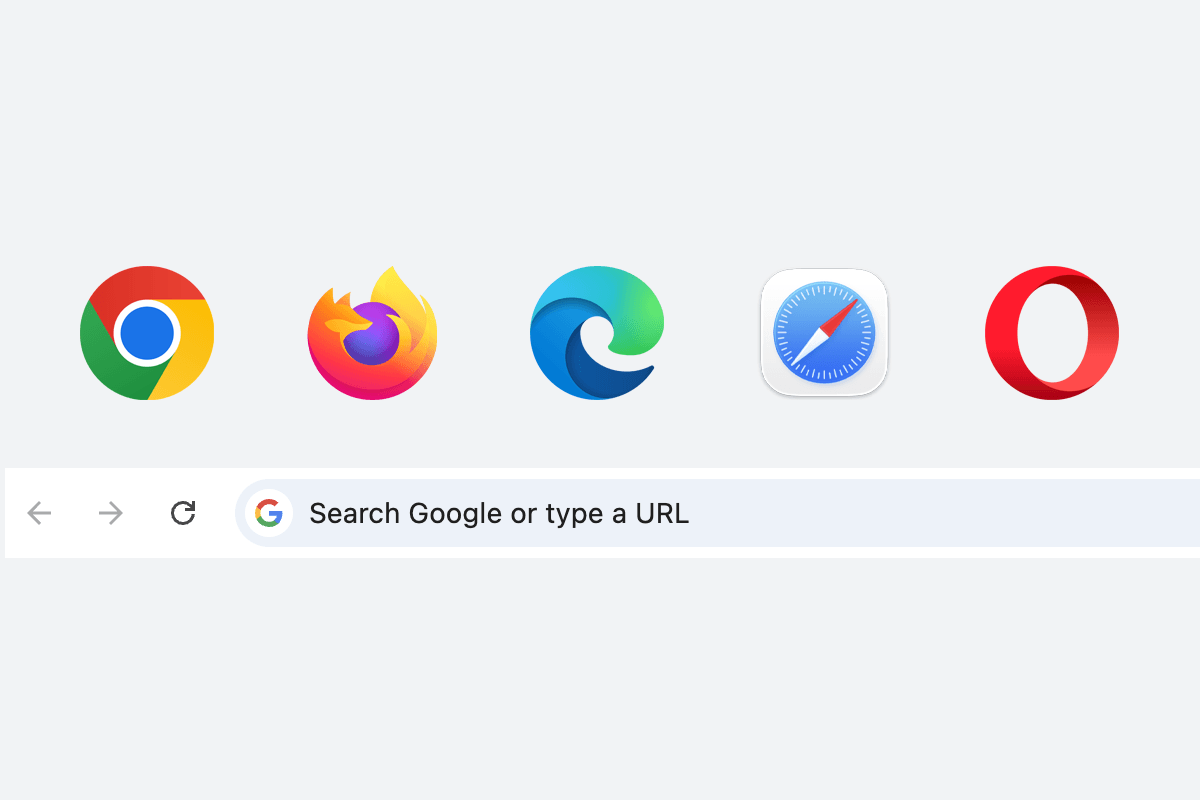
2) Open a web browser and type http://tendawifi.net in the address bar.
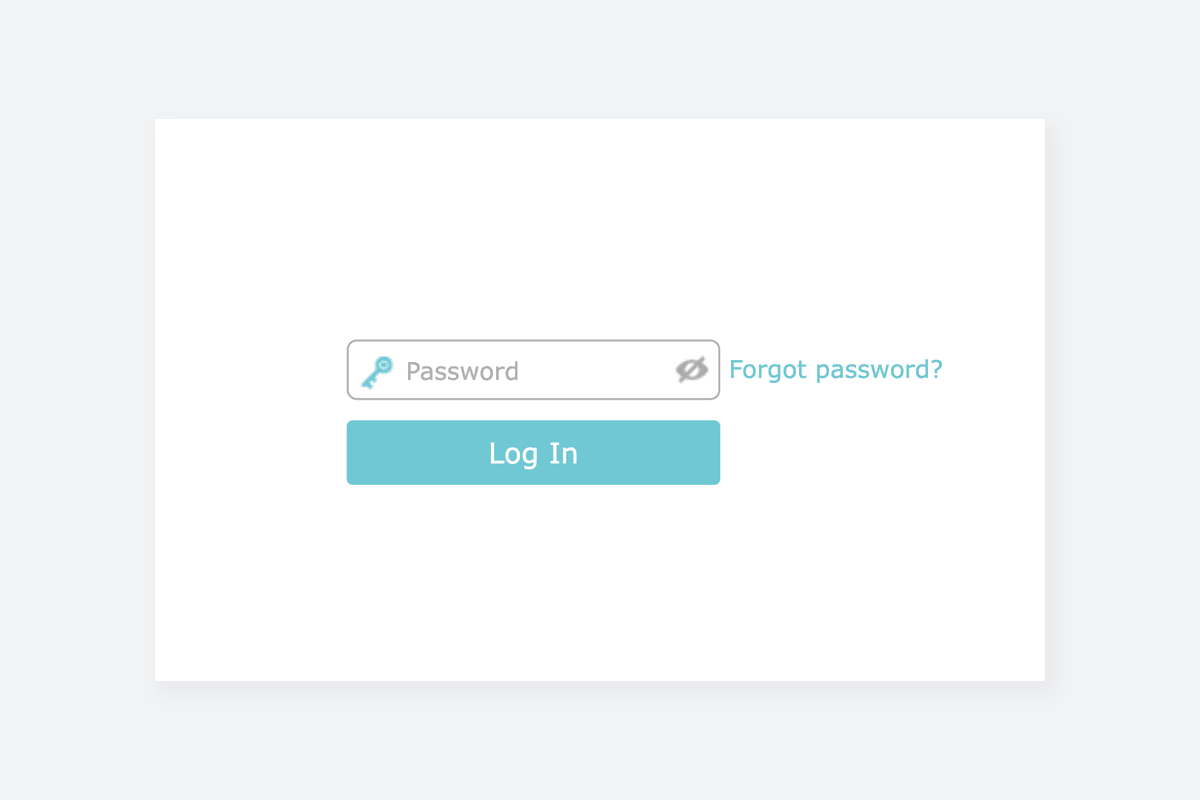
3) Enter the router username and password and click Login.

Change Tenda Wi-Fi Password and Network Name (SSID)

  1. Connect your device to the router via Wi-Fi or an Ethernet cable.
  2. Open a browser and type http://tendawifi.com in the address bar.
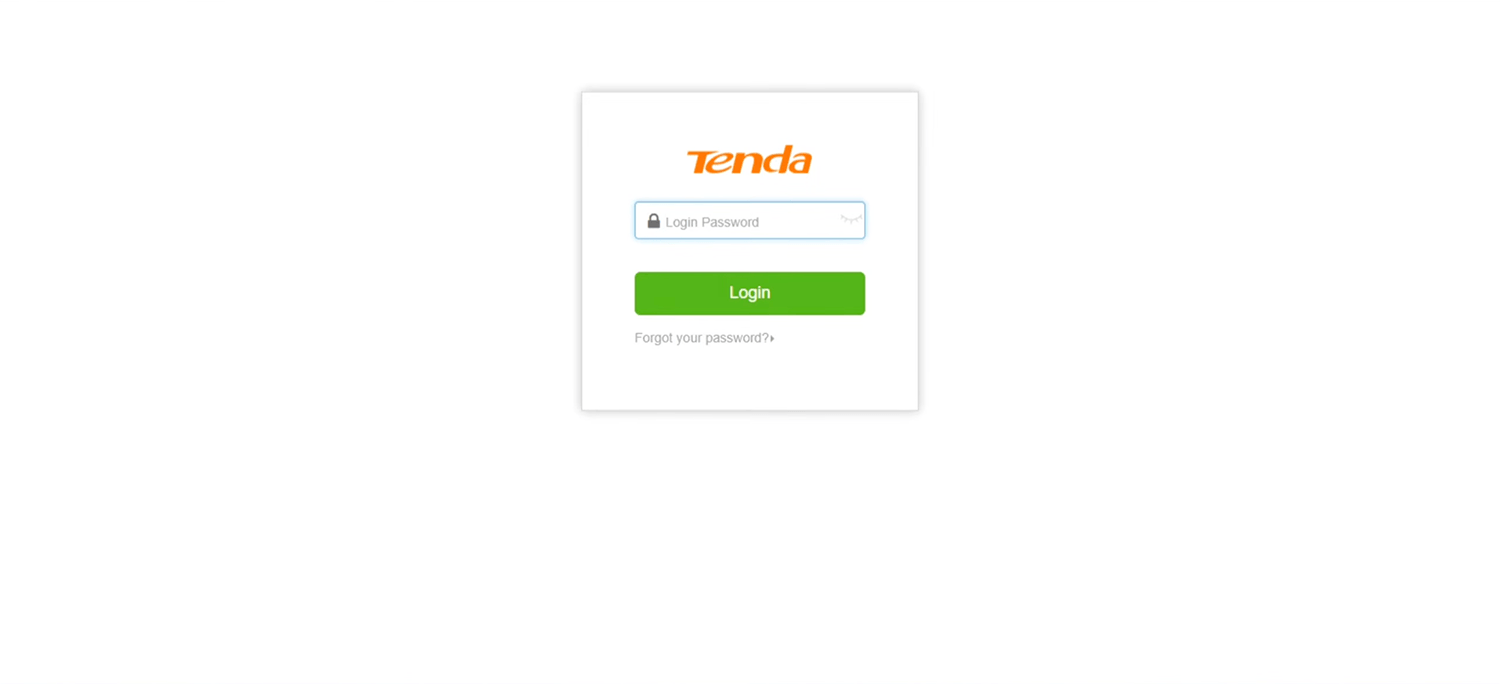
  3. Enter the Login Password and click Login. For most Tenda router models, the password is printed on the label on the back of the router. If you are setting up for the first time, you may be required to set up the login password first.
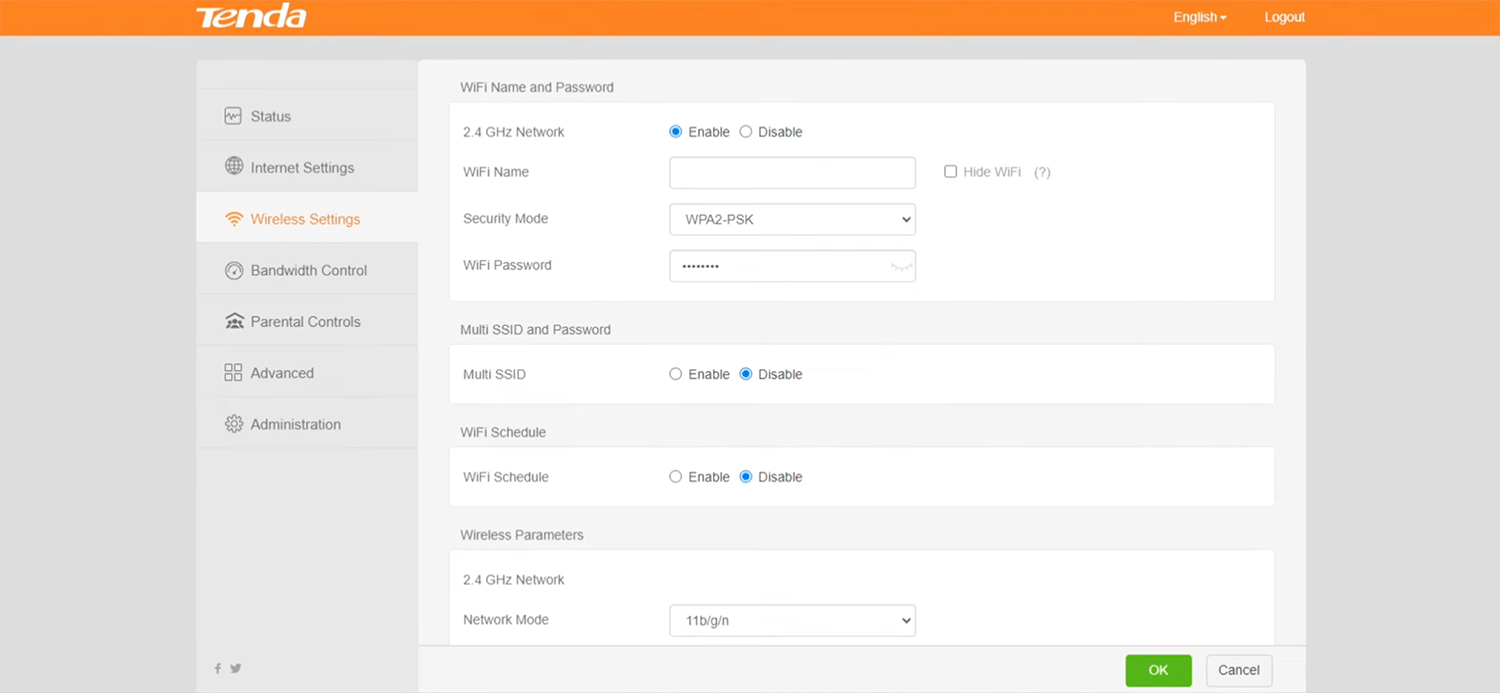
  4. Select Wireless Settings.
  5. Enter the Wi-Fi network name in the WiFi Name field.
  6. Select Security Mode: WPA2-PSK.
  7. Enter the Wi-Fi password in the WiFi Password field.
  8. Click OK to save the changes.

Popular Router IP Addresses

Popular Router Brands