
192.168.8.1

192.168.8.1 is the gateway IP address of your router to access the web-based user interface to change Wi-Fi password, Network Name (SSID), and other default settings.

To access your router settings, type http://192.168.8.1 in the address bar of your web browser or click on the Login button below.

Default Username and Password

Common default router username and password combinations.
Router ModelIP AddressUsernamePassword
Huawei B535192.168.8.1Not requiredadmin
Huawei B618s-22d192.168.8.1adminadmin
Huawei B612s-25d192.168.8.1user[Printed on router sticker]
Huawei B310192.168.8.1Not requiredadmin
Huawei B311192.168.8.1Not requiredadmin
Zong 4G Bolt+192.168.8.1adminadmin
Zamtel Huawei MF8192.168.8.1adminadmin
Huawei H155-381192.168.8.1Not required[Printed on router sticker]
Huawei B315s-608192.168.8.1adminadmin
Umniah Evo 4G192.168.8.1adminadmin
Huawei B818-263192.168.8.1Not requiredadmin
Three Zyxel Hub192.168.8.1Not requiredADMIN
Three Huawei Hub192.168.8.1Not requiredADMIN
Huawei B312-926192.168.8.1Not requiredadmin
Telenor 4G192.168.8.1adminadmin
Huawei E5577192.168.8.1Not requiredadmin
SoyeaLink B535-333192.168.8.1Not required[Printed on router sticker]
SoyeaLink E5783-330192.168.8.1Not required[Printed on router sticker]
Aurora C082192.168.8.1User_OT_C082[Printed on router sticker]
Huawei B310s-925192.168.8.1user[Printed on router sticker]
Huawei E5573s-856192.168.8.1adminadmin
Huawei B628-265192.168.8.1Not required[Printed on router sticker]
Huawei B310s-927192.168.8.1adminadmin
Huawei E5783-230a192.168.8.1Not required[Printed on router sticker]
Note: The default IP address, Username, and Password are printed on a sticker on the back or underside of the router. Some routers require you to create a new password during initial setup.

How to login to 192.168.8.1?

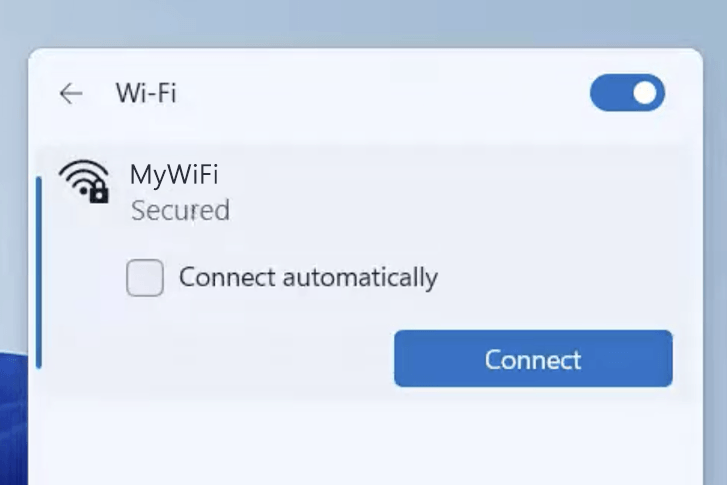
1) Connect your device to the router via an Ethernet cable or Wi-Fi connection.
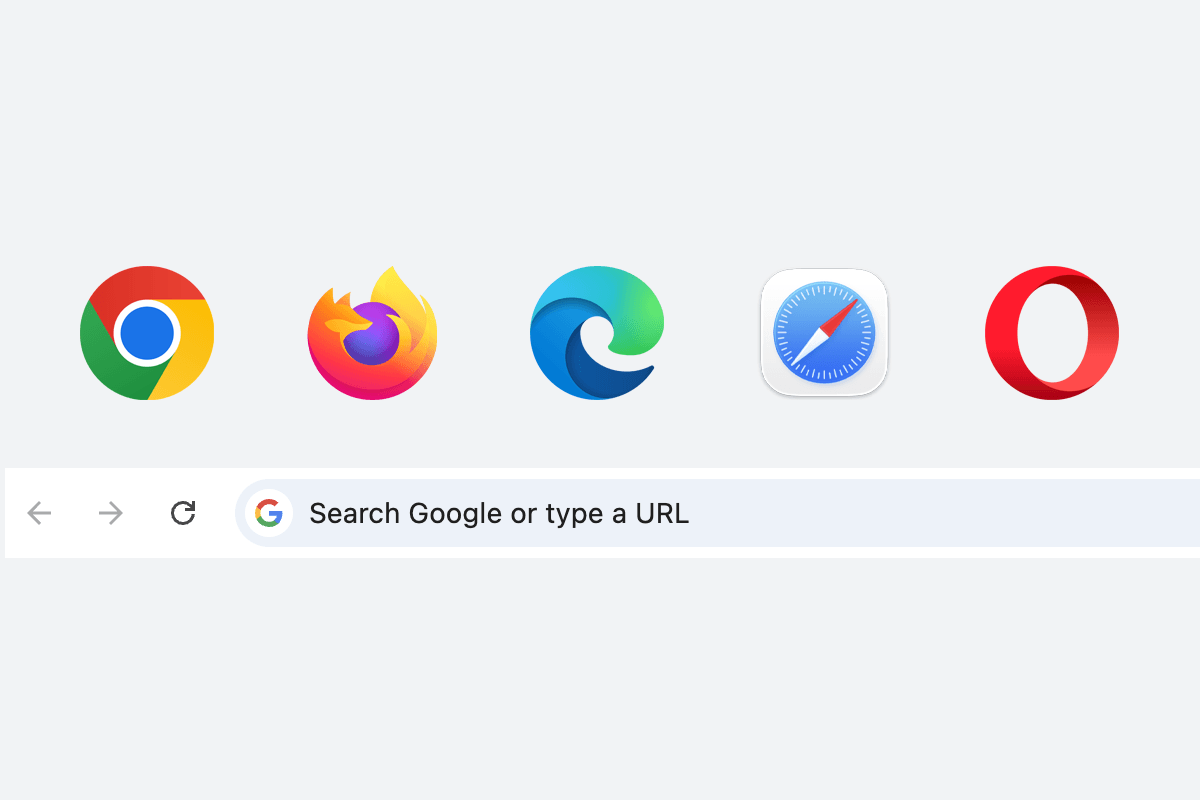
2) Open a web browser and type http://192.168.8.1 in the address bar.
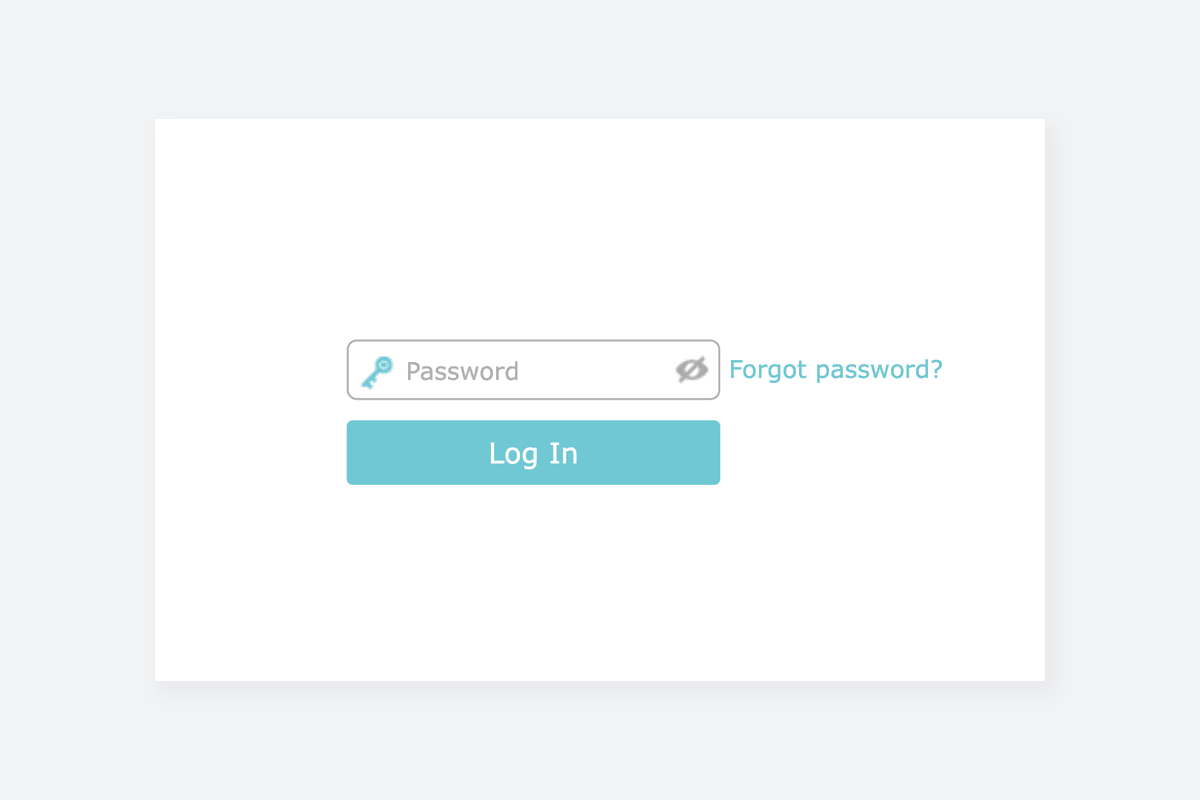
3) Enter the router username and password and click Login.

Change Wi-Fi Password and Network Name (SSID)

The exact menu path depends on your router brand, model and firmware version. Below are some router models using 192.168.8.1 as the default IP address.
Huawei B315
  1. Connect your device to the router’s Wi-Fi network.
  2. Open a browser and type http://192.168.8.1 in the address bar.
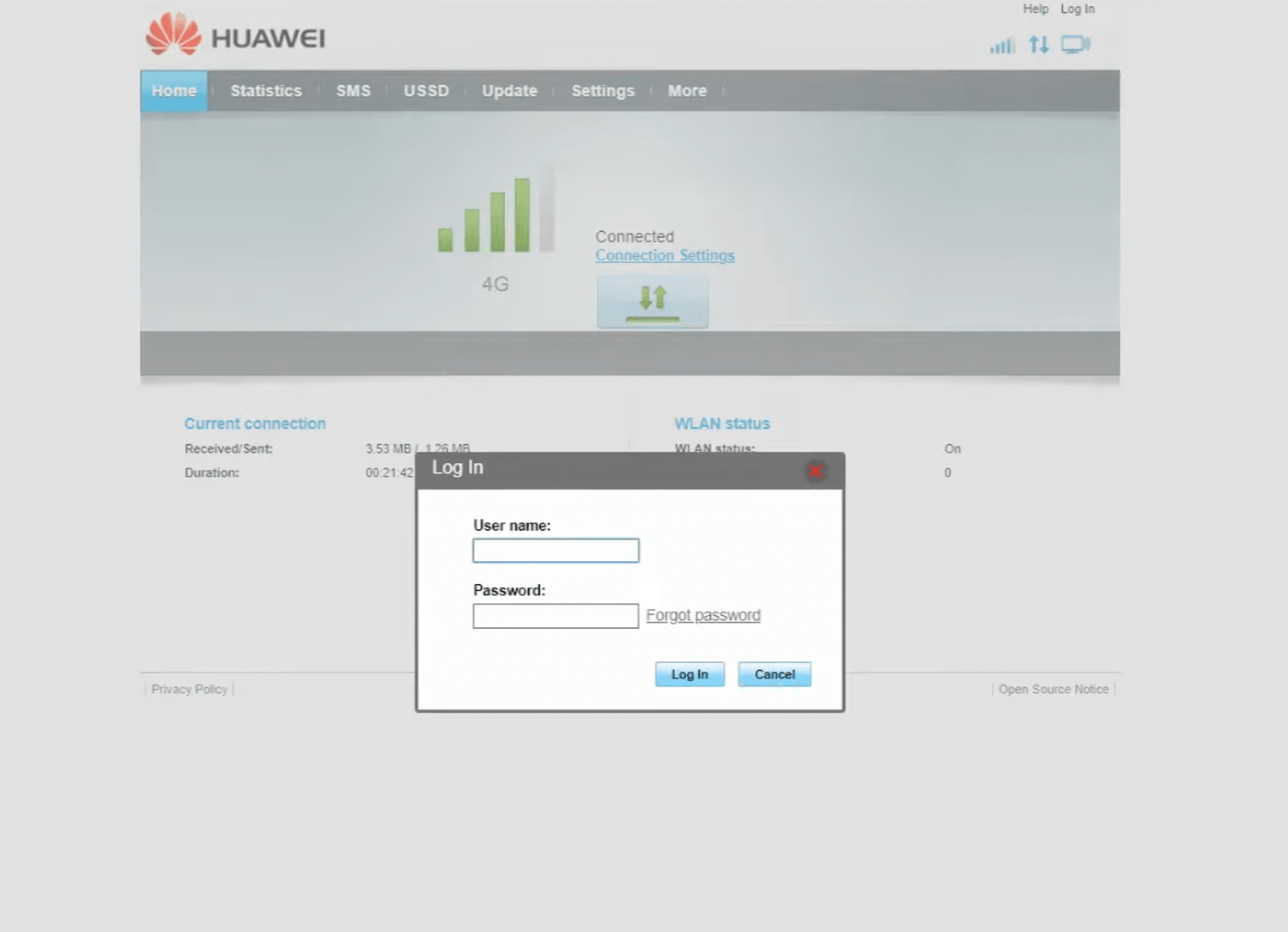
  3. Click Log In on the top right-hand side of the screen.
  4. Enter the Username: admin and Password: admin and click Log In. The default login credentials are printed on a label underside the router.
  5. Select Settings > WLAN > WLAN Basic Settings.
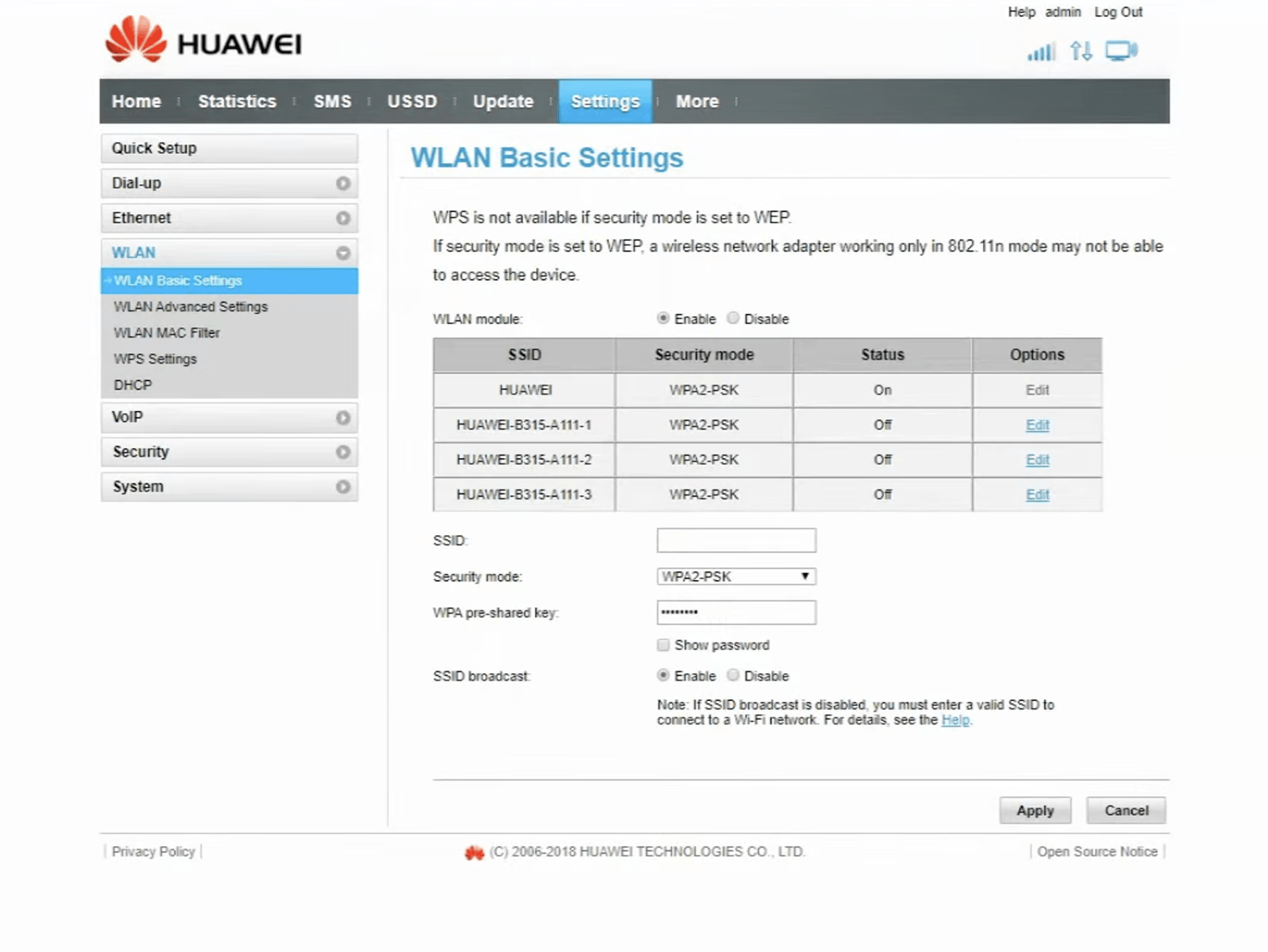
  6. Enter the Wi-Fi network name in the SSID field.
    Select Security Mode: WPA2-PSK.
  7. Enter the Wi-Fi password in the WPA pre-shared key field
  8. Click Apply.
  1. Connect your device to the router’s Wi-Fi network.
  2. Open a browser and type http://192.168.8.1 in the address bar.
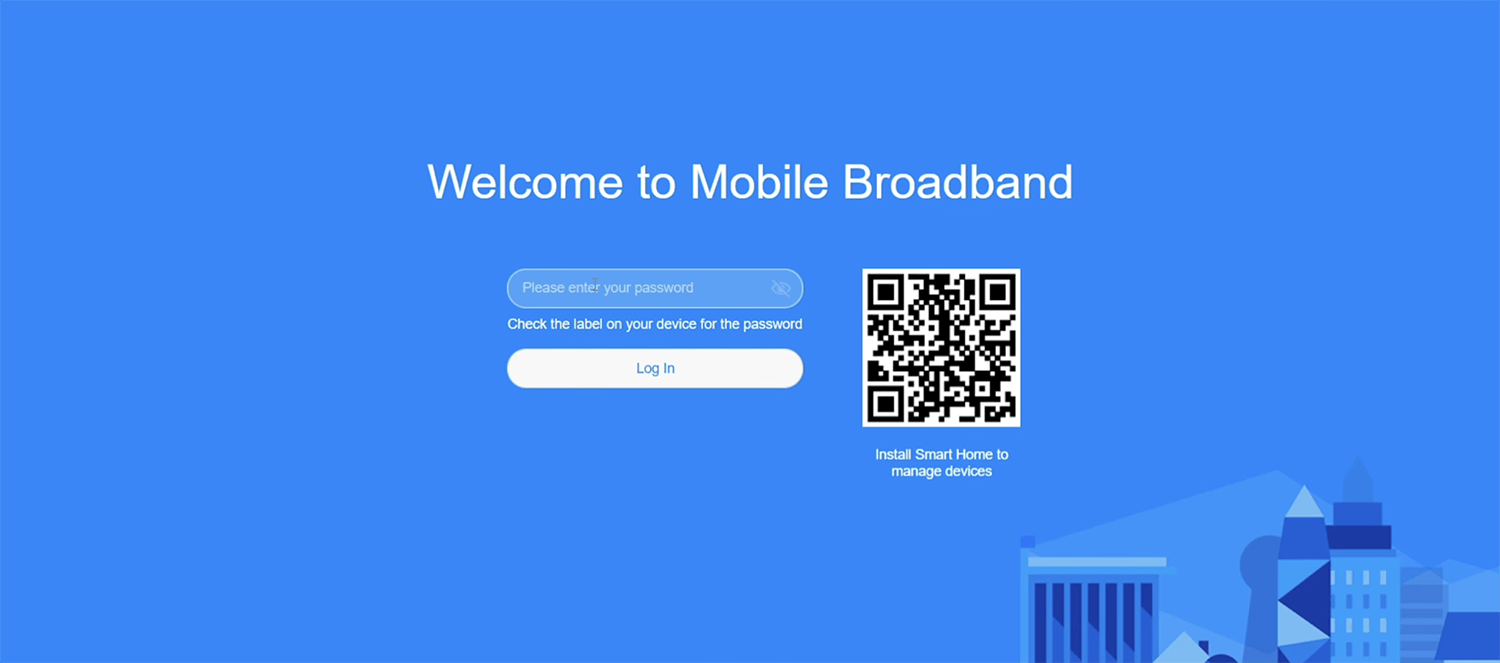
  3. Enter the password: admin and click Log In.
  4. Select Wi-Fi Settings > Wi-Fi Basic Settings.
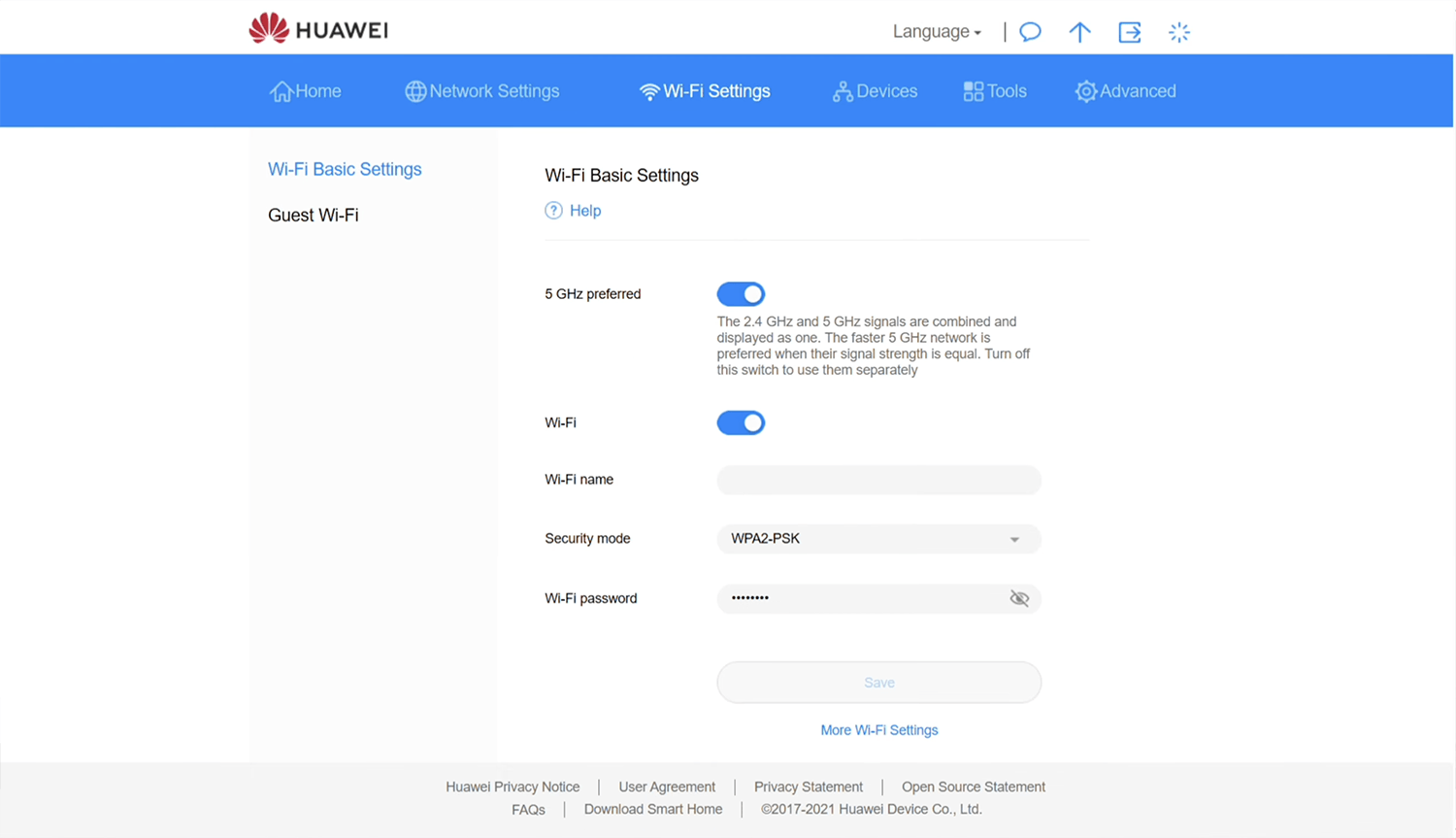
  5. Enter the Wi-Fi network name in the Wi-Fi name field.
  6. Select Security Mode: WPA2-PSK.
  7. Enter the Wi-Fi password in the Wi-Fi password field
  8. Click Save.
  1. Connect your device to the router’s Wi-Fi network.
  2. Open a browser and type http://192.168.8.1 in the address bar.
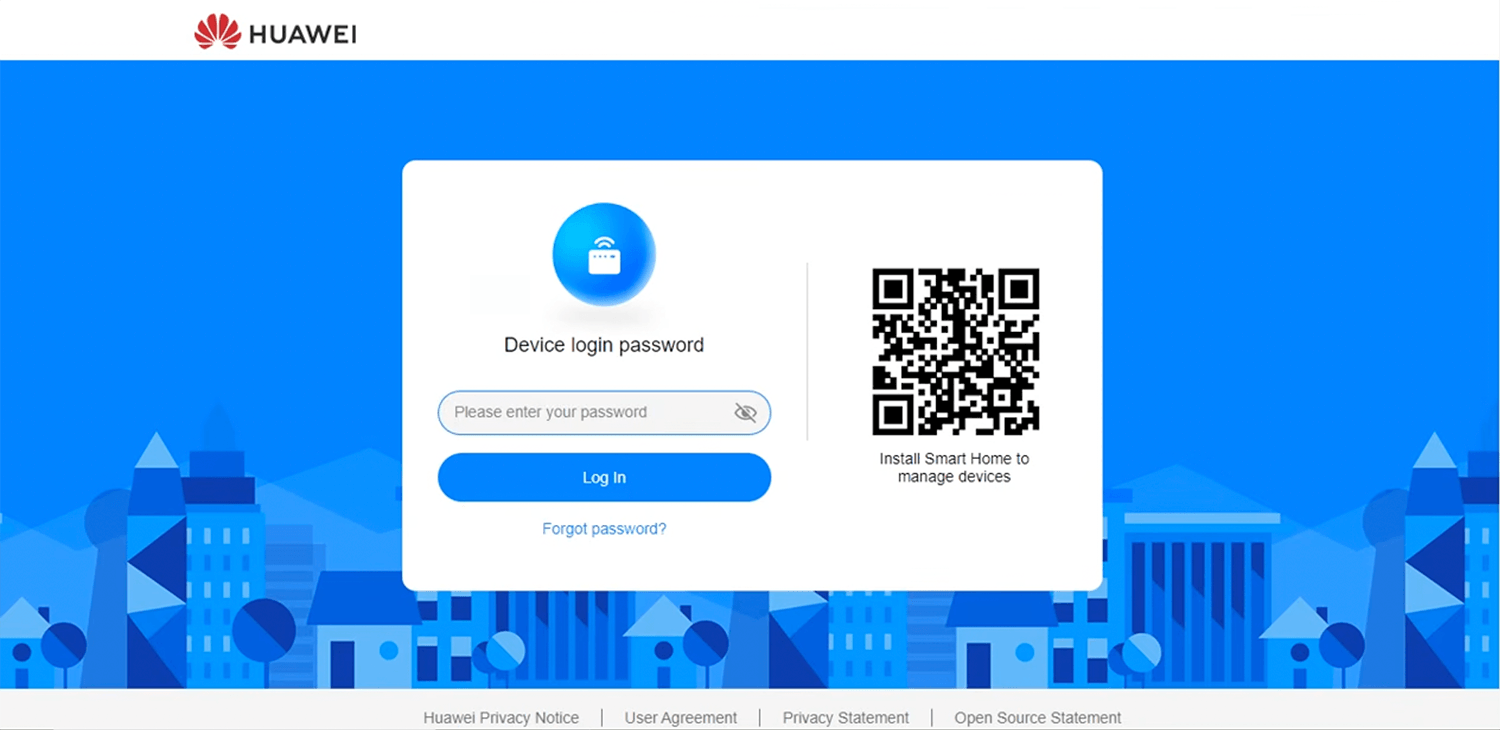
  3. Enter the Device Login Password and click Log In.
  4. Select Wi-Fi Settings > Wi-Fi Basic Settings.
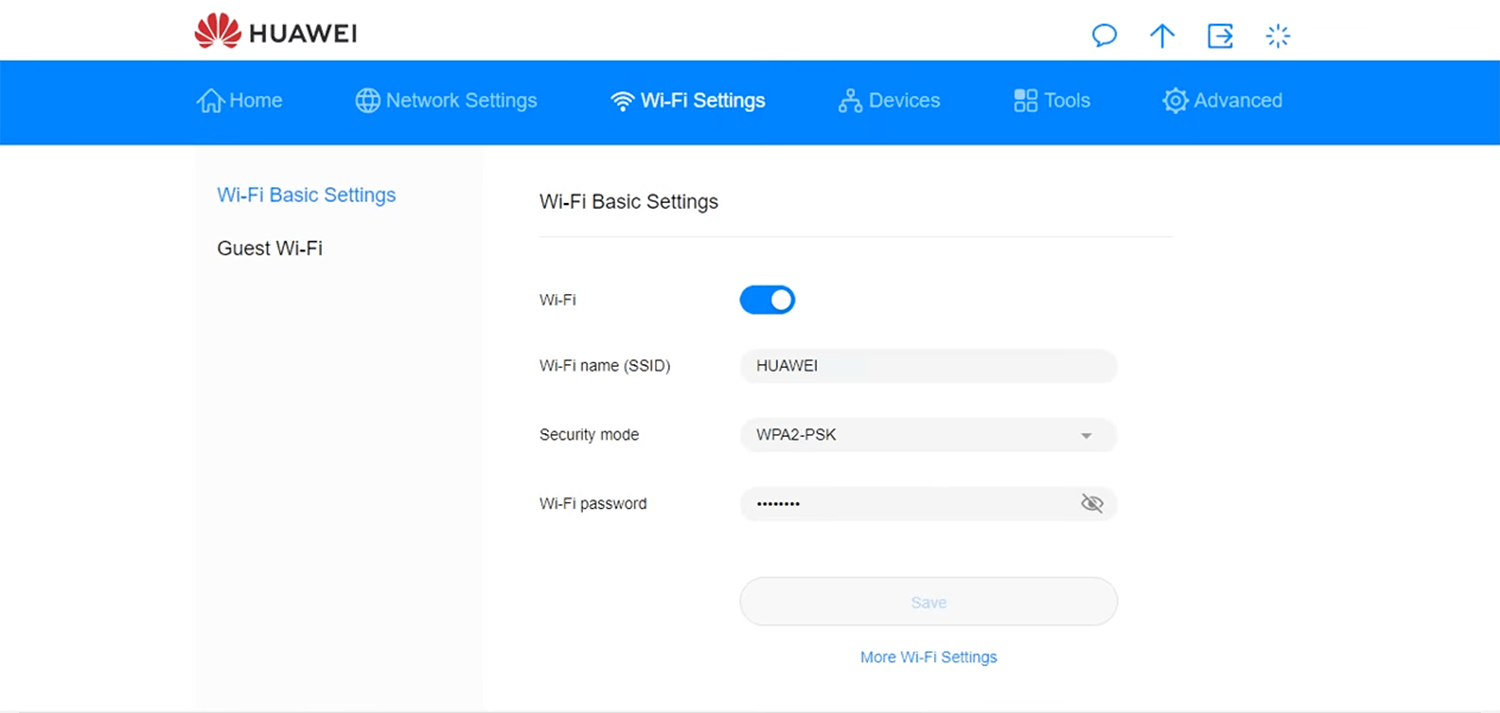
  5. Enter the Wi-Fi network name in the Wi-Fi name(SSID) field.
  6. Select Security Mode: WPA2-PSK.
  7. Enter the Wi-Fi password in the Wi-Fi password field
  8. Click Save.

Popular Router IP Addresses

Popular Router Brands