
| Default IP Address | |
|---|---|
| 192.168.1.1 | |
| 192.168.0.1 |
Default Username and Password
| Router Model | IP Address | Username | Password |
|---|---|---|---|
| ZXHN F660 | 192.168.1.1 | admin | admin |
| U10 | 192.168.0.1 | Not required | [Printed on router sticker] |
| ZXHN F680 | 192.168.1.1 | admin | Web@0063 |
| MF296C | 192.168.0.1 | Not required | [Printed on router sticker] |
| ZXHN F670L | 192.168.1.1 | admin | admin |
| ZXHN F670L | 192.168.1.1 | admin | 1234 |
| ZXHN F660 | 192.168.1.1 | user | user |
| ZXHN F609 | 192.168.1.1 | admin | Telkomdso123 |
| U50 | 192.168.0.1 | Not required | [Printed on router sticker] |
| ZXHN F6600P | 192.168.1.1 | admin | 1234 |
| ZXHN H168N | 192.168.10.1 | admin | [Printed on router sticker] |
| MC801A | 192.168.0.1 | Not required | [Printed on router sticker] |
| ZXHN H268A | 192.168.20.1 | admin | admin |
| MF275R | 192.168.0.1 | Not required | admin |
| MF289F | 192.168.0.1 | Not required | [Printed on router sticker] |
| ZXHN H267N | 192.168.1.1 | cytauser | cytauser |
| ZXHN H288A | 192.168.1.1 | user | [Printed on router sticker] |
| ZXHN H288A | 192.168.1.254 | admin | [Printed on router sticker] |
| ZXHN H288A | 192.168.254.254 | user | [Printed on router sticker] |
| ZXHN H288A | 192.168.1.1 | user | [Printed on router sticker] |
| ZXHN F670L | 192.168.100.1 | admin | [Printed on router sticker] |
| MF910 | 192.168.0.1 | Not required | admin |
| MF255V | 192.168.0.1 | Not required | [Printed on router sticker] |
| MC888 | 192.168.0.1 | Not required | [Printed on router sticker] |
| MC888 Pro | 192.168.32.1 | Not required | [Printed on router sticker] |
| MC888 Pro | 192.168.100.1 | Not required | [Printed on router sticker] |
| H1600 | 192.168.20.1 | admin | admin |
| H1600 | 192.168.20.1 | admin | Haikui_V2 |
How to login to ZTE router?

1) Connect your device to the router via an Ethernet cable or Wi-Fi connection.
2) Open a web browser and type the IP address in the address bar.
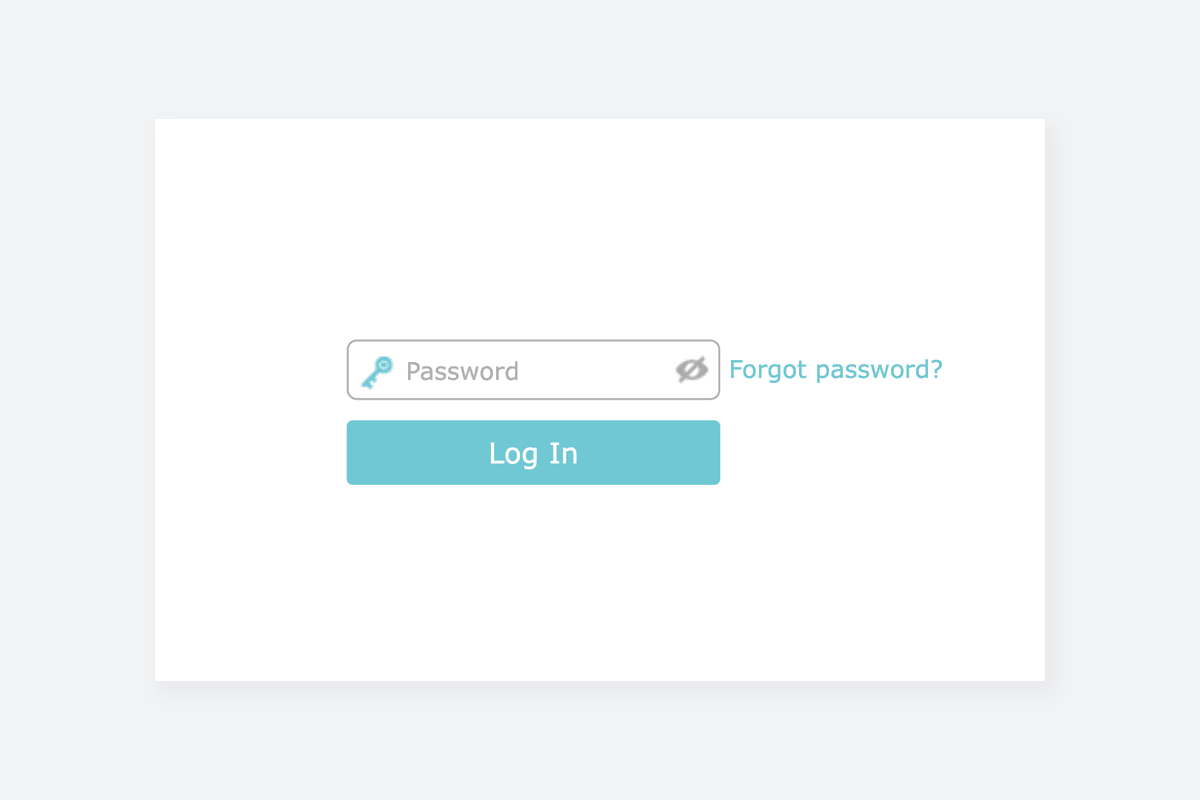
3) Enter the router username and password and click Login.
ZTE web user interface (UI) is a built-in function of your router where you can configure your device settings. This feature does not require an active internet connection however you must connect the computer with the router via port WAN/LAN or LAN2. If you prefer Wi-Fi connection, you can find the default information on the label on the back of your router. Once you are connected, you need to open a web browser such as Google Chrome, Mozilla Firefox, or Microsoft Edge and type in the default IP address and press enter. You can find a list of default logins in our website. Simply enter your ZTE router model number to search the available details. Now type in the default login credentials to access your router’s settings.
While most router comes with factory default settings, your broadband network provider may have set a custom login credentials. In such cases where factory default username and password is not working, you need to contact your broadband service provider for assistance.
Change ZTE Wi-Fi Password and Network Name (SSID)
ZTE ZXHN F609
- Connect your device to the router, either by Wi-Fi or with an Ethernet cable.
- Open a browser and type http://192.168.1.1 in the address bar.
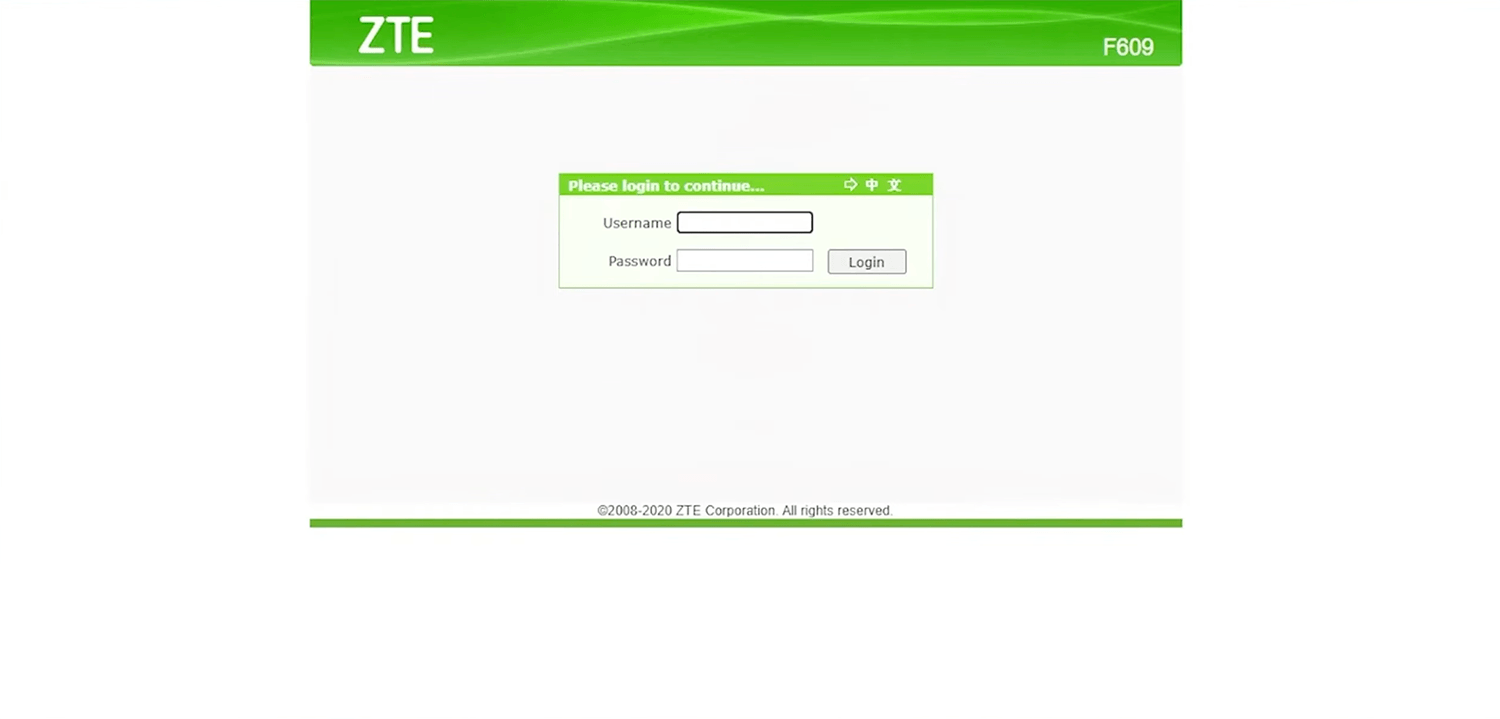
- Enter the Username and Password and click Login.
- Select Network > WLAN > SSID Settings.
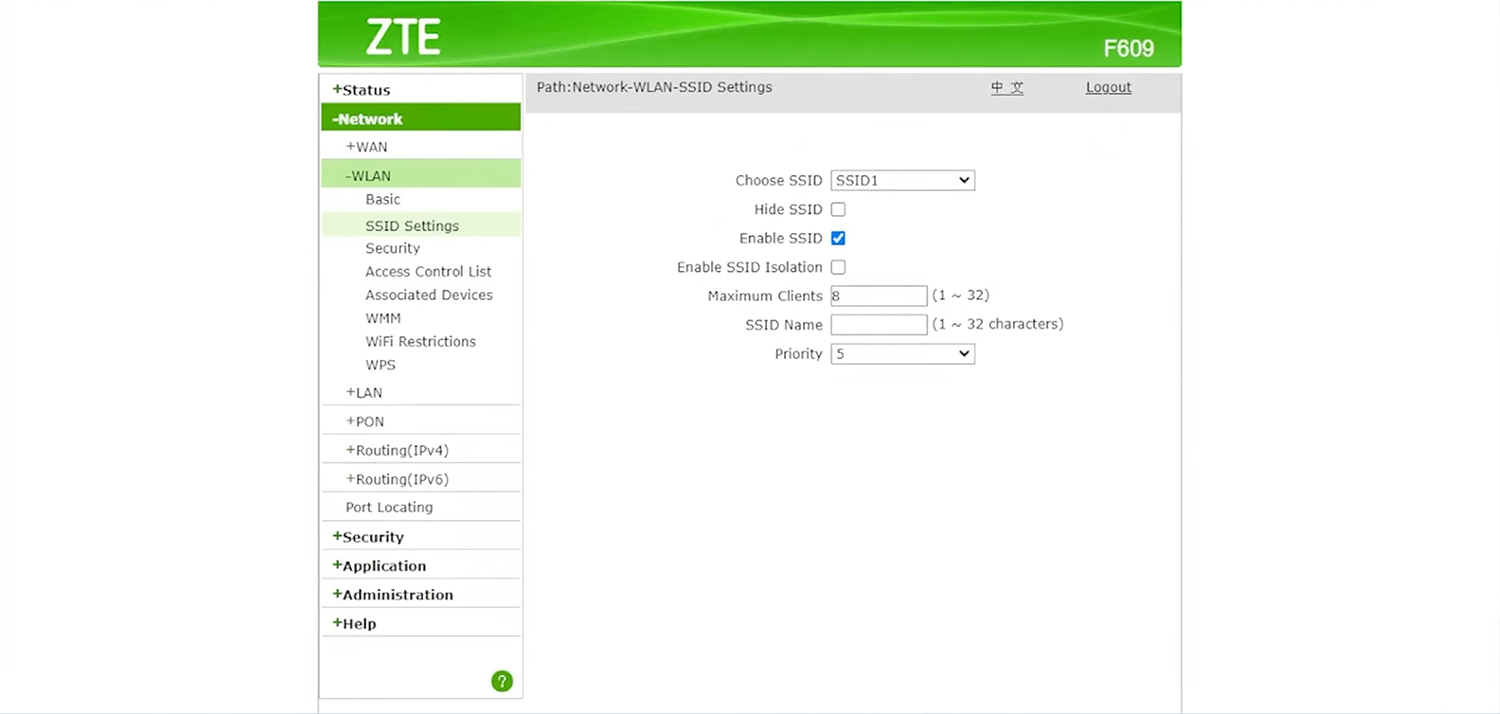
- Enter the Wi-Fi network name in the SSID Name field and click Submit.
- Select Network > WLAN > Security.
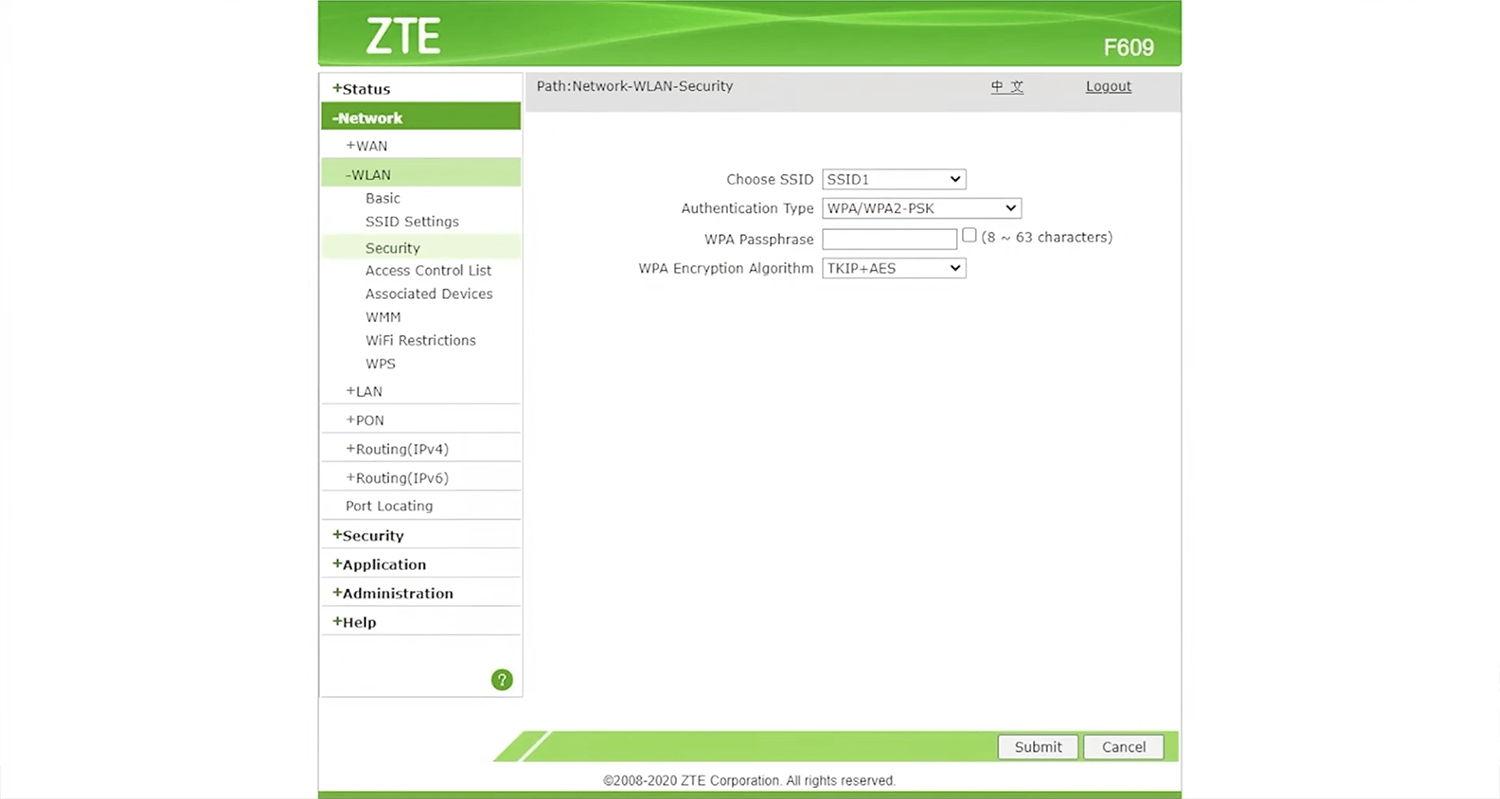
- Select Authentication Type: WPA/WPA2-PSK and WPA Encryption Algorithm: TKIP+AES.
- Enter the Wi-Fi password in the WPA passphrase field and click Submit.
ZTE ZXHN F670L
- Connect your device to the router, either by Wi-Fi or with an Ethernet cable.
- Open a browser and type http://192.168.1.1 in the address bar.
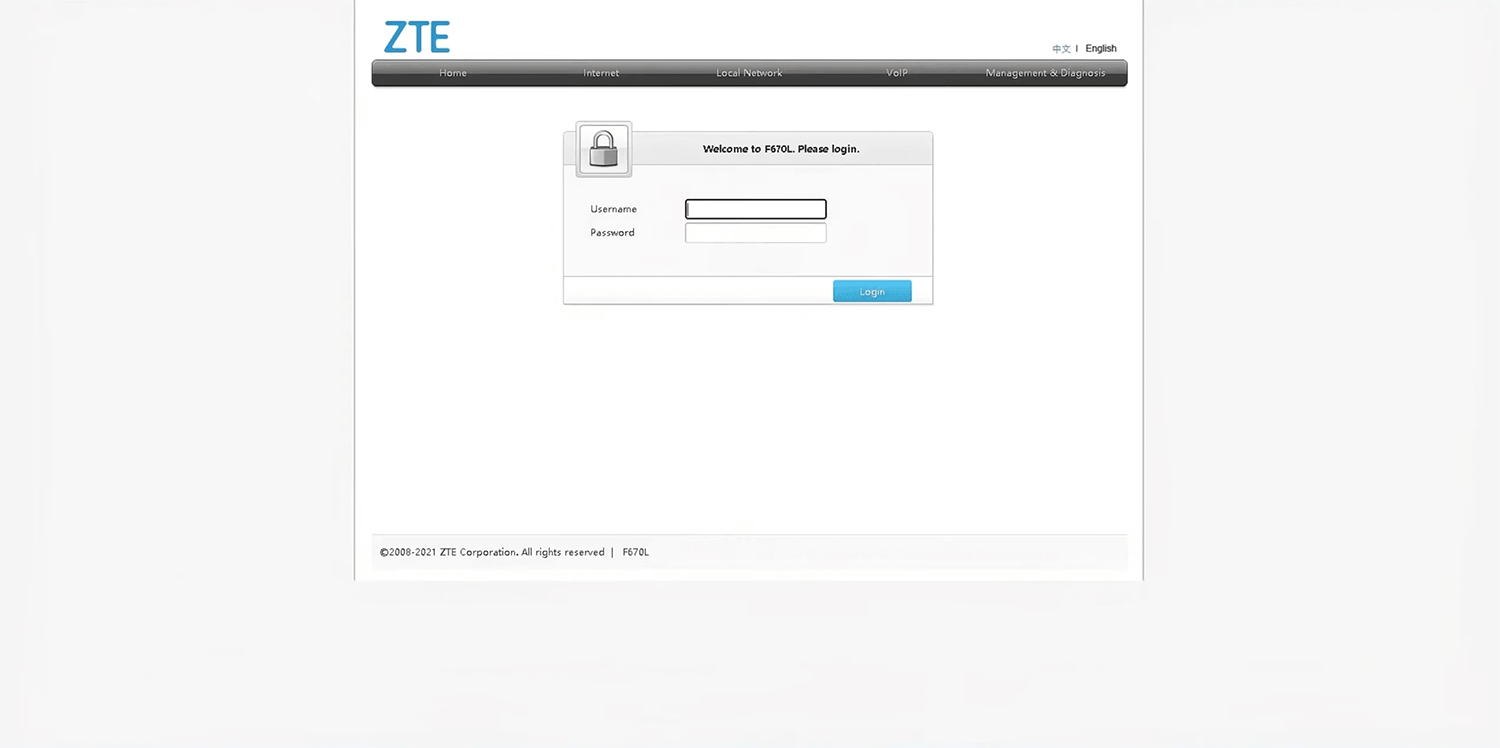
- Enter the Username and Password and click Login.
- Select Local Network > WLAN > WLAN Basic > WLAN SSID Configuration.
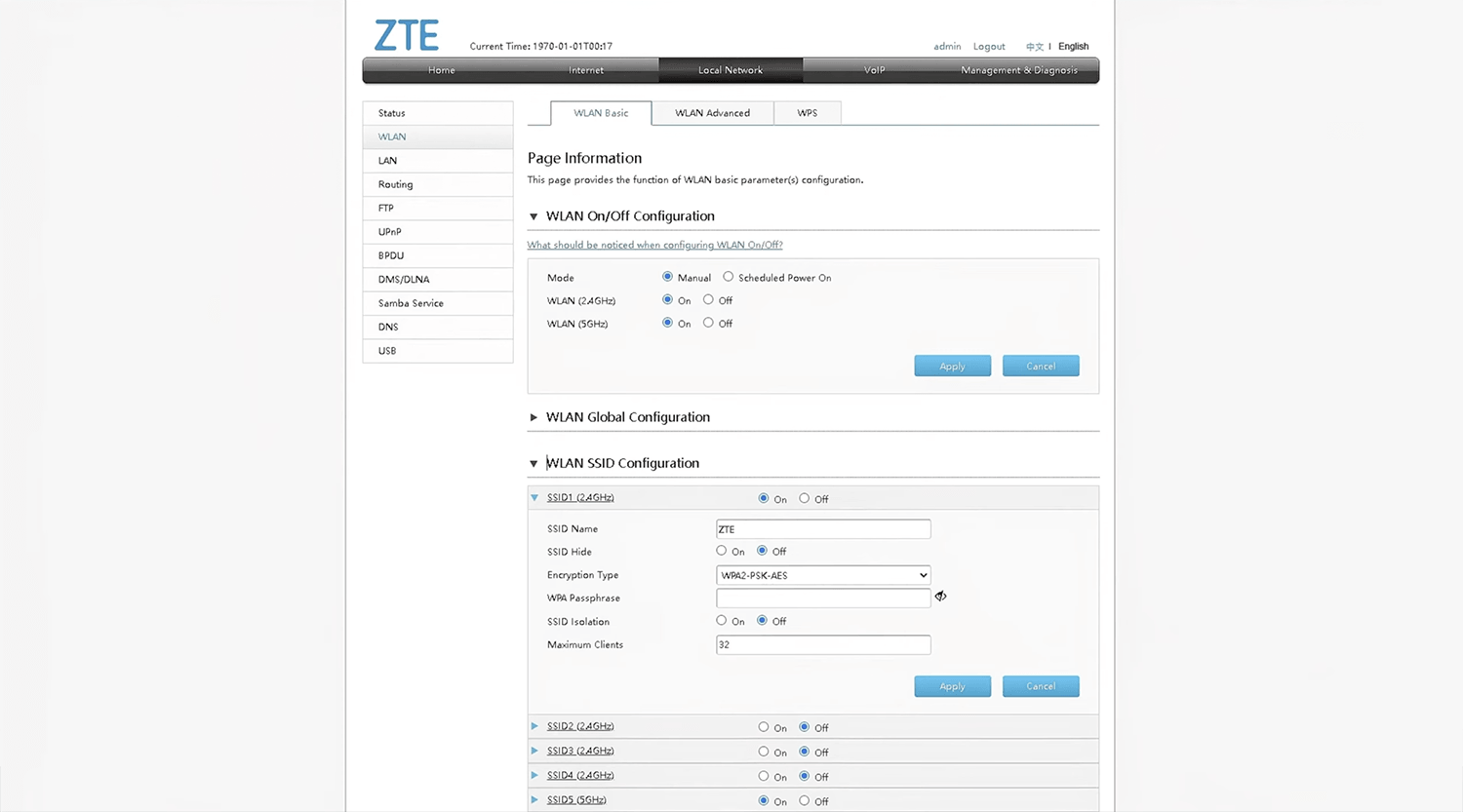
- Enter the Wi-Fi network name in the SSID Name field.
- Enter the Wi-Fi password in the WPA Passphrase field
- Click Apply to save the changes.
ZTE MC801A
- Connect your device to the router, either by Wi-Fi or with an Ethernet cable.
- Open a browser and type http://192.168.0.1 in the address bar.
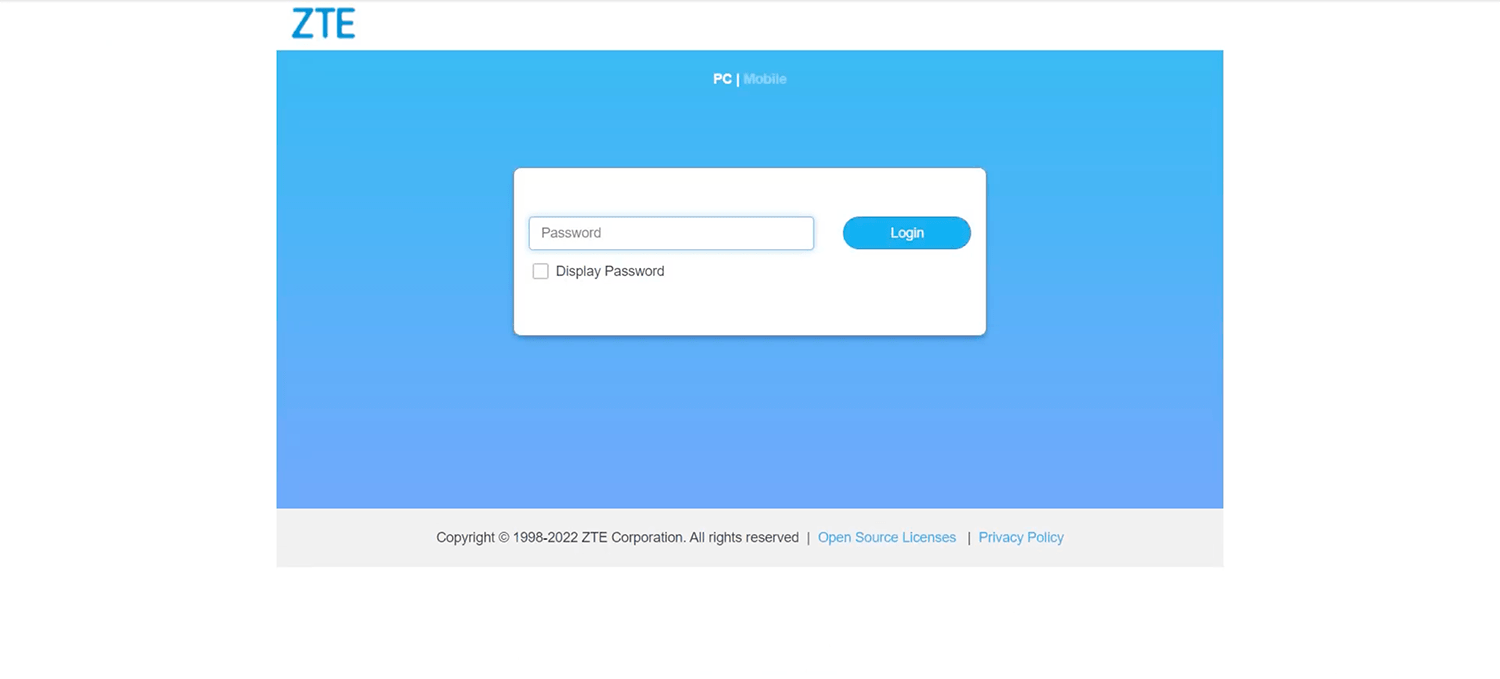
- Enter the Password and click Login. The default password is printed on the label on the back of your device.
- Select Wi-Fi Settings > Main SSID.
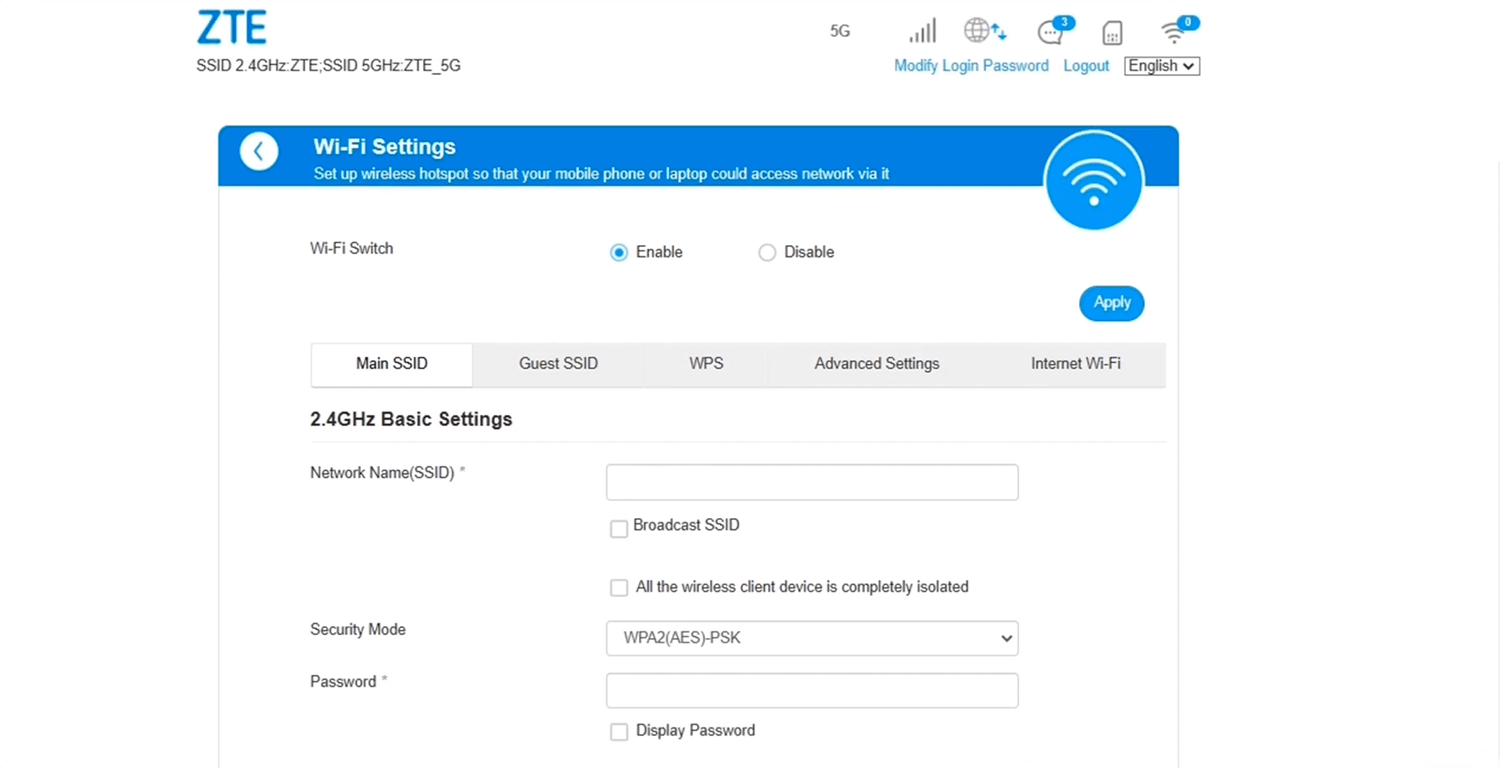
- Enter the Wi-Fi network name in the Network Name(SSID) field.
- Select Security Mode: WPA2(AES)-PSK.
- Enter the Wi-Fi password in the Password field
- Click Apply to save the changes.