
Arris web-based user interface allows you to change your Wi-Fi password, Network Name (SSID), and other default router settings. The gateway IP address vary depending on the Arris router model.
To access your Arris router settings, type the IP address in the address bar of your web browser or click on the Login button below.
| Default IP Address | |
|---|---|
| 192.168.0.1 |
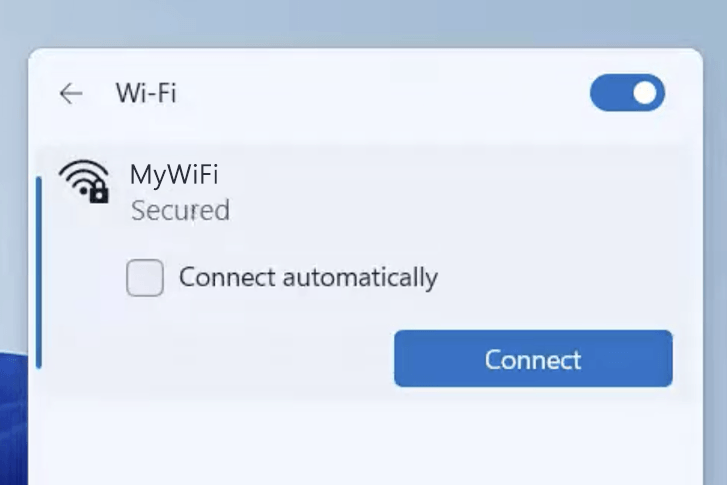
Your device must be connected to the router via Wi-Fi or an Ethernet cable.
The gateway IP address will only load on the browser when your device is connected to the router. For help, see How to find your router IP address? and Can’t connect to my Router login page; what do I do?.
Default Username and Password
Common Arris routers default username and password combinations.
| Router Model | IP Address | Username | Password |
|---|---|---|---|
| DG3450 | 192.168.0.1 | admin | [Same as Preshared Key] |
| SVG2482AC | 192.168.0.1 | admin | password |
| TG3452 | 192.168.0.1 | admin | [Same as Preshared Key] |
| SBG6950AC2 | 192.168.0.1 | admin | password |
| G34 | 192.168.0.1 | admin | [Same as Wi-Fi Security Key printed on device label] |
| G36 | 192.168.0.1 | admin | [Same as Wi-Fi Security Key printed on device label] |
| SBG8300 | 192.168.0.1 | admin | [Password printed on device label] |
| SB8200 | 192.168.100.1 | admin | [Last 8 digits of the S/N] |
| G54 | 192.168.0.1 | admin | [Same as Wi-Fi Security Key printed on device label] |
Note: The default IP address, Username, and Password are printed on a sticker on the back or underside of the router. Some routers require you to create a new password during initial setup.
How to login to Arris router?

1) Connect your device to the router via an Ethernet cable or Wi-Fi connection.
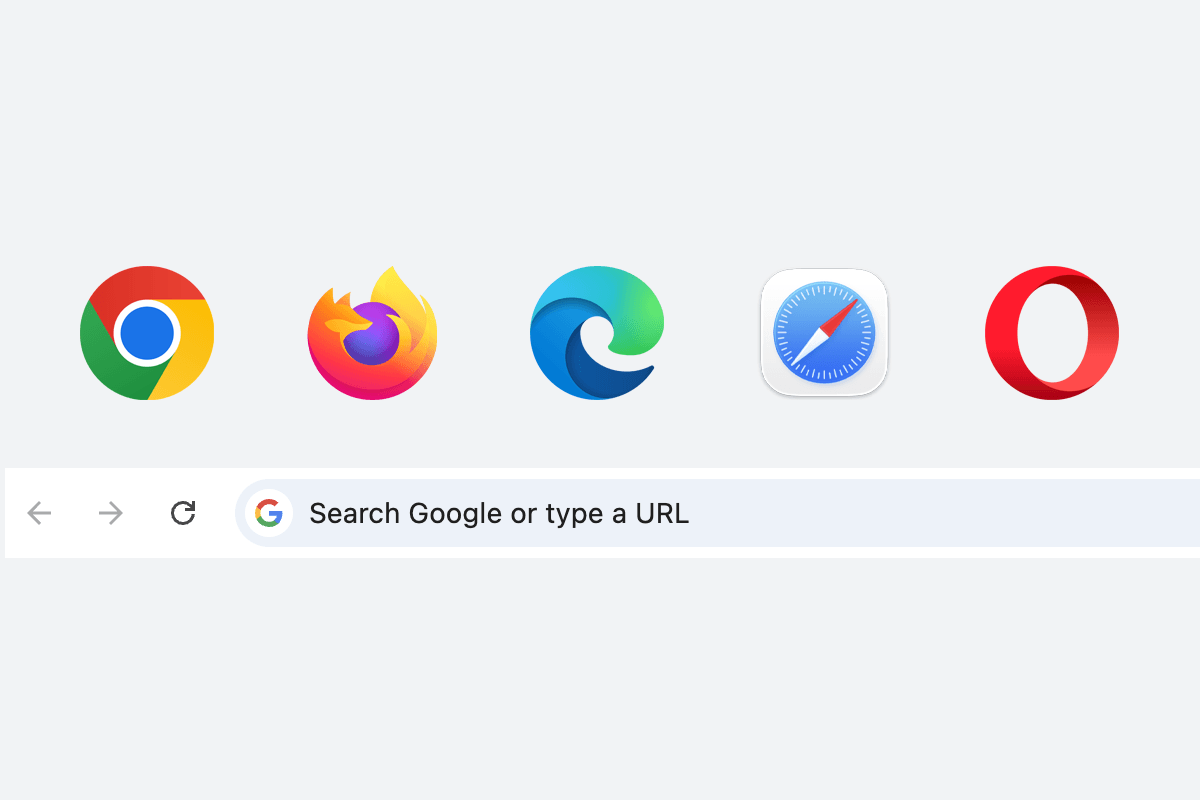
2) Open a web browser and type the IP address in the address bar.
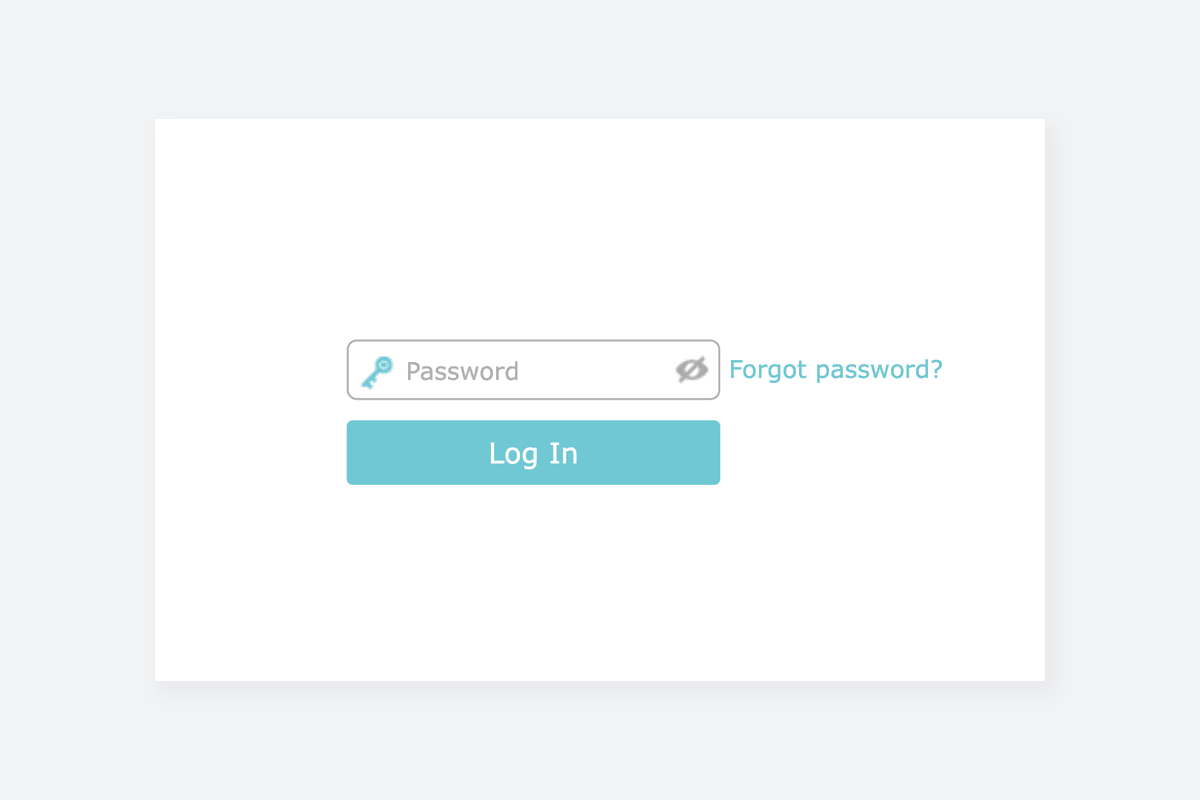
3) Enter the router username and password and click Login.
Change Arris Wi-Fi Password and Network Name (SSID)
Arris web interface varies depending on the router model and firmware version. Select a router model for your reference.
Arris DG3450
- Connect your device to the router, either by Wi-Fi or with an Ethernet cable.
- Open a browser and type http://192.168.0.1 in the address bar.
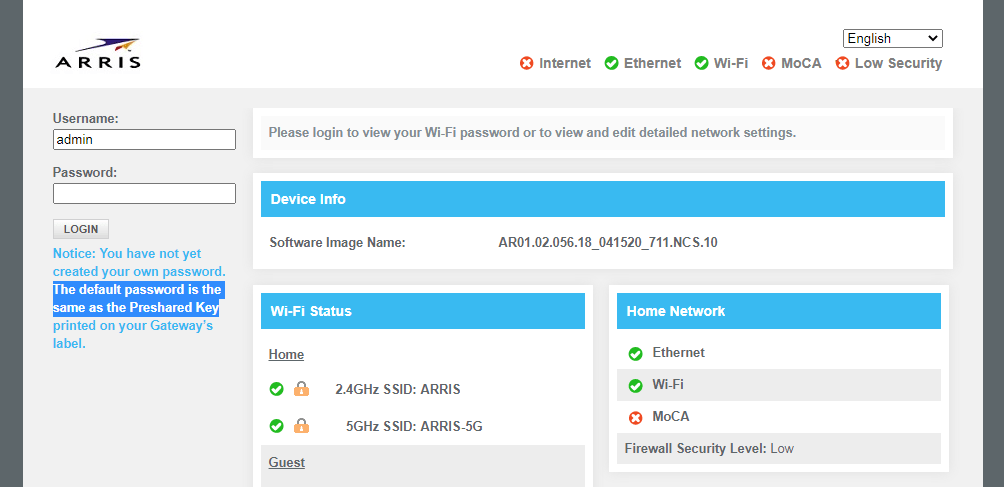
- Enter the Username: admin and Password and click Login. The default password is the same as the Preshared Key printed on your Gateway’s label.
- Navigate to Gateway > Connection > Wi-Fi > Networks.
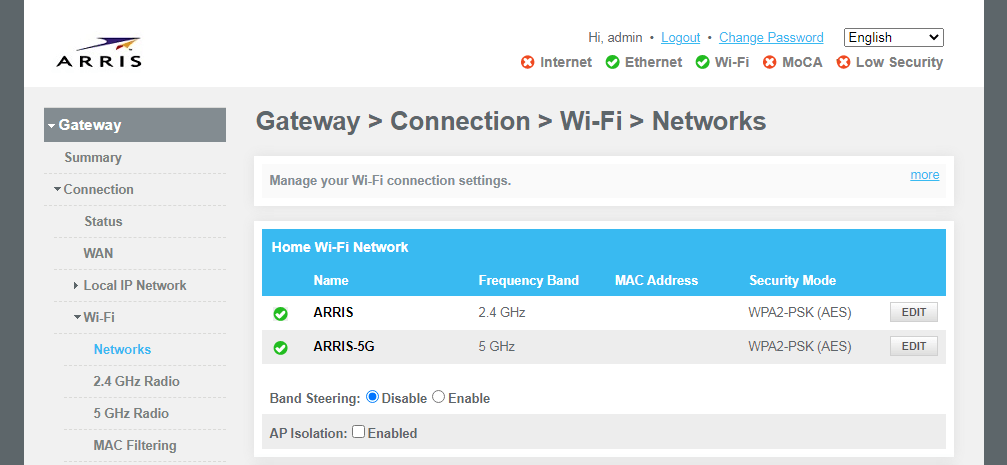
- Click EDIT button next to the 2.4 GHz or 5 GHz Frequency Band.
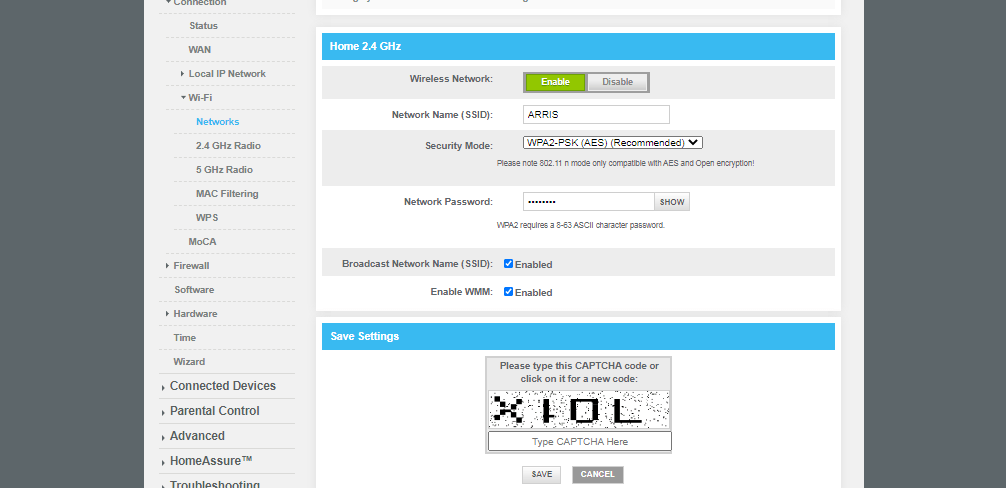
- Enter the Wi-Fi network name in the Network Name (SSID) field.
- Select Security Mode: WPA2-PSK (AES) (Recommended).
- Enter the Wi-Fi password in the Network Password field
- Enter the captcha code and click SAVE settings.
ARRIS SURFboard SBG6950AC2
- Connect a device to the Arris router via an Ethernet cable or Wi-Fi.
- Open a browser and type http://192.168.0.1 in the address bar.
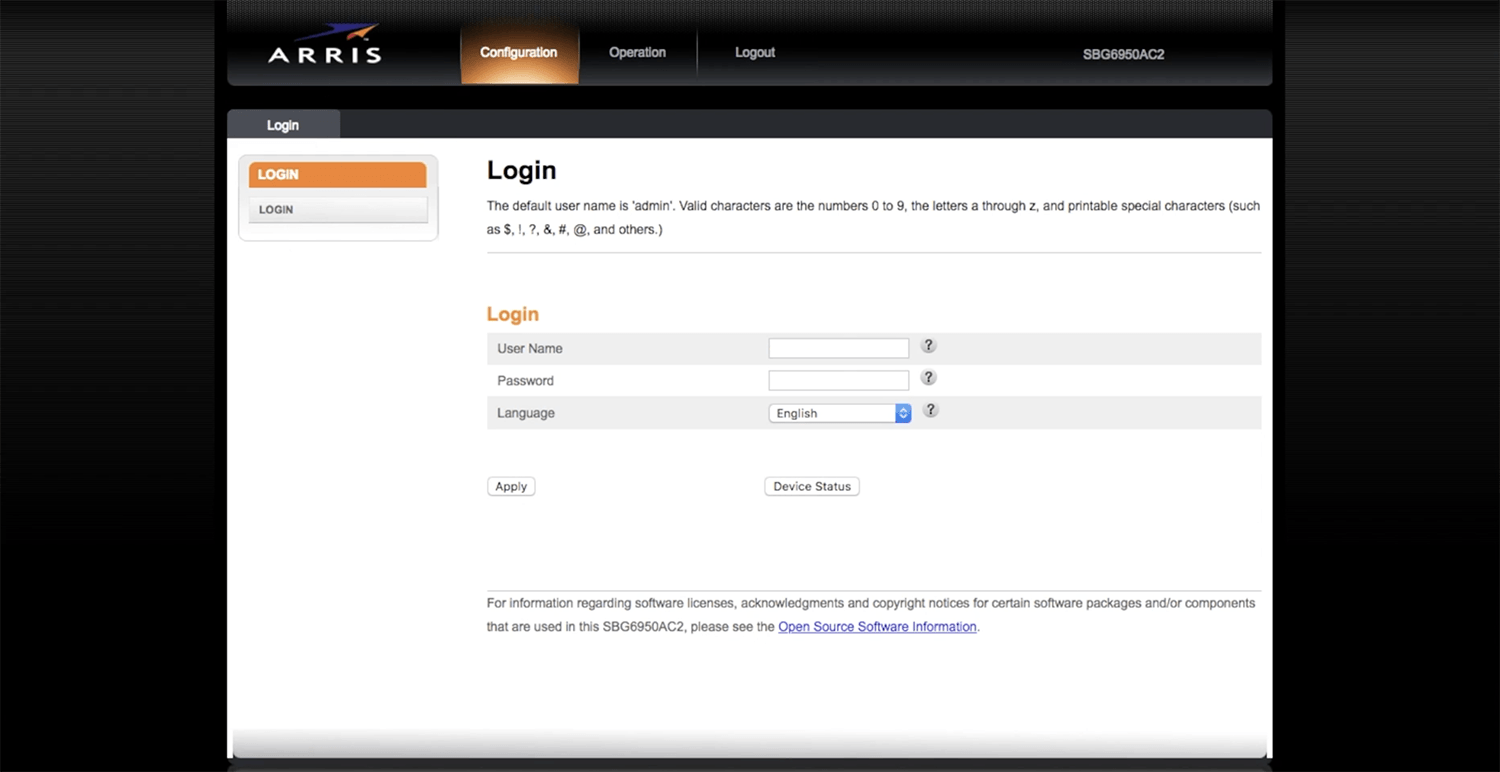
- Enter the User Name: admin and Password: password and click Apply.
- Navigate to Configuration > Basic Setup.
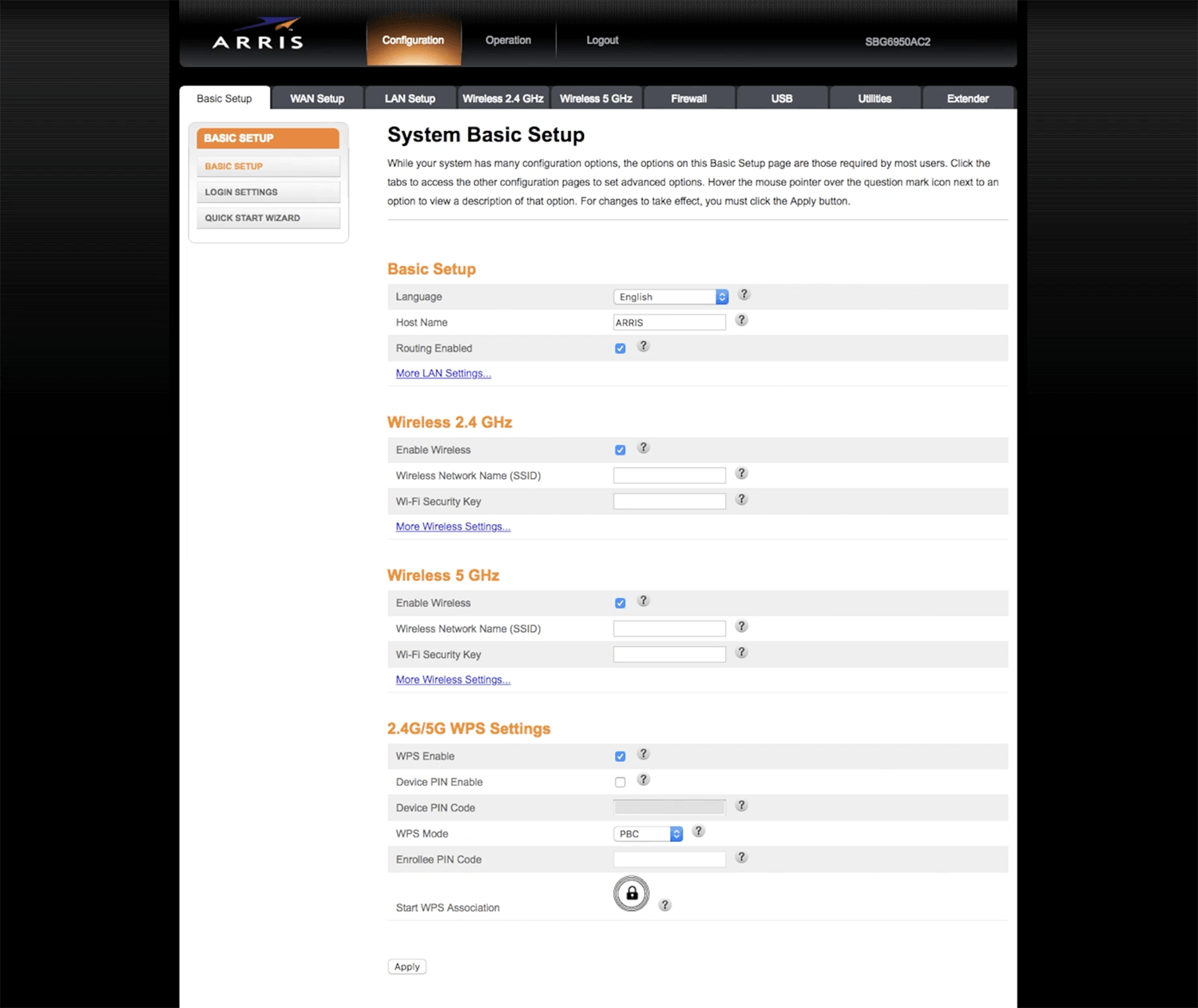
- Enable Wireless 2.4 GHz and/or Wireless 5 GHz.
- Enter the Wi-Fi network name in the Wireless Network Name (SSID) field.
- Enter the Wi-Fi password in the Wi-Fi Security Key field.
- Click Apply to save the changes.