
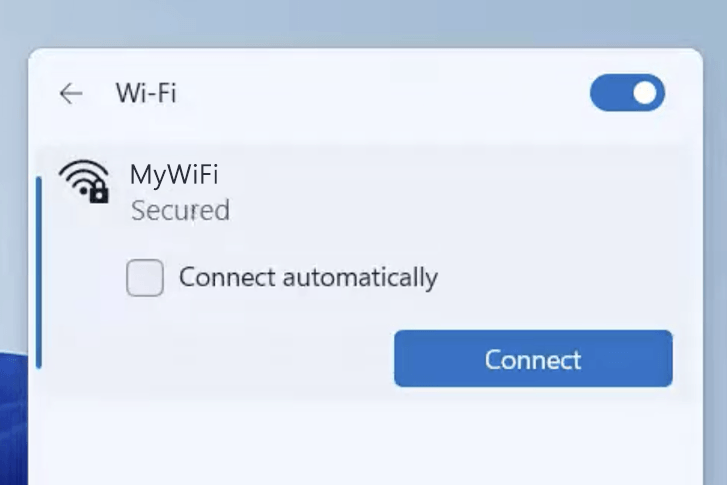
1) Connect your device to the router via an Ethernet cable or Wi-Fi connection.
2) Open a web browser and type the IP address in the address bar.
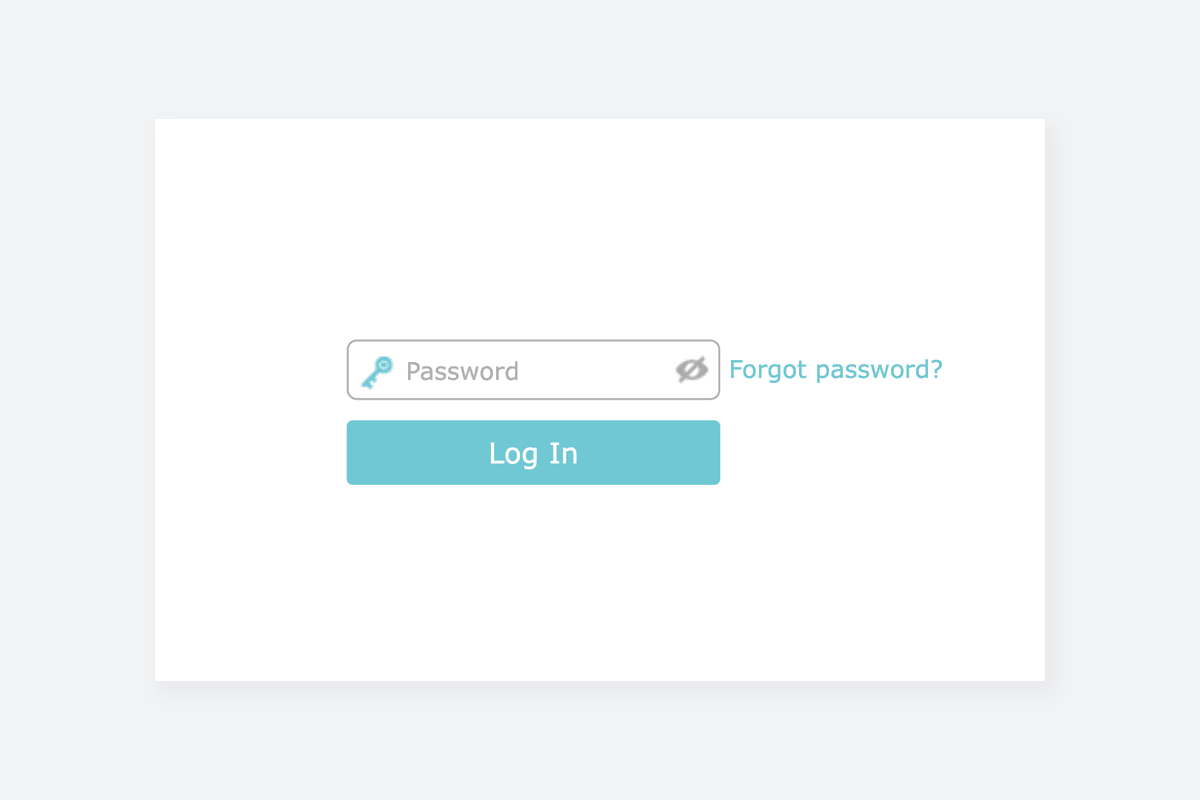
3) Enter the router username and password and click Login.
Zyxel VMG8825-T50
- Connect your device to the router, either by Wi-Fi or with an Ethernet cable.
- Open a browser and type http://192.168.1.1 in the address bar to access the web configurator.
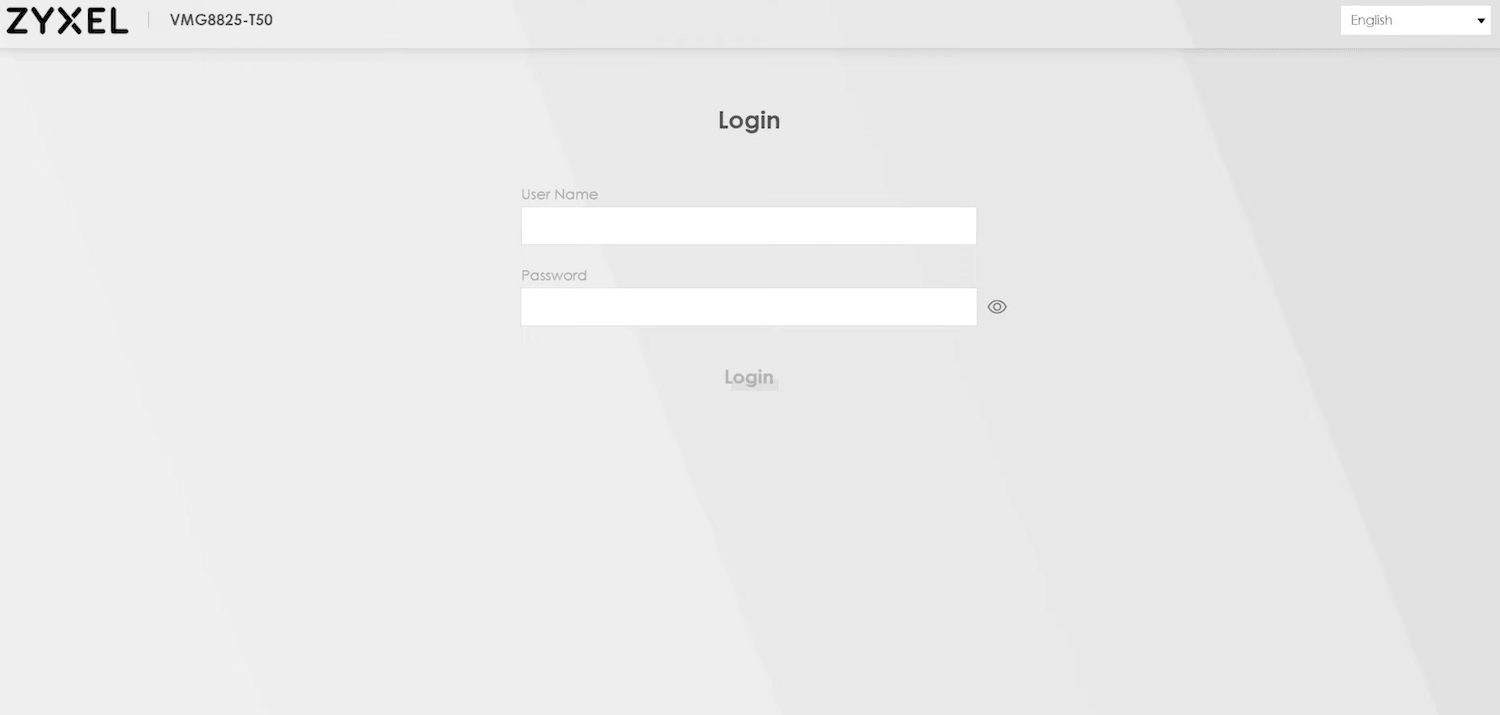
- Enter the User Name: admin and Password and click Login.
- Select WiFi Settings from the Connection Status screen.
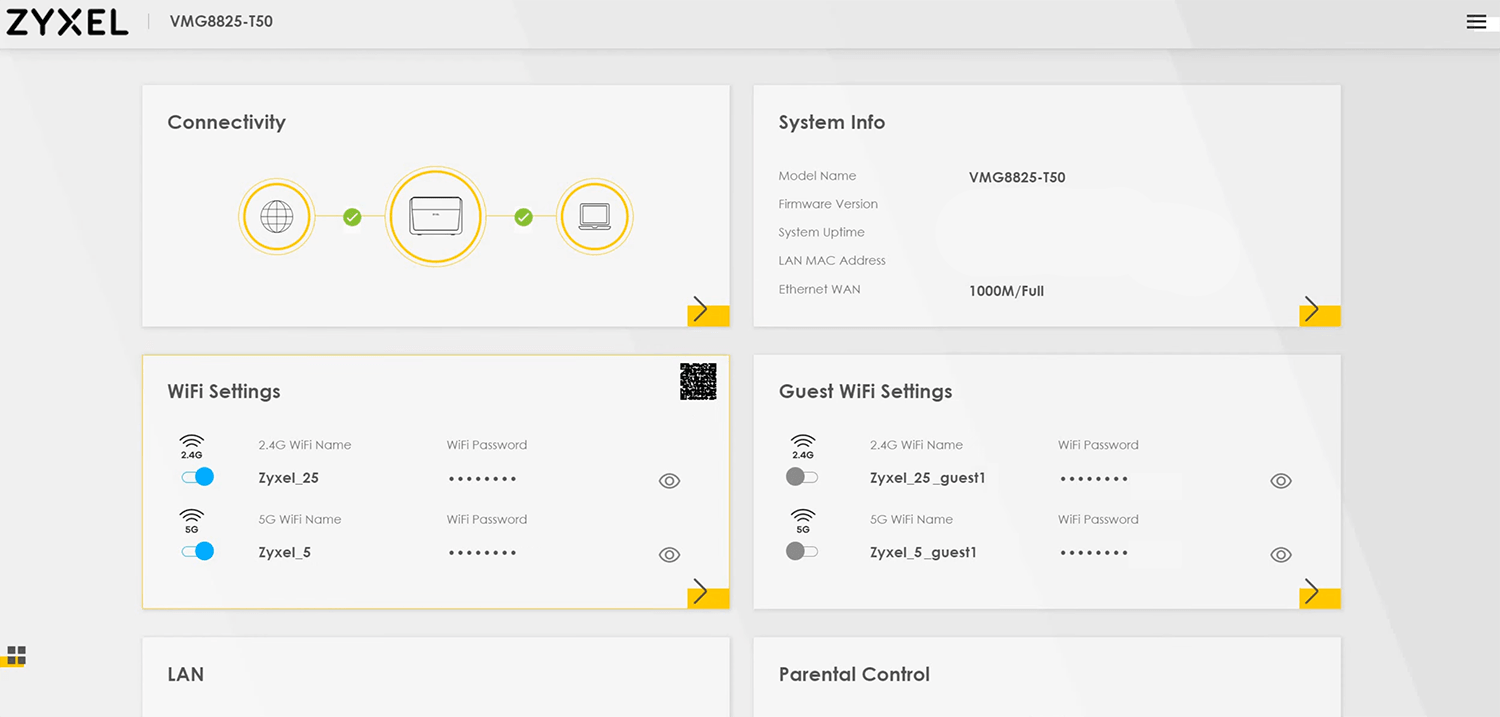
- Toggle on 2.4G WiFi and/or 5G WiFi. You can also select Keep 2.4G and 5G the same option.
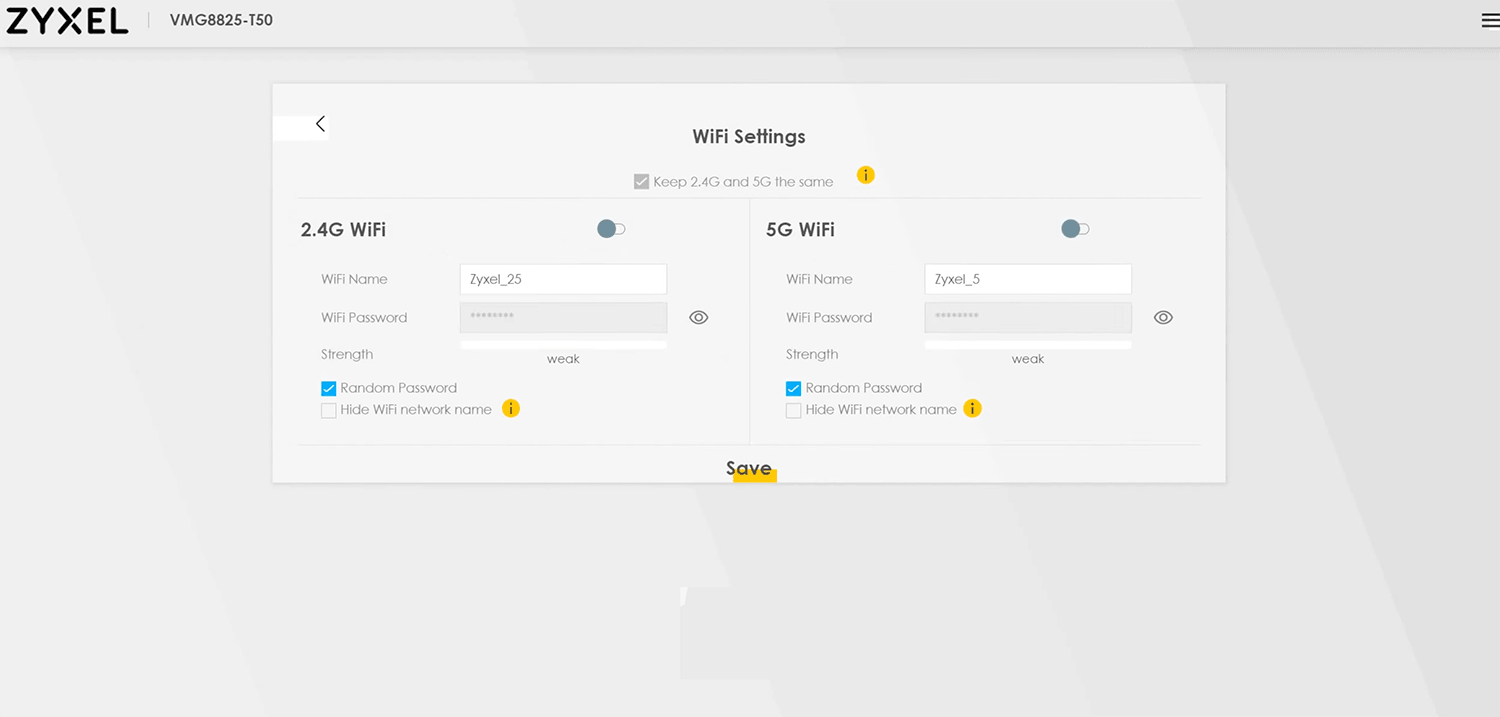
- Enter the Wi-Fi network name in the WiFi Name field.
- Unselect Random Password to enter a custom password.
- Enter the Wi-Fi password in the WiFi Password field.
- Click Save.
Zyxel NBG-418N v2
- Connect your device to the router via Wi-Fi or an Ethernet cable.
- Open a browser and type http://192.168.1.1 in the address bar.
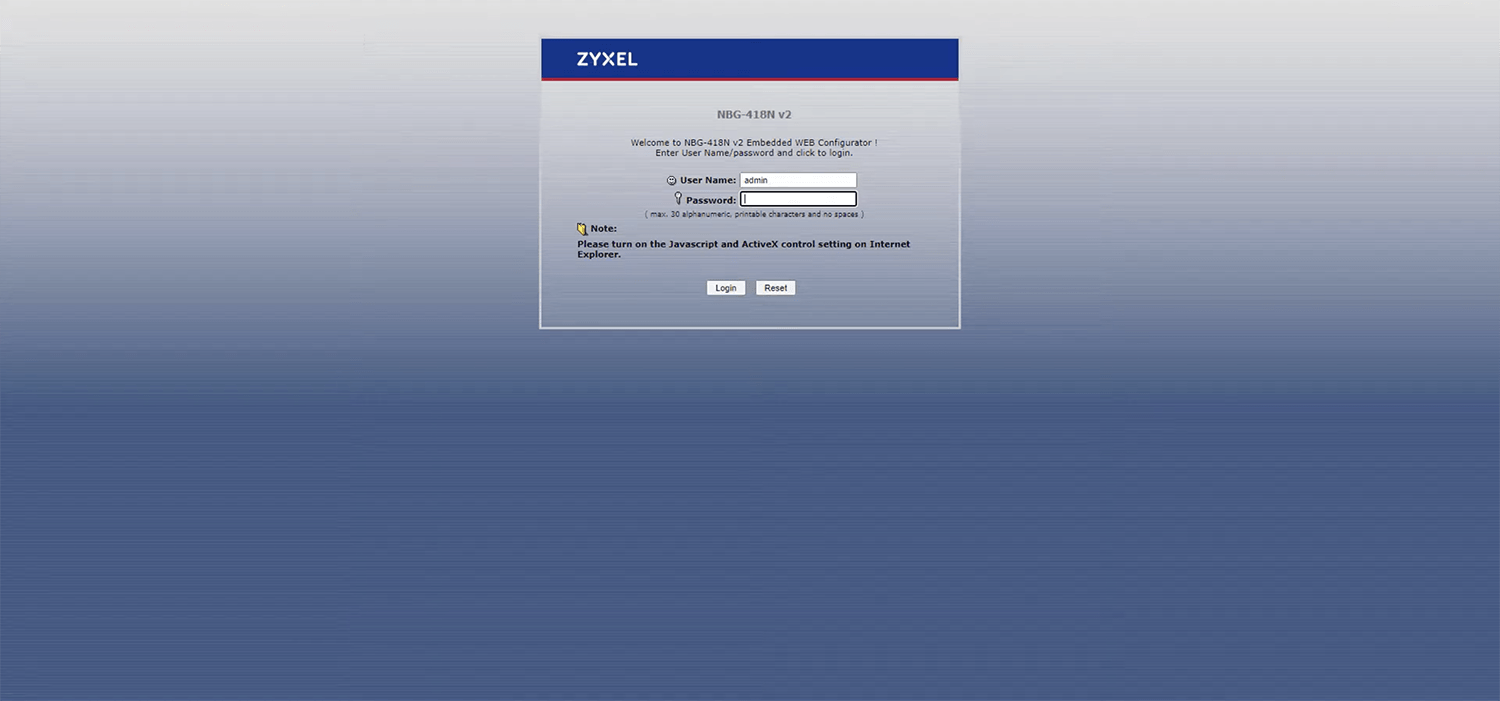
- Enter the User Name and Password and click Login.
- Select Network > Wireless LAN.
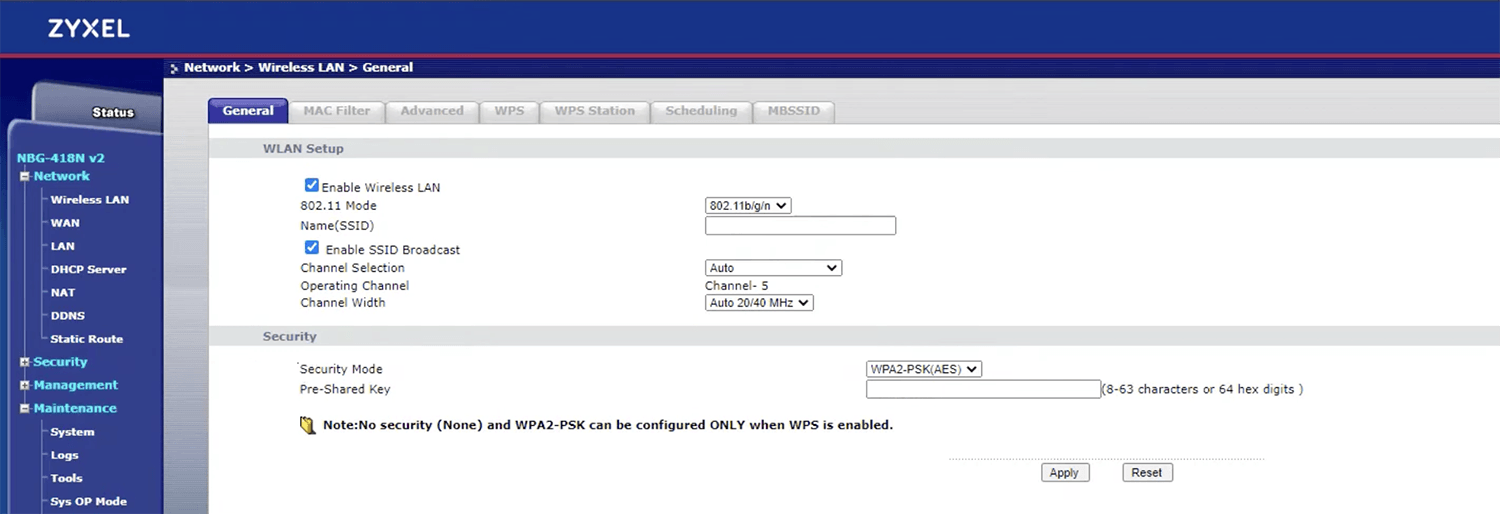
- Enter the Wi-Fi network name in the Name(SSID) Name field.
- Select Security Mode: WPA2-PSK(AES).
- Enter the Wi-Fi password in the Pre-Shared Key field.
- Click Apply.
Zyxel PMG5617-R20B
- Connect a device to your Zyxel router using an Ethernet cable or Wi-Fi.
- Open a browser and type http://192.168.1.1 in the address bar.
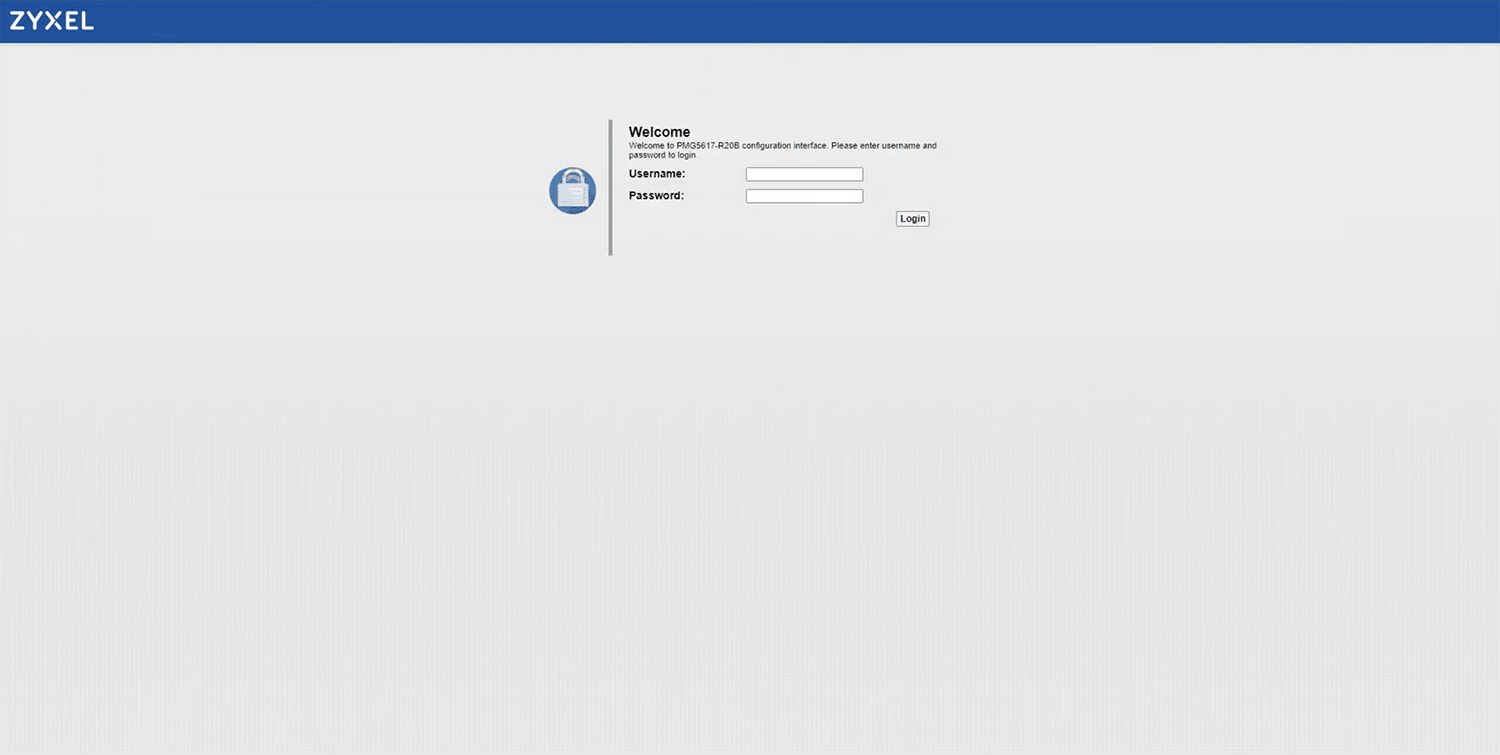
- Enter the Username and Password and click Login.
- Select Network Setting > Wireless 2.4GHz or Wireless 5GHz > General.
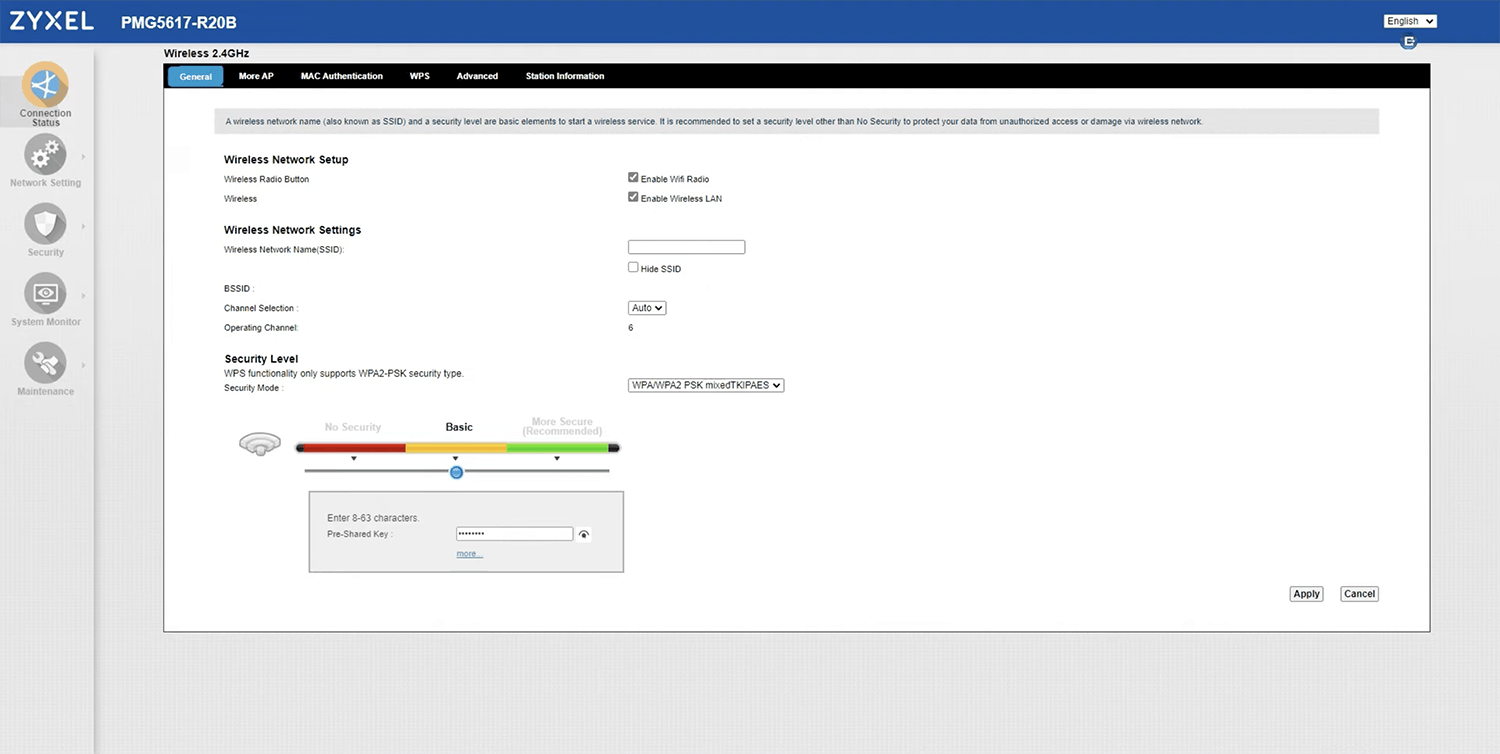
- Enter the Wi-Fi network name in the Wireless Network Name(SSID) field.
- Select Security Level: WPA/WPA2 PSK mixedTKIPAES.
- Enter the Wi-Fi password in the Pre-Shared Key field
- Click Apply to save the changes.
Zyxel C1100Z
- Connect a device to your router using an Ethernet cable or Wi-Fi.
- Open a browser and type http://192.168.0.1 in the address bar.
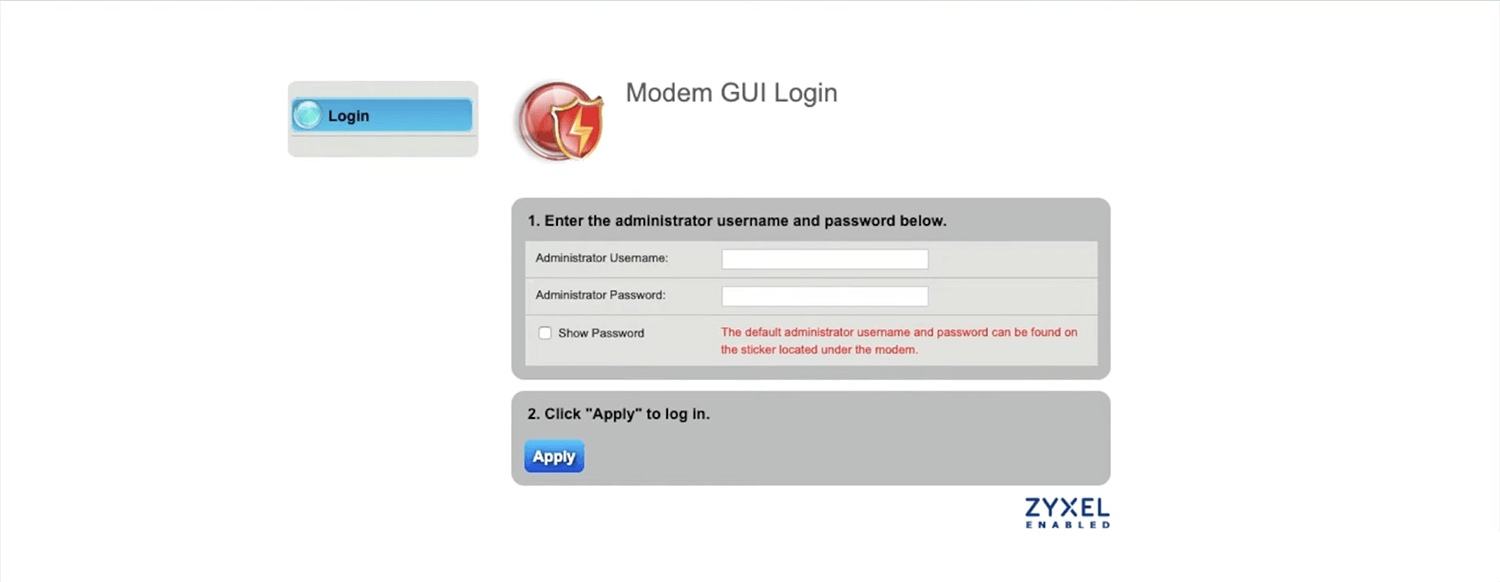
- Enter the Administrator Username and Password and click Apply to log in.
- Select Wireless Setup > Basic Settings.
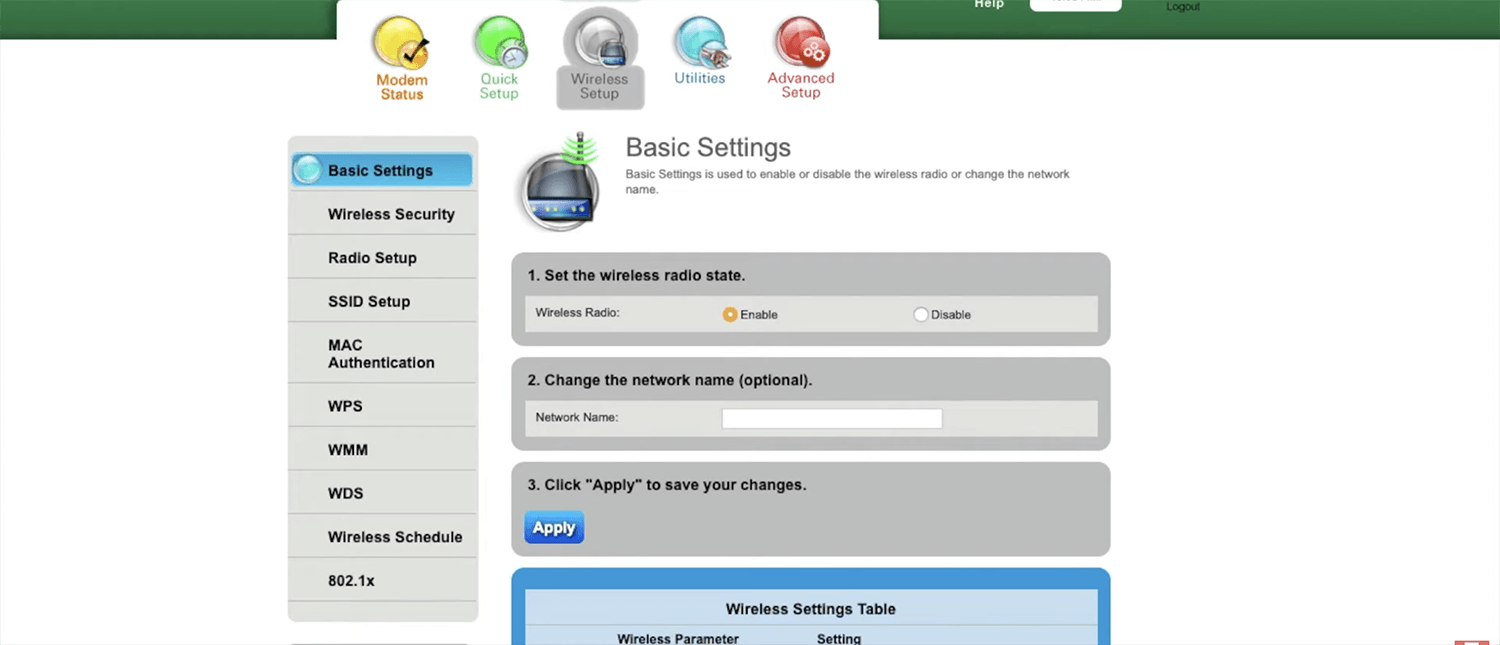
- Enter the Wi-Fi network name in the Network Name field and click Apply.
- Select Wireless Setup > Wireless Security.
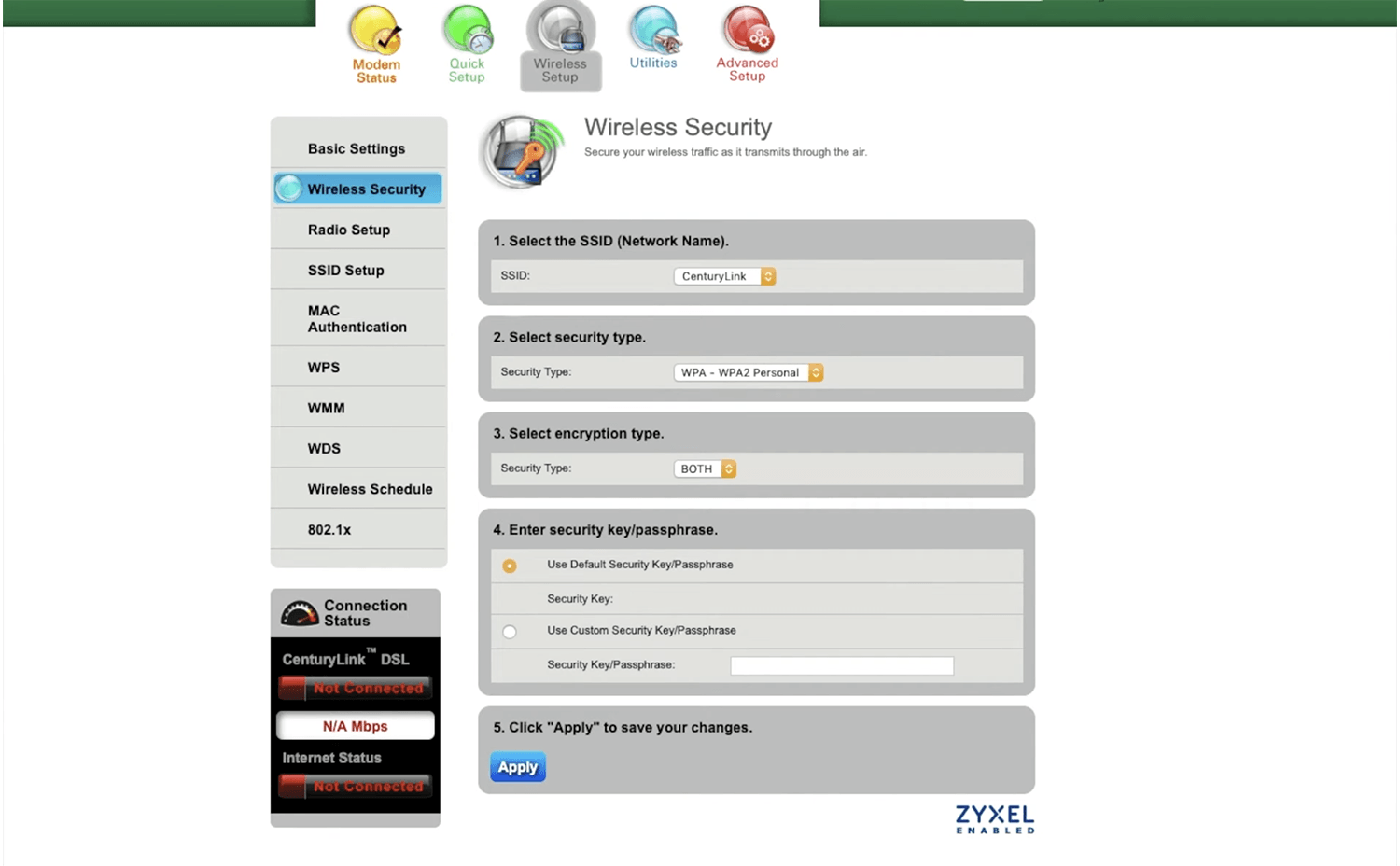
- Select security type: WPA – WPA2 Personal and encryption type: Both.
- Select Use Custom Security Key/Passphrase and enter the Wi-Fi password in the Security Key/Passphrase field
- Click Apply to save your changes.